Best Document Collaboration Software in 2026: 8 Tools Compared
Compare the best document collaboration software in 2026, with real-time editing, comments, pricing and honest limits to help teams write and review together.

- Editor's choice
 Google Docs
Teams that edit together in real time
Starts atFreeVisit docs.google.comFull review - Great alternative
 Microsoft Word
Teams that must share Office files
Starts atSee websiteVisit microsoft.comFull review - Also consider
 Notion
Teams that want docs, wikis and tasks together
Starts atFreeVisit notion.comFull review
TL;DR:
- Google Docs and Microsoft Word suit most teams, with Google Docs best for live editing and Word best for Office files.
- Notion and Coda suit teams that want docs, wikis and databases in one workspace.
- Confluence suits larger firms that need structured team documentation and permissions.
- Dropbox Paper, Zoho Writer and Quip suit smaller teams that want simple, low-cost collaboration.
Quick comparison
| Tool | Best for | Starts at | Free plan? | |
|---|---|---|---|---|
| Google Docs | Teams that edit together in real time | Free | Yes | Visit |
| Microsoft Word | Teams that must share Office files | See website | Free trial | Visit |
| Notion | Teams that want docs, wikis and tasks together | Free | Yes | Visit |
 Confluence | Larger teams that need structured documentation | See website | Free trial | Visit |
 Dropbox Paper | Teams that already use Dropbox | Free | Yes | Visit |
 Zoho Writer | Budget teams that want Word-style editing | Free | Yes | Visit |
 Quip | Teams that use Salesforce | See website | Free trial | Visit |
 Coda | Teams that want docs that work like apps | Free | Yes | Visit |
The best document collaboration software
Good document collaboration software keeps one version of the truth, shows who changed what, and lets reviewers comment without creating ten email attachments. The tools below do that job in different ways, from simple live editing to full workspaces.
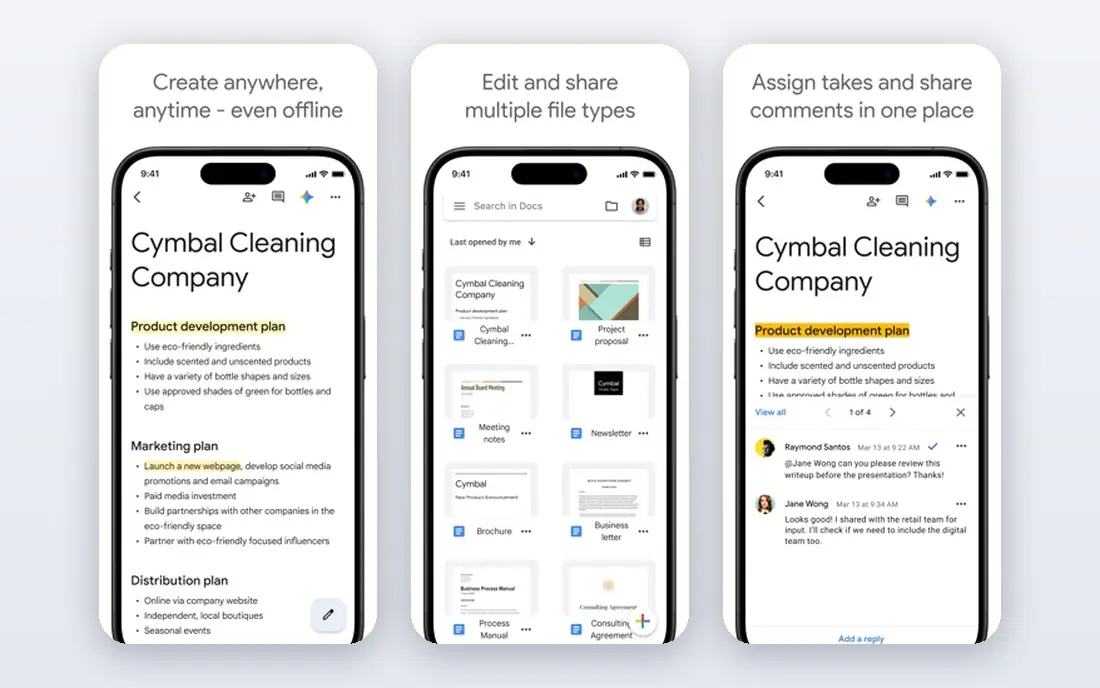
Google Docs remains the simplest way for a team to write together. Several people can edit at once, comments thread cleanly, and suggestion mode lets reviewers propose changes without overwriting the original text. Version history makes it easy to restore an earlier draft. The free tier covers most small-team needs, and Google Workspace plans add storage and admin controls. The limits show up in complex layouts, long reports with heavy formatting, and offline work on some devices. For everyday team writing, though, Docs is hard to beat for speed and ease.
- Fast live editing
- Strong comments and suggestions
- Generous free tier
- Offline work needs setup
- Advanced layout tools are limited
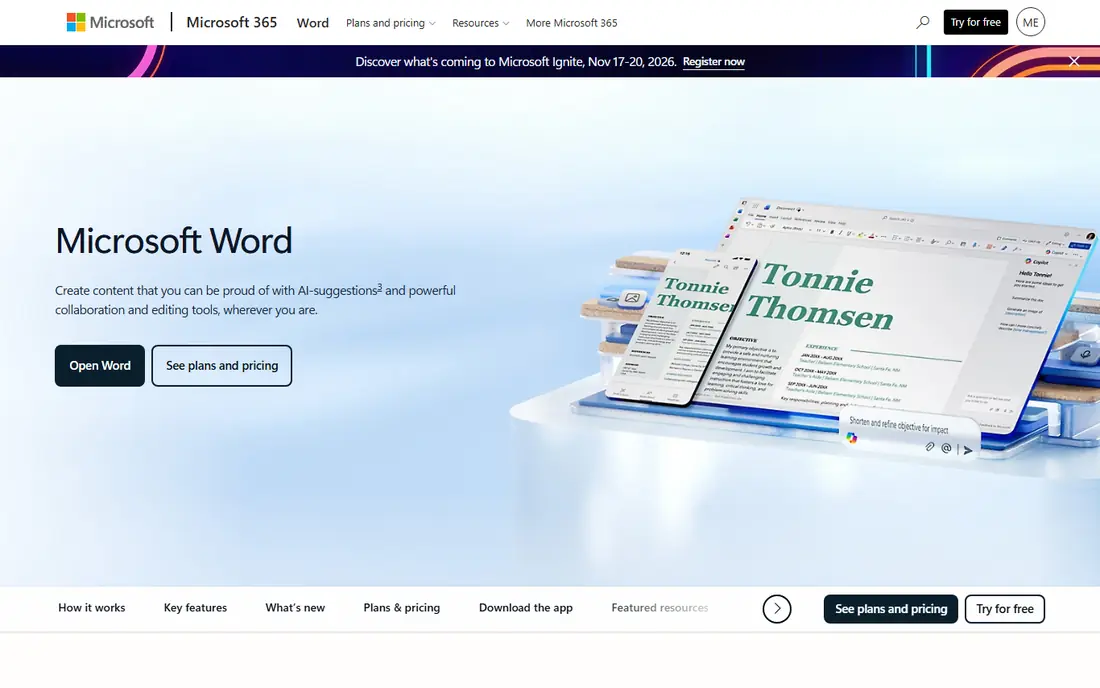
Microsoft Word, as part of Microsoft 365, suits teams that live in Office files. Track changes, comments and formatting tools are deeper than in most rivals, and files open cleanly for clients who use Word. Co-authoring works well when files sit in OneDrive or SharePoint, though that setup step trips up some new users. Word also handles long documents, tables and styles better than simpler editors. The cost is the main drawback, since a full Microsoft 365 plan is a recurring team expense. If your clients and partners send Word files daily, that compatibility is worth paying for.
- Best Word file compatibility
- Track changes
- Deep formatting tools
- Live co-authoring needs OneDrive or SharePoint
- Plans add up for large teams
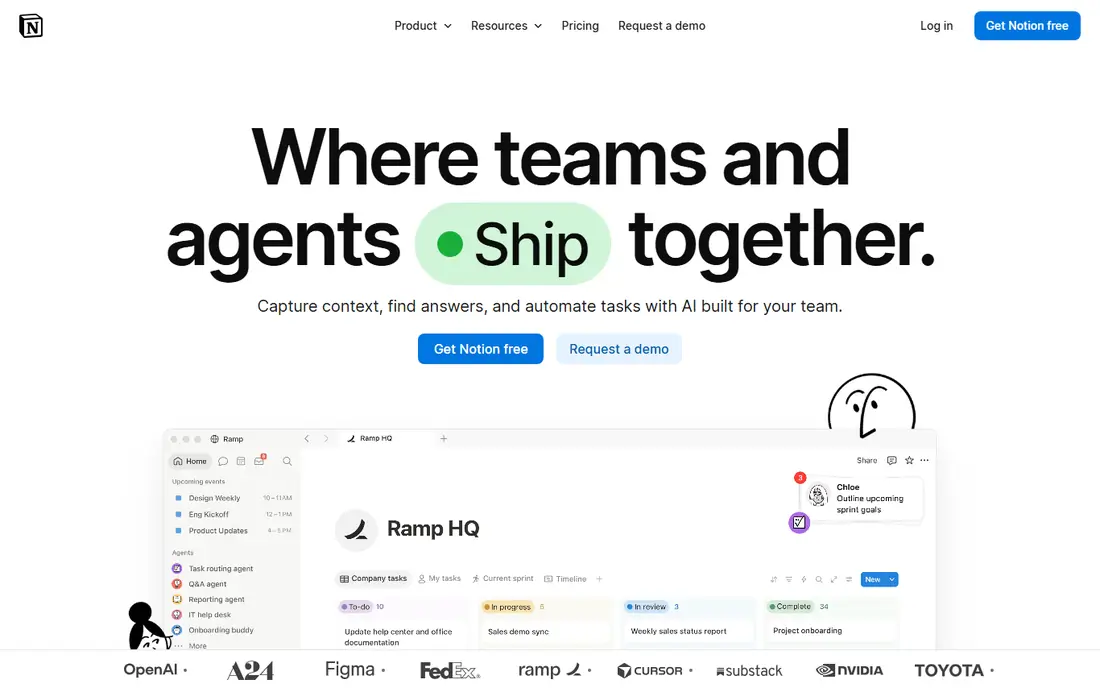
Notion blends documents, wikis, databases and task lists in one workspace. A team can write a project doc, link it to a task database and build a team wiki without leaving the app. That flexibility is why startups and small firms adopt it fast. Templates for meeting notes, project plans and knowledge bases help new teams start quickly. The trade-off is structure. Without clear page rules, a Notion workspace can grow messy, and very large databases can feel slower than a plain document. Teams that set simple naming and ownership rules tend to get the most from it.
- Flexible pages and databases
- Good templates
- Real-time collaboration
- Large workspaces can feel slow
- Offline mode is limited
Confluence, from Atlassian, suits firms that need documentation with structure and control. Pages sit in spaces with permissions, templates guide consistent docs, and links to Jira tie documentation to engineering work. That structure helps larger teams keep knowledge findable as headcount grows. The cost is simplicity. Confluence is heavier than Google Docs for a quick note, and admins need to plan spaces and permissions before teams adopt it widely. For a firm that already uses Jira, the combined workflow is a strong reason to pick Confluence over a lighter doc tool.
- Strong permissions and page trees
- Jira links
- Templates for team docs
- Setup takes more effort
- Interface feels heavy for quick notes
Dropbox Paper is a calm, simple editor for teams that already store files in Dropbox. Docs support checklists, tables, images and embeds, and comments keep feedback in one place. It is easy to learn, which helps teams that do not want another complex workspace. The limits are feature depth and long-term direction, since Paper has received less attention than some rivals in recent years. If your team wants a simple shared doc tool tied to Dropbox files, Paper still works well. If you need databases, wikis or deep formatting, pick Notion or Word instead.
- Clean, simple editing
- Task lists inside docs
- Dropbox file links
- Fewer advanced features than Notion or Word
- Future development is less clear
Zoho Writer offers a familiar word-processor feel with live collaboration, comments and version history. The free tier is generous for individuals and small teams, and paid Zoho Workplace plans add mail, storage and admin tools at a lower price than some rivals. Links to other Zoho apps help firms that already use Zoho CRM or Projects. The main drawback is network effect. Fewer clients and partners use Zoho Writer, so you may still export to Word or PDF for outside sharing. For a cost-conscious team that writes mostly internal docs, Zoho Writer is strong value.
- Free tier for individuals
- Clean Word-style interface
- Zoho app links
- Smaller user base means fewer shared templates
- Collaboration features are solid but not standout
Quip, owned by Salesforce, combines documents, spreadsheets, task lists and chat in a single workspace. That mix suits teams that plan and discuss work in the same place where they write it. Salesforce links let sales and service teams pull records into docs without copying data by hand. The mobile apps are clean, which helps field teams. The catch is pricing and fit. Some Quip access is bundled with Salesforce plans, so standalone buyers should confirm the price for their team size. Firms outside Salesforce may get more flexibility from Notion or Google Docs.
- Docs, spreadsheets and chat in one place
- Salesforce links
- Clean mobile apps
- Pricing is tied to Salesforce plans for some users
- Smaller template library than Notion
Coda turns documents into lightweight apps. Tables can act like databases, buttons can trigger actions, and automations can update rows or send alerts. That makes Coda a good fit for teams that track projects, content or operations inside a doc rather than in a separate tool. Templates help new users start, and live editing works well for team review. The learning curve is real, especially for formulas and automations, and pricing is based on doc makers, so a large team of editors needs a clear plan. For teams that love building their own workflows, Coda offers more power than a plain editor.
- Tables, buttons and automations inside docs
- Good templates
- Live collaboration
- Learning curve for formulas and automations
- Pricing rises with doc makers
How we picked these
We compared official product pages, collaboration features and pricing for document tools sold in 2026. We favored products with live editing, comments, version history and sharing controls, and we included both simple editors and full workspaces. We left out note-only apps that lack real team review tools and tools that are no longer actively sold. Prices shown are starting prices, and free plans vary in storage and user limits.
How to choose document collaboration software
Start with how your team actually writes. A team that edits live needs strong real-time editing and comments. A team that reviews formal reports needs track changes and file compatibility. A team that builds a knowledge base needs wikis, search and permissions. Pick the tool that matches your main writing job, not the one with the longest feature list.
Next, check sharing and control. Confirm guest access, permission levels, version history and export options. A tool that locks your docs inside its own format can cause problems later, so test export to Word and PDF before you commit. Check storage limits on free plans, since a team that stores many images and files can hit a cap fast. Finally, run a real review cycle in the trial. Write, comment, suggest changes and publish one doc end to end with the people who will use the tool daily.
Keeping shared docs tidy
Set a simple rule for naming, ownership and review dates. Every doc should have an owner, a clear title and a review date for anything that changes often. Archive old drafts rather than leaving them in the main workspace. Those small habits matter more than any single feature, since a messy workspace slows every team down, no matter which tool it uses.
FAQ
What is the best document collaboration tool?
Google Docs suits most teams for live editing, while Microsoft Word suits teams that must share Office files. Notion and Coda suit teams that want docs plus databases and workflows. The best document collaboration tools depend on file compatibility, workspace needs and budget.
Is Google Docs free for teams?
Yes, Google Docs has a free tier for individuals and small teams with a Google account. Google Workspace plans add business email, more storage and admin controls for a monthly fee per user. Small teams often start free and upgrade only when they need admin features or more storage.
Can I collaborate on Word documents in real time?
Yes, when Word files are stored in OneDrive or SharePoint, several people can edit at once and see changes live. Track changes and comments still work for formal review. Files stored only on a local drive do not support the same live editing, so cloud storage is part of the setup.
What is the difference between Notion and Confluence?
Notion is a flexible workspace for docs, wikis, databases and tasks, popular with startups and small firms. Confluence is a more structured documentation system from Atlassian, popular with larger firms and teams that use Jira. Notion favors flexibility, while Confluence favors structure and permissions.
How do I keep version control in shared documents?
Use suggestion or track-changes mode for edits, keep comments in the doc rather than in email, and rely on version history to restore earlier drafts. Name final versions clearly and archive old drafts. For formal documents, lock editing after approval and store a PDF copy as the record version.