Best Document Creation Software in 2026: 8 Tools Compared
We compared the best document creation software on editing, collaboration, templates and export options, so teams and solo writers can pick the right editor.
- Editor's choice
 Microsoft Word
Full-featured editing
Starts atSee websiteVisit microsoft.comFull review - Great alternative
 Google Docs
Live collaboration
Starts atFreeVisit docs.google.comFull review - Also consider
 Notion
Docs plus workspace
Starts atFreeVisit notion.soFull review
TL;DR:
- Microsoft Word and Google Docs suit most writers, with Word leading on formatting control and Docs on live collaboration.
- Notion and Coda fit teams that mix documents with tasks, notes and databases.
- Zoho Writer and OnlyOffice Docs are strong picks for teams that want Office-style editing at a lower cost.
- PandaDoc suits documents that need signing, pricing and client approval.
- Quip fits Salesforce teams that want documents tied to customer records.
Quick comparison
| Tool | Best for | Starts at | Free plan? | |
|---|---|---|---|---|
| Microsoft Word | Full-featured editing | See website | Free trial | Visit |
| Google Docs | Live collaboration | Free | Yes | Visit |
| Notion | Docs plus workspace | Free | Yes | Visit |
 Zoho Writer | Affordable Office-style docs | Free | Yes | Visit |
 Coda | Docs with data and apps | Free | Yes | Visit |
 PandaDoc | Documents that need signing | See website | Free trial | Visit |
 Quip | Salesforce-linked docs | See website | Free trial | Visit |
 OnlyOffice Docs | Self-hosted editing | Free | Yes | Visit |
The best document creation software
Document creation software covers word processors, collaborative editors and document platforms. The tools below all create, edit and share real documents, and each suits a different kind of writer or team.
We also weighed how easy each tool is to learn, since a document creation software tool that staff avoid using rarely delivers value. The picks below balance depth with day-to-day usability, and we note where a tool needs more setup or training than a busy team may want to give it.
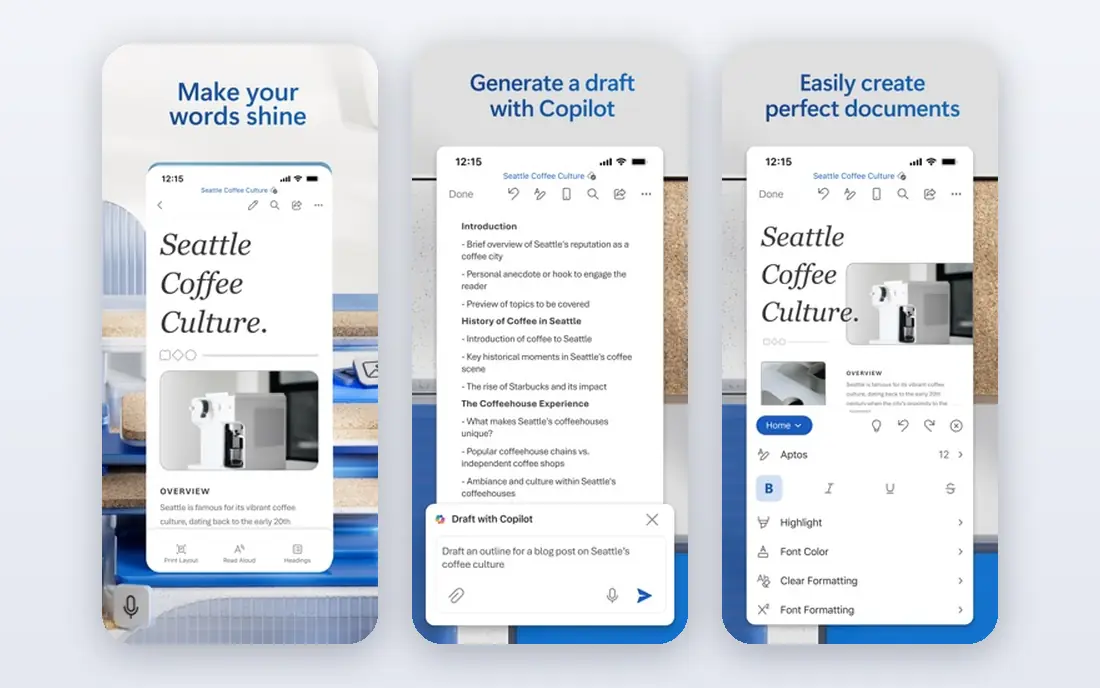
Microsoft Word remains the standard for long, formatted documents. It handles styles, tables, footnotes, track changes and complex layouts with a depth rivals still chase. Files open reliably across offices, clients and publishers, which matters when a document must look exact.
Collaboration has improved, but Google Docs still feels faster for many simultaneous editors. For reports, contracts and manuscripts where formatting matters, Word is still our first pick.
- Deepest formatting control
- Wide template range
- Strong compatibility
- Subscription cost
- Collaboration lags behind Docs for some teams
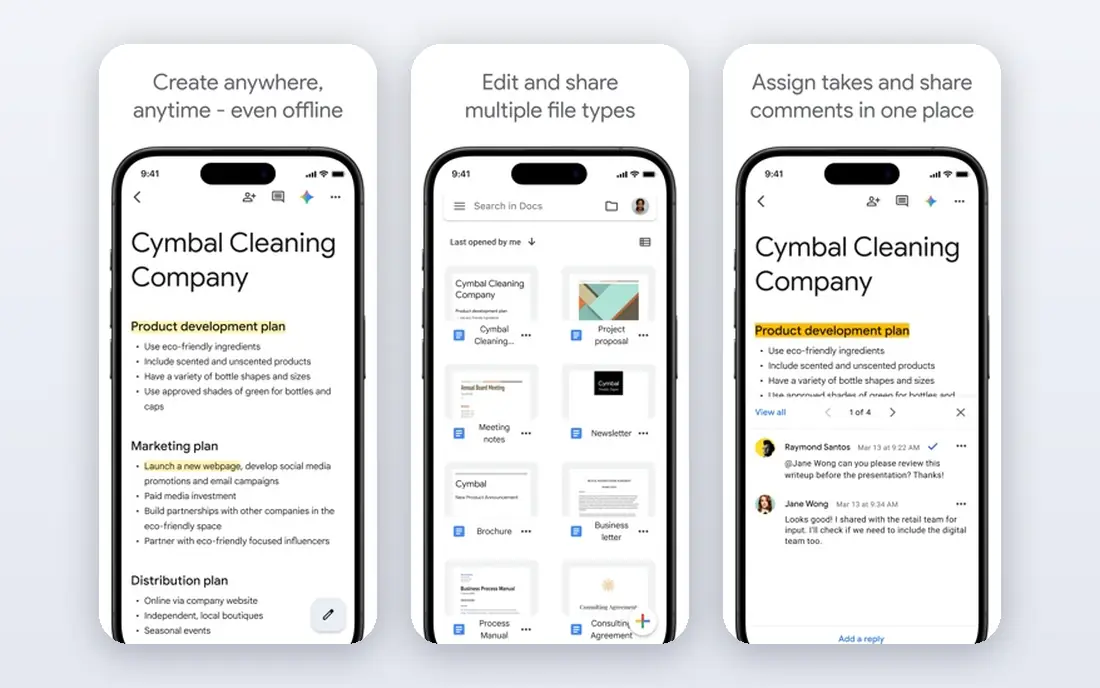
Google Docs wins when several people must edit one document at once. Comments, suggestions and version history are clear, and autosave removes the fear of losing work. The free tier covers personal use well, and business plans add admin controls.
Advanced layout work, such as complex publishing formats, is weaker than Word. For most team documents, memos and drafts, that trade-off is easy to accept in return for fast collaboration.
- Real-time co-editing
- Free for personal use
- Autosave and version history
- Weaker advanced layout tools
- Needs internet for full features
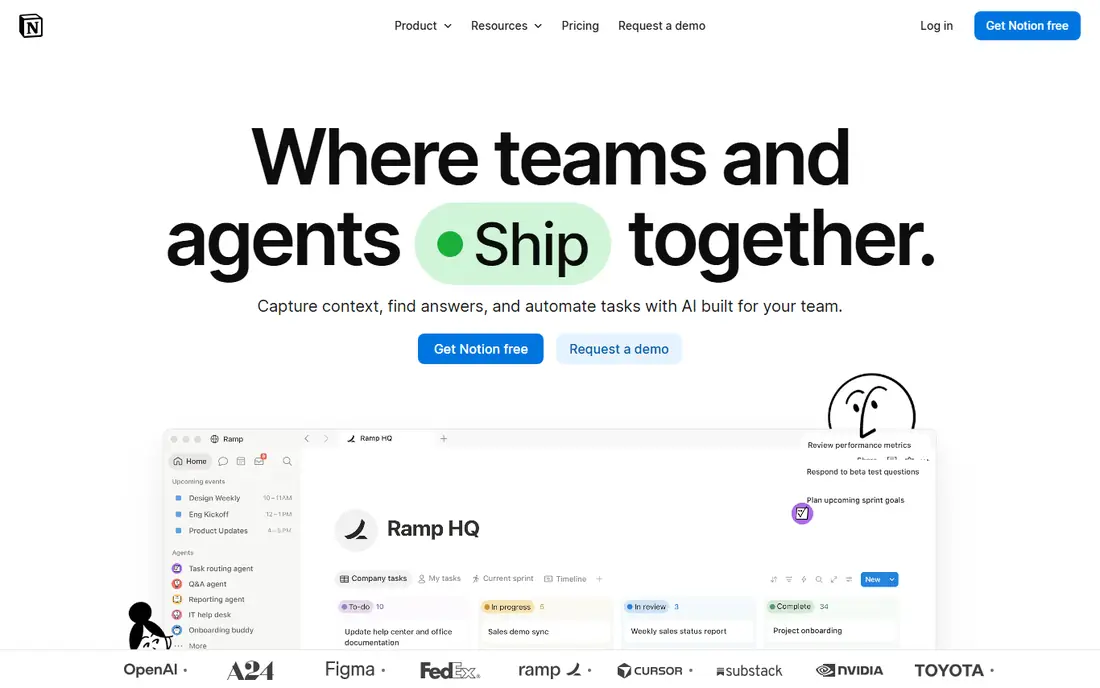
Notion blends documents with tasks, wikis and databases, so a team can keep specs, notes and project pages in one place. Blocks make it easy to mix text, tables, checklists and embeds, and templates cover common team needs.
It is less suited to print-ready documents with strict formatting. Teams that live in Notion will like it as a document home, while teams that must deliver polished Word or PDF files may still export to another editor.
- Flexible pages and databases
- Good templates
- Strong team wikis
- Print and export limits
- Can feel slow on very large pages
Zoho Writer gives teams a familiar word processor with collaboration, comments and version control, inside the wider Zoho suite. The free tier is generous for individuals, and paid plans stay affordable for small businesses.
Template choice and third-party integrations are thinner than the leaders. Teams already using Zoho apps get the most value, since documents sit close to mail, CRM and project tools.
- Clean word processor
- Collaboration tools
- Low cost for teams
- Smaller template library
- Fewer third-party links
Coda turns documents into flexible tools by adding tables, buttons and automations. A team can build a spec doc that also tracks tasks, or a meeting note that updates a project table. That power suits operations teams that want docs and data together.
Simple writers may find it more than they need, and the learning curve is real. For teams that build internal tools from documents, Coda offers a creative and practical option.
- Documents that act like apps
- Tables and automations
- Good templates
- Learning curve
- Overkill for simple writing
PandaDoc appears here because many business documents exist to be signed, not just read. Proposals, quotes, contracts and agreements can be built from templates, sent for signature and tracked until complete. Payments can be added where relevant.
It is not the tool for novels or long reports. For sales, HR and operations documents that move from draft to signature, it closes a gap that plain editors leave open.
- Templates for business docs
- E-signatures
- Tracking and payments
- Not a general word processor
- Pricing per user
Quip, from Salesforce, combines documents, spreadsheets and chat in one workspace. Teams can discuss a document inside it, rather than in a separate chat app, and link pages to Salesforce records where relevant.
Standalone teams may prefer a larger editor community. Salesforce customers get the clearest benefit, since documents sit near the customer data they describe.
- Live collaboration
- Salesforce links
- Chat inside documents
- Smaller standalone user base
- Pricing per user
OnlyOffice Docs offers word, spreadsheet and presentation editing with strong Office file compatibility. Teams can use the cloud version or host it themselves, which suits firms with strict data control needs.
Self-hosting needs IT time, and templates are fewer than in Word or Docs. For teams that want control over their data and a familiar editing feel, OnlyOffice is a solid choice.
- Office-compatible editing
- Self-hosting option
- Collaboration tools
- Setup needs IT skill for self-hosting
- Smaller template set
How we picked these
We compared official feature pages, pricing and public reviews for tools that create and edit documents as their core job. We kept tools still sold and supported in 2026, with real collaboration or export options. We dropped plain note apps with no document formatting, and PDF-only readers that cannot author documents.
For document creation software, we also checked whether vendors publish clear documentation, support options and security information. Tools with vague pricing or missing support pages scored lower, even when their feature lists looked strong. That check matters because buyers often learn about limits only after purchase, when switching costs are already high.
What to check before you buy
Match the editor to the output
A team wiki needs different tools than a client contract. Decide whether your main output is a shared page, a printed report or a signed agreement, then pick the tool built for that output.
Test collaboration with your team
Invite colleagues to edit, comment and suggest changes during a trial. Check how version history works and whether offline editing matters for your work.
Check file compatibility
If clients send Word files, test round-trip editing. Formatting loss on import or export creates rework, so verify tables, styles and images survive the trip.
Review admin and privacy controls
Business teams need sharing controls, access logs and data residency options. Confirm these on the plan you will actually buy, not just the top tier.
Check support and updates
Support quality matters as much as features, especially when a tool is used every day. Check support hours, response times and whether help is offered by chat, email or phone on the plan you will buy. Read the documentation for a task you will do often, and look at how often the vendor ships fixes and improvements. A tool with stale docs and slow support can cost more in lost time than a slightly higher subscription.
Plan the switch from your current tool
Moving tools takes more than signing up. List the data you must move, such as templates, customer records or past reports, and test an export before you cancel the old tool. Run the new tool alongside the old one during a trial, and train a small group first so they can help colleagues. A planned switch avoids lost work and gives staff time to learn new habits.
Budget for the full first year
Price the first year in full, not just the monthly rate. Add seats for every user, any required add-ons and the cost of training or setup help. Check whether annual billing saves money and whether that saving is worth the commitment. A clear first-year total makes plans easier to compare and avoids surprise renewals.
Ask about data ownership and exit options
Before you commit, ask who owns your data, how you can export it and what happens if you cancel. Check contract length, renewal terms and whether prices change after an introductory period. Clear exit options protect you if the tool no longer fits, and they also signal a vendor that is confident in keeping customers by quality rather than by lock-in.
FAQ
What is document creation software?
Document creation software lets you write, format, share and export documents. It ranges from word processors such as Word to collaborative platforms such as Notion and Coda.
Is document generation software the same thing?
The terms overlap. Document generation often means creating many documents from templates and data, such as invoices or contracts. Document creation covers the wider job of writing and editing any document.
Which tool is best for teams?
Google Docs and Notion suit most teams for collaboration. Word suits teams that need strict formatting, and PandaDoc suits teams whose documents need signatures.
Can I use these tools for free?
Google Docs, Notion, Zoho Writer, Coda and OnlyOffice Docs all offer free tiers. Paid plans add storage, admin controls and advanced features.
How long does it take to get value from document creation software?
That depends on setup and team size. Simple tools can show value within a week, while enterprise platforms may need a month or more for setup, data migration and training. A focused pilot with one team and clear goals gives the fastest honest answer.
What mistakes do buyers often make with document creation software?
Common mistakes include buying for a feature list instead of a daily workflow, skipping a trial with real data, and undercounting users who will need access. Another frequent error is ignoring support and exit terms until a problem appears. A short trial and a clear list of must-have tasks prevent most of these errors.