Best Digital Tools in 2026: 9 Tools Compared
Our guide to the best digital tools covers notes, docs, design, chat and storage, with current prices and honest trade-offs for work and learning in 2026.
- Editor's choice
 Notion
Notes, docs and databases in one place
Starts atFreeVisit notion.comFull review - Great alternative
 Google Workspace
Email, docs and shared drives
Starts atSee websiteVisit workspace.google.comFull review - Also consider
 Microsoft 365
Office apps with cloud storage
Starts atSee websiteVisit microsoft.comFull review
TL;DR:
- Start with a free plan first, because most people only need one notes app, one chat app and one storage app to do good work.
- Notion and Google Workspace give the widest coverage for the lowest starting cost, while Canva wins for quick visual work.
- The best digital learning tools are the ones you will open every day, so pick tools with strong mobile apps and simple sharing.
- Paid plans are worth it mainly for larger storage, admin controls and longer history, not for basic writing and task lists.
Quick comparison
| Tool | Best for | Starts at | Free plan? | |
|---|---|---|---|---|
| Notion | Notes, docs and databases in one place | Free | Yes | Visit |
| Google Workspace | Email, docs and shared drives | See website | Free trial | Visit |
| Microsoft 365 | Office apps with cloud storage | See website | Free trial | Visit |
 Canva | Fast design for non-designers | Free | Yes | Visit |
 Trello | Simple visual task boards | Free | Yes | Visit |
 Slack | Team chat and channels | Free | Yes | Visit |
 Zoom | Video meetings and webinars | Free | Yes | Visit |
 Grammarly | Writing help and grammar checks | Free | Yes | Visit |
 Dropbox | Simple file storage and sharing | Free | Yes | Visit |
The best digital tools
We compared tools for writing, planning, design, communication and storage, and kept only tools that still work well for ordinary teams and learners in 2026.
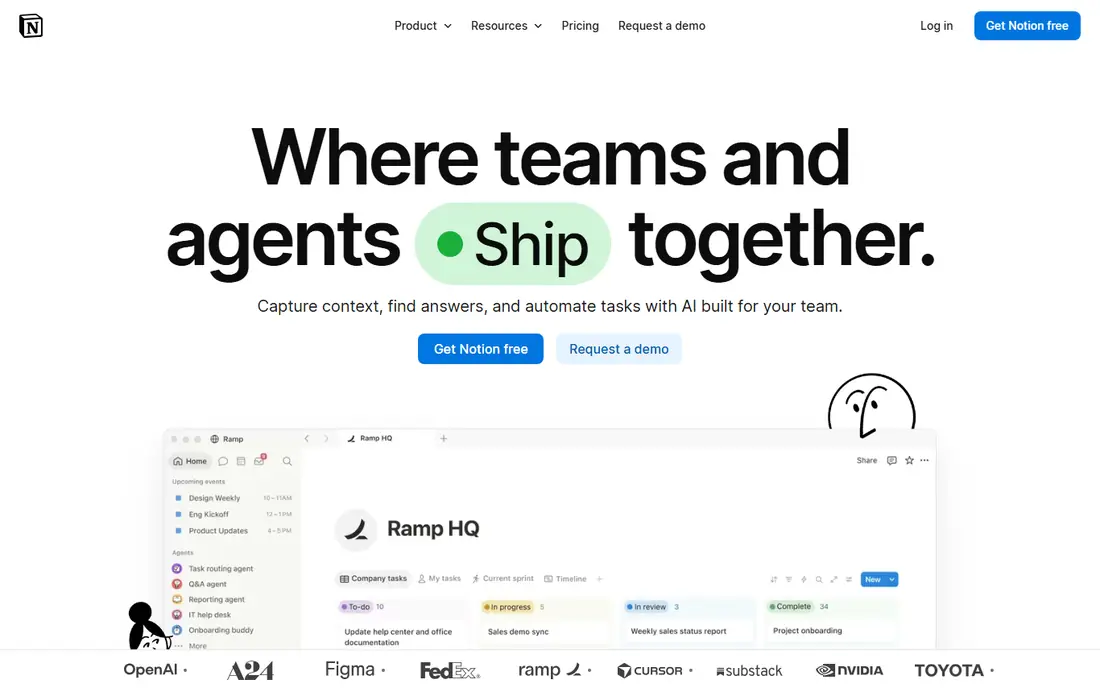
Notion is our pick for most people who want one home for notes, plans and reference material. You can start with a blank page, add a task list, then turn the same page into a database with dates, owners and status fields. That range is why it works for study notes, small business plans and team wikis alike. Templates help a lot at the start, and the free plan covers unlimited pages for a single user, with limits on file size and page history.
The catch is that freedom can turn into clutter. Without a simple folder habit and a weekly tidy, a Notion workspace grows into a maze of half-finished pages. Large databases also load more slowly than a plain notes app. Still, if you want one tool that can grow from a personal notebook into a shared workspace, Notion is the safest first choice in this list.
- Flexible pages and databases
- Good templates
- Strong free plan for one person
- Can feel slow on very large workspaces
- Full AI features sit on higher plans
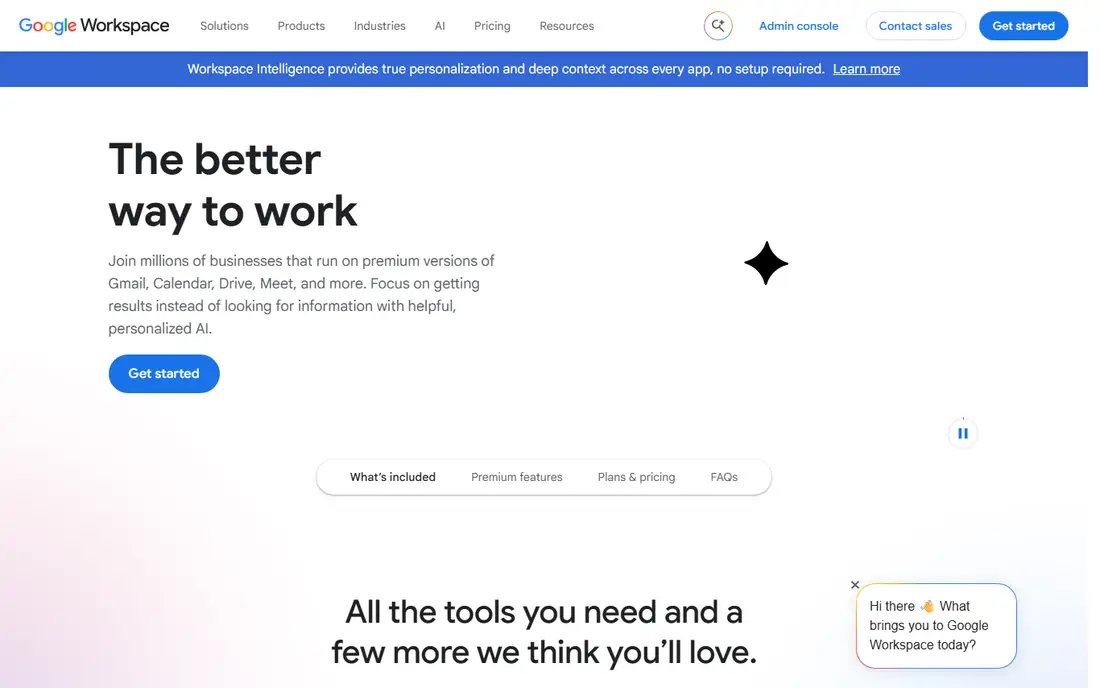
Google Workspace suits teams that live in email and shared documents. Docs, Sheets and Slides open in a browser, autosave constantly, and let several people edit at once with clear comments and version history. Drive keeps files in one searchable place, and Gmail ties messages to calendar invites and Drive links without extra setup. For a small business, that tight fit matters more than any single standout feature.
The downside is cost creep as headcount grows, since each user needs a paid seat on a business plan. Some teams also find Drive folders harder to govern than a dedicated document system once files multiply. Even so, for everyday writing, spreadsheets and file sharing, few setups are as easy to learn or as widely supported.
- Gmail, Docs, Sheets and Drive work together
- Easy sharing
- Strong search
- Business plans are priced per user
- Storage limits vary by plan
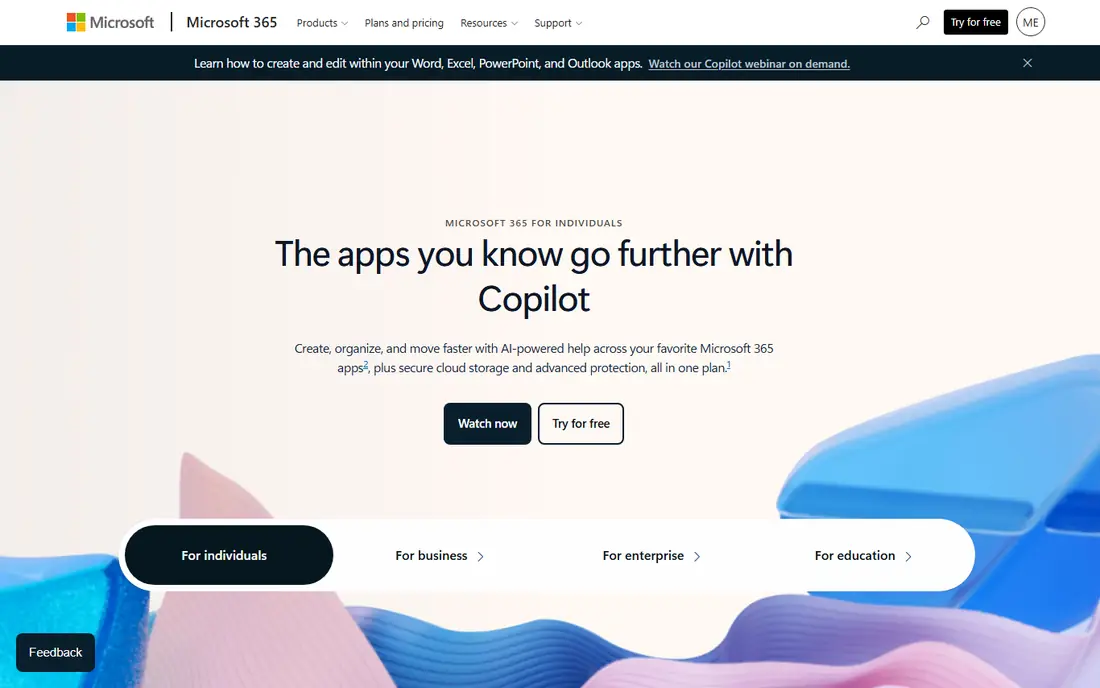
Microsoft 365 remains the default choice when your clients or partners send Word, Excel and PowerPoint files all day. The desktop apps handle large documents and complex spreadsheets better than most browser tools, and OneDrive keeps those files backed up and shareable. Teams also gains from Outlook mail and calendar, plus Teams for chat and meetings, all under one account.
The main friction is choice. Personal, family and business plans differ in storage, user counts and admin tools, so read the plan page before you buy. The web versions of Office apps are handy, but they do not match every desktop feature. If your work depends on polished Office files, though, that trade-off is easy to accept.
- Full Word, Excel and PowerPoint
- OneDrive storage
- Familiar desktop apps
- Plan names and limits can confuse new buyers
- Web apps differ from desktop apps
Canva is the tool we reach for when a post, slide deck or handout needs to look decent in under an hour. Templates cover social posts, presentations, resumes and worksheets, and the editor lets you swap text, images and colours without learning a design program. The free plan is genuinely useful for personal projects and small teams that reuse a few formats.
Serious designers will hit limits on precise layout, typography and print settings, and some stock photos and fonts require a paid plan. Canva also makes it easy to produce work that looks like everyone else if you never change a template. Used with a clear brand palette and a habit of editing, not just filling in blanks, it saves a lot of time.
- Huge template library
- Drag and drop editing
- Good brand controls on paid plans
- Free plan limits premium assets
- Fine print and layout control are limited
Trello turns work into cards on boards, and that simple idea still works. Move a card from To do to Doing to Done, add a checklist and a due date, and the whole team can see progress at a glance. It suits content calendars, hiring pipelines and household projects just as well as software tasks. The free plan covers the core board features most small teams need.
Where Trello falls short is depth. It has no built-in time tracking, workload view or strong reporting without paid upgrades and extra tools. Large projects with many dependencies become hard to read on a board. If your work is a clear flow of tasks rather than a web of dependencies, Trello stays refreshingly light.
- Boards are easy to learn
- Checklists and due dates included
- Good mobile app
- Weak for complex projects
- Reporting needs paid plans or add-ons
Slack replaces long email threads with channels for each team, project or topic. Messages, files and app alerts land in one place, and threads keep side discussions from burying the main point. Integrations with calendars, task tools and file storage mean a team can check a deadline or a document without leaving chat. For remote teams, that shared room matters.
The free plan caps searchable message history, so older decisions can vanish from search unless you upgrade. Notifications also need care, or Slack becomes a source of interruption all day. Set channel alerts, mute low-value channels and use threads, and Slack becomes a useful work hub rather than a noisy inbox.
- Channels keep topics tidy
- Strong app integrations
- Searchable history on paid plans
- Free plan limits message history
- Constant alerts can distract
Zoom earned its place because it simply works for most calls, even with many people and mixed devices. Scheduling links, waiting rooms, screen sharing and breakout rooms cover classes, team meetings and webinars without extra software. Paid plans add longer meetings, cloud recording and webinar controls that schools and small businesses often need.
The free plan limits group meetings to 40 minutes, which is fine for a quick check-in but not for a class or workshop. Hosts should also learn the security settings, including waiting rooms and screen-share controls, before a public link goes out. With those basics set, Zoom is a dependable meeting tool.
- Reliable video for large groups
- Breakout rooms
- Recording on paid plans
- Free meetings cap group call length
- Settings take time to learn
Grammarly acts as a second pair of eyes for emails, essays and reports. It flags spelling and grammar slips, awkward phrasing and unclear sentences, and it works inside browsers and word processors so you do not have to paste text into a separate app. For learners and busy professionals, that habit of checking before sending improves everyday writing fast.
It is not a substitute for judgment. Grammarly can suggest a change that alters your meaning, especially with technical terms or quoted text, so read each suggestion before accepting it. The free plan covers basic checks, while tone, full-sentence rewrites and plagiarism checks sit behind paid plans. Used as a checker, not an author, it earns its place.
- Catches grammar and clarity issues
- Works across browser and docs
- Tone hints help
- Suggestions are not always right
- Full style help needs a paid plan
Dropbox keeps files in sync across computers and phones with very little setup. Share a folder, send a link with an expiry date, and a client or classmate can view or download files without an account. Version history and file recovery on paid plans protect against accidental deletes, which matters for contracts, coursework and photos.
The free plan offers only a small amount of storage, so it fills up fast if you store video or large design files. Per gigabyte, some rival storage services are cheaper, and Dropbox is not a full document editor. For simple, dependable file sharing and backup, though, it remains easy to trust and easy to explain to a new user.
- Easy file sync and sharing
- Good version history on paid plans
- Works on all devices
- Free storage is small
- Paid plans cost more than some rivals per gigabyte
How we picked these
We compared official feature pages, pricing pages, app store listings and public reviews, and favoured tools with a usable free plan or trial, clear pricing, and support across web and mobile. We left out tools that are mainly for one narrow job, such as code editors or photo editors, and kept tools that cover everyday work and learning. We did not claim hands-on testing; our picks rest on documented features, published prices and widely reported strengths and limits.
What to buy first, and what can wait
Start with the free tiers of Notion, Canva and Trello, plus the chat and meeting tool your team already uses. That stack covers notes, design, tasks and calls for almost no cost. Add paid storage or a paid notes plan only when you hit a clear limit, such as full storage, missing history or a need for admin controls.
For learning, the same rule holds. A notes app, a calendar and a file folder beat a shelf of subscriptions. Pick one tool per job, learn its sharing and search features, and only add a new tool when a real task has no home. Check privacy settings too, especially for student work and client files, and turn on two-factor sign-in wherever it is offered.
FAQ
What are the best digital tools for beginners?
Start with Notion for notes, Google Workspace or Microsoft 365 for documents, Canva for design and Trello for tasks. Each has a free plan or trial, so you can learn the basics before paying. Add Slack or Zoom only when you need regular team communication.
What are the best digital learning tools?
The best digital learning tools are a notes app, a task board and a storage app used together. Notion holds study notes and revision plans, Trello tracks assignments, and Dropbox or Drive holds handouts and drafts. That simple set keeps study material searchable and backed up.
Do I need to pay for digital tools?
No, not at first. Free plans cover notes, design, chat, storage and meetings for many users. Pay when you need more storage, longer history, admin controls or premium templates, and check the vendor pricing page before you upgrade.
Which digital tool is best for small business?
Google Workspace or Microsoft 365 usually fits best, because email, documents, storage and calendar come together. Add Trello for task flow and Canva for marketing visuals. Choose the suite your clients already use to cut down on file conversion problems.
Is Notion better than Google Docs?
Notion is better for linked notes, databases and wikis, while Google Docs is simpler for a single document that many people edit at once. Many teams use both, with Docs for drafts and Notion for the finished reference library.
How do I avoid paying for too many tools?
List each tool, its monthly cost and the job it does, then cancel any tool whose job is already covered. Review that list every quarter, and move files and notes before cancelling so nothing is lost.
Sources
- https://www.notion.com/pricing
- https://workspace.google.com/pricing
- https://www.microsoft.com/en-us/microsoft-365/buy/compare-all-microsoft-365-products
- https://www.canva.com/pricing
- https://trello.com/pricing
- https://slack.com/pricing
- https://zoom.us/pricing
- https://www.grammarly.com/plans
- https://www.dropbox.com/plans