Best Computer Imaging Software in 2026: 8 Tools Compared
Compare the best computer imaging software for full disk images, cloning and recovery, with free and paid options for Windows, Mac and technicians today.
- Editor's choice
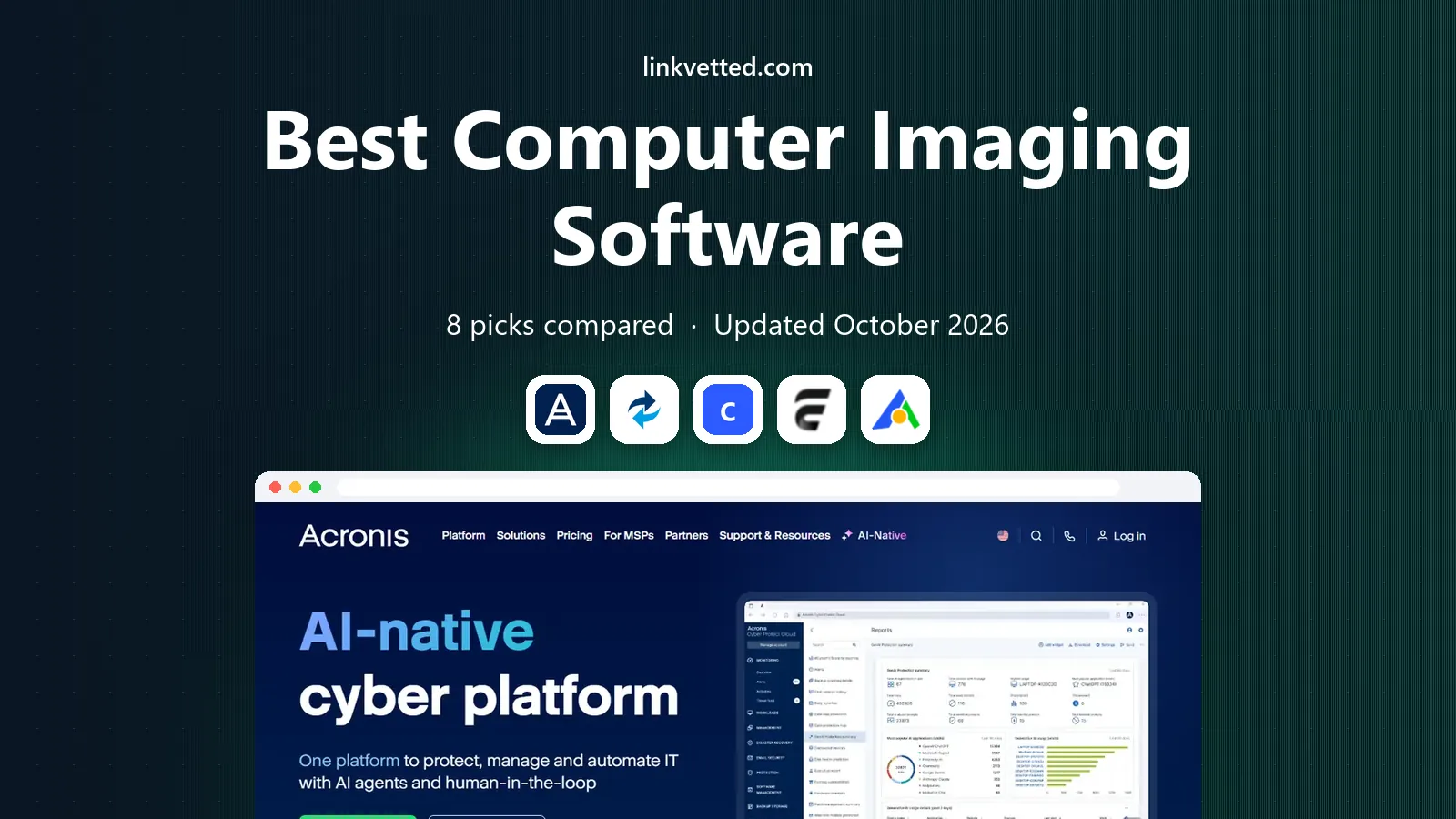
 Acronis Cyber Protect Home Office
Imaging plus security
Starts at$49.99 per yearVisit acronis.comFull review - Great alternative
 Macrium Reflect X
Scheduled Windows imaging
Starts at$49.99 per yearVisit macrium.comFull review - Also consider
 Clonezilla
Free expert cloning
Starts atFreeVisit clonezilla.orgFull review
TL;DR:
- Acronis Cyber Protect Home Office is the most complete paid package, with imaging plus security in one subscription.
- Macrium Reflect X is our pick for dependable scheduled imaging on Windows, with strong rescue media.
- Clonezilla and Rescuezilla are free and open source, and they suit technicians who are comfortable with bootable USB workflows.
- EaseUS Todo Backup and AOMEI Backupper offer genuinely usable free tiers for home users who want scheduled images without paying.
Quick comparison
| Tool | Best for | Starts at | Free plan? | |
|---|---|---|---|---|
| Acronis Cyber Protect Home Office | Imaging plus security | $49.99 per year | Free trial | Visit |
| Macrium Reflect X | Scheduled Windows imaging | $49.99 per year | Free trial | Visit |
| Clonezilla | Free expert cloning | Free | Yes | Visit |
 EaseUS Todo Backup | Friendly home imaging | See website | Yes | Visit |
 AOMEI Backupper | Free Windows imaging | See website | Yes | Visit |
 Rescuezilla | Free graphical cloning | Free | Yes | Visit |
 Veeam Agent for Windows | Free single PC backup | Free | Yes | Visit |
 Paragon Backup and Recovery | Simple home imaging | See website | Yes | Visit |
The best computer imaging software
The best computer imaging software takes a complete snapshot of a drive, including the operating system, programs, settings and files, so a failed drive or a bad update means a restore instead of a rebuild. These eight tools cover that job for home users, small offices and technicians, with a mix of free and paid options.

Acronis Cyber Protect Home Office, formerly Acronis True Image, is the most complete consumer package in this list. It makes full disk images, clones drives, and backs up files, and it adds antivirus and ransomware protection in the same subscription. Higher tiers add Acronis Cloud storage, so local and off site copies can run without a second tool. Restore to different hardware is also supported, which helps when you move to a new PC.
The cost is ongoing, with the Essentials tier listed at $49.99 per year for one computer. The install is heavier than a simple cloning tool, with background services that some users may find intrusive. If you want one vendor for backup and security and you do not mind a yearly fee, Acronis is a strong choice.
- Full image backup plus cloning
- Built in antivirus and ransomware protection
- Cloud backup on higher tiers
- Subscription only
- Heavier install than simple imaging tools
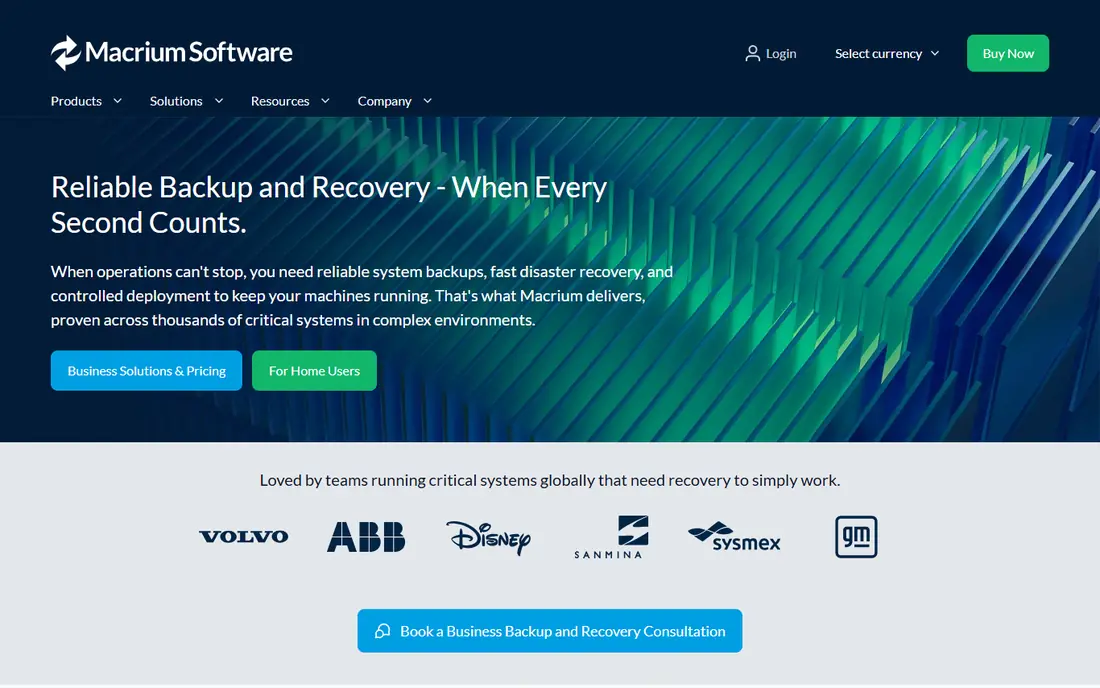
Macrium Reflect X is the technician favorite for Windows imaging, and it is our pick for home users who want scheduled images they can trust. It supports full, differential and incremental images, and its rescue media lets you restore when Windows will not boot. Rapid delta cloning speeds up repeat clone jobs by copying only changed data, which matters when you image machines often.
Macrium is Windows only, so Mac users need another tool from this list. The interface is functional rather than pretty, and new users may need a short learning period to set schedules and retention rules. For dependable Windows imaging, that trade off is worth it, and the trial lets you test rescue media before you pay.
- Reliable scheduled full and incremental images
- Bootable rescue media
- Rapid delta cloning
- Windows only
- Interface looks dated next to newer tools
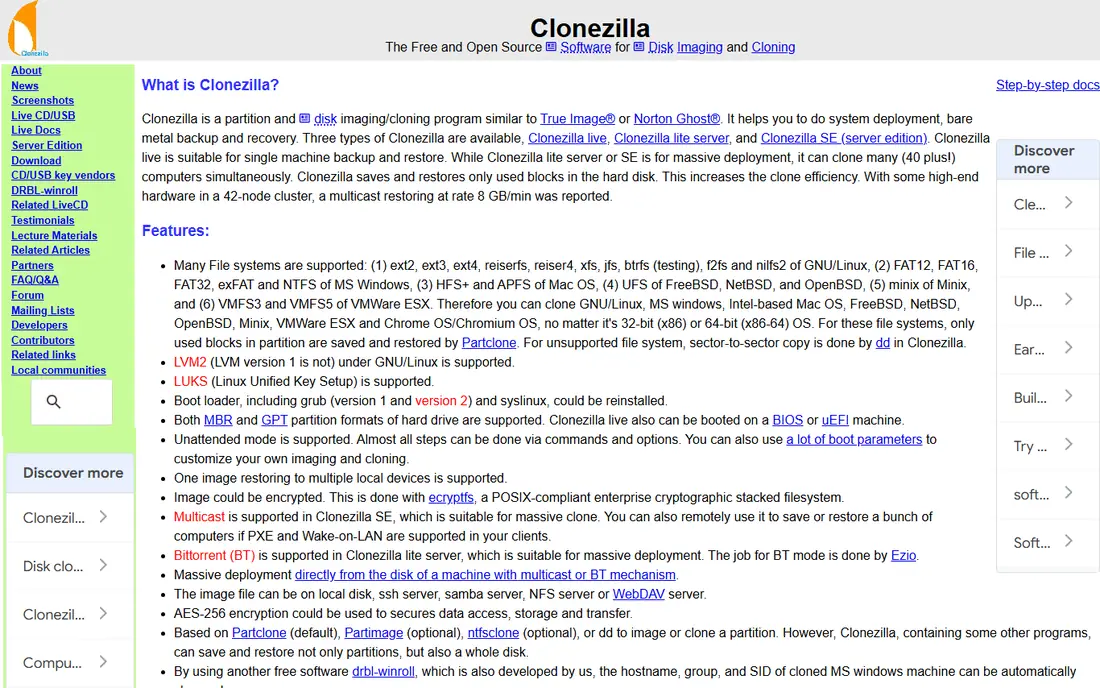
Clonezilla is free, open source and powerful, and it remains a standard tool for technicians. It clones whole disks and partitions, supports many file systems, and works well for deploying the same image to many machines. It runs from a bootable USB drive, which keeps it separate from the system being imaged. For a technician who images PCs every week, it costs nothing and does the core job well.
The interface is text based, which puts off beginners. You cannot clone a running Windows system from inside Windows in the same way as paid tools, so you need to boot from USB and plan downtime. If you are comfortable with that workflow, Clonezilla is hard to beat on value.
- Free and open source
- Powerful disk and partition cloning
- Good for mass deployment
- Text based interface
- No hot cloning from inside Windows
EaseUS Todo Backup suits home users who want imaging without a steep learning curve. Its wizards walk you through system backup, disk backup and cloning, and scheduled backups run in the background once set. The free edition covers basic imaging and cloning, which is enough for many households that just want a safety net before a drive fails.
Paid plans add features such as incremental backup controls and more advanced restore options, and free users will see prompts to upgrade. Prices vary by edition and promotion, so check the vendor site for the current Home plan. For a first imaging tool, EaseUS is one of the easiest to start with.
- Clear wizards for system and disk backup
- Free edition covers basics
- Disk cloning tools
- Some advanced features need a paid plan
- Upsell prompts in the free edition
AOMEI Backupper is a strong free option for Windows users. The Standard edition handles system backup, disk backup, partition backup and cloning, and it can build bootable rescue media. File sync is included, which helps users who also want a simple copy of important folders. The interface is clear, and scheduled backups are easy to set.
Some features, including encryption and universal restore to different hardware, sit in paid editions. There is no native cloud storage, so off site copies need a separate drive or service. For free local imaging on Windows, AOMEI is one of the best places to start.
- Free Standard edition with system and disk backup
- Cloning and sync tools
- Bootable media builder
- Encryption and some tools are paid only
- No native cloud storage
Rescuezilla is the friendlier face of free cloning. It is open source, boots from USB, and offers a graphical interface that is far easier than a text menu for first time users. It can image and clone disks, and it can restore images made by Clonezilla in many cases. For a home user who wants a free tool for a one off SSD upgrade, it removes much of the fear from the process.
It is not a full scheduled backup platform like Acronis or Macrium. You run it when you need it, rather than setting a daily schedule and forgetting it. That makes it a companion tool rather than a replacement for scheduled imaging. Keep a bootable USB ready, and test it before you need it in an emergency.
- Free and open source
- Graphical interface
- Bootable USB workflow
- Fewer scheduling features than paid tools
- Slower on very large drives for some users
Veeam Agent for Windows brings enterprise backup technology to a single PC for free. The free edition can back up a whole computer, volumes or files, and it supports recovery media for bare metal restore. Small offices that already know Veeam will find the concepts familiar, and the backup engine is dependable.
The interface assumes more technical confidence than EaseUS or AOMEI, and setup options can feel dense for a first time user. Paid use for multiple workloads is licensed separately, so check Veeam pricing if you plan to cover many machines. For a free, serious backup agent on one Windows PC, Veeam is a strong pick.
- Free edition for one PC
- Enterprise grade backup engine
- Image and file backup
- Interface assumes technical confidence
- Paid licenses are per workload for larger use
Paragon Backup and Recovery offers a Community Edition that is free for personal use, with straightforward disk imaging and restore. It suits users who want a simple tool without a subscription and without a complex feature set. The interface is clean, and basic scheduled imaging covers the core need for a home PC.
Edition names and paid options can be confusing, so read the vendor page carefully before downloading. It also lacks the security extras and cloud storage that Acronis bundles. For simple, free home imaging, Paragon is a calm and capable choice.
- Community Edition free for personal use
- Straightforward imaging
- No account needed for free use in many cases
- Paid tiers and editions can confuse
- Fewer extras than Acronis
How we picked these
We compared official feature and pricing pages, documentation and public user reviews for disk imaging and cloning tools, and we favored products that make full disk images, not just file copies. We included free open source tools, free tiers and paid packages, and we checked that each product is actively available in 2026. We did not claim hands on testing. Prices listed here come from vendor pages and comparison sources, and you should confirm the current price before buying, since promotions change.
How to choose the right imaging tool
Start by deciding if you need scheduled backup or a one off clone. A scheduled tool such as Macrium or Acronis protects you every day, while a bootable tool such as Clonezilla or Rescuezilla is ideal for an SSD upgrade or a single machine move. Many users need both, and there is no rule against using a free cloning tool alongside a scheduled backup tool.
Next, check restore, not just backup. Make bootable rescue media, test it on a spare drive if you can, and confirm you know how to restore a full image when Windows will not start. An image you cannot boot from is just a large file. Also check where images will live, since a full image needs a drive at least as large as the data being saved, and an external drive or network location is safer than the same drive being imaged.
Finally, think about the machines you cover. Windows only tools are fine for a Windows household, but mixed homes need a plan for Macs too. Check encryption if you store images off site, check retention rules so old images do not fill your backup drive, and keep at least one copy away from the PC itself. A simple schedule that actually runs beats a perfect setup that never finishes.
FAQ
What is the best PC imaging software for home users?
Acronis Cyber Protect Home Office is the most complete paid option, while Macrium Reflect X is best for dependable scheduled Windows imaging. For free use, AOMEI Backupper and EaseUS Todo Backup both offer usable free tiers. Choose based on budget and how much hand holding you want during setup.
What is the best free desktop imaging software?
Clonezilla is the most powerful free option for technicians, and Rescuezilla is the easiest free option for beginners, thanks to its graphical interface. Veeam Agent for Windows is also free for one PC and offers a more complete backup engine. All three require a bootable USB or recovery media for full restores.
What is the difference between disk imaging and disk cloning?
Imaging saves a compressed file that represents a whole drive, which you can store and restore later. Cloning copies a drive directly to another drive, which is ideal for moving to a new SSD. Many tools in this list do both, so check that the tool you pick supports the job you need.
Can I restore an image to a different computer?
Some tools support restore to different hardware, including Acronis and paid editions of AOMEI, but drivers and Windows licensing can still cause issues. A restore to the same PC or a very similar model is more reliable. Test this before you rely on it for a hardware upgrade.
How often should I image my computer?
A monthly full image plus weekly incremental images suits most home users, with an extra image before major updates or hardware changes. Keep at least two recent images if space allows. A schedule that runs automatically is more reliable than a manual plan you may forget.
Is top imaging software the same as file backup software?
No, imaging captures the whole system, while file backup copies selected files and folders. Imaging is better for full disaster recovery, while file backup is better for quick recovery of a single document. Many users benefit from both, with imaging for the system and file backup for daily documents.