Best Coding Tools for Kids in 2026: 8 Tools Compared
Find the best coding tools for kids, from free block coding for ages 5 to 7 to real Python and Swift for teens, with age guidance and safe picks for families.
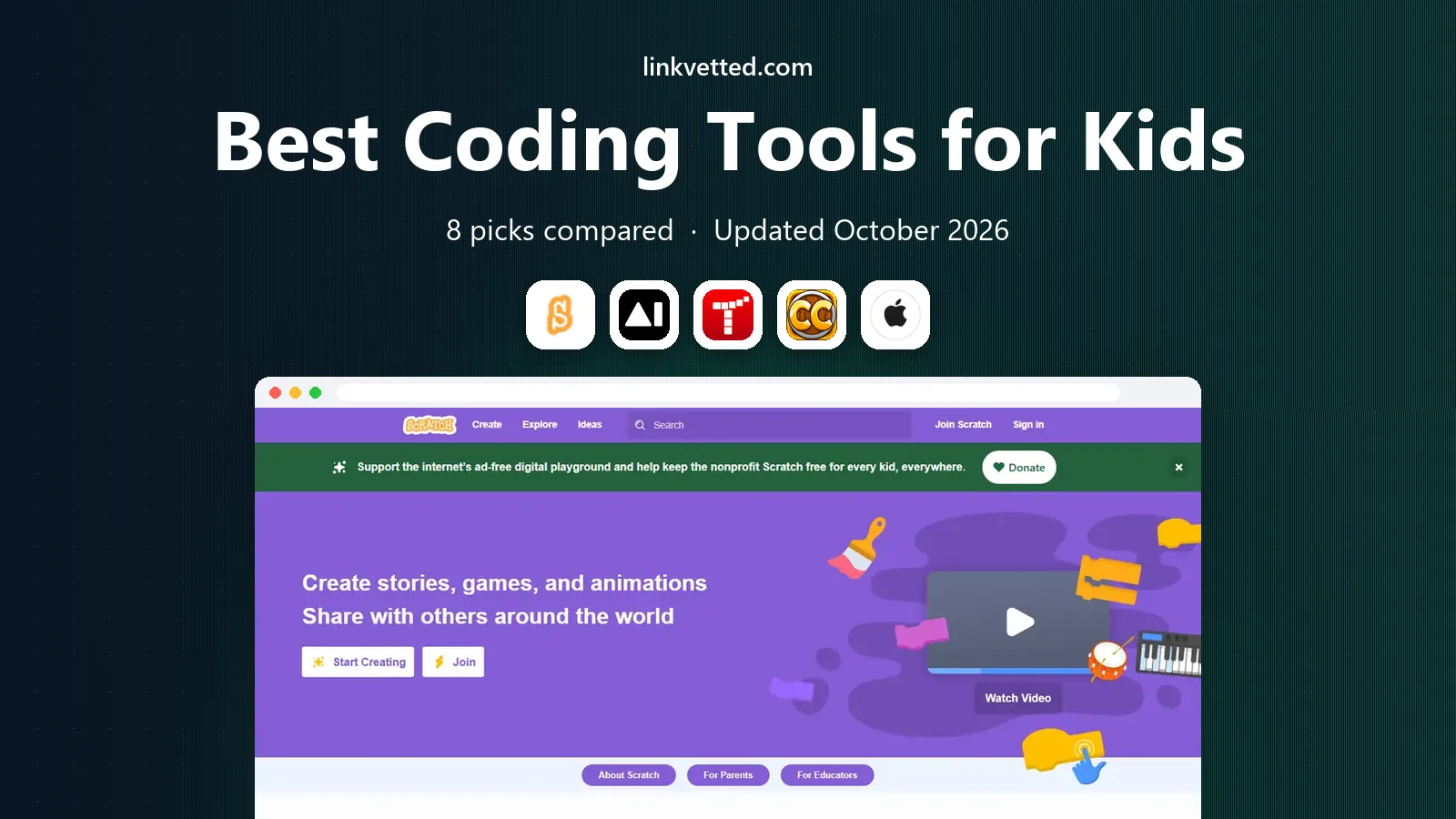
- Editor's choice
 Scratch
Creative block coding
Starts atFreeVisit scratch.mit.eduFull review - Great alternative
 Code.org
Structured classroom lessons
Starts atFreeVisit code.orgFull review - Also consider
 Tynker
Blocks to typed code path
Starts atSee websiteVisit tynker.comFull review
TL;DR:
- Scratch and Code.org are the best free starting points, with Scratch suited to creative projects and Code.org suited to structured lessons.
- For children ages 5 to 7, ScratchJr and Kodable use picture-based blocks that do not require strong reading skills.
- Older kids ready for typed code can move to CodeCombat for Python and JavaScript or Swift Playgrounds for Swift on Apple devices.
- Tynker bridges block coding and typed code, with Minecraft and game projects that keep motivated kids going.
- Parents should check privacy settings, chat features, and community access before a child shares projects in any public gallery.
Quick comparison
| Tool | Best for | Starts at | Free plan? | |
|---|---|---|---|---|
| Scratch | Creative block coding | Free | Yes | Visit |
| Code.org | Structured classroom lessons | Free | Yes | Visit |
| Tynker | Blocks to typed code path | See website | Free trial | Visit |
 CodeCombat | Game-based Python and JavaScript | See website | Yes | Visit |
 Swift Playgrounds | Learning Swift on Apple devices | Free | Yes | Visit |
 ScratchJr | Ages 5 to 7 first steps | Free | Yes | Visit |
 Kodable | Early elementary logic games | See website | Yes | Visit |
 Hopscotch | Making games on iPad and iPhone | Free | Yes | Visit |
The best coding tools for kids
The best coding tools for kids match the child's age, reading level, and interests, not just the longest feature list. A five-year-old needs picture blocks and short puzzles, while a twelve-year-old may want real typed code and a project to show friends. The eight tools below cover that full path, with free options at every stage.
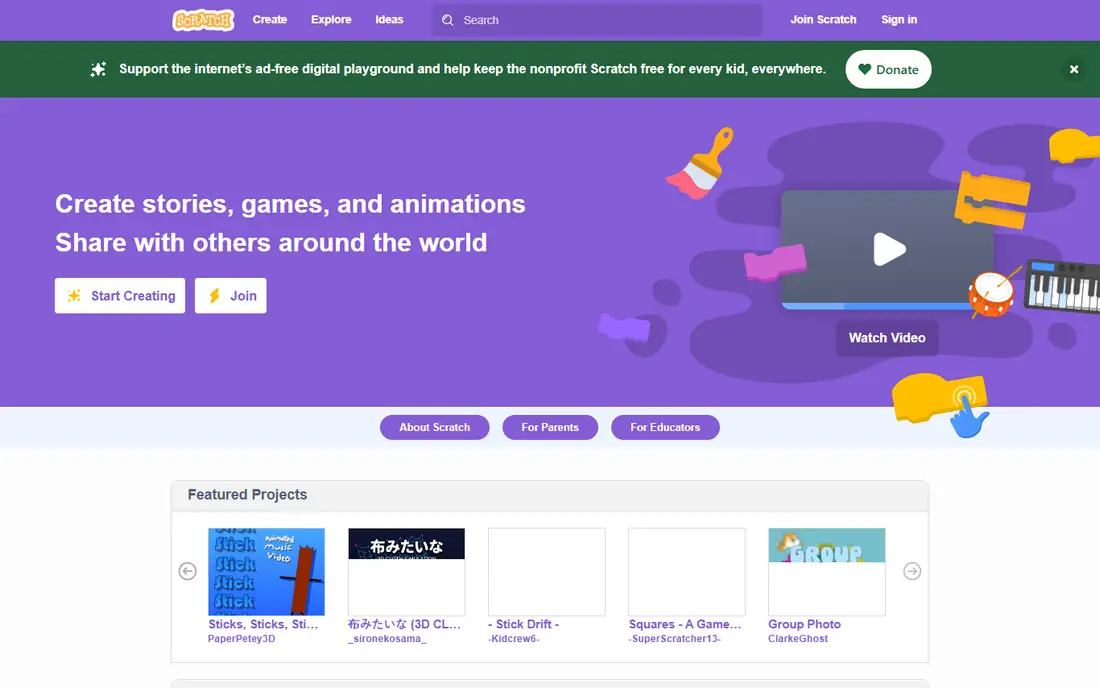
Scratch, built by MIT, is the tool we suggest first for most kids ages 8 to 16. Children snap color-coded blocks together to make animations, games, and interactive stories, so they learn sequencing, loops, and variables without typing syntax. The browser version works on Chromebooks and school computers with no install. The open design is both the strength and the catch. There is no set course that walks a child from lesson one to lesson ten, so a child who likes structure may stall. The online community is also public, so parents should review sharing settings and talk with kids about what is fine to post before they publish a project.
- Completely free
- Huge project ideas and tutorials
- Runs in a browser on most devices
- No built-in curriculum path
- Public community needs parent supervision
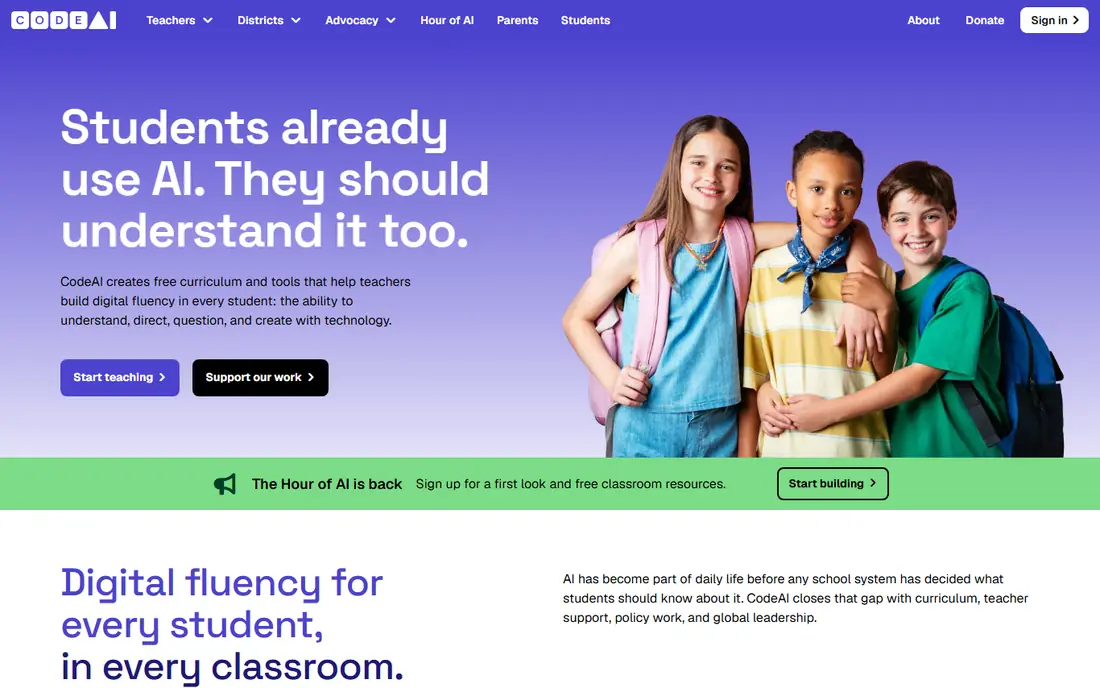
Code.org is the best pick when a child, parent, or teacher wants a clear path. Its courses run from pre-reader puzzles through high school computer science, with themed lessons built around characters kids already know. Progress is saved lesson by lesson, which makes it easy to see what a child has finished and what comes next. The trade-off is that Code.org feels more like schoolwork than a sandbox. Kids who love inventing their own games may find the guided puzzles a bit rigid. Pairing Code.org lessons with free time in Scratch often gives the best balance of structure and creativity.
- Free full curriculum for ages 4 to 18
- Popular themed lessons
- Teacher and parent dashboards
- Less open-ended creativity than Scratch
- Some courses feel school-like
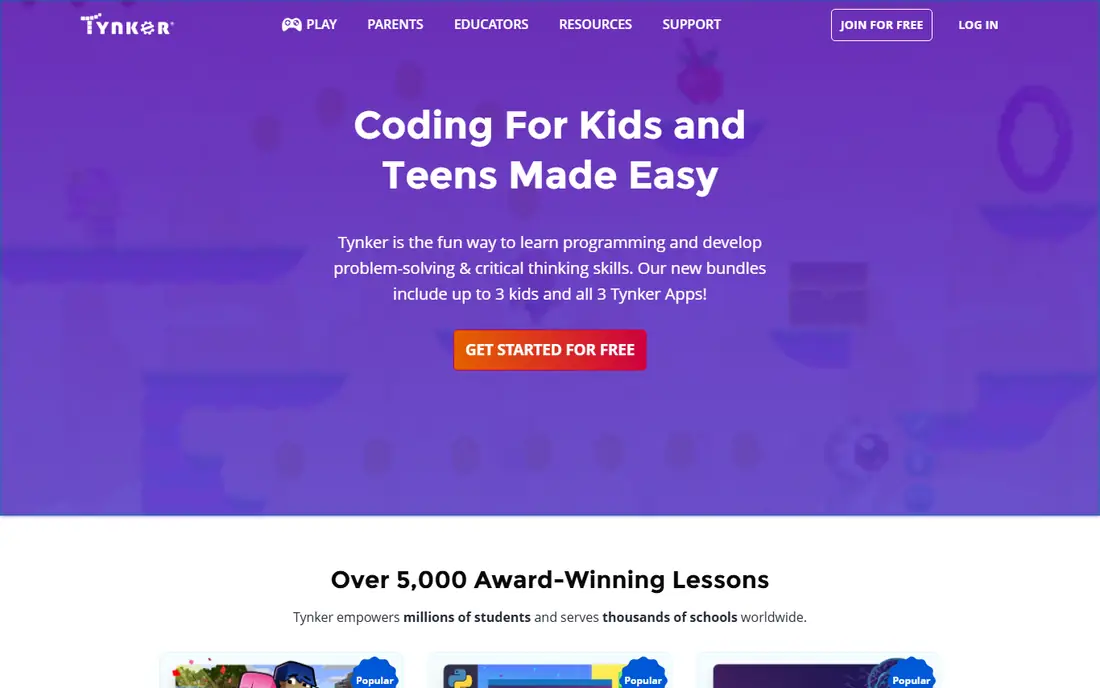
Tynker sits between Scratch and typed coding, and that middle step is where many kids get stuck without help. Younger children start with blocks, then move to text-based Python and JavaScript in the same platform, with game design, Minecraft modding, and robotics projects along the way. The parent dashboard tracks progress across courses. The free tier only covers a sample of lessons, so families should try it before paying for a full plan. Prices vary by plan and billing period, so check the Tynker pricing page for the current rate. For a motivated child who has outgrown Scratch, Tynker is a natural next step.
- Clear path from blocks to Python and JavaScript
- Minecraft and game projects
- Parent dashboard
- Full course library needs a paid plan
- Free tier is limited
CodeCombat turns coding practice into a role-playing game where players write real Python or JavaScript to move a hero through dungeons and battles. That format works well for kids ages 9 and up who already play games and are comfortable typing. Mistakes show up right away in the game, which makes debugging feel like part of play rather than a chore. The free levels cover the basics, but later worlds and heroes need a paid plan. Some kids also rush through levels by copying patterns without reading the code, so a parent or teacher checking in now and then helps. For a child who resists worksheets but loves games, CodeCombat is one of the strongest typed-code introductions.
- Teaches real typed code through a role-playing game
- Free levels cover the basics
- Classroom tools
- Game format can distract from learning
- Younger kids may struggle with typing
Swift Playgrounds is Apple's free app for learning Swift, the language used for iPhone, iPad, and Mac apps. Kids solve puzzles by writing code, then move on to building small apps they can actually run. The interactive lessons give instant feedback, and the app is polished in a way that keeps older kids engaged. The limit is hardware. Swift Playgrounds runs on iPad and Mac, so Chromebook and Windows families cannot use it. Swift is also less universal than Python for school or general programming. If your household already uses Apple devices, though, it is an excellent free path from puzzles to real app building.
- Completely free
- Teaches real Swift
- Puzzles lead to building real apps
- Apple devices only
- Swift is less widely used than Python
ScratchJr is the younger sibling of Scratch, built for ages 5 to 7. It uses picture blocks instead of words, so children who are still learning to read can still build stories, animate characters, and solve simple sequencing puzzles. The app runs on iPad and Android tablets, which suits younger children better than a laptop keyboard. The scope is deliberately small, and most kids outgrow ScratchJr by age 8. That is fine, since the move to Scratch feels natural once a child is comfortable with blocks and storytelling. For a first coding app, ScratchJr is gentle, free, and free of chat or public sharing pressure.
- Free
- Picture blocks need no reading
- Simple stories and games for young kids
- Tablet only
- Children outgrow it around age 8
Kodable teaches coding basics through games where kids guide a fuzzy character through mazes using sequences, loops, and conditions. It starts before reading is required and adds written code concepts as children grow, which makes it a good fit for kindergarten through upper elementary school. Teachers and parents get lesson plans and progress tracking. The base curriculum is free, but deeper lessons and extra devices need a paid plan, so check current pricing before committing. Kodable is narrower than Scratch, with less room for open-ended game design. As a first structured tool for younger kids, though, its gentle difficulty curve works well.
- Built for ages 4 to 10
- Game-based logic puzzles
- Curriculum for parents and teachers
- Free tier is limited
- Full family plan is a paid upgrade
Hopscotch lets kids design and publish their own games on iPhone and iPad using drag-and-drop blocks, custom characters, and simple rules. Children can play games made by other kids, remix ideas, and share their own creations, which gives coding a social payoff that pure puzzle apps lack. The free version covers the core building tools. A subscription adds extra characters, images, and features, and the app is Apple only. Parents should review community and sharing settings together with their child, as with any app with a public gallery. For a creative kid on an iPad who wants to make games friends can actually play, Hopscotch is a fun, low-cost pick.
- Free core app
- Kids publish playable games
- Visual blocks with custom art
- Apple devices only
- Subscription needed for full features
How we picked these
We compared official feature pages, pricing pages, app store listings, privacy policies, and public reviews for coding tools that are actively available in October 2026. We favored tools with clear age guidance, published pricing, and safety features for children, such as moderated communities or parent dashboards. We did not claim hands-on testing. Instead, we weighed curriculum structure, the path from blocks to typed code, device support, and cost, and we mixed free nonprofit tools with paid platforms so families can start free and upgrade only when a child is ready.
How to choose the right coding tool by age
Age is a starting point, not a strict rule. Watch how your child responds to the first few sessions, and move up only when the current tool feels too easy rather than on a birthday.
Ages 5 to 7
Start with ScratchJr or Kodable, both of which use pictures and short puzzles. Sessions of 15 to 20 minutes work better than long sittings, and a parent nearby helps when a puzzle frustrates a young child. Avoid tools that require typing or reading long instructions at this stage.
Ages 8 to 12
Scratch and Code.org are the core picks here, with Hopscotch as a creative extra on Apple devices. Kids in this range can handle longer projects, simple variables, and sharing work with family. This is also the right time to talk about online safety if a child uses a public project gallery.
Ages 13 and up
Move toward typed code with CodeCombat, Tynker's text courses, or Swift Playgrounds. Teens who finish those paths are ready for general tools like Python tutorials and web development courses, but there is no rush. A solid grasp of loops, conditions, and debugging matters more than the specific language on a resume that does not exist yet.
FAQ
What are the best coding apps for kids?
Scratch and Code.org are the best free starting points for most children. Scratch suits creative kids who want to invent games and stories, while Code.org suits kids who like guided lessons with clear progress. For typed code, CodeCombat and Swift Playgrounds are strong next steps.
What is the best coding tool for kids ages 5 to 7?
ScratchJr is the best pick for ages 5 to 7 because its picture blocks need no reading skills. Kodable is another good option for early elementary kids, with game-based logic puzzles that grow with the child. Keep sessions short and sit nearby for the first few weeks.
Are coding tools for kids safe?
Most established kids tools publish privacy policies and offer parent dashboards, but safety still needs a parent's attention. Check whether the app has chat, public sharing, or in-app purchases, and turn off features you do not want. Tools from nonprofits like Scratch and Code.org and from Apple tend to have clearer child privacy practices.
Do kids need to learn typed code right away?
No, block coding teaches real programming ideas like loops, conditions, and variables without syntax errors getting in the way. Children usually move to typed code around ages 10 to 13, once they type comfortably and understand the underlying logic. Rushing to typed code too early often causes frustration rather than faster learning.
Is Tynker or CodeCombat better for a child who likes games?
Tynker is better for a child who wants to build games, mod Minecraft, and move from blocks to Python at their own pace. CodeCombat is better for a child who wants to play a role-playing game where typing code controls the hero. Both have free entry points, so try each for a week before paying.
Can kids learn coding for free?
Yes, Scratch, Code.org, ScratchJr, and Swift Playgrounds are all free, and CodeCombat, Kodable, and Hopscotch all have free tiers. Paid plans mainly add more courses, levels, or features. A family can go a long way on free tools before any subscription is worth paying for.