Best Cloning Software in 2026: 8 Tools Compared
Compare the best cloning software for SSD upgrades and backups, with free tools, bootable clones, imaging, and rescue media for Windows and Mac users.

- Editor's choice
 Acronis Cyber Protect Home Office
Cloning plus security
Starts at$49.99 per yearVisit acronis.comFull review - Great alternative
 Macrium Reflect
Reliable Windows imaging
Starts atSee websiteVisit macrium.comFull review - Also consider
 Clonezilla
Free expert cloning
Starts atFreeVisit clonezilla.orgFull review
TL;DR:
- Acronis Cyber Protect Home Office is the most complete paid package, pairing cloning with backup and security tools.
- Macrium Reflect is the technician favourite for reliable Windows imaging and rescue media.
- Clonezilla and Rescuezilla are the best free options, one for experts, one for everyone else.
- AOMEI Backupper and EaseUS Todo Backup offer usable free tiers for home Windows users.
- Carbon Copy Cloner is the clear Mac answer, while Hasleo Backup Suite is a strong free Windows pick.
Quick comparison
| Tool | Best for | Starts at | Free plan? | |
|---|---|---|---|---|
| Acronis Cyber Protect Home Office | Cloning plus security | $49.99 per year | Free trial | Visit |
| Macrium Reflect | Reliable Windows imaging | See website | Free trial | Visit |
| Clonezilla | Free expert cloning | Free | Yes | Visit |
 Rescuezilla | Easy free cloning | Free | Yes | Visit |
 AOMEI Backupper | Free Windows backup and clone | See website | Yes | Visit |
 EaseUS Todo Backup | Beginner-friendly backup | See website | Yes | Visit |
 Carbon Copy Cloner | Mac cloning and backup | See website | Free trial | Visit |
 Hasleo Backup Suite | Free Windows system backup | Free | Yes | Visit |
The best cloning software
Cloning makes an exact, bootable copy of a drive, which is different from imaging, which saves a compressed backup file. Clone when you move to a new SSD, image when you want protection against failure. The eight tools below cover both jobs, for Windows and Mac, at prices from free to a yearly subscription.
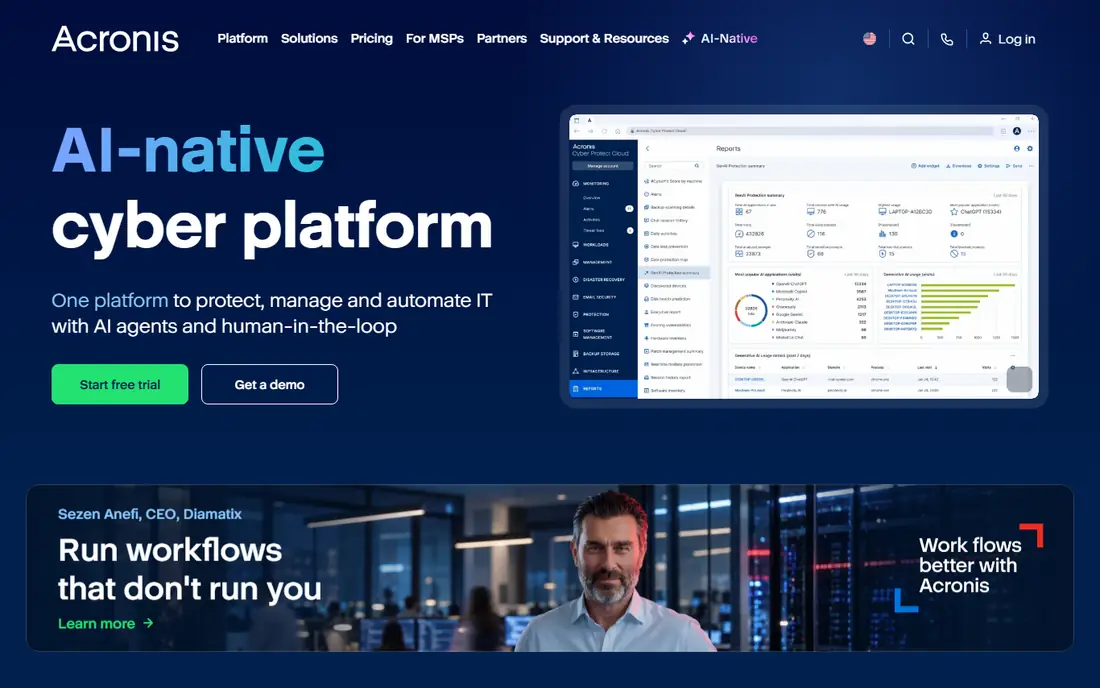
Acronis Cyber Protect Home Office, formerly Acronis True Image, is the most complete consumer package on this list. It clones drives for SSD upgrades, runs scheduled image backups, and adds antivirus and ransomware protection in the same subscription. That breadth suits home users who want one tool to handle backup and security together.
The price starts at 49.99 dollars per year for the Essentials tier, with a free trial to test the clone workflow. The downside is scope and cost over time. If you only need a single SSD clone, a free tool will do the job without a yearly bill, but if you want ongoing backup plus security, Acronis earns its subscription.
- Cloning plus full backup and antivirus in one package
- Cloud backup options
- Ransomware protection features
- Subscription pricing
- Interface can feel busy for a one-time clone
Macrium Reflect is the tool technicians reach for when a restore has to work the first time. Its scheduled imaging, incremental backups, and bootable rescue media are well tested, and the interface makes it clear what will be backed up and where the image will go. For Windows homes and small offices, that reliability matters more than extra features.
Macrium is Windows only, so Mac users should look at Carbon Copy Cloner instead. Pricing is also sales and site based for some tiers, with a free trial available, so check the current plan before buying. For a Windows user who images regularly, Macrium remains a safe, well-supported pick.
- Dependable scheduled imaging
- Strong rescue media
- Incremental and differential backups
- Windows only
- Paid plans needed for full features
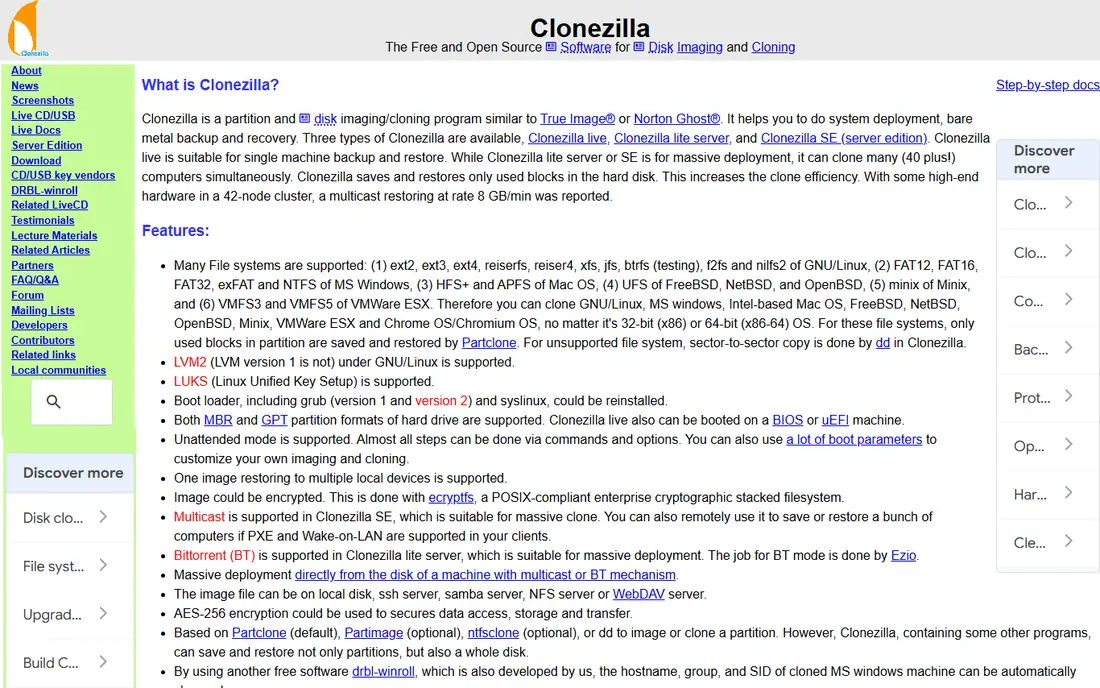
Clonezilla is the free standard for disk cloning, and it has earned that place through years of reliable use. It copies drives at block level, handles many file systems, and can clone many machines at once over a network using multicast. IT teams use it for lab deployments, bulk upgrades, and rescue work where cost must be zero.
The interface is the price of that power. Clonezilla runs from a bootable USB with a text-based menu, and a wrong choice can overwrite the wrong drive, so beginners should practise on a spare disk first. If you are comfortable with that workflow, no paid tool clones a single drive better for free.
- Free and open source
- Fast block-level cloning
- Multicast cloning for many machines at once
- Text-based interface with a learning curve
- No scheduling or graphical console
Rescuezilla takes Clonezilla power and puts a graphical interface on top of it. You boot from USB, pick the source and destination drives from a visual list, and clone or restore with far less risk of a menu mistake. That change makes free cloning accessible to home users who would never touch a text-based tool.
The trade-off is automation. Rescuezilla does not offer the scheduled, incremental backup workflow of Macrium or Acronis, so it suits one-time clones and rescue jobs better than ongoing backup. For a single SSD upgrade at zero cost, it is the easiest free path.
- Free and open source with a graphical interface
- Bootable USB workflow
- Compatible with Clonezilla images in many cases
- Fewer scheduling and automation features than paid tools
- Bootable workflow still needs care
AOMEI Backupper is a strong middle ground for Windows users who want a graphical tool with a real free tier. The free Standard edition covers system, disk, and partition cloning, plus basic backup, which is enough for most SSD upgrades. The interface is clear, with the source and destination steps laid out in order.
Paid plans add scheduled backups, incremental imaging, and other features that home users with ongoing backup needs will want. AOMEI is Windows only, so Mac users need another tool, but for a Windows home that wants free cloning without a bootable text menu, it is hard to beat.
- Generous free tier with system, disk, and partition cloning
- Scheduled backups on paid plans
- Clear interface
- Some advanced features need the paid plan
- Windows only
EaseUS Todo Backup is built for users who have never cloned a drive before. The wizard walks through source selection, destination selection, and boot checks in plain language, and the free edition covers basic backup and cloning. That guidance reduces the chance of picking the wrong drive, which is the main risk in any clone job.
The free edition has limits, and advanced features such as faster incremental backup and universal restore sit on paid plans. Pricing also varies by edition, so check the current Home plan before buying. For a first SSD upgrade, the guided workflow is worth more than a longer feature list.
- Friendly interface for first-time cloners
- Free edition for basic backup and clone
- System migration tools
- Paid plan needed for advanced features
- Pricing varies by edition
Carbon Copy Cloner is the clear answer for Mac users. It creates bootable backups of a Mac drive, runs scheduled tasks, and keeps a clear history of what each task copied. That bootable copy matters, because it lets you start from the backup drive if the internal drive fails, rather than rebuilding from scratch.
The tool is Mac only, and it needs a paid license after the trial period, so Windows users should ignore it. For a Mac owner upgrading an internal drive or setting up a regular bootable backup, Carbon Copy Cloner is simpler and more focused than a cross-platform suite.
- Bootable Mac backups
- Scheduled tasks
- Clear task history and reporting
- Mac only
- Paid license needed after the trial
Hasleo Backup Suite is a lesser-known free option that deserves a place on this list. It covers system, disk, and partition backup, includes cloning for drive upgrades, and runs on Windows with a straightforward interface. For a home user who wants a free, graphical Windows tool without a subscription, it is a practical pick.
The weakness is community size. Hasleo does not have the same volume of tutorials and forum answers as Acronis, Macrium, or Clonezilla, so troubleshooting a rare problem may take longer. If you value a large support community above a free price, pick one of the better-known tools instead.
- Free Windows system, disk, and partition backup
- Cloning included
- Straightforward interface
- Smaller support community than larger rivals
- Windows only
How we picked these
We compared official feature pages, pricing pages, and public documentation for cloning and imaging tools available in October 2026. We favoured tools that make a bootable clone or a restorable image, support current Windows or Mac systems, and offer a free tier, trial, or published price. We excluded discontinued tools, even when older guides still list them, because a clone tool without vendor support is a risk.
How to choose cloning software
Start with your operating system and your job. Mac users should start with Carbon Copy Cloner, Windows users with a one-time SSD upgrade should start free with Rescuezilla, Clonezilla, or AOMEI, and users who want ongoing scheduled backup should compare Acronis and Macrium. Always check that the destination drive is at least as large as the used space on the source, not just the total size, when cloning to a smaller SSD.
Most important, verify the clone boots before you wipe the old drive. Boot from the new drive, open a few apps, and check that files are present. A clone that was never tested is not a backup, it is a hope, and testing takes ten minutes that can save a week of rebuilding.
FAQ
What is the best free cloning software?
Clonezilla is the best free pick for experts, while Rescuezilla is the best free pick for beginners who want a graphical interface. AOMEI Backupper and Hasleo Backup Suite also offer free Windows cloning with a clearer in-Windows workflow.
Can I clone a hard drive to a smaller SSD?
Yes, if the used space on the source drive fits on the smaller SSD. Most cloning tools support cloning to a smaller drive based on used space, but you should shrink partitions and remove unneeded files first, and verify the clone boots afterwards.
What is the difference between cloning and imaging?
Cloning makes an exact, bootable copy on another drive, ready to use at once. Imaging saves a compressed file that you restore later, which is better for scheduled backups and keeping several versions, but it needs a restore step before you can boot from it.
Is Acronis or Macrium better for Windows backup?
Acronis suits users who want backup plus security in one subscription, while Macrium suits users who want reliable imaging and rescue media without extra security tools. Both are strong, so pick based on whether you need the added security features.
Do I need to pay for cloning software for an SSD upgrade?
No, free tools such as Clonezilla, Rescuezilla, and AOMEI Backupper handle most one-time SSD upgrades well. Paid tools earn their price through scheduling, incremental backups, support, and easier restores, not through a better one-time clone alone.