Best Cloud Services for Small Business in 2026: 8 Services Compared
Compare the best cloud services for small business, from email and storage to hosting and backup, with prices, limits, and tips for picking the right mix.
- Editor's choice
 Google Workspace
Email and documents
Starts at$7 per user per monthVisit workspace.google.comFull review - Great alternative
 Microsoft 365
Office apps and email
Starts at$6 per user per monthVisit microsoft.comFull review - Also consider
 Dropbox
File sharing
Starts atSee websiteVisit dropbox.comFull review
TL;DR:
- Most small businesses need only three cloud pieces to start: email and documents, file storage, and backup.
- Google Workspace and Microsoft 365 both bundle email, documents, and storage, so pick the one your team already knows.
- Dropbox, Backblaze, and Wasabi cover storage and backup at different price points and with different strengths.
- DigitalOcean and Linode suit small businesses that run a website or app and want simple server pricing.
- Check data location, support hours, and exit options before you move files, since switching later costs time.
Quick comparison
| Tool | Best for | Starts at | Free plan? | |
|---|---|---|---|---|
| Google Workspace | Email and documents | $7 per user per month | No | Visit |
| Microsoft 365 | Office apps and email | $6 per user per month | No | Visit |
| Dropbox | File sharing | See website | Yes | Visit |
 Amazon Web Services | Flexible cloud infrastructure | See website | Yes | Visit |
 DigitalOcean | Simple servers | $4 per month | No | Visit |
 Linode | Developer-friendly hosting | See website | No | Visit |
 Backblaze | Cloud backup | See website | Yes | Visit |
 Wasabi | Low-cost object storage | See website | No | Visit |
The best cloud services for small business
The best cloud service for small business is rarely a single product. Most small firms use a bundle for email and documents, a separate tool for file sharing or backup, and sometimes a server host for a website. We compared official pricing pages, storage limits, and support options to explain which mix fits different kinds of small business.
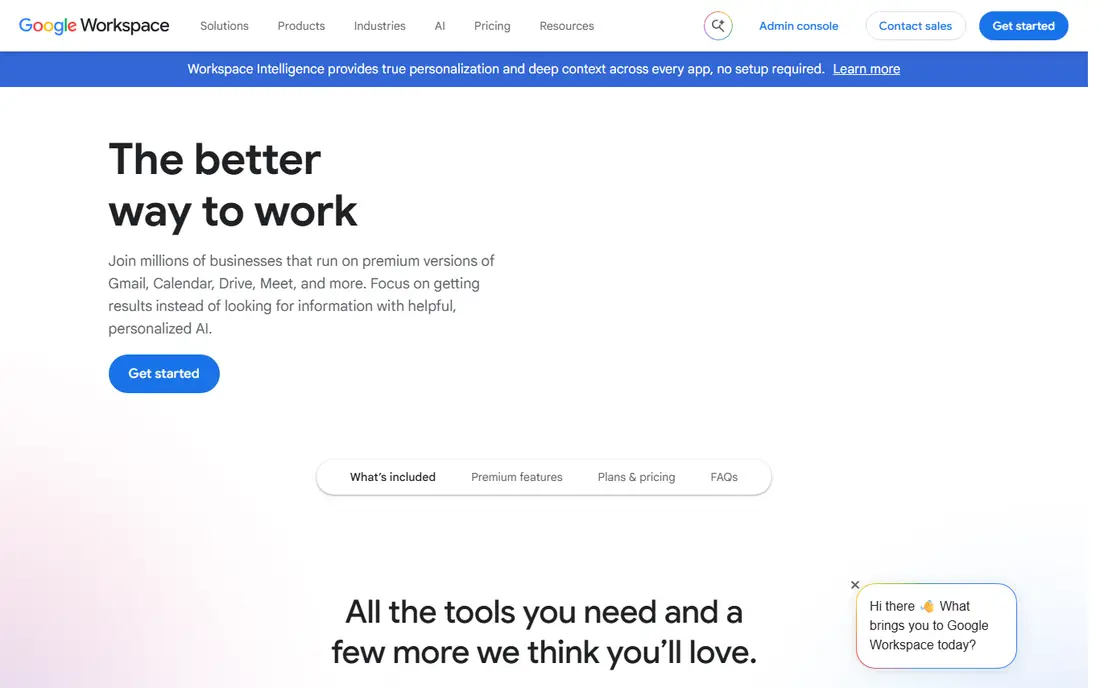
Google Workspace gives a small business a custom email domain, shared calendars, Drive storage, and Docs, Sheets, and Meet in one subscription. Teams that already use Gmail personally will feel at home, and real-time collaboration in Docs is still one of the smoothest ways for a small team to work on the same file. Admin controls let an owner manage accounts, devices, and security without a dedicated IT hire.
The entry plan storage limit is the main catch, since growing teams with large files may need a higher tier sooner than expected. If your team lives in desktop Office apps, Microsoft 365 may fit better. For web-first teams, Google Workspace is a clean and reliable start.
- Familiar Gmail and Docs
- Simple admin console
- Strong collaboration tools
- Storage limits on the entry plan
- Fewer desktop Office features than Microsoft

Microsoft 365 Business Basic starts at a low per-user price and bundles Exchange email, OneDrive storage, SharePoint, and Teams, with higher plans adding desktop Office apps. Businesses that already use Word, Excel, and Outlook will find the transition easy, and Teams covers chat, video calls, and file sharing in one place. That familiarity reduces training time, which matters for a small team.
Plan tiers are the confusing part. The entry plan includes web versions of Office apps rather than full desktop versions, so check which tier your team actually needs before you compare prices. For Office-centred businesses, the higher plan is often worth the extra cost.
- Full Office apps
- Exchange email
- Teams for chat and calls
- Plan tiers can confuse
- Entry plan has web-only Office apps
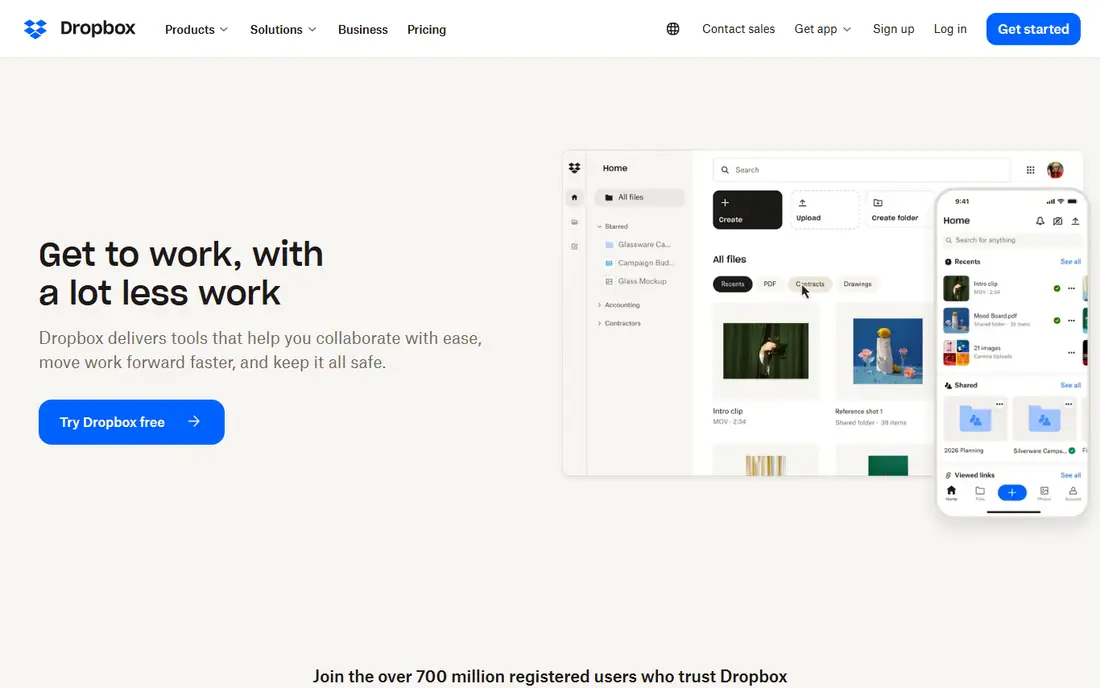
Dropbox is the simplest file sharing tool on this list, with fast sync, easy link sharing, and integrations with many business apps. Clients and contractors can receive files without an account, and version history helps when a file is edited by mistake. Small businesses that share large design files, photos, or videos often prefer Dropbox sync over a general drive.
The price is the downside when compared with storage bundled into Google Workspace or Microsoft 365. If you already pay for one of those bundles, Dropbox may duplicate storage you own. Buy Dropbox when sharing and sync quality matter more than getting the cheapest gigabyte.
- Easy file sharing
- Good sync
- Wide app integrations
- Paid plans cost more than Drive or OneDrive storage alone
- Free plan storage is small
Amazon Web Services, known as AWS, offers the widest range of cloud services, from storage and servers to databases and AI tools, with data centres around the world. A small business can start with simple storage or a small server and grow into more services without moving providers. The free tier covers limited use of many services for new accounts, which helps with testing.
Complexity is the real cost. AWS pricing has many variables, and a misconfigured service can run up a bill quickly, so set billing alerts and cost controls from day one. AWS suits businesses with some technical skill or a developer on hand, rather than teams that want a single fixed monthly price.
- Huge service range
- Global data centres
- Pay-as-you-go pricing
- Pricing is complex
- Easy to overspend without cost controls
DigitalOcean is a favourite for small businesses and developers that run a website or app on a virtual server, called a Droplet, with pricing starting at a low monthly rate. The dashboard is clear, documentation is strong, and managed databases and storage can be added without learning a large enterprise platform. That simplicity makes it a good fit for a small site that has outgrown shared hosting.
Support is less hands-on than a managed host, so you or your developer need to handle server updates and security. If you want a provider to manage everything, a managed WordPress or app host may fit better. For a team with basic technical skill, DigitalOcean offers clear pricing and control.
- Simple server pricing
- Clear dashboard
- Good documentation
- Less managed support than larger clouds
- Fewer enterprise services
Linode, now part of Akamai, offers virtual servers, storage, and managed databases with competitive pricing and data centres in many regions. Developers like its clear pricing, its API, and its documentation, and small businesses that run custom apps can host them at a predictable cost. Managed services exist for teams that want less server work, though the core product remains self-managed.
The main limit is the same as with DigitalOcean: you manage the server unless you pay for extra support or a managed layer. That suits a business with a developer or a reliable freelancer, but not a team that wants a fully managed website. Check current server pricing on the site, since instance types and rates change.
- Competitive server pricing
- Global data centres
- Strong documentation
- Self-managed by default
- Support plans cost extra
Backblaze is best known for simple computer backup, with a client that backs up files in the background and lets you restore by download or by mailed drive. Business plans cover teams and servers, while the personal plan offers unlimited backup for a single computer. For a small business that has never had a reliable backup, Backblaze is one of the easiest ways to fix that gap.
Restore time is the practical limit. Downloading a large backup takes time, and the mailed drive option costs extra. Backblaze is a backup tool, not a file sharing tool, so pair it with Drive, OneDrive, or Dropbox for daily collaboration. Confirm business pricing on the site, since it differs from personal plans.
- Simple computer backup
- Unlimited backup on personal plans
- Business backup options
- Restore speeds vary with file size
- Business pricing differs from personal plans
Wasabi offers low-cost object storage that works with the S3 standard, which many backup and media apps already support. The headline advantage is pricing, with no egress fees on most plans, meaning you are not charged extra each time you download your own data. That makes Wasabi a strong choice for backups, archives, and media libraries that grow over time.
Wasabi is storage, not a collaboration tool, so you still need Drive, Dropbox, or a similar app for daily file work. Some plans have minimum storage and retention terms, so read those details before you move an archive. For long-term storage at a low cost, it is hard to beat.
- Low storage pricing
- No egress fees on most plans
- S3-compatible storage
- Minimum storage terms on some plans
- Not a file sharing tool
How we picked these
We compared cloud services by pricing transparency, storage and server limits, support options, and fit for small teams, using official pricing and product pages. We kept services that a small business can buy and run without an enterprise contract, and we covered the main jobs: email and documents, file sharing, servers, backup, and archive storage. We did not rank by raw capacity alone, since support quality and ease of use matter as much as gigabytes for a small team.
How to build the right cloud mix
Start with email and documents, since that is the system your team touches every day. Choose Google Workspace or Microsoft 365 based on the apps your team already knows, and make sure the plan you pick has enough storage for a year of growth. Add file sharing only if the bundled drive does not meet your sharing needs, rather than paying for two storage systems from day one.
Next, fix backup before you add anything fancy. A cloud backup for every work computer, plus a separate backup for your website or server, protects against the most common small business disasters. Finally, choose a server host only if you run a website or app that needs one, and set billing alerts on any pay-as-you-go service so a traffic spike does not turn into a surprise bill.
Security basics that matter
Turn on two-factor authentication for every admin account, limit admin access to the people who need it, and review sharing links on a regular schedule. Keep a list of which services hold which data, so you can act fast if an account is compromised. These steps cost little and prevent most common cloud problems for small businesses.
FAQ
What are the best cloud services for small businesses?
Google Workspace or Microsoft 365 for email and documents, plus Dropbox or a bundled drive for sharing, and Backblaze or Wasabi for backup and storage, cover most small businesses. The right mix depends on whether your team prefers Google or Microsoft apps.
What is the best cloud service for small business on a tight budget?
Google Workspace Business Starter and Microsoft 365 Business Basic are the lowest-cost bundles, and both include storage that may remove the need for a separate file tool. Add a low-cost backup only after email and documents are settled.
Do I need AWS for a small business?
Only if you run a website, app, or data workload that needs flexible servers or storage. Most small businesses that only need email, documents, and file sharing will be happier with Google Workspace or Microsoft 365.
How do I move to the cloud without losing files?
Back up everything locally first, move in stages by team or folder, and verify files after each stage before you delete the old copies. Keep the old system readable for a month after the move, in case a file was missed.
Is cloud storage safe for business files?
Reputable providers encrypt data in transit and at rest and offer admin controls, but safety also depends on your passwords, two-factor settings, and sharing habits. Use strong authentication, limit sharing links, and keep a separate backup of critical files.
Sources
- https://workspace.google.com/pricing
- https://www.microsoft.com/en-us/microsoft-365/business/pricing
- https://www.dropbox.com/business/plans
- https://aws.amazon.com/pricing
- https://www.digitalocean.com/pricing
- https://www.linode.com/pricing
- https://www.backblaze.com/business-backup.html
- https://wasabi.com/pricing