Best CAD CAM Software for Hobbyist Makers in 2026: 8 Tools Compared
We compare 8 tools for best cad cam software for hobbyist makers, with free plans, 3D modeling, CNC toolpaths, and pricing for home workshops. in 2026.
- Editor's choice
 Fusion 360
All in one CAD and CAM for makers
Starts atFreeVisit autodesk.comFull review - Great alternative
 FreeCAD
Free open source parametric modeling
Starts atFreeVisit freecad.orgFull review - Also consider
 Onshape
Cloud CAD with live collaboration
Starts atFreeVisit onshape.comFull review
TL;DR:
- Fusion 360 and FreeCAD cover the most hobbyist needs, because they combine modeling with CAM toolpaths in one workflow.
- Free tools suit learning and personal projects, while paid tools add support, cloud features, and advanced machining options.
- Check machine compatibility and post processors before you buy, because a great model is useless if your CNC cannot read the toolpath.
- Start with the project type: 3D printing favors modeling tools, while CNC routing and milling favor strong CAM features.
Quick comparison
| Tool | Best for | Starts at | Free plan? | |
|---|---|---|---|---|
| Fusion 360 | All in one CAD and CAM for makers | Free | Yes | Visit |
| FreeCAD | Free open source parametric modeling | Free | Yes | Visit |
| Onshape | Cloud CAD with live collaboration | Free | Yes | Visit |
 Tinkercad | Beginners and first 3D prints | Free | Yes | Visit |
 Shapr3D | Tablet and Apple Pencil modeling | See website | Yes | Visit |
 Carbide Create | Simple CNC design for Carbide machines | Free | Yes | Visit |
 Vectric VCarve | CNC routing, signs, and woodwork | See website | No | Visit |
 EstlCAM | Low cost CAM for hobby CNC mills | See website | Free trial | Visit |
The best cad cam software for hobbyist
Hobbyist makers need tools that are affordable, learnable, and able to turn a model into a part. The tools below span free modeling, cloud CAD, and dedicated CAM, so home workshops with different machines can find a fit.
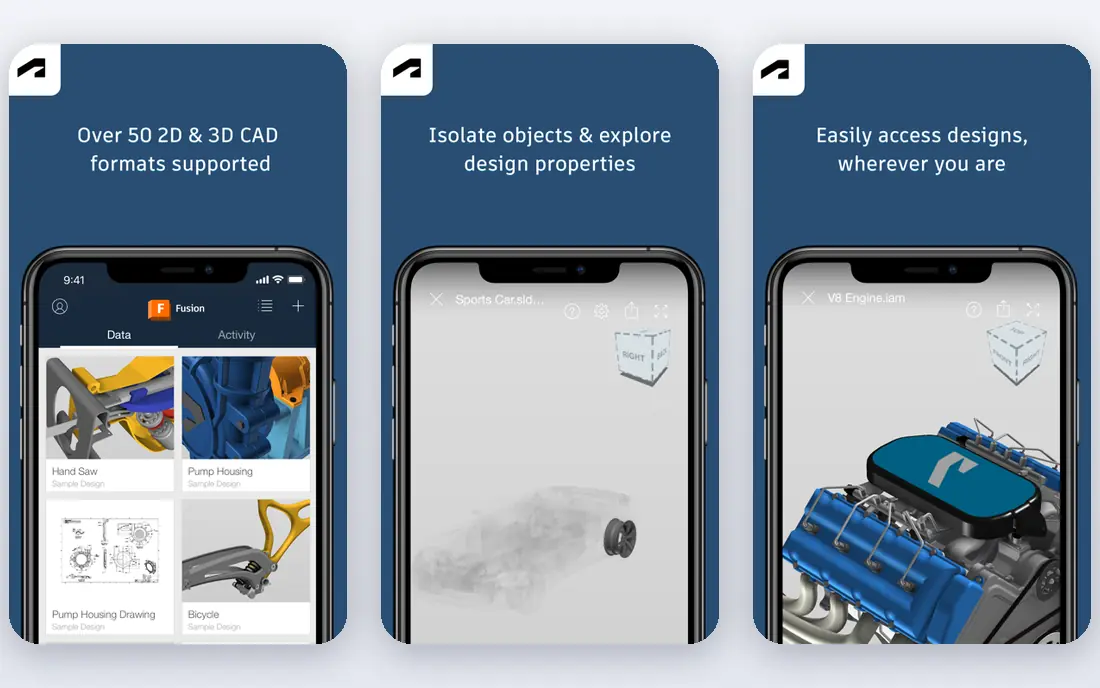
Fusion 360 is our pick for most hobbyists because it covers the full path from sketch to toolpath. Model a part, set up CAM operations for milling or turning, simulate the cut, and post process for your machine, all without moving files between apps. The tutorial library is large, which helps beginners learn parametric modeling step by step.
The free personal plan suits non commercial home projects, with limits on active documents, exports, and advanced simulation. Commercial use requires a paid subscription, which is priced per user per year. For a hobbyist who machines parts, prints prototypes, and wants one tool to learn deeply, Fusion 360 is the most complete choice.
- CAD, CAM, simulation, and data management in one app
- Large tutorial library and community
- Personal use plan for non commercial projects
- Personal plan limits active documents and exports
- Commercial subscription costs more per year
- Needs a stable internet connection for cloud features
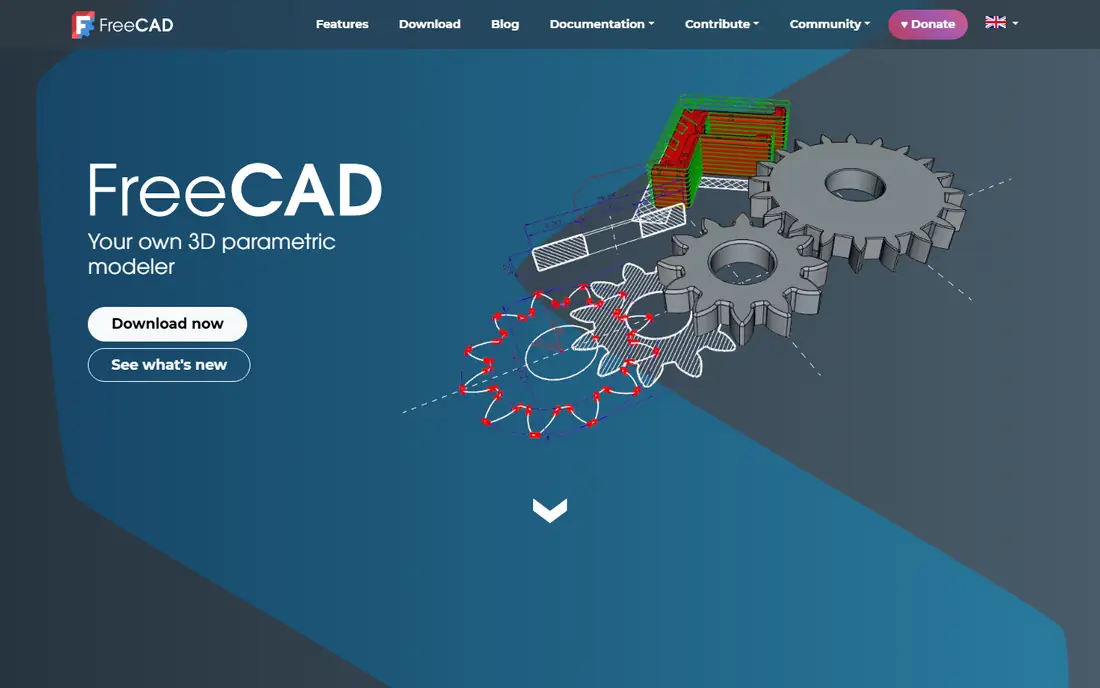
FreeCAD is the best free option for makers who want full control and no subscription. Parametric modeling lets you change a dimension and update the whole part, while workbenches cover part design, sheet metal, drafting, and CAM. The community provides add ons, tutorials, and models that help beginners get started.
The trade off is polish and setup. The interface is functional rather than slick, and CAM takes more configuration than Fusion 360. For a hobbyist on a tight budget, or a maker who prefers open source tools, FreeCAD offers serious capability for zero cost, apart from learning time.
- Free and open source with no license cost
- Parametric modeling with workbenches for many tasks
- Runs on Windows, Mac, and Linux
- Interface feels less polished than Fusion 360
- CAM workflow needs more setup and learning
Onshape suits makers who want CAD in a browser. There is no install, files stay in the cloud, and collaborators can edit together with built in version control. That flow helps clubs, classes, and friends who design together, because everyone sees the same model and history.
The free plan is for non commercial use and makes projects public, which may not suit private designs. Paid plans start at a high yearly price for a hobbyist, and CAM usually means exporting to another tool. For learning, collaboration, and mechanical design in a browser, Onshape is clean and capable.
- Runs in a browser with no install
- Live collaboration and version control built in
- Strong parametric modeling for mechanical parts
- Free plan makes projects public
- Paid plans are costly for a single hobbyist
- CAM needs a partner app or export step
Tinkercad is the best first step for a complete beginner. Drag shapes, combine them, and export for 3D printing in minutes, all in a browser. Teachers, kids, and new makers can learn 3D thinking without facing a complex parametric interface on day one.
The limit is depth. Tinkercad lacks the precision, constraints, and CAM toolpaths that mechanical hobbyists need for machined parts. Treat it as a learning tool and a quick prototyping aid, then move to FreeCAD or Fusion 360 when projects need exact dimensions, assemblies, or CNC output.
- Free and very easy to learn
- Browser based with no install
- Good for first 3D prints, classroom projects, and simple parts
- Limited precision and parametric control
- Not suited to complex mechanical parts or CAM
Shapr3D suits makers who like to sketch and model on a tablet. Direct modeling with an Apple Pencil feels natural for concept work, and models sync across iPad, Mac, and Windows. That mobility helps makers who design on the couch, in the workshop, or at a maker space, rather than only at a desk.
The free tier covers a limited number of designs, and paid plans are subscription based. CAM is not the focus, so machinists will export models to a CAM tool. For concept modeling, product ideas, and 3D printing, Shapr3D is fast, pleasant, and easy to learn.
- Fast direct modeling on iPad, Mac, and Windows
- Apple Pencil support for sketching
- Good sync across devices
- Paid plans cost more than free tools
- CAM and advanced simulation need other tools
Carbide Create is a practical pick for owners of Carbide 3D CNC machines, and a useful free tool for simple CNC work in general. Design 2D shapes, set pockets, profiles, and V carves, and generate toolpaths without a steep learning curve. Signs, plaques, and simple parts come together quickly.
The limit is complexity. Carbide Create does not match Fusion 360 or VCarve for advanced 3D machining, and the smoothest workflow appears with Carbide hardware. For a hobbyist starting with a desktop CNC router, it removes cost and setup barriers and gets the machine cutting sooner.
- Free and simple for 2D and 2.5D CNC work
- Built for Carbide 3D machines with a clear workflow
- Good for signs, pockets, and profiles
- Less suited to complex 3D machining
- Best value appears with Carbide hardware
Vectric VCarve is the woodwork and sign making favorite in hobby CNC. Toolpaths for V carving, profiling, pocketing, and 3D relief are well tuned for routers, and the interface guides makers through material setup, bit selection, and preview. A 3D preview shows the cut before you run the machine, which saves material and time.
Pricing varies by edition, so check the current vendor page for the version that fits your work. VCarve is Windows focused, which matters for Mac only workshops. For a hobbyist who routes signs, plaques, and furniture parts, VCarve offers depth that free 2D tools cannot match.
- Strong toolpaths for routing, signs, and woodwork
- Good V carving, texturing, and 3D relief options
- Large user community and tutorials
- Pricing is per product and needs a check on the vendor page
- Windows focused, so Mac users need a workaround
EstlCAM suits hobbyists who already have a design and mainly need CAM. Import a DXF, SVG, or 3D file, set toolpaths for milling or engraving, and control a CNC mill directly or export G code. The low cost and trial make it easy to test with your own machine before paying.
The trade off is design depth. EstlCAM is not a full CAD replacement, so makers should design in FreeCAD, Fusion 360, or another CAD tool, then use EstlCAM for toolpaths. For a home mill or router where CAM cost matters, it is a practical and proven choice.
- Low cost CAM with a trial to test
- Supports milling, engraving, and laser work on many machines
- Simple toolpath setup for hobby mills
- Interface is functional rather than polished
- Design features are lighter than full CAD tools
How we picked these
We compared official pricing pages, free plan limits, modeling and CAM features, machine compatibility, and public documentation for CAD and CAM tools in use by hobbyists in October 2026. We favored tools with a free or low cost entry point, a clear path from model to machine, and a tutorial base that helps beginners. We mixed all in one tools with focused CAM tools, so 3D printing, routing, and milling makers can compare fairly.
How to choose CAD CAM software for a home workshop
Start with your machine and your project type. A 3D printer needs good modeling and slicing, while a CNC router needs strong toolpaths, post processors, and material previews. Check that your machine is supported, either directly or through a post processor, before you invest learning time in a tool.
Modeling, CAM, and post processors
Learn parametric modeling if you plan to revise parts, because changing a dimension should update the whole design. For CAM, test a simple part end to end: model, toolpath, preview, post process, and cut in a cheap material. Note feed rates, bit choices, and hold down methods, because those workshop details affect results more than software brand.
Learning path and cost over time
Start free with Tinkercad for basics, FreeCAD for parametric work, or Fusion 360 personal use for CAD plus CAM. Move to a paid tool only when a limit blocks real work, such as document limits, export limits, or missing toolpaths. A tool you enjoy using will get more practice than a powerful tool you avoid, so test the interface for a week before you pay.
FAQ
What is the best CAD CAM software for a hobbyist?
Fusion 360 is the best all in one pick for most hobbyists, because it combines CAD, CAM, and simulation with a large tutorial library. FreeCAD is the best free option, while VCarve suits CNC routing and woodwork. Pick based on your machine and whether you print, mill, or route most often.
Is Fusion 360 free for hobbyists?
Fusion 360 offers a free personal use plan for non commercial home projects, with limits on active documents, exports, and advanced features. Commercial use, including selling parts or using it for client work, requires a paid subscription. Check the current eligibility rules on the Autodesk page before you rely on the free plan.
Can FreeCAD do CAM for a CNC machine?
Yes, FreeCAD includes a CAM workbench that can generate toolpaths for milling and related work, though setup takes more learning than Fusion 360. Test a simple part, check the post processor for your machine, and cut in cheap material first. Many hobbyists design in FreeCAD and refine CAM settings over several test cuts.
Do I need separate CAD and CAM software?
Not always. Fusion 360 combines both, while other workflows pair a CAD tool such as FreeCAD or Onshape with a CAM tool such as VCarve or EstlCAM. A combined tool simplifies file handling, while a separate CAM tool can offer deeper routing or milling features. Choose the workflow that matches your machine and project type.
What file formats should hobbyist CAD CAM tools support?
Look for STL for 3D printing, STEP and DXF for mechanical parts and 2D work, and G code output through a post processor for your CNC machine. Check import and export support before you buy, because a tool that cannot read your design files or write code your machine accepts will slow every project.