Best Business Collaboration Tools in 2026: 9 Tools Compared
We compared the best business collaboration tools for chat, projects, docs and meetings, with pricing and free plans, so your team can pick with confidence.
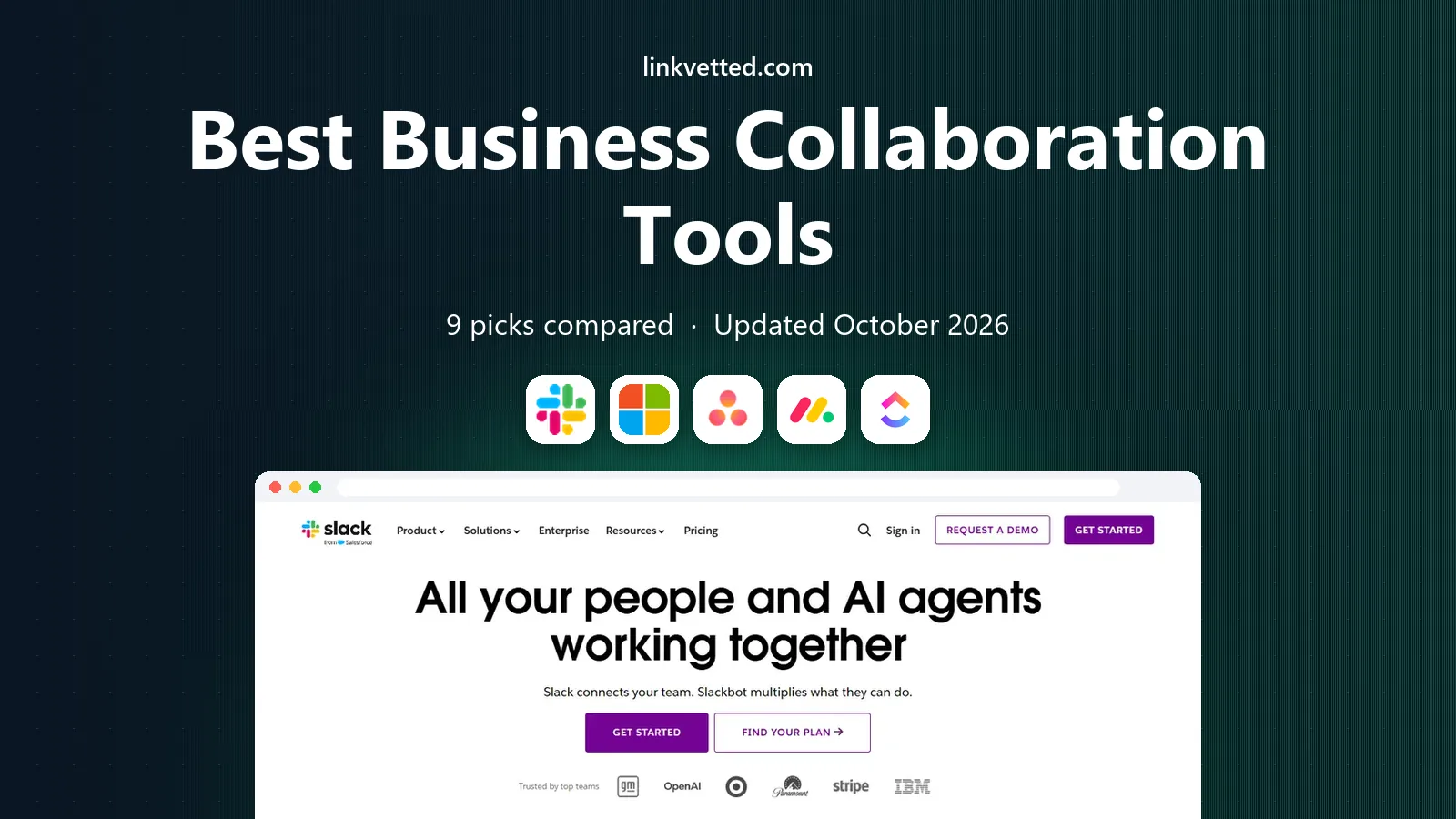
- Editor's choice
 Slack
Team chat and app integrations
Starts at$7.25 per user per monthVisit slack.comFull review - Great alternative
 Microsoft Teams
Companies already on Microsoft 365
Starts at$4 per user per monthVisit microsoft.comFull review - Also consider
 Asana
Structured projects and timelines
Starts at$10.99 per user per monthVisit asana.comFull review
TL;DR:
- Most teams need two layers, not one: a chat tool for daily talk and a project tool for who owns what by when.
- Slack and Microsoft Teams win on chat, but Teams is usually the cheaper choice for companies already paying for Microsoft 365.
- ClickUp and Trello give small teams the most value at the lowest starting price, while Asana and Monday.com suit teams that want clearer timelines and reporting.
- Free plans are genuinely useful for tiny teams, but message history limits and seat minimums are the catches to check before you commit.
- Our pick for most small businesses is a chat tool plus one project hub, rather than paying for five overlapping apps.
Quick comparison
| Tool | Best for | Starts at | Free plan? | |
|---|---|---|---|---|
| Slack | Team chat and app integrations | $7.25 per user per month | Yes | Visit |
| Microsoft Teams | Companies already on Microsoft 365 | $4 per user per month | Yes | Visit |
| Asana | Structured projects and timelines | $10.99 per user per month | Yes | Visit |
 Monday.com | Visual boards and workflows | $9 per seat per month | Yes | Visit |
 ClickUp | All-in-one value | $7 per user per month | Yes | Visit |
 Notion | Docs, wikis and light projects | $10 per seat per month | Yes | Visit |
 Zoom | Video meetings and webinars | See website | Yes | Visit |
 Miro | Visual whiteboards and workshops | See website | Yes | Visit |
 Trello | Simple kanban boards | $5 per user per month | Yes | Visit |
The best business collaboration tools
The best collaboration tools for business share one job: they cut down on status meetings and lost messages. We compared official feature pages, pricing pages and public reviews to find the options that cover chat, projects, documents and meetings without forcing your team to live in five apps at once.
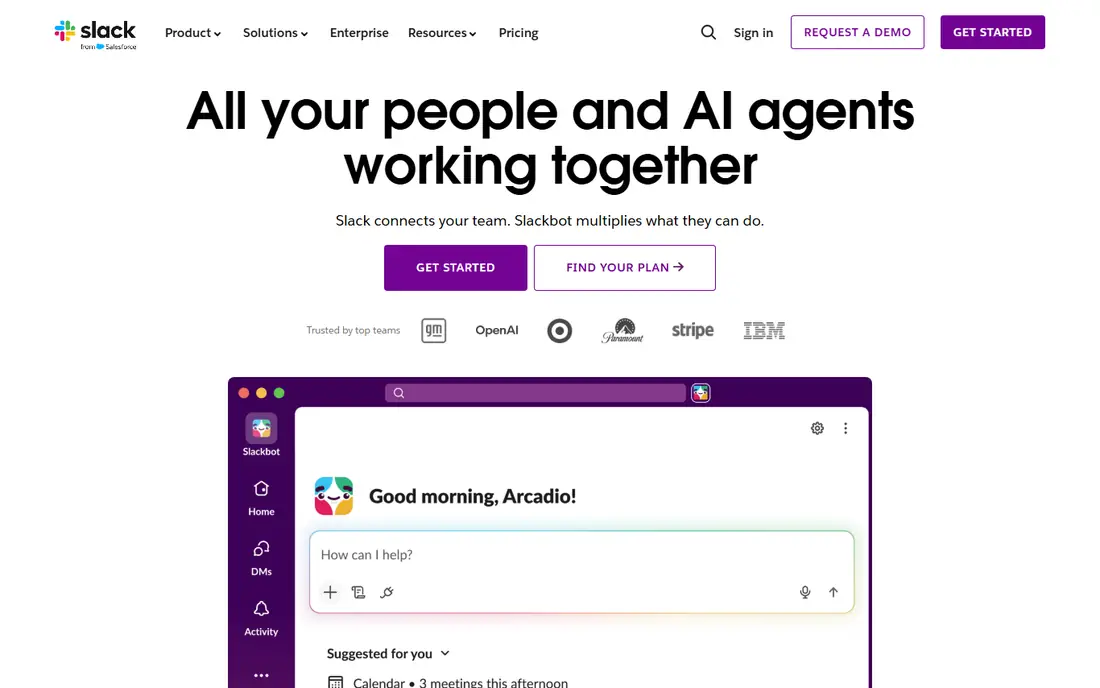
Slack is still the default chat tool for many companies, and the reason is the way it organizes talk. Channels split conversations by team, project or client, so a question about an invoice does not get buried under lunch plans. Threads keep side discussions attached to the original message, and the integration library connects Slack to calendars, task tools, code repos and customer support apps.
The catch is price and habit. At $7.25 per user per month on annual billing for Pro, a 50-person team pays a real monthly bill for what is, at heart, messaging. The free plan is fine for a trial, but the 90-day history limit hurts once you need to find a decision from last quarter. Our pick for most people is Slack if your team already lives in chat and uses many other apps, and Teams if you already pay for Microsoft 365.
- Huge integration library
- Channels keep topics tidy
- Search and huddles work well for remote teams
- Costs add up fast at scale
- Free plan keeps only 90 days of message history

Teams makes the most sense when your company already pays for Microsoft 365. Chat, video calls, file sharing and Office document editing sit in one app, and co-authoring a Word or Excel file during a call is genuinely handy. For many businesses, Teams Essentials at $4 per user per month, or Business Basic at $7 per user per month with 1 TB of storage, is simply cheaper than buying a separate chat tool on top of Office.
The downside is that Teams tries to do a lot, and the interface can feel crowded compared with Slack. Notifications and channel layout take some tuning before the app feels calm. Still, if your team uses Outlook, Word and SharePoint every day, Teams is the path of least resistance, and that counts for a lot when you are asking busy people to change habits.
- Bundled with Microsoft 365 plans
- Video meetings and chat in one place
- Strong file sharing through OneDrive and SharePoint
- Interface can feel busy
- Best value only shows up inside a Microsoft 365 subscription

Asana is the project tool we point to when a team keeps asking who owns a task and when it is due. Tasks have one assignee, a due date and a project home, and timeline and calendar views make slipped dates visible before they become missed launches. It is a good fit for marketing, operations and product teams that run repeatable processes, campaigns and launches.
The pricing needs a careful read. Starter at $10.99 per user per month on annual billing covers most day-to-day project work, but cross-project dashboards sit on Advanced at $24.99 per user per month. That jump is worth it only if leadership truly needs portfolio reporting. For small teams, the free Personal plan covers up to two users, which is enough to test whether Asana fits how your team actually works.
- Clear task ownership and timelines
- Good cross-project reporting on higher plans
- Easy for non-technical teams to adopt
- Advanced reporting sits on the pricier Advanced plan
- No native time tracking on Starter
Monday.com is the most visual tool on this list, and that is why non-technical teams adopt it fast. Work is shown as color-coded boards with status columns, and a manager can see a whole pipeline or campaign without opening five tabs. Automations such as notifying a manager when a status changes take minutes to set up, and templates cover sales pipelines, content calendars and onboarding.
The pricing quirk matters. Basic starts at $9 per seat per month on annual billing, but seats are sold in blocks, so a six-person team may pay for more seats than it uses. Check the seat minimum before you budget. If your team likes visual tracking and you can live with the seat blocks, Monday.com is a strong choice for growing businesses that want dashboards without a long setup project.
- Boards are easy to read at a glance
- Automations are simple to set up
- Many templates for common workflows
- Seats are sold in blocks, so small teams may pay for unused seats
- Costs rise quickly with add-ons
ClickUp is our value pick. The Unlimited plan at $7 per user per month on annual billing includes unlimited storage, Gantt charts, custom fields, native time tracking and a large automation allowance, which rivals charge far more for. The free plan covers unlimited tasks and members, which no competitor on this list matches, so a small team can run on it for a long time.
The honest catch is complexity. ClickUp ships so many views and options that a team without an owner ends up with messy workspaces and half-used features. Turn off what you do not need, name one admin, and it is hard to beat on value. Skip it if nobody on your team will own the setup, because an all-in-one tool only pays off when someone keeps it tidy.
- Most features per dollar
- Free plan covers unlimited members
- Tasks, docs, goals and time tracking in one place
- Setup can feel overwhelming
- AI features cost extra on top of paid plans
Notion is the best choice when your main problem is knowledge, not task tracking. Company handbooks, meeting notes, product specs and light project boards can live in one searchable workspace, and databases let teams build simple trackers without a separate tool. For startups and small teams, that single home for documents cuts down on the same question being asked three times.
It is not, however, a replacement for Asana or Monday.com when work gets complex. Timelines, dependencies and portfolio reporting are thinner here, and teams that need strict project control will outgrow it. Use Notion as your knowledge hub, pair it with a chat tool, and add a dedicated project tool only when handoffs start slipping.
- Docs, wikis and databases in one workspace
- Flexible pages suit many workflows
- Generous free plan for individuals
- Not a full project manager for complex work
- Permissions and advanced controls sit on paid plans
Zoom remains the meeting tool most people already know how to use, and that familiarity is a real advantage. Joining a call takes one click, video quality holds up well on large calls, and webinar features cover registration, polls and Q and A for bigger events. It pairs with Slack, Teams and the project tools on this list rather than replacing them.
The limit is scope. Zoom is a meeting platform first, so its chat and whiteboard features are useful extras rather than a full collaboration hub. If your team mostly needs reliable calls and webinars, Zoom is a safe pick. If you want one app for chat, tasks and docs, start with Slack, Teams or ClickUp and add Zoom for meetings only.
- Reliable video quality at scale
- Webinars and large meetings are well supported
- Works well with calendars and room systems
- Meeting-first design means chat and docs are secondary
- Costs grow with webinar and large-meeting add-ons
Miro gives remote teams a shared whiteboard that actually works for workshops. Sticky notes, diagrams, timelines and planning templates live on one canvas, and everyone can add ideas at the same time instead of talking over each other on a call. It is a strong fit for product planning, retros, journey mapping and design reviews.
The catch is facilitation. A board without an owner quickly turns into a sprawl of notes nobody revisits, so assign someone to tidy up and turn ideas into tasks after each session. Miro also works best as a companion to a project tool, since ideas still need owners and due dates elsewhere. Check the vendor pricing page before budgeting, since team and business plans are priced per user.
- Infinite canvas suits brainstorming and mapping
- Templates for retros, planning and workshops
- Good for remote and hybrid teams
- Boards can get messy without a facilitator
- Paid plans are needed for larger teams and controls
Trello is the tool we recommend when a team just needs a board that works today. Lists for each stage, cards for each task and drag-and-drop movement take minutes to learn, and there is almost nothing to configure. For small teams tracking content, hiring pipelines or simple projects, that simplicity beats a heavier tool nobody updates.
The trade-off is depth. Native reporting, dependencies and resource planning are limited, and heavier needs push you toward add-ons or a different tool. At $5 per user per month on annual billing for Standard, though, Trello is the cheapest real team tool here, and its free plan is enough for many tiny teams. Start here if you want kanban done well and nothing more.
- Easiest board to learn on this list
- Free plan covers up to 10 collaborators per workspace
- Drag-and-drop workflow is instant
- Reporting and dependencies are thin
- Power features come from add-ons rather than native tools
How we picked these
We compared official feature pages, pricing pages, app store listings and public user reviews for each tool, and we only listed products that are actively sold and supported in October 2026. We favored tools that cover a real collaboration job, such as chat, project tracking, documents, meetings or whiteboarding, and we left out tools that duplicate another pick without a clear difference. Prices shown are starting prices from vendor pages or recent vendor-linked comparisons, and we marked prices as See website where the vendor prices by quote or where plans changed recently, so you can confirm the current figure before buying.
What to check before you pay
Start with the problem, not the app. If messages are getting lost, you need chat. If deadlines are slipping, you need a project tool with owners and dates. If nobody can find a document, you need a wiki. Buying one tool for each real problem keeps costs down and adoption up, while buying a bundle for every possible problem usually ends with three half-used subscriptions.
Trial the free plan with a real project, not a demo board. Invite the people who will actually use it, set a two-week deadline, and watch whether tasks get updated without reminders. Check three things before paying: the seat minimum, the history or storage limit on the plan you would buy, and whether the integrations you rely on need a higher tier. Those three details decide most of the true cost, and they are easy to miss on a pricing page.
FAQ
What is the best collaboration tool for business overall?
There is no single winner, because chat and project tracking are different jobs. Slack or Teams covers daily talk, while Asana, Monday.com or ClickUp covers who owns what by when. Most teams do best with one tool from each group, plus a meeting tool such as Zoom, rather than one app that claims to do everything.
What are the best collaboration tools for business on a small budget?
Trello at $5 per user per month and ClickUp at $7 per user per month offer the lowest paid starting prices on this list, and both have free plans. Notion also has a generous free plan for individuals and small teams. Start free, and upgrade only when a limit, such as history, storage or permissions, actually blocks your work.
Is Microsoft Teams better than Slack?
Teams is usually better value for companies already paying for Microsoft 365, since chat, meetings and Office apps come in one subscription. Slack wins on integrations and on a cleaner chat experience for teams that use many outside apps. If your team already uses Outlook and SharePoint daily, Teams is the simpler choice.
Do I need both a chat tool and a project tool?
In most cases, yes. Chat is for quick questions and decisions, while a project tool is for work that has an owner, a due date and a status. Trying to run projects inside chat threads is how tasks get lost, and trying to hold quick conversations inside a project tool is slow. Keep the two jobs separate and link them with an integration.
Can a small team use these tools for free?
Yes, for a while. Slack, Teams, Asana, Monday.com, ClickUp, Notion, Zoom, Miro and Trello all offer free plans or free tiers with real limits. The usual limits are message history, storage, board counts and advanced permissions. Free plans suit teams of a few people, and paid plans make sense once those limits start costing time.
How do I get my team to actually use a new tool?
Pick one owner, move a single real project into the tool, and stop running that project in email or chat at the same time. Running two systems in parallel is the most common reason new tools fail. A short kickoff, a few templates and a weekly review of the board for the first month will do more than a long training session.