Best App to Scan PDF in 2026: 8 Apps Compared
Find the best app to scan PDF files in 2026. We compare 8 scanner apps for clean PDFs, OCR, batch scanning, privacy and free plans before you download.
- Editor's choice
 Adobe Scan
Clean free PDFs with OCR
Starts atFreeVisit adobe.comFull review - Great alternative
 Scanner Pro
iPhone power users and privacy
Starts atFreeVisit readdle.comFull review - Also consider
 Genius Scan
Fast scans with no account needed
Starts atFreeVisit thegrizzlylabs.comFull review
TL;DR:
- Adobe Scan is the best free third-party scanner for most people, with clean PDFs, OCR and no watermark on basic scans.
- Scanner Pro is the best paid all-rounder for iPhone users, with on-device OCR and strong privacy controls.
- Genius Scan suits users who want fast scans with no account, while SwiftScan suits users who want automatic file naming and workflows.
- CamScanner and iScanner offer the widest feature sets, but free tiers include watermarks or limits that need checking.
- Microsoft Lens is no longer available, having been retired in early 2026, so do not build a workflow on it.
Quick comparison
| Tool | Best for | Starts at | Free plan? | |
|---|---|---|---|---|
| Adobe Scan | Clean free PDFs with OCR | Free | Yes | Visit |
| Scanner Pro | iPhone power users and privacy | Free | Yes | Visit |
| Genius Scan | Fast scans with no account needed | Free | Yes | Visit |
 CamScanner | Feature depth for difficult documents | Free | Yes | Visit |
 SwiftScan | Automatic naming and workflows | Free | Yes | Visit |
 iScanner | AI cleanup and wide feature set | Free | Yes | Visit |
 TurboScan | Fast multi-page scanning | Free | Yes | Visit |
 vFlat Scan | Books and notebooks | Free | Yes | Visit |
The best app to scan PDF
A good scan-to-PDF app does more than take a photo of paper. It finds page edges, flattens perspective, cleans up contrast, combines pages into one PDF, and, where OCR is included, makes the text searchable. The apps below all do that, but they differ in free limits, OCR rules, cloud handling and whether your scans stay on your device or go to a vendor cloud.
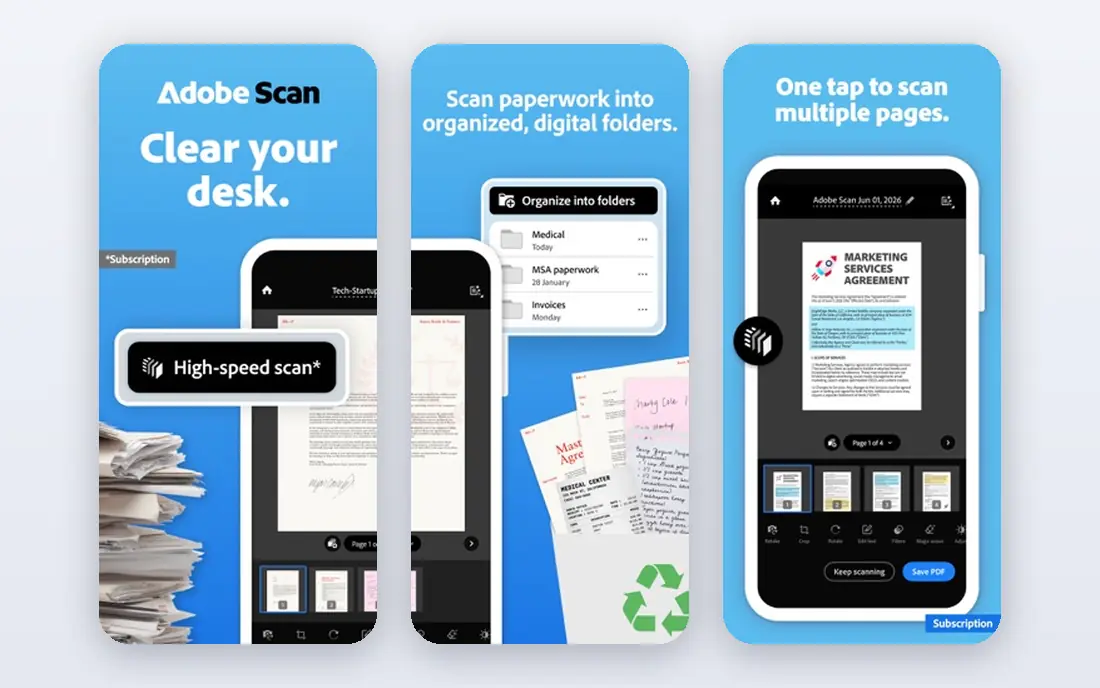
Adobe Scan is our pick for most people who need a scan-to-PDF app. It detects page edges, enhances the image, combines pages into a PDF and applies OCR so text inside the PDF can be searched and copied. Basic scanning is free, and the resulting PDF looks clean enough to send to an employer, a school or a client without apology.
The trade-offs are account and cloud. You need a free Adobe account, and scans sync to Adobe cloud by default, which suits users who want access on several devices but suits privacy-focused users less well. Full Acrobat editing, compression and advanced export tools need a paid Acrobat plan. For a clean, free, searchable PDF, Adobe Scan remains the default recommendation.
- Free unlimited basic scans in recent listings
- Reliable OCR for searchable PDFs
- Clean exports with no watermark on basic scans
- Full Acrobat features need a paid plan at around $9.99 per month
- Scans go to Adobe cloud by default
- Account required
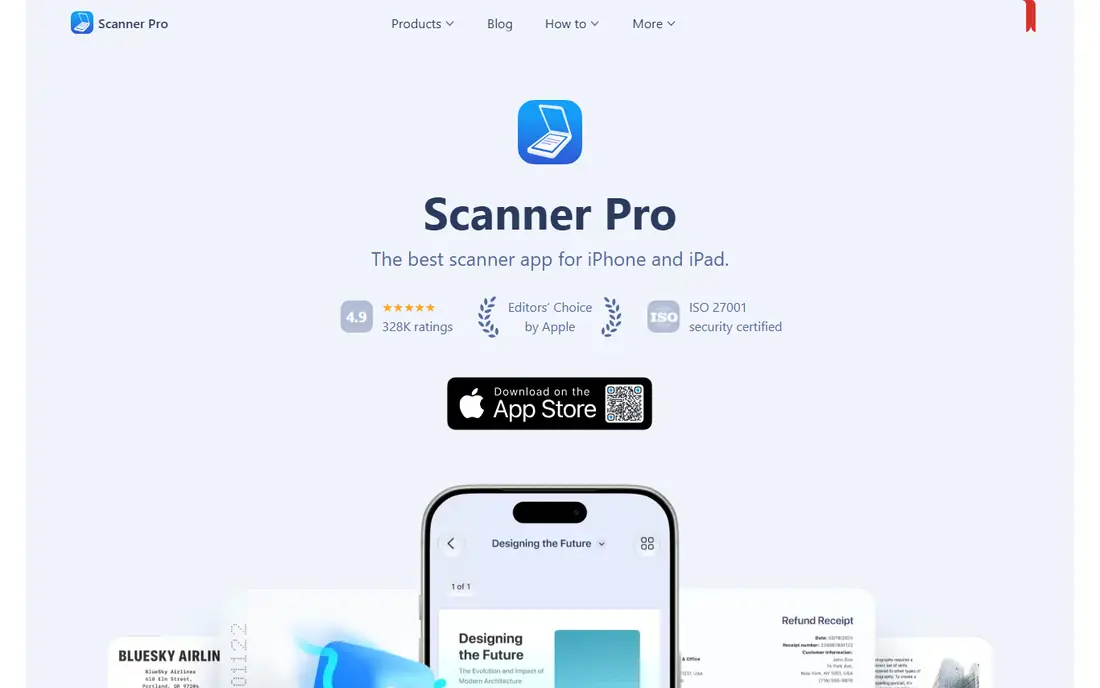
Scanner Pro, from Readdle, is the best paid all-rounder for Apple users. It scans quickly, applies on-device OCR so text recognition does not need to send every page to a cloud, and offers workflows for naming, filing and sharing scans. The iPhone and iPad experience is polished, and the app handles receipts, contracts and multi-page documents with little fuss.
The limits are platform and price. Scanner Pro is Apple-only, so Android users need another pick, and the free download is limited, with paid Plus features adding fuller OCR, workflows and storage. Recent listings put Plus from around $7.99 per month. For an iPhone user who scans often and values on-device processing, Scanner Pro is worth the subscription.
- On-device OCR for privacy
- Strong workflows and file organisation
- Clean iPhone and iPad experience
- Apple platforms only
- Paid Plus features cost around $7.99 per month in recent listings
- Free plan is limited
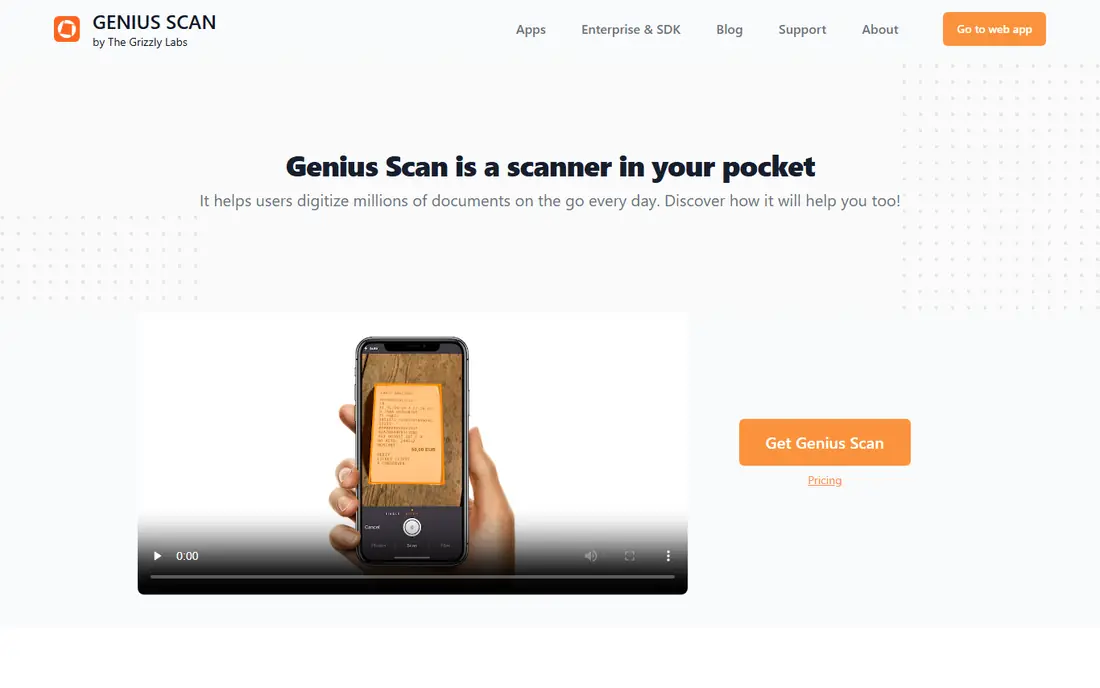
Genius Scan suits users who want to scan and move on, without creating an account or learning a large app. It detects edges, corrects perspective, enhances the page and exports a multi-page PDF quickly. Scans can stay on the device or go to a cloud service you choose, rather than a vendor cloud, which privacy-minded users appreciate.
OCR is the main limit, since text recognition sits in the paid plan, with recent listings noting a Plus subscription for OCR and extra features. If you only need a readable PDF of a form, a receipt or a letter, the free plan is enough. If you need searchable text for research or filing, Adobe Scan free or Scanner Pro Plus will serve better.
- Fast scanning with no account required
- Scans stay on device or in your own cloud
- Clean, simple interface
- OCR is in the paid plan only
- Free plan has fewer workflow features than SwiftScan
CamScanner is the feature-rich pick when documents are hard to read. Its image processing handles small print, faint printing and uneven light better than many rivals, and OCR covers many languages. Beyond scanning, it offers PDF annotation, signing, compression and document management, which suits users who handle many forms and contracts.
The free tier is the drawback, with a watermark and ads, and premium removes those limits at around $3.99 per month in recent listings. Scans also go to CamScanner cloud by default, so privacy-conscious users should check storage settings. For difficult documents and a wide toolset, CamScanner depth is real; for a simple clean scan, Adobe Scan free is simpler.
- Strong image processing for small print and weak printing
- OCR in many languages
- Wide PDF tools including signing and annotation
- Free tier includes a watermark and ads
- Premium costs around $3.99 per month in recent listings
- Scans go to CamScanner cloud
SwiftScan, formerly Scanbot, suits users who scan a lot and hate renaming files by hand. It can name files automatically from content or rules, route scans to folders or cloud services, and build multi-page PDFs with OCR. That workflow focus saves time for accountants, administrators and anyone who files dozens of documents a month.
The free plan is limited, and the subscription price varies by store and region, so check the in-app price before relying on premium workflows. SwiftScan is less well known than Adobe Scan, which may matter for support and long-term availability. For a workflow-led user who files scans systematically, SwiftScan automation is a genuine time saver.
- Automatic file naming and smart workflows
- Configurable storage
- Clean multi-page PDFs with OCR
- Free plan is limited
- Subscription price varies by store
- Less well known than Adobe Scan
iScanner is a broad scanner app with AI cleanup that helps with curved pages, book spreads and imperfect photos. It offers OCR, PDF editing, signing and document tools in one app, on both iPhone and Android, which makes it a flexible choice for households or teams with mixed phones. The interface guides a new user through scanning, enhancing and exporting without much learning.
Free use is limited, and premium starts from around $3.99 per month in recent listings, with prices varying by store. Some AI features need a connection, so offline scanning is less complete than with Scanner Pro on-device OCR. For a user who wants many tools in one app and scans books or notebooks often, iScanner is a strong trial.
- AI edge cleanup for curved pages
- Wide feature set including OCR and PDF tools
- Available on iPhone and Android
- Free plan is limited
- Premium costs from around $3.99 per month in recent listings
- Some features need a cloud connection
TurboScan is the speed pick. It scans multi-page documents quickly, with a SureScan mode that takes several shots of a page and combines them for a sharper result. Export to PDF, email and cloud services is straightforward, and the app stays focused on scanning rather than adding a large document suite.
The limit is scope. TurboScan does not match CamScanner or iScanner for annotation, signing and document management, and premium features are sold as in-app purchases. For a user who mainly needs fast, clear multi-page PDFs and does not want extra tools, TurboScan simplicity is a plus. For a user who edits PDFs after scanning, a broader app will suit better.
- Very fast multi-page scanning
- SureScan mode for clear results
- Simple export to PDF and cloud services
- Smaller feature set than CamScanner or iScanner
- Premium features need in-app purchase
- Interface is utilitarian
vFlat Scan is built for books, notebooks and study material, where pages curve near the spine and fingers often appear in the shot. It flattens curved pages, cleans up the image, and can remove fingers from the frame in supported modes, producing a readable PDF from a textbook or a handwritten notebook. Students and researchers will notice the difference on book scans.
For single-sheet office documents, vFlat offers less advantage over Adobe Scan or Genius Scan, and premium features cost around $9.99 per month in recent listings. Free use covers basic scanning, with paid extras for fuller features. If your scanning is mostly books and notes, vFlat is the specialist pick; if it is mostly forms and receipts, a general scanner will be faster.
- Strong handling of book pages and curved spreads
- Auto finger removal in some modes
- Clean PDF exports
- Free plan limits some features
- Premium costs around $9.99 per month in recent listings
- Less suited to single-sheet office scanning
How we picked these
We compared official product pages, app store listings and public reviews for scan-to-PDF apps that are actively available in October 2026, and we excluded Microsoft Lens, which Microsoft retired in early 2026, removing it from app stores in February and stopping new scans in March. We favoured apps with clean PDF output, multi-page support and a clear free tier or trial, and we noted OCR and cloud rules, since those decide privacy and searchability. We did not claim hands-on testing, and prices are published starting points that vary by store.
How to get a clean scan every time
Place the page on a flat, contrasting surface in good, even light, and avoid shadows from your hand or phone. Hold the phone steady above the page, let the app detect edges, and check the preview before adding the next page. A second scan of a blurry page takes seconds, while a blurry PDF sent to someone else costs far more time in follow-up.
After scanning, check the PDF at full size, not just as a thumbnail. Look for cut-off edges, skewed pages and unreadable small print, and rescan any page that fails that check. Name the file clearly, such as with a date and a document type, and store it in a folder you can find later. If the PDF needs to be searchable, confirm OCR ran before sharing, since a photo-only PDF looks the same but cannot be searched.
Privacy and storage
Scanner apps differ in where scans go. Adobe Scan and CamScanner sync to vendor clouds by default, Genius Scan and Scanner Pro offer more on-device or user-chosen storage, and SwiftScan lets you configure destinations. For sensitive documents such as ID, medical or financial papers, prefer on-device processing and storage, delete scans you no longer need, and avoid sharing a scan through a public link when a direct attachment will do.
FAQ
What is the best app to scan PDF files for free?
Adobe Scan is the best free third-party scanner, with clean PDFs, OCR and no watermark on basic scans. Genius Scan is the best free option for users who want no account, while Apple Notes and Google Drive offer free built-in scanning on their platforms. Check whether OCR is included free, since some free plans reserve it for paid tiers.
What is the best scan to PDF app for iPhone?
Scanner Pro is the best paid all-rounder for iPhone, with on-device OCR and strong workflows, while Adobe Scan is the best free iPhone scanner. Apple Notes also scans to PDF free on iPhone, with on-device text recognition. Choose Scanner Pro for frequent scanning and privacy, Adobe Scan for free searchable PDFs, and Notes for occasional quick scans.
Does Microsoft Lens still work?
No. Microsoft retired Microsoft Lens in 2026, removing it from app stores in February and stopping new scans in March. Microsoft suggests using the scan feature inside OneDrive as a replacement. If you still see a Lens app in a store, check the developer name carefully, since copycat apps use similar names.
Can a scanner app make text searchable?
Yes, when OCR is included. Adobe Scan, Scanner Pro Plus, CamScanner, SwiftScan and iScanner all offer OCR, though some reserve it for paid plans. Genius Scan free does not include OCR, so its PDFs are images rather than searchable text. Always test OCR on a real document, since handwriting and faint print reduce accuracy in every app.
Are scanned PDFs legally valid?
A scanned PDF is a digital copy of a paper document, not a notarised or authenticated original. Many organisations accept scanned copies for records, applications and filing, but some still require an original or a certified copy. Check the requirements of the organisation receiving the document before relying on a scan alone.
How do I scan a multi-page document into one PDF?
Open your scanner app, scan the first page, then add pages one by one before exporting, so all pages land in a single PDF. Adobe Scan, Scanner Pro, Genius Scan, CamScanner, SwiftScan, iScanner, TurboScan and vFlat Scan all support multi-page PDFs. Check page order and orientation in the preview before exporting, since fixing order later takes longer than checking it now.