Best App for Managing Over 100 GB of PDF Files in 2026: 8 Apps Compared
We compare the best app for managing over 100 gb of pdf files, with large libraries, search, sync, storage options and backup tips explained in 2026 today.
- Editor's choice
 Adobe Acrobat
Large professional PDF collections
Starts atSee websiteVisit adobe.comFull review - Great alternative
 PDF Expert
Mac users with large libraries
Starts at$79.99 per yearVisit pdfexpert.comFull review - Also consider
 Foxit PDF Editor
Windows teams needing editing plus organisation
Starts atSee websiteVisit foxit.comFull review
TL;DR:
- At 100 GB, the bottleneck is rarely one app feature: it is storage, indexing speed and how well the app handles thousands of files without slowing down.
- Desktop apps with local folders and cloud sync, such as Adobe Acrobat and Foxit, handle very large collections better than phone-only readers.
- For research collections, Zotero adds citations and full-text search on top of file storage, which a plain reader cannot match.
- Keep the files in a synced folder or a cloud drive, and let the PDF app index that folder, rather than importing everything into a closed library.
- Check search speed, OCR quality and mobile access before you commit, because those three decide whether a huge library stays usable.
Quick comparison
| Tool | Best for | Starts at | Free plan? | |
|---|---|---|---|---|
| Adobe Acrobat | Large professional PDF collections | See website | Free trial | Visit |
| PDF Expert | Mac users with large libraries | $79.99 per year | Yes | Visit |
| Foxit PDF Editor | Windows teams needing editing plus organisation | See website | Free trial | Visit |
 Nitro PDF Pro | Windows users wanting a one-time style purchase | See website | Free trial | Visit |
 PDFelement | Affordable editing and organisation | See website | Free trial | Visit |
 UPDF | Cross-platform reading and annotation | See website | Yes | Visit |
 Xodo | Browser and mobile PDF work | See website | Yes | Visit |
 Zotero | Research libraries with citations | Free | Yes | Visit |
The best apps for managing over 100 GB of PDF files
We compared official feature pages, pricing pages, app store listings and public reviews. Our pick for most people with a very large collection is Adobe Acrobat, because it pairs strong search and organisation with wide platform support, while PDF Expert is our pick for Mac-only users.
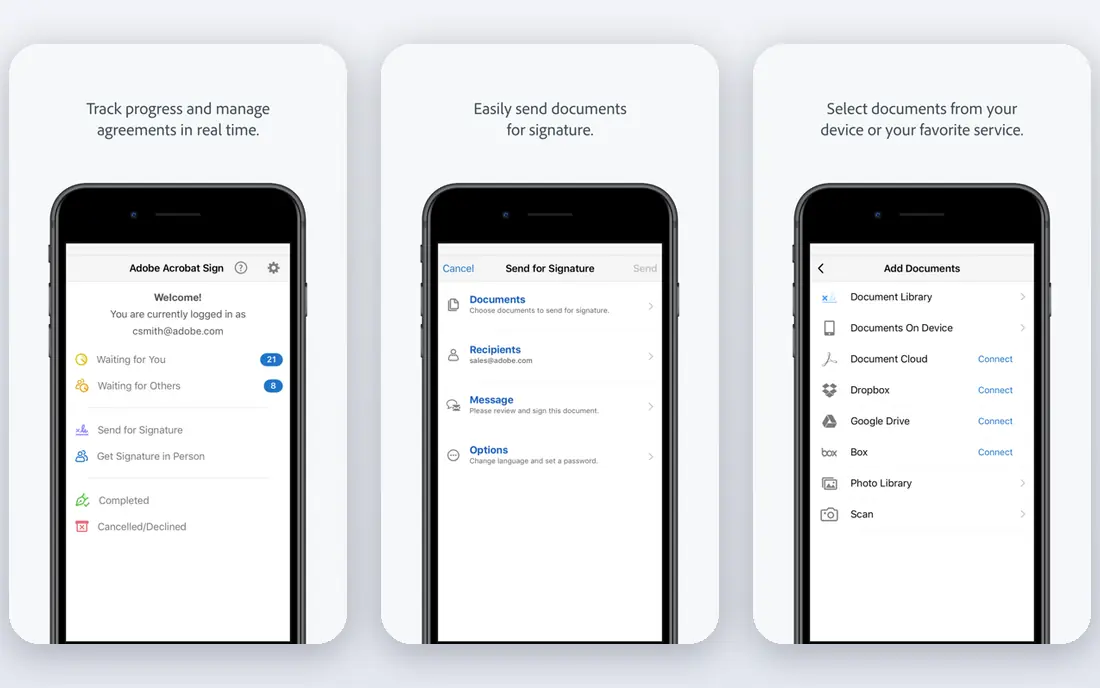
Adobe Acrobat is the safest default when a library reaches 100 GB, because it is built for document work at scale rather than casual reading. Search across indexed files, bookmarks, page organisation, OCR for scanned pages and form tools all sit in one place, and the mobile app lets you open the same files on the go. When files live in a synced folder, Acrobat can work through them without forcing you into a single closed database.
The honest drawback is price and weight. Acrobat is a subscription product, and its full feature set is more than a reader-only user needs. If you only open and annotate files, a cheaper app will do, but if you edit, redact, compare and sign documents across a large collection, Acrobat still sets the standard that other tools are judged against.
- Strong search, OCR and organisation tools
- Works on desktop and mobile
- Integrates with Adobe cloud storage and other cloud drives
- Subscription cost adds up
- Interface can feel crowded for simple reading
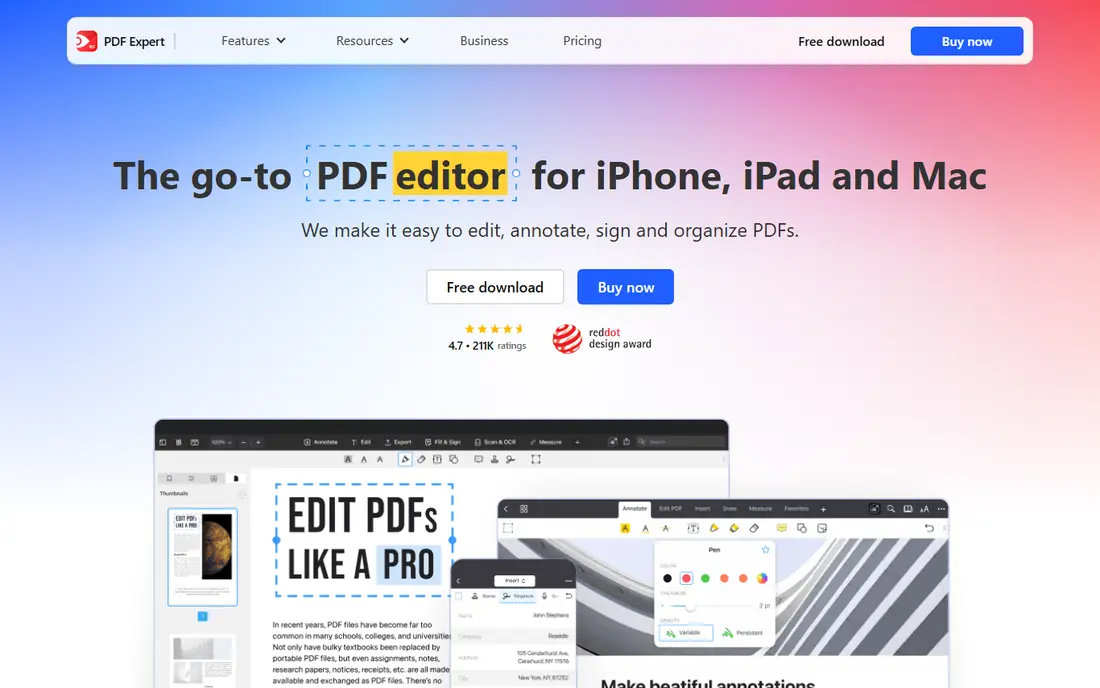
PDF Expert stands out for speed on Apple devices, which matters when you open long reports or scanned books again and again. Pages load quickly, annotations feel direct, and merging, splitting and reordering pages is straightforward. The free version covers reading and basic annotation, while Premium adds editing, OCR, conversion and signing for users who work with PDFs every day.
The limit is platform. If your team uses Windows or Android as well, PDF Expert cannot be the shared tool, and you will need a second app for those devices. For a Mac and iPad workflow, though, it is one of the most pleasant ways to live inside a large PDF library, and its annual price is easier to justify than several subscriptions.
- Fast on Mac with large files
- Clean reading and annotation
- Good file organisation and conversion tools
- Apple platforms only
- Advanced features need the paid plan
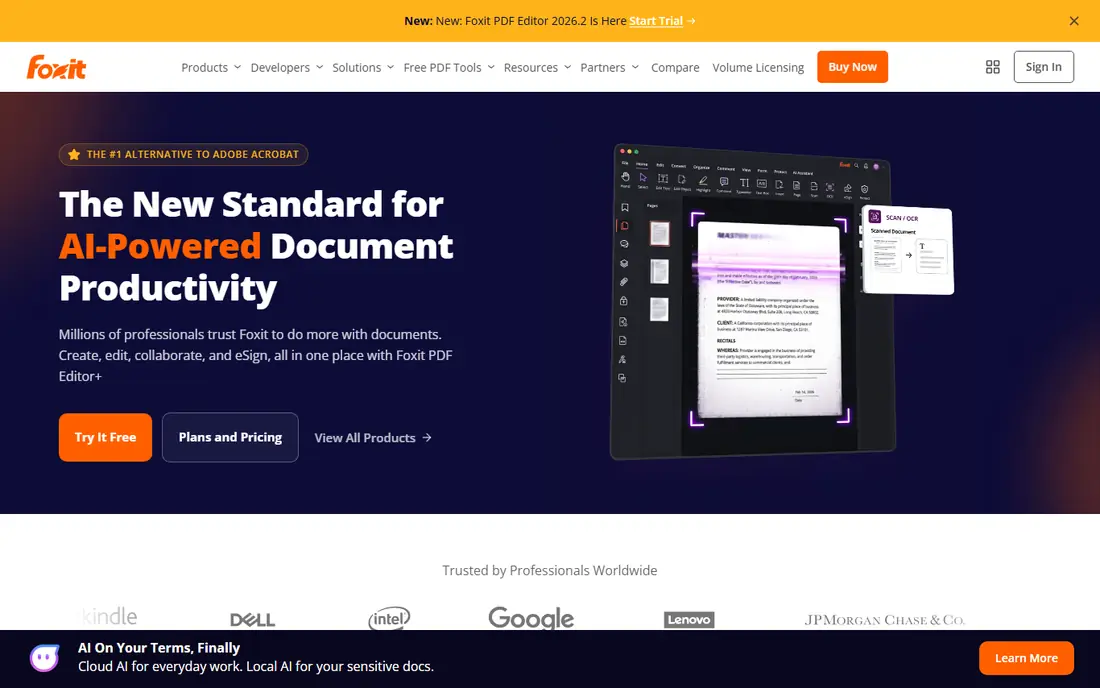
Foxit is a practical alternative to Acrobat for teams that want editing power without Adobe pricing habits. It handles text editing, annotations, form creation, signatures and document comparison, and it performs well with long documents. Shared review and commenting tools help when several people mark up the same report, which is common in legal, engineering and finance work.
The trade-off is that the feature set is broad, so new users can take a while to find the tools they need. Pricing also varies by edition, so check whether the plan you pick includes the editing and cloud features you actually use. For a Windows-centred team with a large shared library, Foxit is a strong, credible choice.
- Full editing, annotation and form tools
- Good performance with large files
- Team and enterprise options
- Some features need higher tiers
- Interface takes a short time to learn
Nitro appeals to users who dislike subscriptions and want a desktop PDF editor they can buy and keep using. Batch conversion and batch processing are especially useful at 100 GB scale, because renaming, converting or applying OCR to many files by hand would take days. The Office-style ribbon also shortens the learning curve for Windows users.
The weakness is cross-platform parity. The Mac experience has historically lagged the Windows version, and Nitro does not match Adobe cloud storage depth. If you work on Windows and keep files in a synced folder, those limits matter less, and Nitro becomes a good value pick for editing-heavy work.
- Solid editing and conversion
- Batch processing for many files
- Familiar Office-style interface
- Mac version is more limited than Windows
- Cloud features are lighter than Adobe
PDFelement is worth considering when budget is the deciding factor but you still need real editing, not just reading. It covers text and image editing, annotations, OCR, form filling and conversion, and it runs on desktop and mobile. For a student, freelancer or small team with a growing library, that combination is hard to beat at its price point.
The catch is that not every feature is in the base plan, and heavy users may need to step up for cloud or AI tools. Performance with very large scanned files is good but not always as smooth as Acrobat or PDF Expert. Even so, as an all-round manager for a large personal library, PDFelement offers a lot for the money.
- Lower cost than Acrobat for many users
- Editing, OCR and form tools
- Works on Windows, Mac, iOS and Android
- Some AI and cloud features need higher plans
- Interface can feel busy
UPDF has grown quickly as a lighter, cross-platform PDF app, and its main strength is consistency across devices. You can annotate on an iPad, continue on a Windows laptop and search the same file on a phone without relearning the interface. The free plan covers reading and basic annotation, which is enough to test it against your real library before paying.
The honest limit is depth. Complex preflight work, advanced redaction workflows and heavy enterprise controls are not its focus. For most people managing a large reading and annotation library, that is fine, and the lower price and simpler design are a welcome change from heavier editors.
- Works on Windows, Mac, iOS and Android
- Clean annotation and editing
- One licence can cover several devices
- Advanced editing is less deep than Acrobat
- Some features need the Pro plan
Xodo fits users who work across shared computers or who do not want to install heavy software everywhere. The web app opens PDFs in a browser, lets you annotate, fill forms and merge files, and syncs with common cloud drives. That makes it useful for a library stored in Google Drive or Dropbox, because you can work from any machine with a browser.
The trade-off is that Xodo is not a full desktop editor. Large-scale batch editing and advanced document controls are thinner than in Acrobat or Foxit. As a companion app for reading, marking up and organising files on the move, however, it is one of the best free starting points in this list.
- Strong free web and mobile tools
- Annotation and form filling
- No install needed for browser use
- Desktop editing is lighter than Acrobat or Foxit
- Some features need a paid plan
Zotero is different from the other apps here, and for researchers it may be the most important one. It stores PDFs alongside notes, tags and citations, searches full text across the collection, and generates bibliographies in common styles. That structure turns 100 GB of papers from a pile of files into a searchable research library.
The catch is storage. The free Zotero cloud quota is small compared with 100 GB, so large libraries usually live on local storage or a linked cloud folder, with a paid storage plan as an option. Zotero also does not replace a PDF editor for heavy redaction or form work. Pair it with Acrobat, PDF Expert or UPDF for editing, and use Zotero for finding and citing what you already own.
- Free and open source
- Full-text search and citation management
- Strong for academic and research collections
- Free cloud storage is limited, so large libraries need local or paid storage
- Not a general PDF editor
How we picked these
We compared official feature pages, pricing pages, app store listings and public reviews, focusing on tools that still work in October 2026 and that can handle thousands of files without forcing a single storage model. We included desktop editors, cross-platform readers and one research manager, because a 100 GB library is usually a mix of reading, editing and searching jobs. Where pricing was not clearly published, we wrote See website rather than guessing.
Managing a 100 GB PDF library without losing files
The app is only half the system. Storage, naming and backup decide whether a huge library stays usable, and a small amount of setup now saves hours of searching later.
Choose storage first, then the app
Put the master library in one synced folder on a cloud drive with enough space, such as Google Drive, Dropbox or OneDrive, and point your PDF app at that folder. Keep a separate local backup on an external drive, because cloud sync is not the same as a backup and a mistaken delete can propagate. Test restore from that backup once, before you need it, and note how long a full restore takes.
Make search work for you
Use consistent file names with year, author or project and a short title, and add tags or folders by topic rather than by date alone. Run OCR on scanned PDFs so their text becomes searchable, and check that your chosen app indexes the folder you use. A library that cannot be searched is just storage, and at 100 GB you will not browse your way to the right file.
Keep mobile access light
Do not try to sync all 100 GB to a phone. Sync only current projects or use on-demand access, where files download when you open them, and let the full library stay on desktop and cloud storage. That keeps the phone fast, saves data, and still lets you read and annotate the files that matter this week.
FAQ
What is the best app for managing over 100 GB of PDF files?
For most professional users, Adobe Acrobat is the strongest all-round choice, because it combines search, OCR, editing and mobile access. Mac-only users often prefer PDF Expert for speed and simplicity, while researchers should add Zotero for citations and full-text search. The right answer depends on whether you edit, annotate or mainly search, and on which devices you use every day.
Can a phone app handle 100 GB of PDFs?
A phone can open individual PDFs well, but it is not a good home for a full 100 GB library. Storage, indexing and battery limits all push against keeping everything local on a phone. The better pattern is to keep the master library on desktop and cloud storage, and sync only current files to the phone, or use on-demand access through a cloud drive app.
Do I need cloud storage for a large PDF library?
You need a storage plan, but it does not have to be the PDF app own cloud. Most apps in this list work with local folders and common cloud drives, so you can buy storage from Google, Dropbox, Microsoft or another provider and use the PDF app for reading and editing. Check the storage cost separately from the app price, because 100 GB or more of cloud storage is a real ongoing cost.
How do I search across thousands of PDFs?
Use an app with full-text search and OCR, keep files in one indexed folder, and use consistent names and tags. OCR matters most for scanned documents, because without it the app can only search file names, not page content. Zotero, Acrobat and Foxit all offer search across a collection, but they only help if the files are in a location the app actually indexes.
Is Zotero free for a large library?
Zotero itself is free and open source, and you can store a large library locally without paying for the app. Free Zotero cloud storage is limited, so a 100 GB collection will need local storage, a linked cloud folder or a paid Zotero storage plan. That distinction matters: the app is free, but the synced storage for a very large library may not be.