Best free pdf extract tool in 2026: 8 tools compared
Find the best free pdf extract tool for pages, images, and text in 2026, with tools that split, convert, and pull content free limits and privacy checked.
- Editor's choice
 iLovePDF
All round extraction
Starts atFreeVisit ilovepdf.comFull review - Great alternative
 PDF24 Tools
Free desktop and web tools
Starts atFreeVisit tools.pdf24.orgFull review - Also consider
 Smallpdf
Simple page extraction
Starts atFreeVisit smallpdf.comFull review
TL;DR:
- iLovePDF and PDF24 Tools cover the widest range of free extraction jobs, from splitting pages to pulling images out of a PDF.
- For scanned PDFs, you need OCR, not just a page splitter, so choose a tool with an OCR option such as Sejda, Smallpdf, or PDF2Go.
- PDFsam Basic is the best free desktop choice when you want to split and extract pages offline without uploading files.
- Free plans often limit file size, pages per hour, or batch jobs, so check those limits before you start a large document.
- Never upload a PDF with passwords, bank details, or medical records to a free online tool unless you have checked its privacy policy and file deletion terms.
Quick comparison
| Tool | Best for | Starts at | Free plan? | |
|---|---|---|---|---|
| iLovePDF | All round extraction | Free | Yes | Visit |
| PDF24 Tools | Free desktop and web tools | Free | Yes | Visit |
| Smallpdf | Simple page extraction | Free | Yes | Visit |
 Sejda | OCR and page tools | Free | Yes | Visit |
 PDF2Go | Extract images and pages | Free | Yes | Visit |
 PDFsam Basic | Offline page splitting | Free | Yes | Visit |
 PDF Candy | Quick web extraction | Free | Yes | Visit |
 Adobe Acrobat Online | Trusted PDF extraction | Free | Yes | Visit |
The best free pdf extract tools
We compared free tools that can pull pages, images, or text out of a PDF, with a focus on tools that work without a paid plan for everyday jobs.

iLovePDF is the easiest starting point for most people who need to extract something from a PDF. Its Split PDF tool lets you pull out single pages or page ranges, and its PDF to JPG tool pulls images out for reuse in slides or documents. The interface walks you through upload, selection, and download in a few steps, which matters when you are working against a deadline and do not want to learn a new program.
The free plan is genuinely useful for small jobs, with a free account raising limits compared with guest use, based on iLovePDF's own tool pages. The honest catch is scale. Large files, frequent tasks, or OCR on scanned pages can hit free limits or need a paid plan. For a chapter, a receipt page, or a set of images from a report, iLovePDF is fast and clear. For a daily batch of large scans, pair it with an offline tool such as PDFsam Basic.
- Split, extract pages, and extract images in one place
- Clear browser interface
- Works without installing software
- Free plan has file and task limits
- OCR and some advanced tools sit behind paid plans
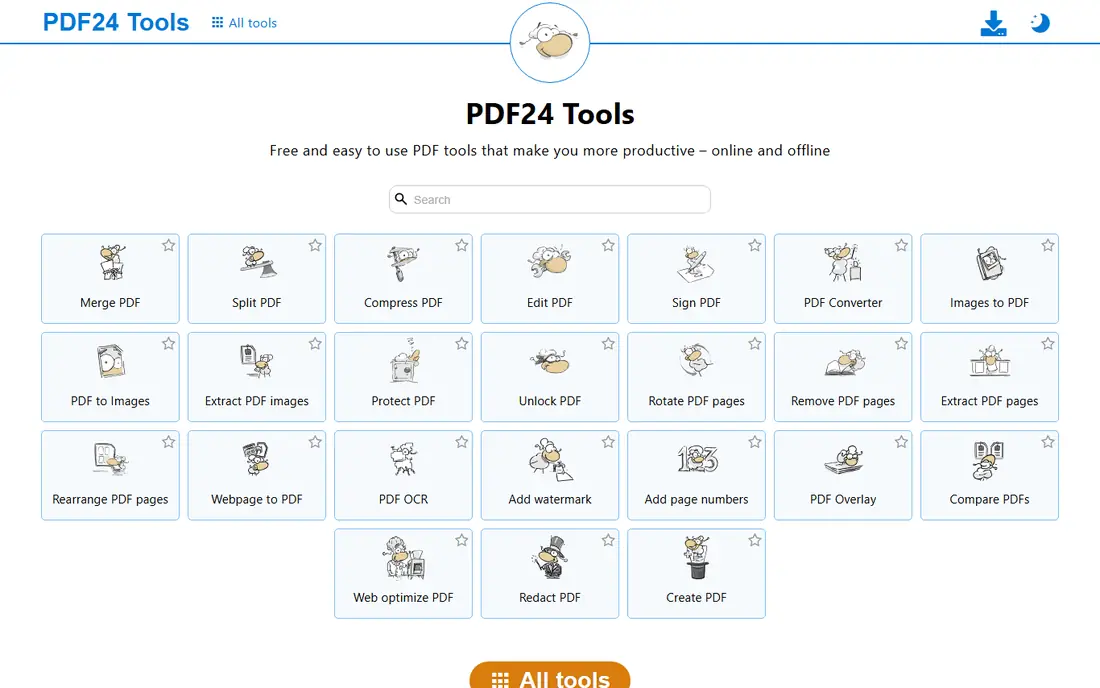
PDF24 Tools takes a different approach: it gives you a large toolbox for free, including extract pages, split PDF, PDF to images, and PDF to text options. The web tools run in the browser, and a desktop version lets you work offline when you do not want to upload a file. That combination makes it a strong second choice for students, office workers, and anyone who handles PDFs often.
We liked that many tools do not force an account for a basic job, which lowers friction. The trade-off is presentation. With so many tools on one site, it can take a moment to find the exact extractor you need, and results from a poor scan will still need checking. If you want one free site that covers almost every PDF job, PDF24 Tools is hard to beat, provided you take a minute to pick the right tool first.
- Wide set of free PDF tools in the browser
- Desktop app available for offline work
- No account needed for many tools
- Interface is busier than iLovePDF
- OCR quality varies with scan quality
Smallpdf is built for people who want a clean, guided workflow rather than a long list of options. Its Split PDF tool lets you choose pages to extract, and its conversion tools turn a PDF into Word, Excel, or images when you need editable text rather than a page image. The design is clear, and the steps are short, which helps when you are extracting pages for a colleague who will open the file on another device.
The limit to watch is daily free use. Smallpdf allows a limited number of free tasks, and after that you are asked to wait or upgrade. That makes it a good tool for occasional jobs, not for a full day of batch extraction. If you extract PDFs once or twice a week, Smallpdf is a pleasant choice. If you do it daily, PDF24 Tools or PDFsam Basic will save you from hitting a daily cap.
- Very simple split and extract workflow
- Clean design
- PDF to Word and image tools in the same account
- Free use is limited per day
- Some tools need a Pro plan for full use
Sejda stands out when your PDF is not just a set of clean pages. Its split options include splitting by page range, by bookmark, and by text, which is useful for a long report where each chapter starts with a heading. It also offers OCR for scanned PDFs, so you can turn page images into selectable text rather than just cutting out a page image.
The free plan is useful but bounded, with limits on hours and file size stated on Sejda's pricing pages. That is a fair trade for a browser tool that processes files on its servers, but it means you should plan large jobs in batches. For a scanned contract or a textbook chapter where you need real text, Sejda is one of the best free starting points, provided you check the output for OCR errors before you quote from it.
- Extract pages, split by bookmarks or text, and OCR options
- Files deleted after processing based on its policy
- Good page previews
- Free plan limits pages per hour and file size
- Larger jobs need a paid plan
PDF2Go is a practical choice when the thing you need is inside the PDF, not the whole page. Its extract images approach pulls pictures out at usable quality, and its split tool handles page ranges for sharing only the relevant section. You can also upload from a computer or cloud storage, which helps when a file is already in Drive or Dropbox.
We found the toolset broad and the steps easy to follow, with clear download options at the end. The catch is the same as with most free browser tools: file size limits and a slower process for large, image-heavy PDFs. For a presentation, a portfolio, or a report where you need the charts and photos, PDF2Go does the job well. For a very large scan, split it first or use a desktop tool.
- Extract images, split, and convert in the browser
- Optional OCR
- Works from cloud storage
- Free plan has file size limits
- Processing speed depends on file size and connection
PDFsam Basic is the tool we recommend when privacy or file size makes a browser upload unwise. It runs on your computer, so a sensitive report never leaves your device, and it handles split by page, extract selected pages, merge, and rotate without a subscription. Because it is open source, the basic version stays free, and there is no daily task cap of the kind you meet on web tools.
The limits are clear. PDFsam Basic extracts pages, it does not read scanned text with OCR, and its design is plain compared with Smallpdf or iLovePDF. If your PDF already has selectable text or you only need pages, those limits do not matter. If you need text from a scan, run OCR first with Sejda or another OCR tool, then use PDFsam Basic for page work.
- Free and open source desktop app
- Split, extract, merge, and rotate offline
- No upload needed
- No OCR for scanned text
- Interface is functional rather than polished
PDF Candy is a useful backup when your first choice hits a limit. Its Split PDF tool extracts pages quickly, and its PDF to JPG tool pulls pages out as images for slides or image editing. The site groups tools by job, so you can move from splitting to compressing or converting without hunting through a long menu.
Free use is limited per hour, based on PDF Candy's own plan pages, so it works best as an occasional tool rather than a daily batch processor. It also processes files online, so avoid it for documents with private details unless you have checked its deletion policy. For a quick, one-off extraction, PDF Candy is fast and easy to use.
- Split PDF and PDF to JPG tools in one site
- Simple queue for multiple tools
- No install needed
- Free plan has hourly limits
- Some advanced features need a paid plan
Adobe Acrobat Online earns a place here because it comes from the company behind the PDF format, and its page handling is reliable. The free online Split PDF tool lets you extract pages, and other free tools cover conversion and compression. For a workplace where Adobe is already the standard, using its online tools keeps formatting and page order predictable.
The free tier is narrower than the full Acrobat Pro desktop app, and heavy or repeated use will push you toward a paid plan. That makes Adobe Online a good choice for occasional, trusted extraction, especially when a file must stay exactly as formatted. For daily free extraction, pair it with PDF24 Tools or PDFsam Basic so you do not hit a paywall mid-job.
- Split and extract pages from the maker of PDF
- Reliable page handling
- Sign-in keeps files in one place
- Free online tools are limited compared with Acrobat Pro
- Some features need a subscription
How we picked these
We compared official feature pages, pricing pages, privacy policies, and public reviews for tools that offer a real free tier for PDF extraction in October 2026. We favoured tools that can split pages, extract images, or convert a PDF to editable text, and we kept a mix of browser tools and one offline desktop app. We did not test files in a lab, and we did not claim hands-on testing. Where a price was not stated clearly on the vendor site, we wrote See website rather than guessing, and we noted free limits where the vendor states them.
How to choose the right extraction method
The right tool depends on what you need out of the PDF, not just on which site looks nicest.
Pages, images, or text
If you need a chapter, use a split or extract pages tool. If you need a chart or photo, use an extract images or PDF to JPG tool. If you need editable words from a scan, you need OCR, so choose Sejda or a conversion tool with an OCR option, then check the text for errors.
Privacy and file size
For private documents, prefer an offline tool such as PDFsam Basic, or check how long an online service keeps files and when it deletes them. For large files, split the PDF first, or use a desktop tool, because browser tools often cap file size and slow down on image-heavy scans.
Checking the output
Always open the extracted file before you send it on. Check page order, image quality, and text accuracy, especially after OCR. A quick check takes a minute and prevents a missing page or a garbled table from reaching a colleague or client.
FAQ
What is the best free pdf extract tool overall?
iLovePDF is the best all-round free choice for most people, because it covers page splitting, image extraction, and conversion in one clear interface. PDF24 Tools is a close second when you want more free tools and an offline desktop option.
How do I extract pages from a PDF for free?
Upload the PDF to a split tool such as iLovePDF, PDF24 Tools, or Smallpdf, select the pages you want, and download the new file. For offline work, use PDFsam Basic, choose Extract, select the pages, and save the result on your computer.
Can I extract images from a PDF for free?
Yes. Use a PDF to JPG tool or an extract images tool from iLovePDF, PDF2Go, or PDF Candy. Image quality depends on the original PDF, so a low-resolution scan will still give a low-resolution image, even with a good tool.
What about scanned PDFs with no selectable text?
A scanned PDF needs OCR to turn page images into text. Sejda and some conversion tools offer OCR, but you should check the output, because OCR can misread numbers, names, and tables. For page extraction only, PDFsam Basic works without OCR.
Are free online PDF tools safe for private documents?
Free online tools vary, so read the privacy policy and file deletion terms before you upload a sensitive file. For bank, medical, or legal documents, use an offline tool such as PDFsam Basic, or a service whose policy you have checked and trust.
Why does a free tool limit my file or task?
Free tools pay for servers and processing, so they limit file size, pages, or tasks per hour to keep the free tier viable. If you hit a limit often, switch to a desktop tool for page work, or split a large job into smaller batches.