Best App Design Software in 2026: 8 Tools Compared
We compared the best app design software for UI and UX work, checking collaboration, prototyping, handoff, plugins, and free and paid plans for teams.

- Editor's choice
 Figma
Team UI and UX design
Starts at$16 per monthVisit figma.comFull review - Great alternative
 Sketch
Mac based UI design
Starts at$12 per monthVisit sketch.comFull review - Also consider
 Framer
Design to live website
Starts atSee websiteVisit framer.comFull review
TL;DR:
- Figma is the best pick for most teams, thanks to browser based collaboration, a free starter plan, and strong developer handoff.
- Sketch suits Mac only teams that value speed and a large plugin library, while Penpot suits teams that want an open source, browser based alternative.
- Framer suits designers who want to publish a live site or prototype quickly, while Axure and ProtoPie suit complex, logic heavy prototypes.
- Adobe XD is no longer sold as a standalone app, so existing users should plan a migration path rather than starting new projects in it.
Quick comparison
| Tool | Best for | Starts at | Free plan? | |
|---|---|---|---|---|
| Figma | Team UI and UX design | $16 per month | Yes | Visit |
| Sketch | Mac based UI design | $12 per month | Free trial | Visit |
| Framer | Design to live website | See website | Yes | Visit |
 Penpot | Open source design | Free | Yes | Visit |
 Lunacy | Free Windows design | Free | Yes | Visit |
 Axure RP | Complex UX prototypes | See website | Free trial | Visit |
 ProtoPie | Interactive prototypes | See website | Free trial | Visit |
 UXPin | Design systems and prototypes | See website | Free trial | Visit |
The best app design software
App design software, often called UI and UX design software, covers wireframes, visual design, interactive prototypes, and developer handoff. The best tool depends on your team size, platform, and whether you need simple screens or complex logic with conditional flows. We compared official feature pages, pricing pages, and public documentation to sort tools by collaboration, prototyping depth, and handoff, not by popularity alone.
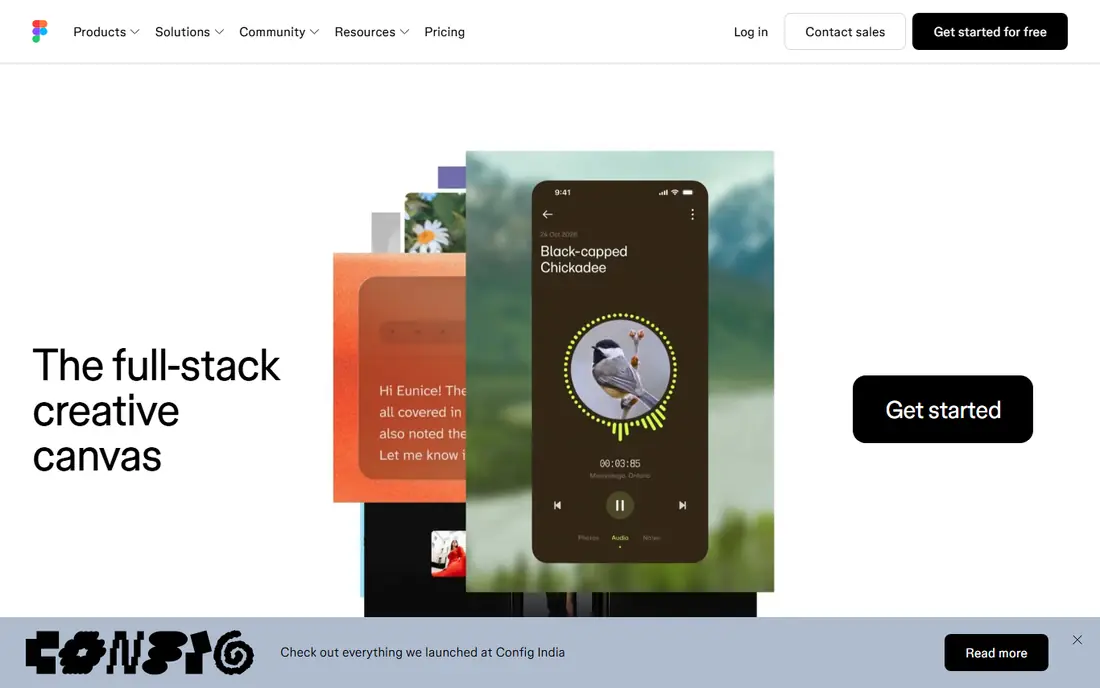
Figma is our pick for most app design work. It runs in the browser on Mac, Windows, and Linux, so a team can edit, comment, and review in the same file without version conflicts. Auto layout, components, variables, and a large plugin library help teams build consistent design systems, while developer tools let engineers inspect specs, export assets, and copy code snippets.
The free starter plan suits solo designers and learners, while Professional at $16 per editor per month in recent listings adds unlimited projects, team libraries, and version history. The main limits are internet dependence for full collaboration and performance on very large files. For a team that designs together, Figma remains the safest default choice.
- Browser based real time collaboration
- Strong auto layout, components, and variables
- Clear developer handoff and plugins
- Needs internet for full collaboration
- Large files can slow down
- Paid seats add up for large teams
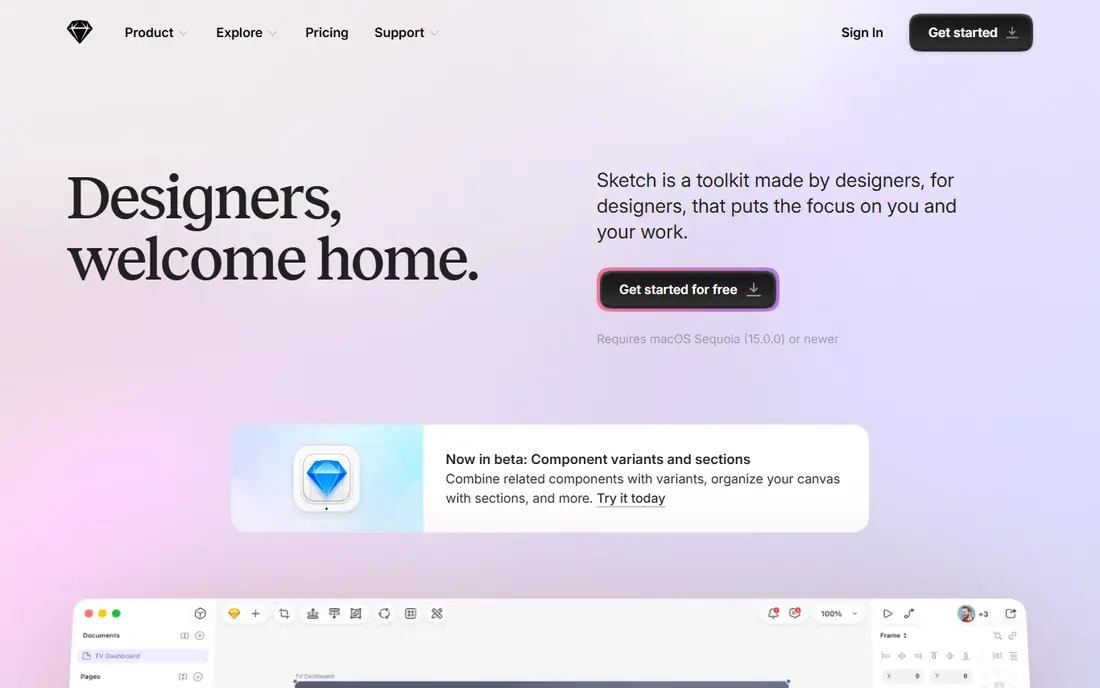
Sketch suits designers and agencies that work on Mac and value a fast, focused desktop app. Its vector editing is precise, symbols and libraries support design systems, and a large plugin library extends it for animation, accessibility, data, and handoff. Many long standing product teams still use Sketch for that combination of speed and control.
The Mac only limit is decisive for mixed platform teams. Sketch offers cloud sharing and web viewing, but it does not match Figma for browser based, real time co editing. Pricing in recent listings is $12 per editor per month, with a free trial to test the workflow. If your whole team is on Mac and you prefer a native app, Sketch is a strong, mature choice.
- Fast native Mac app
- Large plugin ecosystem
- Strong symbols and shared libraries for design systems
- Mac only for the desktop app
- Real time collaboration is less central than Figma
- Web viewing depends on Sketch Cloud
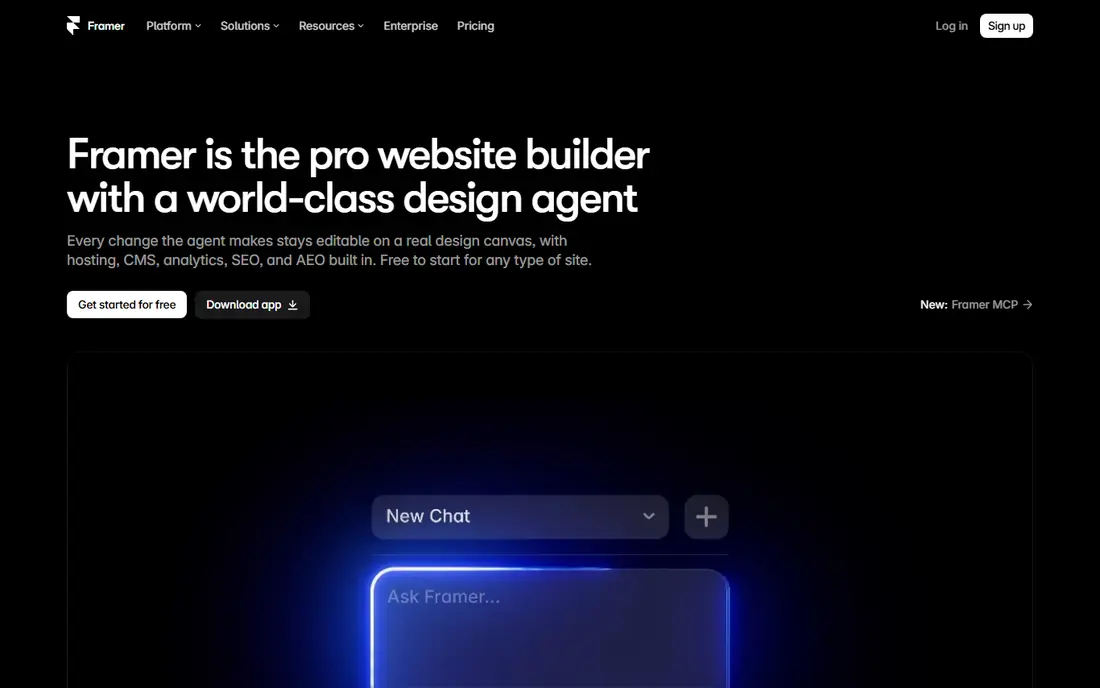
Framer appeals to designers who want to move from a mockup to a live, interactive site without handing off to a separate builder. You can design screens, add animations and interactions, and publish a working site, which makes it useful for landing pages, marketing sites, and interactive prototypes that need to feel real. Templates help small teams start fast.
For native mobile app design, Framer is less central than Figma or Sketch, since its strength is web publishing. Pricing varies by plan and site needs, so check the current page for the free scope and paid tiers before a client project. If your app has a strong web presence and you want design and publishing in one tool, Framer is worth a test.
- Design and publish real websites from the same canvas
- Strong animation and interaction tools
- Useful templates
- More web focused than native app design
- Pricing and plan limits need checking for larger sites
Penpot is the best open source alternative for teams that want Figma style collaboration without a subscription or vendor lock in. It runs in the browser, supports components, prototyping, and developer handoff, and it can be self hosted for teams with strict data or privacy requirements. That combination suits public sector teams, open source projects, and startups on a tight budget.
The trade off is ecosystem size. Penpot has fewer plugins, templates, and community files than Figma, and some advanced workflows feel less polished. For standard UI design, wireframes, and prototypes, it covers the core job well. If cost, openness, and self hosting matter more than the largest plugin library, Penpot is a serious option.
- Free and open source
- Browser based collaboration
- Self hosting option for teams with privacy needs
- Smaller plugin and community library than Figma
- Some advanced features are still maturing
Lunacy, from Icons8, is a free design app that suits solo designers and Windows users who want a capable tool without a subscription. It opens Sketch files, offers vector editing, prototyping, and a library of built in graphics, icons, and photos, which speeds up early concepts. Offline desktop use is a plus for designers with unreliable internet.
Collaboration is not its strength. Teams that need real time co editing, shared libraries at scale, and deep developer handoff will still prefer Figma. For a freelancer, student, or small team on Windows, Lunacy offers a surprisingly complete free tool, and it pairs well with Figma for sharing finished files when collaboration is needed.
- Free desktop app for Windows, Mac, and Linux
- Reads Sketch files
- Built in graphics, icons, and photos
- Collaboration and cloud features are thinner than Figma
- Smaller community than the major tools
Axure RP is the tool for prototypes that need logic, not just linked screens. You can build conditional flows, dynamic panels, variables, and data driven interactions that mimic a real app, which helps UX researchers test complex journeys before development. It also generates specifications that document behaviour for engineers and stakeholders.
That power comes with a learning curve and a less modern visual design experience than Figma. Axure suits enterprise UX teams, consultants, and researchers who test flows, forms, and edge cases in depth. For simple marketing screens, it is overkill. For a banking flow, a multi step form, or a complex admin tool, Axure remains one of the most capable prototyping tools available.
- Powerful logic, variables, and conditional flows
- Detailed specifications for developers
- Strong for enterprise UX research
- Steeper learning curve
- Visual design feels less modern than Figma
- Pricing is quote or plan based
ProtoPie focuses on making prototypes feel like real products. You can build interactions using sensors, voice, touch, and device inputs, test on a phone, and share a prototype that behaves like the final app. That fidelity helps teams test gestures, animations, and hardware linked features that a simple click through cannot show.
ProtoPie is not a replacement for Figma or Sketch for visual design. Most teams design screens elsewhere, import them, and add interactions in ProtoPie. Pricing is plan based with a free trial, so check the current page for seat and project limits. For interaction designers and product teams that test realistic prototypes, it is a valuable specialist tool.
- High fidelity interactions without code
- Sensor, voice, and device inputs
- Good for mobile and automotive prototypes
- Not a full visual design tool
- Pricing is plan based
- Learning curve for advanced interactions
UXPin suits teams that want design and code to stay closer together. It supports design system libraries, interactive prototypes with logic, variables, and data, and collaboration tools for review and handoff. Teams that reuse code components and need prototypes that reflect real data will value that approach.
The community and template library are smaller than Figma, and the interface takes time to learn. Pricing is plan based with a free trial, so test it with a real design system before committing. For product teams with a mature design system and a need for data driven prototypes, UXPin offers a structured, code aware alternative to a purely visual tool.
- Design system libraries with code components
- Interactive prototypes with logic and data
- Collaboration and handoff tools
- Smaller community than Figma
- Pricing is plan based
- Interface takes time to learn
How we picked these
We compared official feature pages, pricing pages, and public documentation for tools live in October 2026, and we kept only tools with a real UI design, prototyping, or handoff function. A tool made the list when it had a working official homepage and a clear app design use case. We weighted collaboration, prototyping depth, design system support, developer handoff, and platform availability over popularity alone.
We did not claim hands-on lab testing. Adobe XD is included in our notes but not as a main pick, because Adobe no longer sells it as a standalone app, though existing users still receive support. Prices shown are vendor published entry figures where available, and we wrote See website where pricing is plan or quote based. Recheck the pricing page before you buy, since design tools change plans often.
How to choose for your team
Start with who edits at the same time
If designers, product managers, and engineers need to work in the same file, choose a browser based tool such as Figma or Penpot. If one designer owns the file and shares it for review, a desktop tool such as Sketch or Lunacy may be faster and cheaper. Collaboration needs decide the shortlist more reliably than feature lists, because a tool no one can open together will slow every review.
Test handoff with a real engineer
A pretty prototype that engineers cannot inspect is a dead end. Give an engineer a test file, and ask them to find spacing, colours, typography, and assets without help from the designer. Check whether code snippets, asset export, and design tokens match your stack. That one test often reveals more than a week of feature comparison, and it prevents costly rework after design sign off.
Build one small design system first
Before you commit to a tool for a whole product, build a small system: colours, typography, buttons, inputs, and cards, plus one flow that uses them. Test theming, variants, and a change to a core component, and see how far the change propagates. A tool that handles that small system cleanly will scale better than a tool with many features but fragile components.
FAQ
What is the best app design software for beginners?
Figma is the best starting point for most beginners, thanks to a free plan, browser access, and a large library of tutorials and community files. Penpot and Lunacy are good free alternatives, especially for learners on a budget or on Windows. Start with one small project, such as a three screen app, before learning advanced components.
What are the best tools for UI UX design for teams?
Figma leads for team collaboration and handoff, Sketch suits Mac only teams, and UXPin suits teams with a code based design system. Penpot suits teams that need open source or self hosted collaboration. Choose by platform, collaboration needs, and handoff requirements, not by which tool is most talked about.
Is Adobe XD still a good choice in 2026?
Adobe XD is no longer available to buy as a standalone app, though Adobe still supports existing users. New projects should start in Figma, Sketch, Penpot, or another actively sold tool, to avoid a future migration. Existing XD users should export and test a migration plan while support remains available.
Can I design an app for free?
Yes. Figma, Penpot, and Lunacy all offer free plans or free apps that cover core UI design and prototyping. Framer also offers a free tier for web projects. Paid plans add team libraries, unlimited projects, advanced handoff, and higher limits, which matter for professional teams but not for learning or a first prototype.
Do I need code skills to use app design software?
No, for visual design and basic prototyping. Tools such as Figma, Sketch, and Penpot let you design and link screens without code. Code skills help for advanced prototyping in Axure or ProtoPie, and for design systems that use code components in UXPin, but they are not required to start designing an app.