Best AI Powered Productivity Tool in 2026: 8 Tools Compared
Best ai powered productivity tool, with 8 tools compared on notes, tasks, scheduling, writing, and meetings for busy US workers in 2026 for US readers.
- Editor's choice
 Notion
Notes and tasks in one place
Starts at$10 per monthVisit notion.comFull review - Great alternative
 ChatGPT
General AI assistant
Starts atFreeVisit openai.comFull review - Also consider
 Microsoft Copilot
Work inside Microsoft 365
Starts at$30 per monthVisit microsoft.comFull review
TL;DR:
- Notion is the best all round pick for notes and tasks, while Motion and Reclaim are better for people whose calendar is the main problem.
- ChatGPT, Copilot, and Gemini work best as assistants inside tools you already use, not as a replacement for a task system.
- AI summaries save time only if you check them, since a missed detail in a meeting note can become a missed deadline.
- Start with one tool for one job, such as scheduling or writing, before paying for several AI add-ons at once.
Quick comparison
| Tool | Best for | Starts at | Free plan? | |
|---|---|---|---|---|
| Notion | Notes and tasks in one place | $10 per month | Yes | Visit |
| ChatGPT | General AI assistant | Free | Yes | Visit |
| Microsoft Copilot | Work inside Microsoft 365 | $30 per month | Free trial | Visit |
 Google Gemini | Work inside Google Workspace | $20 per month | Yes | Visit |
 Motion | Auto scheduled days | $34 per month | Free trial | Visit |
 Reclaim | Smart calendar habits | Free | Yes | Visit |
 ClickUp | Team tasks with AI help | $10 per month | Yes | Visit |
 Grammarly | Clear writing and edits | Free | Yes | Visit |
The best AI powered productivity tools
These tools use AI for a clear job, such as drafting, summarizing, scheduling, or organizing, rather than adding AI as a vague extra.
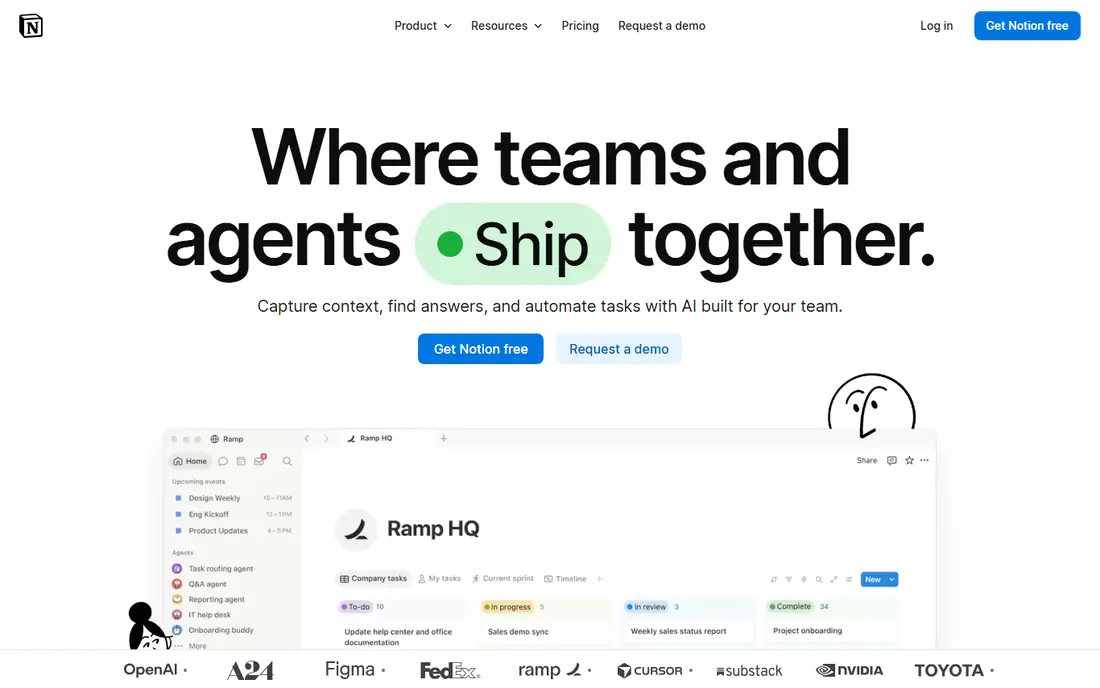
Notion suits people who want notes, tasks, docs, and a small wiki in one workspace. You can start with a simple page, add a task database later, and use AI to draft, summarize, or turn rough notes into a clean plan. That flexibility helps freelancers and small teams who do not want five separate apps.
The trade-off is setup. A blank workspace can feel slow to build, and the best results come from a simple structure that you actually maintain. Start with one page for tasks and one for notes, and add databases only when a list stops working.
- Flexible pages and databases
- AI drafting and summaries
- Good team sharing
- Setup takes time
- AI features need a paid plan for full use

ChatGPT is the most flexible AI assistant in this list, useful for drafting emails, outlining a project, summarizing notes, and turning a rough idea into a plan. It works best when you give it clear context, such as the goal, audience, and format, and then edit the result in your own voice. For solo workers, it can replace a blank page on a busy morning.
The limit is accuracy. ChatGPT can sound confident about a fact, date, or price that is wrong, so check anything that will be published or sent to a client. Treat it as a drafting partner, not as a source of truth, and keep sensitive work out of prompts you do not need to share.
- Strong drafting and brainstorming
- Wide knowledge for research help
- Works across many tasks
- Outputs need checking
- Paid tier needed for heavy daily use
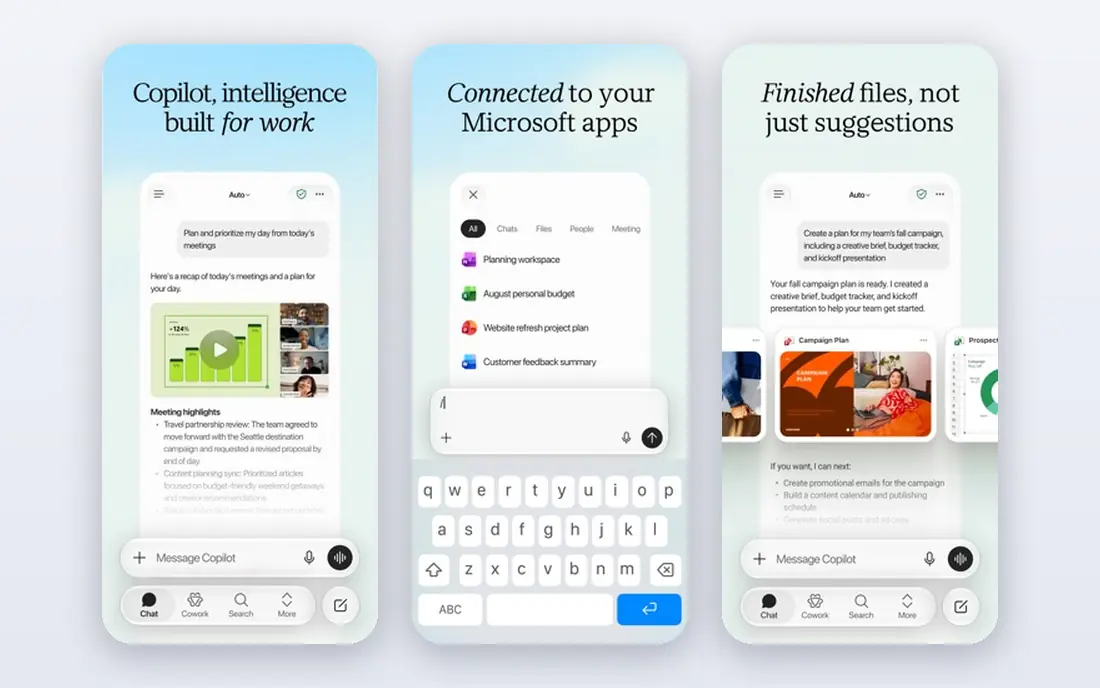
Microsoft Copilot is the best pick for teams that already live in Microsoft 365, because it works inside Word, Excel, Outlook, and Teams rather than in a separate tab. It can draft a document from notes, summarize a long email thread, and pull action items from a meeting, which saves the copy and paste work that eats up mornings.
The price is the main barrier for small teams, since Copilot is priced per user on top of a Microsoft 365 plan. If your team uses Google Workspace or a mix of tools, a general assistant may give better value. If Microsoft is your home base, the time saved on drafts and summaries can justify the cost.
- Works inside Word, Excel, and Outlook
- Summarizes meetings and emails
- Uses your work context
- Higher per user price
- Best value inside Microsoft 365
Google Gemini suits Google Workspace users who want AI help inside Gmail, Docs, and Drive. It can draft replies, summarize documents, and help plan work from your files, without moving content to a separate app. The free tier is useful for testing basic drafting and summaries before paying.
As with other assistants, check outputs before sending, especially for names, dates, and numbers. Gemini is strongest as a helper inside Google tools, not as a full task manager, so pair it with a task app if your main problem is deadlines and follow up.
- Works inside Gmail and Docs
- Strong search and summary help
- Free tier for testing
- Advanced Workspace features need a paid plan
- Outputs need checking
Motion is built for people whose days are ruled by a calendar. You add tasks with deadlines and time estimates, and Motion places them around meetings, re-plans when a meeting moves, and shows a clear daily plan. That auto scheduling helps when priorities change often and a static to do list keeps falling behind.
The system only works as well as your estimates. If tasks are given vague times or no deadline, Motion cannot plan them well, and the plan will feel random. Spend a few minutes each morning setting priorities and estimates, and Motion becomes a useful daily guide.
- Auto schedules tasks around meetings
- Clear daily plan
- Good for busy calendars
- Higher price
- Needs accurate task times to work well
Reclaim protects time for focus work, habits, lunch, and routines by booking them on your calendar and moving them when meetings change. That is different from a task list, because it treats deep work as an appointment, not as a hope. For people who keep losing focus time to meetings, Reclaim can change a week quickly.
It is not a full task manager, so pair it with a notes or task app for project work. The free tier covers basic habits and focus time, which is enough to test whether protected time actually improves your week before paying for team features.
- Protects time for habits and focus
- Auto reschedules when meetings move
- Free tier to start
- Calendar focused, not a full task app
- Setup needs calendar access
ClickUp suits teams that want tasks, docs, goals, and time tracking in one workspace, with AI help for summaries and drafting. Views for lists, boards, calendars, and timelines let different roles see the same work in a useful form, and automations can move tasks when status changes. For a growing team, that range can replace several smaller tools.
New users can feel overwhelmed by options, so start with one project, one list view, and a few statuses, then add views as the team learns the system. A simple ClickUp setup that everyone uses beats a complex setup that only one person understands.
- Tasks, docs, and goals in one place
- AI summaries and drafting
- Many views for teams
- Feature range can feel busy
- Setup needs a clear structure
Grammarly helps with the final step of productivity: clear writing. It checks grammar, tone, and clarity across email, docs, and browsers, and its AI features can rewrite a sentence for a cleaner, more direct form. For non native writers and busy professionals, that quick check prevents misunderstandings.
The catch is judgment. Grammarly can suggest a change that alters meaning, especially in technical or legal text, so read each suggestion before accepting it. Use it as an editor, not as an author, and keep your own voice in client and team messages.
- Clear grammar and tone help
- Works across browsers and apps
- Good for non native writers
- AI suggestions need human judgment
- Premium features need a paid plan
How we picked these
We compared official feature pages, pricing pages, and public reviews for AI tools that are still available in October 2026 and solve a clear productivity job. We favored tools with a free tier or trial, a clear AI feature such as drafting, summarizing, or scheduling, and honest limits on accuracy. We did not claim hands-on testing, and we noted where a tool works best inside a specific suite such as Microsoft 365 or Google Workspace.
How to choose an AI productivity tool
Start with the bottleneck, not with the tool. If your problem is a full calendar, a scheduling tool helps more than a writing assistant. If your problem is drafting, a general assistant or writing tool helps more than a calendar app. One tool for one bottleneck is a better start than a bundle you never learn.
Accuracy and privacy checks
Check AI summaries against the source before acting on them, especially for meetings, contracts, and client commitments. Avoid pasting sensitive personal data, passwords, or confidential client work into a prompt unless you have checked the vendor privacy terms. For team use, confirm who can see prompts and outputs.
Cost and overlap
Add up AI add-ons across your stack before buying another one. Notion, ClickUp, Microsoft, and Google may each charge for AI, and paying for all four can double your cost for similar drafting help. Pick the AI feature inside the tool you already open most often, and test it for two weeks.
Habits that make AI useful
Use AI for a first draft, a summary, or a plan, then edit in your own words and set a clear next step. A summary without a task and a deadline is just another note. Pair any AI tool with a simple daily review: what is due today, what is blocked, and what can wait.
FAQ
What is the best AI powered productivity tool overall?
Notion is the best all round pick for notes and tasks with AI drafting, while Motion is better if your calendar is the main problem. ChatGPT is the most flexible general assistant, but it is not a task manager. Choose by your main bottleneck, not by the longest feature list.
Are AI productivity tools worth paying for?
They are worth paying for when they save a clear, repeated task, such as summarizing meetings, drafting routine emails, or scheduling a full day. If you only use AI once a week, a free tier may be enough. Track time saved for two weeks before renewing a paid plan.
Can AI tools replace a task manager?
No, AI assistants draft and summarize well, but they do not replace a task system with deadlines, owners, and status. Use an assistant beside a task app, and make sure every AI summary ends with a named owner and a due date.
Is my data safe in AI productivity tools?
Safety depends on the vendor, plan, and settings, so read the privacy policy for your plan before pasting sensitive work. Business and enterprise plans often offer stronger controls than free tiers. When in doubt, keep confidential client data out of general AI prompts.
Which AI tool is best for meetings?
Microsoft Copilot and Google Gemini are strong for meetings inside their own suites, since they can summarize calls and pull action items from your work context. For standalone meeting notes, check whether your meeting app already offers summaries before buying a separate tool.
How do I avoid AI errors in my work?
Check names, dates, numbers, and quotes against the source, and edit AI drafts in your own voice before sending. Use AI for structure and first drafts, and keep final judgment with a human, especially for client work, money, and legal text.