Best AI App to Make Videos for Free in 2026: 8 Apps Compared
The best ai app to make videos for free, from social clips to slideshows and AI clips. We compared eight apps on templates, watermarks, limits, and exports.
- Editor's choice
 CapCut
Free social video editing
Starts atFreeVisit capcut.comFull review - Great alternative
 Canva
Template video design
Starts atFreeVisit canva.comFull review - Also consider
 InVideo
Text to video for social
Starts atFreeVisit invideo.comFull review
TL;DR:
- CapCut and Canva offer the most complete free video editors for social clips, with templates and effects built in.
- InVideo and Kapwing suit text to video and quick edits, with free tiers that include watermarks or limits.
- Runway and Pika suit AI generated clips, but free credits run out fast and outputs need editing.
- Check watermark, export resolution, and commercial terms before using a free video in client work.
Quick comparison
| Tool | Best for | Starts at | Free plan? | |
|---|---|---|---|---|
| CapCut | Free social video editing | Free | Yes | Visit |
| Canva | Template video design | Free | Yes | Visit |
| InVideo | Text to video for social | Free | Yes | Visit |
 Kapwing | Quick browser editing | Free | Yes | Visit |
 Lumen5 | Blog to video | Free | Yes | Visit |
 Runway | AI generated video clips | Free | Yes | Visit |
 Pika | AI text to video clips | Free | Yes | Visit |
 Clipchamp | Windows video editing | Free | Yes | Visit |
The best ai apps to make videos for free
We compared official feature pages, pricing pages, app store listings, and public reviews to find the best free app to make ai videos for different creators.
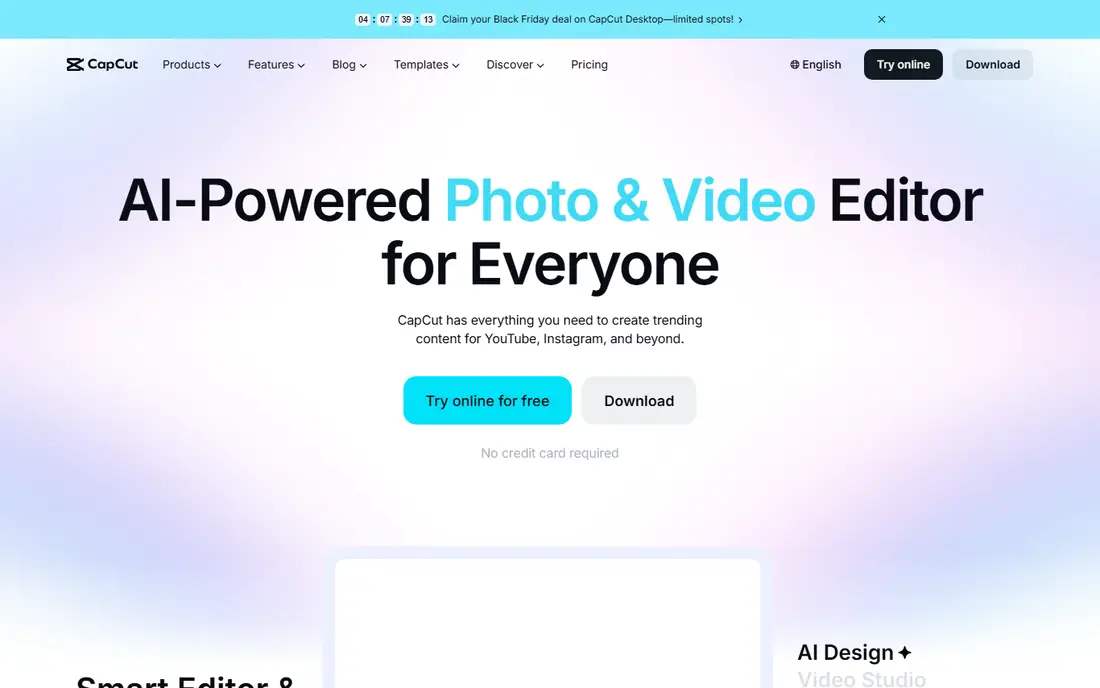
CapCut is the best free app to make videos for most social creators because the free editor is genuinely complete. Trim clips, add captions, use templates, add music, and export in social sizes without paying. That breadth helps TikTok, Reels, and Shorts creators who publish often.
The limit is the Pro layer. Some AI tools, premium effects, and cloud storage need a paid plan, and free exports may include branding on some templates. For everyday social video, the free tier covers a lot. For advanced AI features, check which tools are free before planning a project around them.
- Full mobile and desktop editor
- Templates, captions, and effects
- Strong social export presets
- Some AI features and assets need Pro
- Templates vary in quality
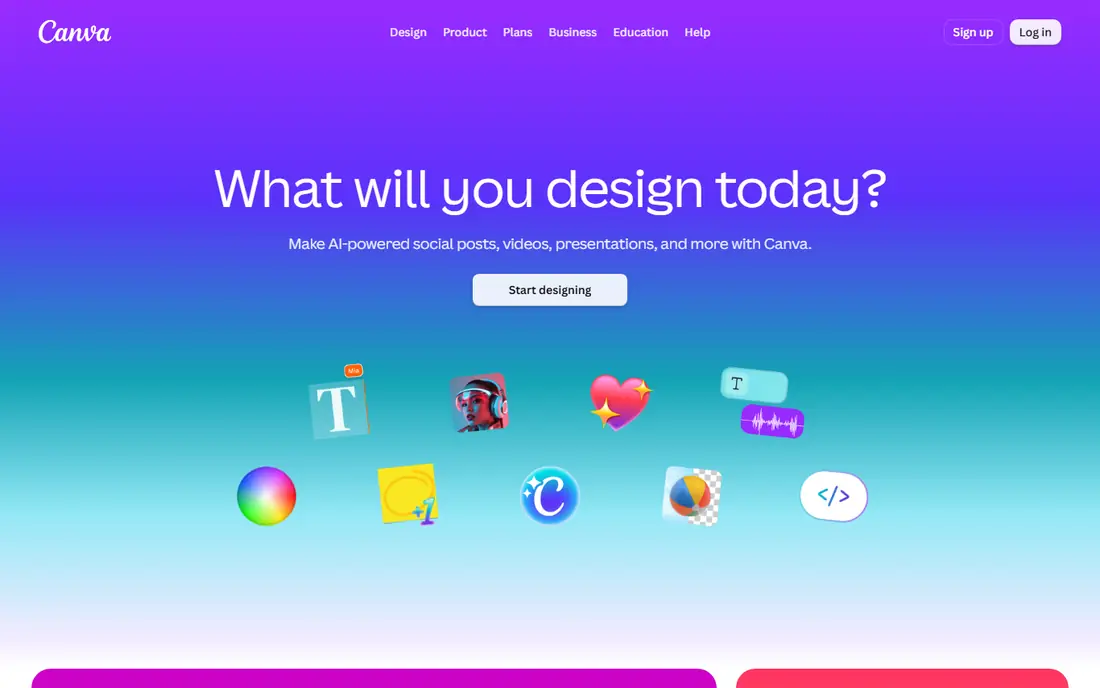
Canva suits creators who want a clean video fast, not a complex edit. Pick a template, swap text and clips, add music, and export for social, presentations, or ads. The interface stays friendly for non editors, which helps small businesses and teachers.
The trade off is editing depth. Canva timeline tools are simpler than CapCut or Clipchamp, and many premium assets need Pro. Use Canva when a template led video is enough, and use a dedicated editor when you need precise cuts, audio mixing, or color work.
- Video templates for many formats
- Drag and drop editing
- Stock media and text tools
- Free stock and AI features are limited
- Timeline editing is simpler than a pro editor
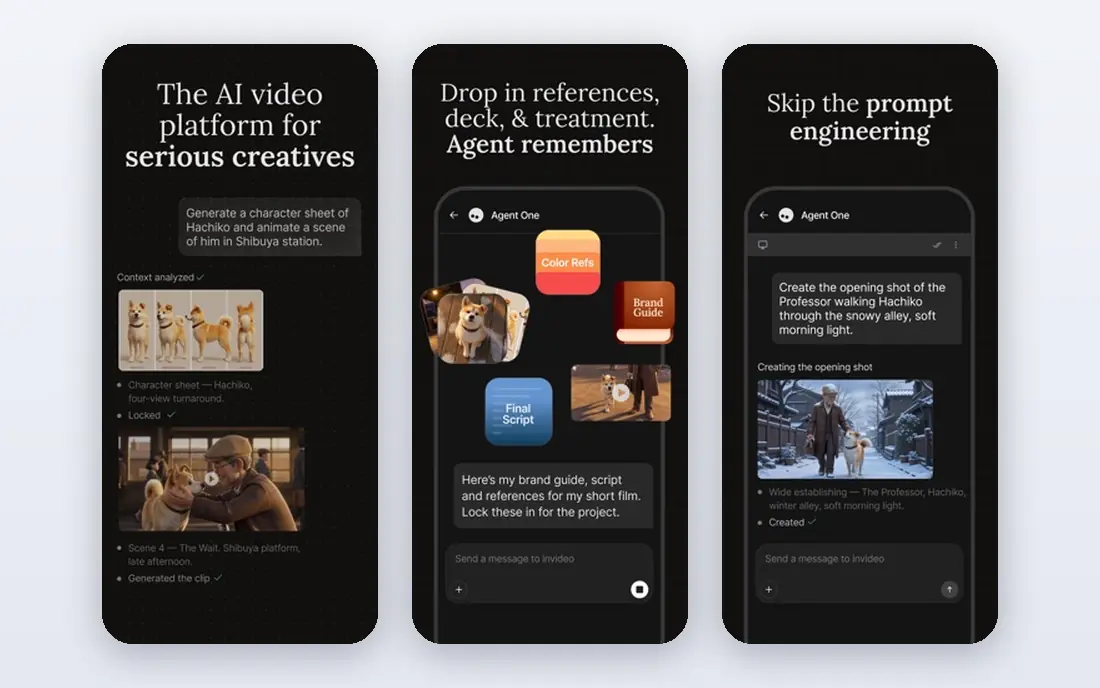
InVideo is a strong pick for the best free ai tool to make videos from a script or article. Paste text, pick a template and voice, and generate a draft video you can edit. That workflow helps marketers turn blog posts, product notes, and announcements into social video quickly.
The honest catch is the watermark. Free exports include a watermark, and removing it needs a paid plan. AI credits are also limited on free use. Use InVideo free to test scripts and drafts, then pay only when you need clean exports for publication.
- Text to video workflow
- Large template library
- Stock media and voice options
- Free exports carry a watermark
- AI generation limits apply on free tier
Kapwing is useful when you need to edit in a browser without installing software. Upload a clip, add captions, resize for social, trim, and share a link for review. That speed suits teams that edit on shared computers or Chromebooks.
The limit is free export terms. Free videos carry a watermark, and export length and quality limits apply. Kapwing works well for drafts, memes, and quick social edits. For final client videos, a paid plan or a watermark free editor such as CapCut free may be a better fit.
- Browser based editing
- Captions, memes, and resizing tools
- Collaboration features
- Free exports carry a watermark
- Longer videos need a paid plan for smooth export
Lumen5 helps content teams turn written content into video without filming. Paste a blog link or text, and Lumen5 builds scenes with stock media and text overlays that you can edit. That workflow suits news, education, and marketing teams that publish often.
The trade off is originality. Template led scenes can look similar across videos, and free exports include a watermark with limited resolution. Use Lumen5 for fast repurposing, then customize scenes, music, and branding to avoid a generic look.
- Turns articles into video drafts
- Stock media matching
- Simple scene editing
- Free tier includes watermark and limited resolution
- Style options are template led
Runway is a leading choice for true AI video generation, where a prompt creates a moving clip rather than assembling stock footage. Text to video and image to video tools help creators test ideas, make b roll, and build short artistic scenes. Editing tools let you trim and combine clips into a longer piece.
The limit is credit and length. Free credits produce only a few short clips, and results can vary by prompt. Runway suits experimentation and short creative clips, not a full free documentary. Plan prompts carefully, generate in small batches, and edit the best clips into a final video.
- Text and image to video generation
- Editing tools for generated clips
- Strong model quality
- Free credits are limited
- Generated clips are short
- Best features need paid plans
Pika is a friendly entry point to AI video generation. Write a prompt, pick a style, and get a short clip for social posts, memes, or creative tests. The interface stays simple, which helps beginners who find Runway complex.
The honest weakness is consistency. Some prompts produce strong clips, while others look odd, especially with hands, faces, and fast motion. Free credits also run out quickly. Use Pika for short experiments and social fun, and use a full editor to combine the best clips with captions and music.
- Easy text to video prompts
- Fun styles for social clips
- Community ideas for prompts
- Free credits are limited
- Outputs can be inconsistent
- Watermark on some free exports
Clipchamp is a practical free editor for Windows users who want a clean timeline without installing heavy software. Templates, auto captions, stock media, and social presets cover most everyday video needs, and files can be saved to OneDrive or exported for sharing.
The catch is premium gating. Some stock assets, filters, and 4K export options need a Microsoft 365 plan, so check export settings before a large project. For 1080p social and presentation videos, the free tier is often enough, especially for users already in the Microsoft ecosystem.
- Free editor built for Windows
- Templates, captions, and stock media
- Easy sharing to social
- Some premium assets and 4K export need Microsoft 365
- Browser performance varies
How we picked these
We compared official feature pages, pricing pages, app store listings, and public reviews. We favored apps active in October 2026 with a real free tier, not only a trial, and we weighed template quality, AI generation, watermark terms, export resolution, and ease of use. We did not claim hands-on testing.
How to choose a free AI video app
Start with the video type. A social clip needs an editor such as CapCut or Clipchamp. A script led video needs InVideo or Lumen5. A generated clip needs Runway or Pika. A template design needs Canva. Picking for the video type avoids paying for AI generation when a template would do, and vice versa.
Check watermark and export limits first
Free tiers differ sharply on watermarks, resolution, and length. Before you invest hours in a project, export a 10 second test and check the watermark, resolution, and file size. If the free export does not meet your publication standard, switch tools early rather than after a full edit.
Write better prompts and scripts
For AI video, name the subject, action, camera movement, and style in one clear sentence, then add lighting or mood only if it helps. For script videos, write short sentences that fit one scene each, since long sentences crowd the screen. Test one prompt or script at a time, keep what works, and change one variable per test.
Edit generated clips like real footage
AI clips are raw material, not finished videos. Trim weak frames, add captions, music, and a clear opening line, and keep the total length short for social. Check faces and hands at full size, avoid presenting generated people as real people, and follow each app's terms for commercial use and disclosure where required.
FAQ
What is the best app to make ai videos free?
CapCut free is best for edited social videos, Canva free is best for template videos, and Runway and Pika are best for generated clips. InVideo free is best for turning text into a draft video. Your pick should follow whether you need editing, templates, or generation.
What is the best free app to make ai videos without a watermark?
CapCut free and Clipchamp free offer watermark free exports for many everyday videos, while InVideo, Kapwing, and Lumen5 free exports often include a watermark. Always test a short export first, since watermark terms vary by template, asset, and plan.
Can I make a full video with AI for free?
Yes, for short social videos, but free credits and export limits make long projects harder. Use Runway or Pika for short generated clips, then edit them in CapCut or Clipchamp free. For a long video, plan in short scenes and export in parts to stay within free limits.
What is the best free ai app to make videos for YouTube?
CapCut and Clipchamp suit YouTube editing on free tiers, with templates and captions for longer videos. Canva suits intros and template led videos, while InVideo suits script led explainers. For YouTube, check export resolution and music licensing before publishing.
Do free AI video apps allow commercial use?
It depends on the app, plan, and assets used. Some free tiers allow commercial use of your own clips, while stock music, templates, and AI outputs may carry limits. Read the current terms for your plan, avoid trademarked content, and keep records for client work.
How long can free AI generated clips be?
Most free AI generation produces short clips, often a few seconds per generation, with credits limiting total output. Runway and Pika free tiers are best for short scenes that you edit together, not for a single long generated shot. For longer videos, combine generated clips with real footage and text scenes.