Top Photoroom Alternatives in 2026: 5 Picks Ranked
Need Photoroom alternatives? We compare 5 tools on cost, free access and who each suits. Strengths and weak spots are spelled out. Reviewed in November 2026.
- Editor's choiceSnapEdit
Straightforward object and background cleanup
Starts at$6 a monthVisit snapedit.appFull review - Great alternative
 Fotor
Everyday photo enhancement and retouching
Starts atSee websiteVisit fotor.comFull review - Also consider
 Pixlr
Browser editing with AI generation
Starts at$2.49 a monthVisit pixlr.comFull review
Direct answer
If you need straightforward object and background cleanup, SnapEdit is the first tool to look at here. Listed starting prices: SnapEdit from $6 a month and Pixlr from $2.49 a month. Look at Fotor for everyday photo enhancement and retouching, and at Pixlr for browser editing with AI generation. The other 2 tools in the list cover narrower or pricier cases.
TL;DR:
- SnapEdit takes the first slot, best suited to straightforward object and background cleanup.
- Free plans exist at 2 of 5 tools (SnapEdit, Fotor).
- For quick automatic background removal, Remove.bg is worth a look.
- A fair warning about Pixlr: plenty of features can feel overwhelming.
- Pixlr is the lowest-priced starter here at $2.49 per month.
Last checked November 2026. Prices and plan details were read from the vendors' own pages in November 2026; vendors change plans often, so confirm the current price on the vendor site before you buy.
Quick comparison
| Tool | Best for | Starts at | Free plan? | |
|---|---|---|---|---|
| SnapEdit | Straightforward object and background cleanup | $6 a month | Yes | Visit |
| Fotor | Everyday photo enhancement and retouching | See website | Yes | Visit |
| Pixlr | Browser editing with AI generation | $2.49 a month | Not stated | Visit |
 Canva | All-in-one design and editing | See website | Not stated | Visit |
 Remove.bg | Quick automatic background removal | See website | Not stated | Visit |
The 5 tools in detail
This LinkVetted guide covers 5 options for Photoroom. Each profile lists a starting price, free plan details, strengths and drawbacks, so you can drop poor fits quickly.
SnapEdit
Best for: Straightforward object and background cleanup
SnapEdit is built with straightforward object and background cleanup in mind. SnapEdit is an online AI photo editor with tools for removing objects, erasing backgrounds, enhancing images to HD and 4K, and retouching skin, pitched at users with no editing skills.
Drawbacks to consider: Suited to fast fixes, not deep editing.
It suits people who want quick cleanup of product or personal photos in a browser. On cost, SnapEdit starts like this: $6 per month. A free plan is available with SnapEdit.
- Object removal and background erasing
- Enhancement up to HD and 4K
- Credit limits apply to daily use
Choose Fotor for everyday photo enhancement and retouching. Fotor is an online photo editor for cropping, adding text and effects, retouching images and general enhancement.
Where it is weaker: Advanced controls are restricted.
What users get: Crop. Some features sit behind account requirements. If you used Photoroom for light cleanup and social-ready images, Fotor includes similar everyday ground. No starting price is listed for Fotor here; confirm pricing on the vendor site. Fotor includes a free tier.
- Retouching tools included
- Online with no install
- Busy interface for straightforward tasks

Pick Pixlr if this describes you: browser editing with AI generation. Pixlr is a free online AI photo editor and image generator that also handles background removal, face swap and collages, with no install needed. Anyone replacing Photoroom for varied editing tasks will find plenty of range here.
The main drawbacks: Many features can feel overwhelming.
What works well: AI image and video generation tools.
For everyday use, the breadth of tools means a busier interface and a ramp-up time, and results from generative features vary by input. It is less focused than Remove.bg for pure cutouts. Choose Remove.bg or SnapEdit if you want the simplest possible background workflow. Starting cost for Pixlr: $2.49 per month. As for free access: Not stated.
- Background removal and face swap
- No install required
- Interface takes time to learn

Where Canva fits: all-in-one design and editing. Canva is an online visual suite for social posts, presentations, posters, videos and logos. It also deals with background removal and entry-level image cleanup.
Where Canva stands out: posters and logos.
For everyday use, Canva is not a precision photo editor, so heavy retouching, advanced masking or fine color work will feel constrained. It also performs best online, which matters on weak connections. In daily use, if your Photoroom use centered on product or social graphics, Canva spans that ground well. Check the vendor site for Canva pricing; none is listed in this comparison. Free options: Not stated. Drawbacks to consider: Deep photo retouching is restricted.
- Browser-based with no install
- Templates for social posts
- Complicated edits may need a dedicated editor
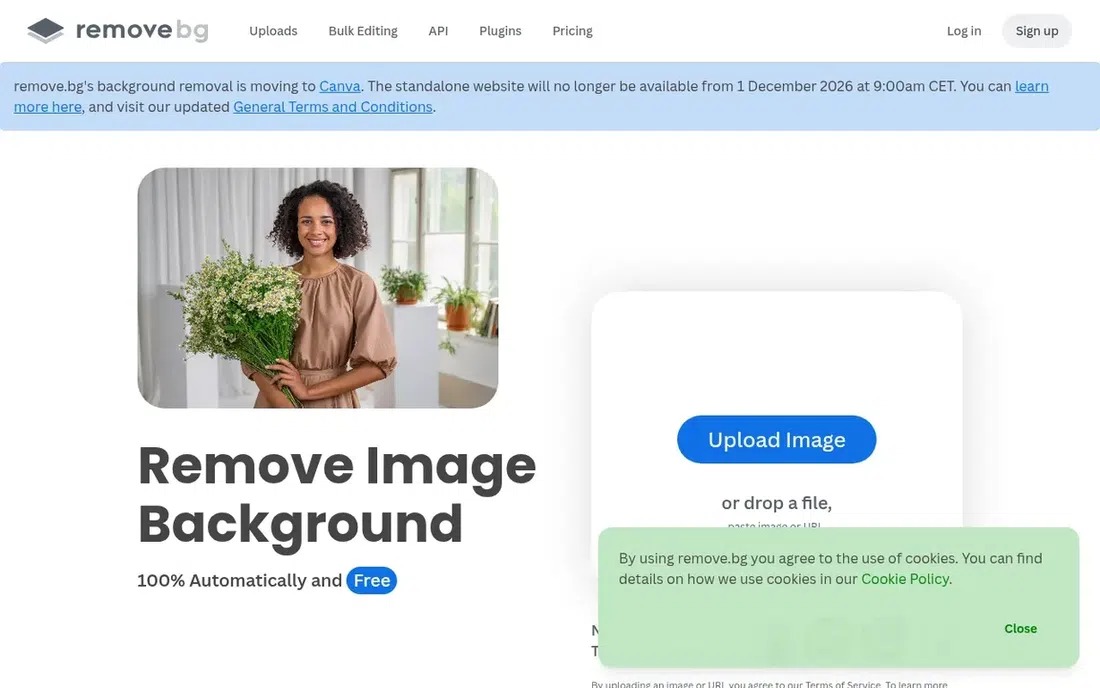
Remove.bg is designed for quick automatic background removal. Since the tool is concentrated on cutouts, it will not help with layouts, text, collages or retouching. As for the details, choose Canva or Fotor when you need the cutout plus the surrounding design work.
What to check first: Narrow, single-purpose feature set.
For everyday use, if Photoroom was chiefly your background eraser, this is the closest match in intent. Expect to move finished cutouts into another editor for composition. Also, remove.bg does one job: it removes image backgrounds automatically after you upload a photo, without manual pixel picking. Check the vendor site for Remove.bg pricing; none is listed in this comparison. Free plan details: Not stated.
Where Remove.bg stands out: One-click background removal.
- Straightforward upload workflow
- No manual pixel selection
- No broader design or layout tools
How the list was put together
Before you commit
- Confirm the entry price on the vendor page. For Fotor, Canva and Remove.bg that means a quote rather than a fixed price.
- Check what the free option really includes: SnapEdit and Fotor offer a free plan, and usage caps differ.
- Read the limits listed for SnapEdit first: suited to fast fixes, not deep editing.
- Get the contract term, renewal terms and any onboarding fees from Canva in writing.
- Compare total cost, not headline price: for Fotor, add extra seats, add-ons and any usage-based charges.
FAQ
Can I try these tools before paying?
Often, yes. SnapEdit and Fotor have a free plan. Use your own data and a real task during the test, and check what the free tier or trial limits before you rely on it.
Which options for Photoroom have a free plan?
SnapEdit and Fotor offer a free plan in this list. Free plans usually cap users, projects or features, so check the limits on the vendor page.
Do these tools publish their prices?
Not all of them. Fotor, Canva and Remove.bg publish no starting price, so expect a quote request for those. The rest, SnapEdit included, show a starting price, though seats and billing terms still change the final cost.
Is SnapEdit the right pick for everyone comparing Photoroom?
No single tool suits every team. SnapEdit comes first because it fits simple object and background cleanup, while Fotor suits everyday photo enhancement and retouching and Pixlr suits browser editing with AI generation. Match the tool to your own size, budget and workflow before deciding.
Which alternative is best for product photos?
The first pick on this list is SnapEdit, because it suits straightforward object and background cleanup. Fotor is better for everyday photo enhancement and retouching, and Pixlr for browser editing with AI generation. Check price and limits against your own needs before choosing.
Sources
- https://snapedit.app
- https://www.fotor.com
- https://pixlr.com
- https://www.canva.com
- https://www.remove.bg