The 6 Best Green Screen Software for Online Course Creators in 2026, Ranked
Best green screen software for online course creators: 6 tools compared on price, free plans and fit. Caveats come with every verdict. Read the profiles.

- Editor's choice
 Camtasia
Recording and editing tutorials in one tool
Starts atSee websiteVisit techsmith.comFull review - Great alternative
 Filmora
AI-assisted editing for approachable lesson production
Starts atSee websiteVisit filmora.wondershare.comFull review - Also consider
 Adobe Premiere Pro
Professional editing with precise chroma key control
Starts atSee websiteVisit adobe.comFull review
Direct answer
For recording and editing tutorials in one tool, Camtasia is where this list starts. Listed starting prices: CyberLink PowerDirector from $54.99 a month. Filmora fits AI-assisted editing for approachable lesson production; Adobe Premiere Pro fits professional editing with precise chroma key control. Prices, free plans and limits for all 6 tools follow.
TL;DR:
- Camtasia sits first on this list: recording and editing tutorials in one tool.
- Camtasia, OBS Studio and the 4 others all need a premium plan or a trial, since no free plan is listed.
- Check the limits for CyberLink PowerDirector before you commit: effects can distract from instruction.
- The lowest published monthly entry price here is $54.99 per month, from CyberLink PowerDirector.
- OBS Studio suits recording and streaming live green screen lessons.
Last checked November 2026. Prices and plan details were read from the vendors' own pages in November 2026; vendors change plans often, so confirm the current price on the vendor site before you buy.
Quick comparison
| Tool | Best for | Starts at | Free plan? | |
|---|---|---|---|---|
| Camtasia | Recording and editing tutorials in one tool | See website | Not stated | Visit |
| Filmora | AI-assisted editing for approachable lesson production | See website | Not stated | Visit |
| Adobe Premiere Pro | Professional editing with precise chroma key control | See website | Not stated | Visit |
 CyberLink PowerDirector | AI tools and effects for quicker lesson edits | $54.99 a month | Not stated | Visit |
 DaVinci Resolve | Color correction and visual effects in one app | See website | Not stated | Visit |
 OBS Studio | Recording and streaming live green screen lessons | See website | Not stated | Visit |
The full green screen software for online course creators list
This LinkVetted guide covers 6 green screen software for online course creators. Each profile lists a starting price, free plan details, strengths and drawbacks, so you can drop poor fits quickly.
Camtasia was built for recording and editing tutorials in one tool. Online course creators can record a lesson, key a green screen presenter and assemble instructional content without switching applications.
What to check first: Centred on instructional video.
Creators producing cinematic or effects-heavy lessons may prefer a professional editor, whereas those who primarily need live capture can consider OBS Studio. Pricing for Camtasia is not stated here, so ask the vendor for current figures. Trial and free access: Not stated.
- Designed for tutorials and training
- Screen recorder and editor combined
- Less advanced keying than pro editors
Filmora
Best for: AI-assisted editing for approachable lesson production
Filmora was built for AI-assisted editing for approachable lesson production. Course creators who want to key green screen footage and add captions or effects rapidly can use it to produce approachable lesson videos.
For everyday use, creators who require advanced color work or effects pipelines may outgrow it, whereas those who primarily record screens may find Camtasia more focused. Also, the application provides fewer granular controls than professional editors for example Premiere Pro or DaVinci Resolve, which can matter for hard keys or complicated composites. Pricing for Filmora is not stated here, so ask the vendor for current figures. As for free access: Not stated.
Limits to weigh: Fewer pro-level controls.
- Desktop and mobile versions
- Easy-to-learn timeline tools
- Advanced work may need another editor
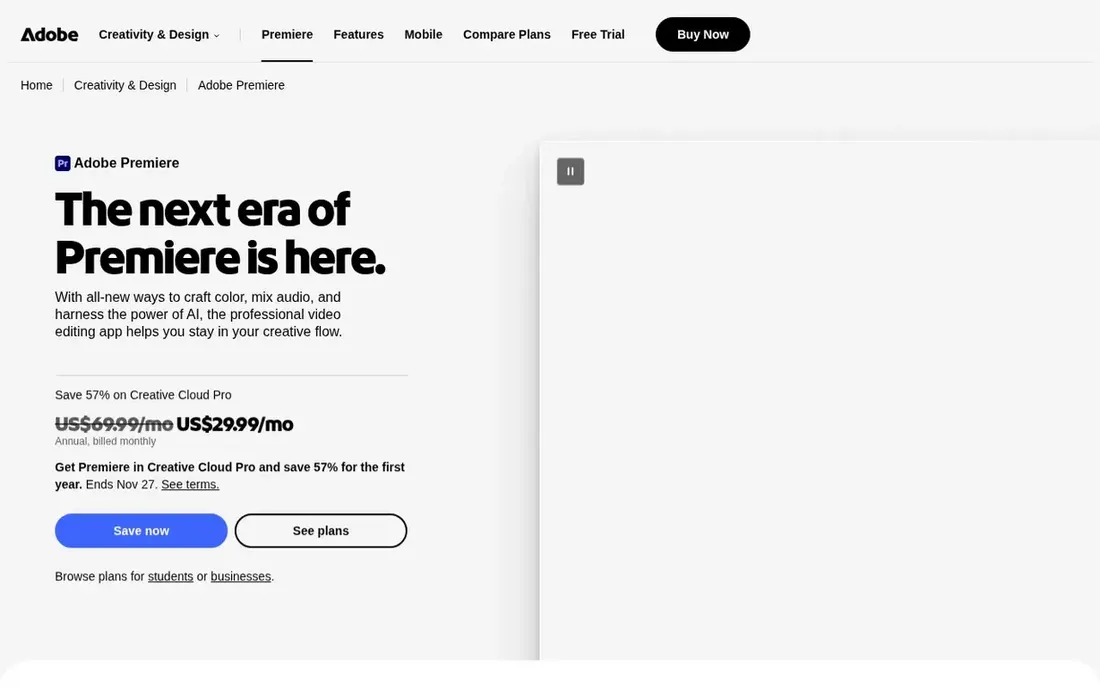
In short, Adobe Premiere Pro is for professional editing with precise chroma key control. Adobe Premiere Pro is professional video editing and postproduction software for trimming, effects, audio mixing and more.
It also needs a subscription, so creators on tight budgets or those who only need straightforward screen recording may prefer a lighter, single-purpose tool like Camtasia or OBS Studio. Adobe Premiere Pro shows no starting price here, so confirm the cost on the vendor site. As for free access: Not stated.
Honest limits: Steeper ramp-up time.
- Wide format and workflow support
- In-depth keying and effects tools
- Subscription required
In short, CyberLink PowerDirector is for AI tools and effects for quicker lesson edits. CyberLink PowerDirector is video editing software with AI tools, pro-grade effects and a large royalty-free asset library.
Online course creators can key green screen footage and add effects or assets to make lessons more engaging. The starting price for CyberLink PowerDirector: $54.99 per month. Free plan details: Not stated.
Points against: Effects can distract from instruction.
- AI tools and pro-grade effects
- Large royalty-free asset library
- Advanced editing has a ramp-up time
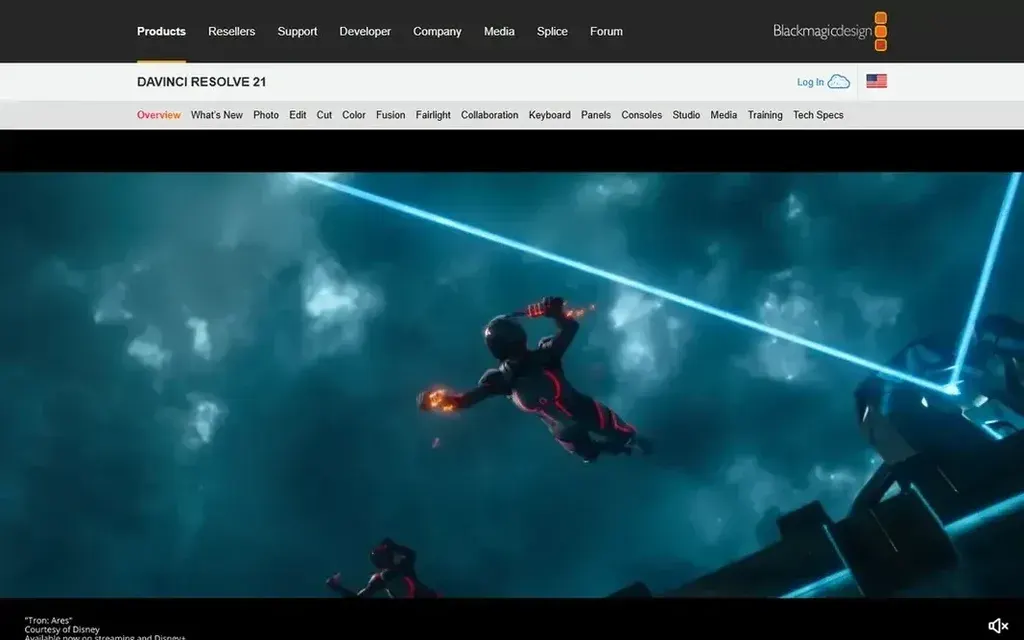
Think of DaVinci Resolve for color correction and visual effects in one app. DaVinci Resolve is professional editing, color correction, visual effects and audio post production in a single application, with free and premium versions for Mac, Windows and Linux.
Some workflows benefit from capable hardware. For everyday use, the depth of the application means a ramp-up time, and the numerous panels can overwhelm beginners. Pricing for DaVinci Resolve is not stated here, so ask the vendor for current figures. Free access: Not stated.
Honest limits: Hardware demands can be high.
- Windows and Linux
- Color and VFX together
- Many panels to learn
OBS Studio is designed for recording and streaming live green screen lessons. OBS Studio is aimed at capture and streaming instead of post-production editing, so keying and polishing a finished lesson normally means moving footage into another editor. Its configuration choices can feel technical for beginners.
Trade-offs to know: Setup can be technical.
On top of that, creators who want an all-in-one record-and-edit experience may prefer Camtasia or Filmora. OBS Studio is free and open source software for video recording and live streaming, with high quality H264 and AAC encoding and support for streaming to Twitch, YouTube and plenty of other providers. OBS Studio shows no starting price here, so confirm the cost on the vendor site. As for free access: Not stated.
- High quality H264 and AAC encoding
- Streams to plenty of providers
- Editing features are minimal
How we chose
Selection started from tools commonly considered for green screen software for online course creators, then narrowed to 6 that have clear pricing information or a clear quote process. Prices and plan limits come from vendor pages and can change, so confirm them on the vendor site before you buy. We ordered the tools by general fit, then by how clearly pricing is shown, then by free access. A buyer with unusual needs may reorder them.
Pre-purchase checklist
- Confirm the entry price on the vendor page. For Camtasia, Filmora, Adobe Premiere Pro and others that means a quote rather than a fixed price.
- Read the limits listed for Camtasia first: less advanced keying than pro editors.
- Before you load data into Camtasia, check what an export looks like and who can run it.
- Price CyberLink PowerDirector for your actual team size; headline prices rarely include add-ons or overage.
- Run a one or two week pilot of Filmora with the people who will use it every day.
FAQ
Can I try these tools before paying?
Not by default. None of the tools, from Camtasia to OBS Studio, lists a free plan or a free trial here, so ask each vendor for a demo before committing.
Can I record and edit green screen lessons in one application?
Some tools combine recording and editing, whereas others specialize. Camtasia is built around screen recording and editing, and OBS Studio centres on capture and streaming.
Is Camtasia the right pick for everyone comparing green screen software for online course creators?
No single tool suits every team. Camtasia comes first because it fits recording and editing tutorials in one tool, while Filmora suits AI-assisted editing for approachable lesson production and Adobe Premiere Pro suits professional editing with precise chroma key control. Match the tool to your own size, budget and workflow before deciding.
Do these tools publish their prices?
Not all of them. Camtasia, Filmora, Adobe Premiere Pro and others publish no starting price, so expect a quote request for those. The rest, CyberLink PowerDirector included, show a starting price, though seats and billing terms still change the final cost.
What should course creators look for in green screen software?
Look for steady chroma key controls, a comfortable editing workflow and export choices that match your course system. Consider whether you need straightforward recording or a full post-production suite.
Is a professional editor necessary for green screen lessons?
Straightforward talking-head lessons can be produced in approachable tools like Camtasia or Filmora. Professional editors like Premiere Pro and DaVinci Resolve offer more control for complicated keys, graphics and color work when lessons demand it.
Sources
- https://www.techsmith.com/camtasia.html
- https://filmora.wondershare.com
- https://www.adobe.com/products/premiere.html
- https://www.cyberlink.com/products/powerdirector/overview_en_US.html
- https://www.blackmagicdesign.com/products/davinciresolve
- https://obsproject.com