Best File Sharing and Collaboration Apps in 2026: 8 Apps Compared
Compare the best file sharing and collaboration apps in 2026, with storage, sharing controls, and team features for work and personal use, reviewed for 2026.

- Editor's choice
 Google Drive
Everyday sharing and Docs
Starts atFreeVisit drive.google.comFull review - Great alternative
 Dropbox
Simple, reliable file sync
Starts atFreeVisit dropbox.comFull review - Also consider
 Box
Business content management
Starts atFreeVisit box.comFull review
TL;DR:
- Google Drive is our pick for most people because it pairs generous free storage with Docs, Sheets, and Slides in one place.
- Dropbox and Box stand out for clean sharing controls and business admin tools, while OneDrive fits households and teams already using Microsoft 365.
- Sync, pCloud, and Tresorit put privacy first, with encryption options that matter when files are sensitive.
- Free plans are useful for trying an app, but check storage limits, file size limits, and guest access before you move a whole team.
Quick comparison
| Tool | Best for | Starts at | Free plan? | |
|---|---|---|---|---|
| Google Drive | Everyday sharing and Docs | Free | Yes | Visit |
| Dropbox | Simple, reliable file sync | Free | Yes | Visit |
| Box | Business content management | Free | Yes | Visit |
 Microsoft OneDrive | Microsoft 365 users | Free | Yes | Visit |
 Sync | Private cloud storage | Free | Yes | Visit |
 pCloud | One-time storage plans | Free | Yes | Visit |
 Tresorit | Highly sensitive files | See website | Free trial | Visit |
 WeTransfer | Sending large files fast | Free | Yes | Visit |
The best file sharing and collaboration apps
We compared official feature pages, pricing, and app store listings to find tools that share files cleanly and let people work together without constant confusion.
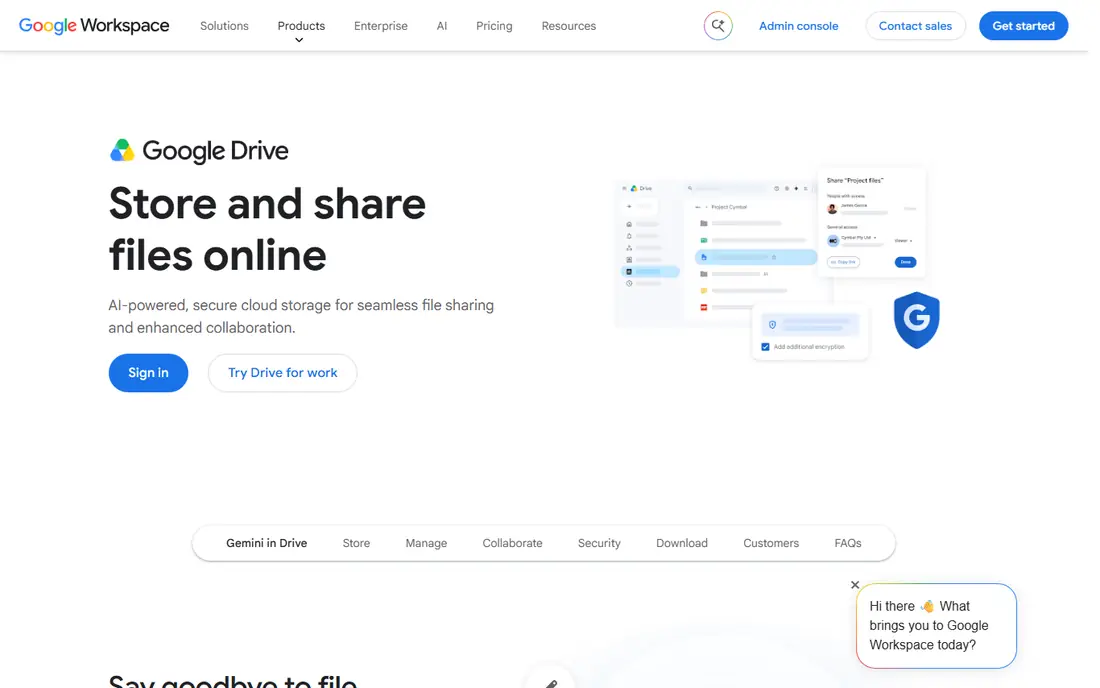
Google Drive is the easiest starting point for most people, because so many contacts already have a Google account. You can share a folder with one link, set view or edit access, and co-edit a document in real time without sending new versions back and forth. The mobile app also handles photo backup and offline files well.
The catch is storage math. The free allowance covers Drive, Gmail, and Google Photos together, so a heavy photo user can run out sooner than expected. Paid Google One plans fix that, and they also add more sharing controls. For families and small teams, the balance of price, simplicity, and compatibility is hard to beat.
- Generous free storage
- Built-in Docs, Sheets, and Slides
- Easy link sharing
- Storage is shared with Gmail and Photos
- Advanced admin tools need paid plans
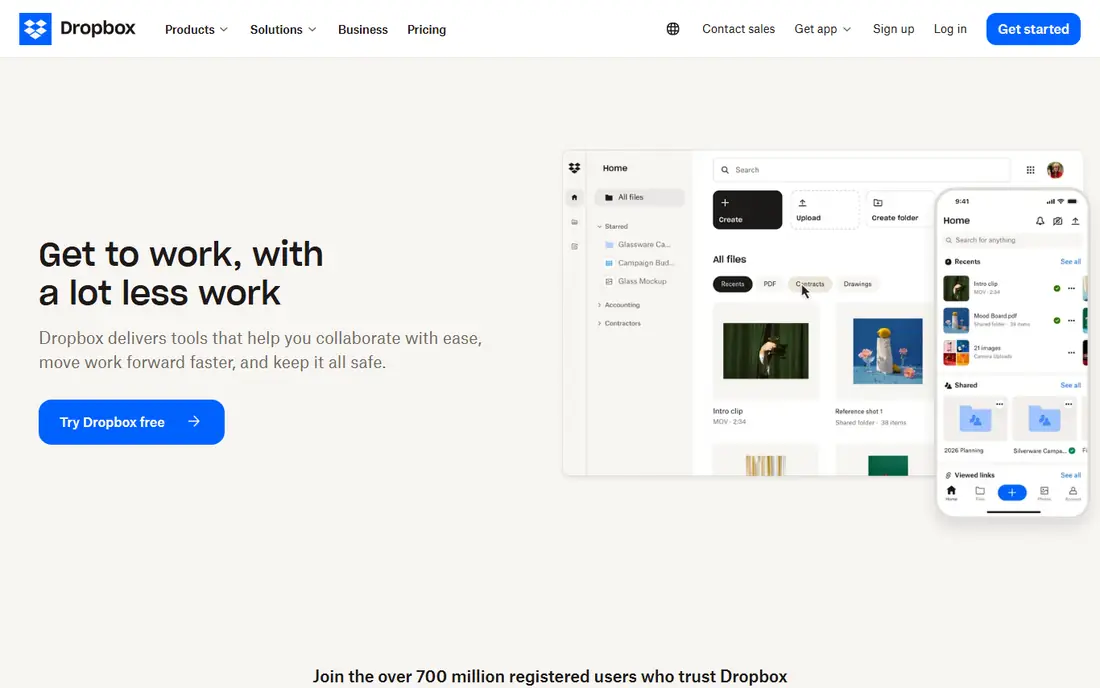
Dropbox built its name on sync that just works, and that strength still shows. Files appear across devices quickly, shared folders are easy to explain to a client, and version history helps when someone overwrites the wrong draft. Dropbox Paper and integrations with tools such as Slack and Zoom add light collaboration on top of storage.
The main drawback is value on the free tier, which offers only a small amount of space. Dropbox makes more sense when you pay for a plan or when your collaborators already use it. If your main need is sending and receiving files with outside partners, it remains one of the least fussy choices.
- Fast, dependable sync
- Clear sharing links
- Strong desktop apps
- Free storage is modest
- Some team features need higher plans

Box is aimed squarely at workplaces that need control over who sees what. Admins can set permissions, track activity, and apply retention rules, which matters for legal, health, and finance files. It also connects with Microsoft 365, Google Workspace, Slack, and many other tools, so files stay in one system.
For a single person, Box can feel heavier than Drive or Dropbox. The free personal plan is fine for basic storage, but the real value shows up on business plans. Teams that need audit trails and granular permissions should put Box near the top of the shortlist.
- Strong admin and compliance controls
- Wide app integrations
- Good preview tools
- Interface can feel businesslike
- Best features are on paid plans
OneDrive is the natural pick if you already live in Word, Excel, Outlook, or Teams. Documents open for co-editing without extra steps, and files saved on a Windows PC can sync with little setup. Microsoft 365 subscribers also get a large storage allowance bundled with the office apps, which makes the paid route good value.
New users should spend a few minutes learning the difference between sharing a link, sharing with specific people, and sharing a folder, because those choices change who can edit. Once that is clear, OneDrive is a strong all-rounder for work and home, especially in mixed Windows and mobile households.
- Deep Word, Excel, and PowerPoint integration
- Good value with Microsoft 365
- Personal vault option
- Sharing settings can confuse new users
- Free storage is modest
Sync appeals to people who want their files protected from prying eyes, including the provider itself. It uses end-to-end encryption, offers password-protected links, and lets you set expiry dates on shares. That makes it a good home for tax records, contracts, and client files.
The trade-off is breadth. Sync does not match Google or Microsoft for built-in document editing, and its integration list is shorter. If you mainly need secure storage and sharing rather than a full office suite, that trade is worth making. Teams can still share folders and control access without much training.
- End-to-end encryption by design
- Clear privacy stance
- Team plans available
- Fewer third-party integrations
- Collaboration tools are simpler than rivals
pCloud stands out because it sells lifetime storage plans alongside monthly and yearly options. That can save money over years if you are sure you will keep the account, though it means paying more up front. The service also plays audio and video from the cloud, which suits people who store large media libraries.
Privacy buyers should read the fine print. pCloud encrypts files in transit and at rest, but its extra client-side encryption feature, called pCloud Crypto, is a separate paid add-on. For most users, the standard plan is fine, but anyone handling sensitive client work should weigh that detail.
- Lifetime plan options
- Media playback built in
- File versioning
- Client-side encryption is a paid add-on
- Lifetime value depends on long-term use
Tresorit is built for organisations that treat file security as a core requirement, not an extra. It offers end-to-end encryption, granular room-based permissions, and audit logs, with data centres in Europe. That combination suits law firms, clinics, and companies handling regulated data.
The price reflects that focus, and casual users may find it more than they need. There is no permanent free tier, so try the trial with real workflows before committing. If compliance and confidentiality top your list, Tresorit earns its place despite the cost.
- End-to-end encryption
- Swiss-based hosting
- Detailed access controls
- Higher price than general storage apps
- No free plan, only a trial
WeTransfer is not trying to replace Drive or Box. It solves one job well: getting a large file to someone who does not use your cloud service. You upload, add an email address, and the recipient downloads from a link, with no account required for basic transfers.
That simplicity is also the limit. Free transfers expire, and there is no shared folder or document editing to speak of. Paid plans raise limits and add storage, but teams that need ongoing collaboration should pair WeTransfer with a proper cloud drive rather than relying on it alone.
- Very simple sending flow
- Large file transfers
- No account needed for basic sends
- Not a full collaboration workspace
- Free transfers expire after a set period
How we picked these
We compared official feature pages, pricing pages, and app store listings, and we checked each service for current availability in October 2026. We favoured tools with clear sharing controls, current desktop and mobile apps, and a free plan or trial that lets you test before paying. We also weighed privacy features, admin controls, and integration with common office tools, because those details decide whether an app survives daily use.
What to check before you choose
A good file sharing app should match how you actually work, not just how much storage it advertises.
Sharing and permissions
Check whether you can share with specific people, set expiry dates, and require a password on links. Teams should also check folder permissions and version history, because those features prevent accidental edits and lost work.
Storage and file limits
Compare free storage, paid storage, and maximum file size for uploads. Video editors and photographers need large single-file support, while document teams may care more about version history and search.
Privacy and compliance
Read the privacy policy before uploading sensitive files. End-to-end encryption, two-factor sign-in, and clear data location statements matter more than marketing claims. If you handle client data, confirm the service meets your industry rules.
FAQ
What is the best free file sharing app?
Google Drive is our pick for most free users, because it combines useful storage with document editing and wide compatibility. Dropbox and OneDrive also offer free plans, but their free storage is smaller, so check how much space you truly need.
Is it safe to share files with a link?
Link sharing is safe when you limit access, set an expiry date where possible, and avoid public links for sensitive files. Sharing with named people is safer than an open link, and password protection adds another layer.
How much storage do most people need?
Light users who mainly share documents can manage with a free plan, while photo and video users often need 100 GB or more. Check your current usage before paying, and remember that some services count email and photos against the same allowance.
Can I collaborate on documents in these apps?
Yes, though the experience differs. Google Drive and OneDrive offer full real-time document editing, while Sync, pCloud, and Tresorit focus more on storage and sharing. Box sits in between, with previews and integrations rather than its own office suite.
What happens if I stop paying?
Most services keep your files readable but block new uploads once you exceed the free limit. Download important files before a plan ends, and keep a local backup of anything you cannot afford to lose.