Best Education Software in 2026: 8 Tools Compared
Compare the best education software for schools and colleges in 2026, from free classroom tools to full learning systems, quizzes, portfolios and teacher tools.
- Editor's choice
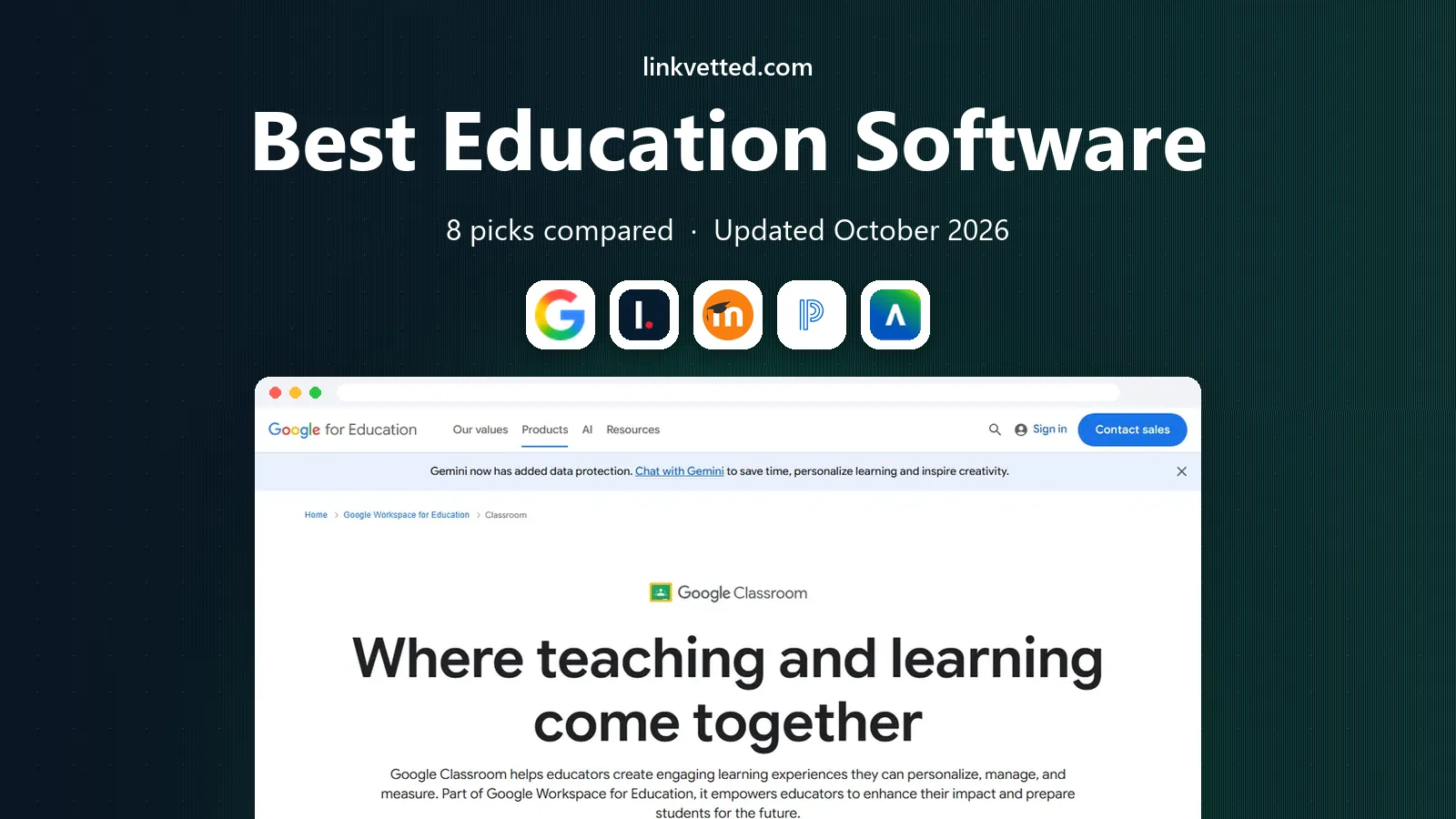
 Google Classroom
Schools using Google Workspace
Starts atFreeVisit classroom.google.comFull review - Great alternative
 Canvas
Colleges and large districts
Starts atSee websiteVisit instructure.comFull review - Also consider
 Moodle
Schools wanting full control
Starts atFreeVisit moodle.orgFull review
TL;DR:
- Google Classroom and Moodle give schools a no-cost starting point, while Canvas and Schoology suit larger institutions that need deeper administration.
- Kahoot, Nearpod and Seesaw work best as engagement layers on top of a main learning management system, not as replacements for one.
- Free plans vary a lot, so check limits on class size, storage and reporting before you move a whole school onto a tool.
- The best education software for your setting depends on age group, devices and how much admin help you have.
Quick comparison
| Tool | Best for | Starts at | Free plan? | |
|---|---|---|---|---|
| Google Classroom | Schools using Google Workspace | Free | Yes | Visit |
| Canvas | Colleges and large districts | See website | Yes | Visit |
| Moodle | Schools wanting full control | Free | Yes | Visit |
 Schoology | K-12 districts | Free | Yes | Visit |
 Blackboard Learn | Large universities | See website | No | Visit |
 Kahoot | Classroom quizzes and games | See website | Yes | Visit |
 Seesaw | Elementary portfolios | Free | Yes | Visit |
 Nearpod | Interactive lessons | Free | Yes | Visit |
The best education software
Education software covers a wide range, from full course systems to short quiz games. We compared official feature pages, pricing pages and public documentation to find tools that still work well in 2026 for schools, colleges and training teams.

Google Classroom is the easiest place to start when a school already uses Google tools. Teachers can post assignments, collect work, return grades and share resources without learning a complex system. Students find it familiar, and parents can receive guardian summaries in many setups.
The trade-off is depth. Classroom handles daily teaching well, but it is not a full learning management system for complex course design, detailed analytics or large program administration. If your school needs those features, pair it with a stronger LMS or choose one from the start. For small schools and individual teachers, its simplicity is a real strength.
- Simple setup
- Works well with Docs, Drive and Meet
- Free for qualifying schools
- Limited gradebook depth
- Fewer advanced course features than a full LMS
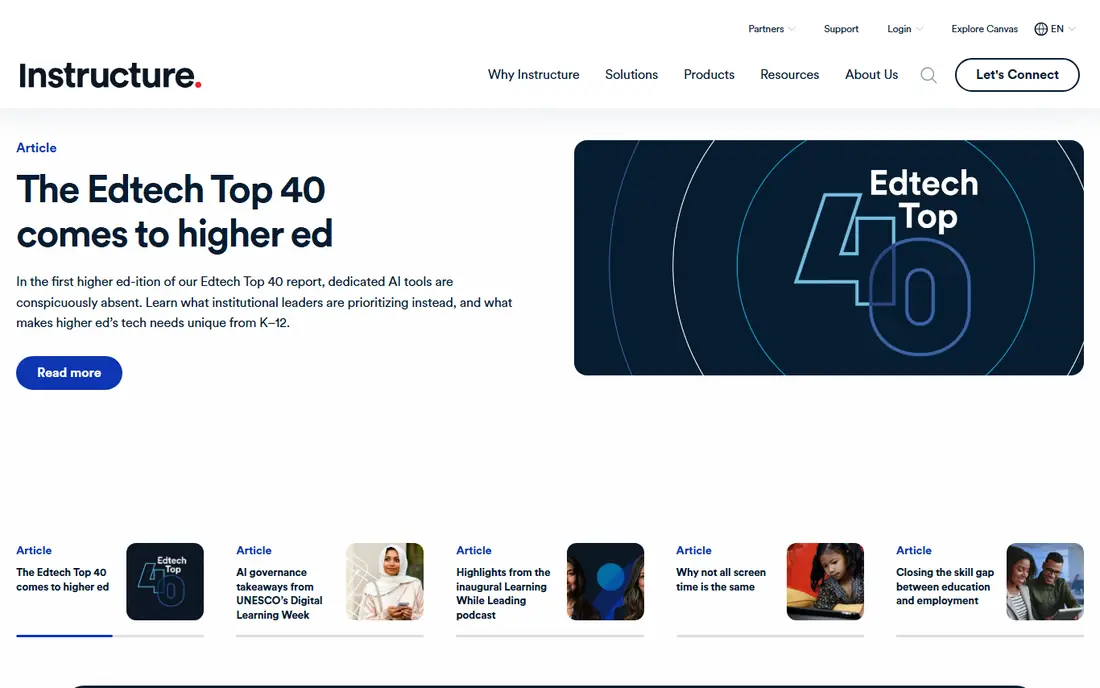
Canvas, from Instructure, is a full learning management system used widely in higher education and larger school districts. It supports structured courses, modules, quizzes, discussions and grading at scale. SpeedGrader lets teachers review and comment on student work in one place, which helps when classes are large.
A free-for-teacher account lets individual educators try the core tools, but institutional pricing is quoted. That means a district needs a sales conversation and a planned rollout, including training and migration. Canvas suits organisations that want a long-term platform rather than a quick classroom fix.
- Strong course design tools
- SpeedGrader for fast marking
- Large integration library
- Pricing is quote based
- Setup can take time for large institutions
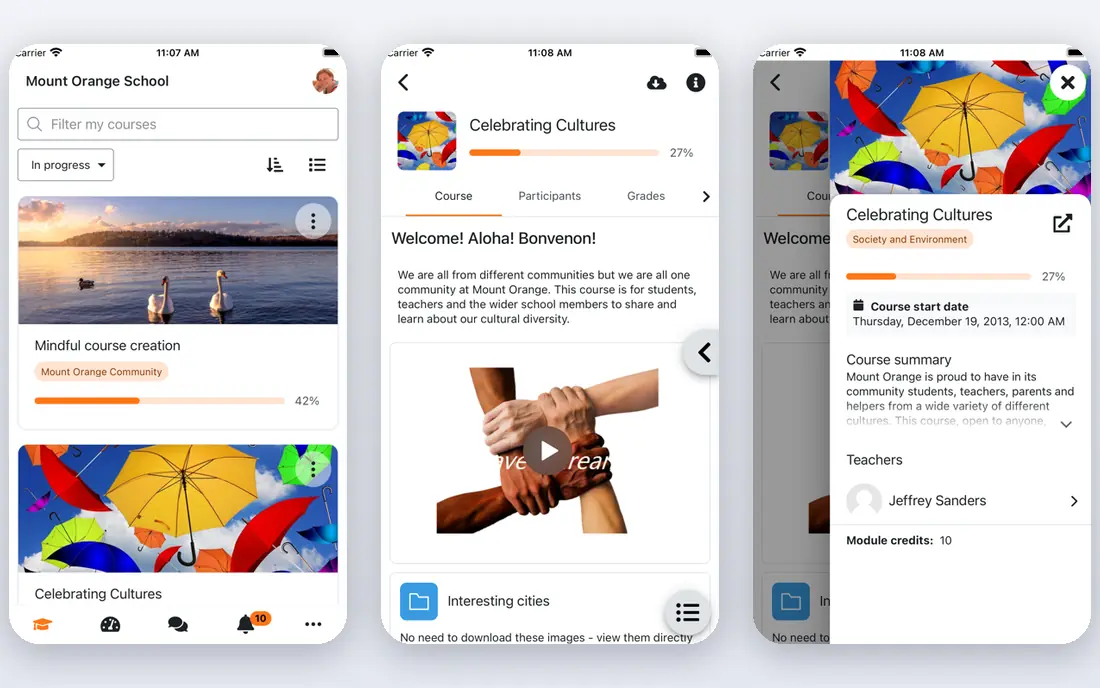
Moodle is open-source learning software, so schools can download and run it without paying a licence fee. Its plugin library covers quizzes, forums, grading, certificates and many subject tools. That flexibility appeals to institutions with technical staff and specific requirements.
The cost is effort, not licence fees. Someone has to host, update, back up and support the system, or the school must pay a Moodle partner for hosting. The interface is functional rather than polished, and new teachers may need training. For schools that value control and low licence costs, Moodle remains a strong choice.
- Open source with no licence fee
- Huge plugin library
- Supports standards such as SCORM
- Needs technical help to host and maintain
- Interface feels dated in places
Schoology, now part of PowerSchool, is designed around school and district needs. It combines course management, assessments, grading and communication, with controls that help administrators manage many schools at once. Teachers can build courses, share resources and track progress without switching tools.
A free basic version works for individual teachers and small classes. Larger districts will need the enterprise plan, priced on request, to get full administration, integrations and support. Schoology fits districts that want one consistent system across schools, rather than a patchwork of classroom apps.
- Built for K-12 workflows
- Strong assessment and gradebook tools
- District level controls
- Enterprise pricing is quote based
- Some features need the paid plan
Blackboard Learn, from Anthology, is a long-running LMS for universities and large colleges. It handles large courses, varied assessment types, group work and institutional reporting. Its accessibility features and admin controls suit institutions with formal compliance and support needs.
This is not a tool for a single classroom. Pricing is quoted, implementation takes planning, and smaller schools may find it heavy. For a large university that needs a proven, centrally managed platform, Blackboard Learn still earns its place on the shortlist.
- Deep course and assessment tools
- Built for large enrolments
- Strong accessibility options
- Pricing is quote based
- Can feel complex for small teams
Kahoot turns review sessions into live quizzes that students join with a code. Teachers can build their own questions or adapt games from the library. The format works well for revision, formative checks and lively whole-class sessions, in person or online.
Kahoot is not a course platform. It does not replace assignments, grading or long-form teaching, and pricing differs for schools, businesses and personal use, so check the plan that matches your setting. Used for short, focused sessions, it adds energy that a plain quiz often lacks.
- Fast to set up a quiz
- Students join from any device
- Large library of ready-made games
- Paid plans vary by audience
- Best for review, not full teaching
Seesaw is built for elementary classrooms, where students can draw, record, photograph and write to show their work. Teachers build digital portfolios that show progress across a term, and families can see and respond to that work. The interface is simple enough for young children to use with light guidance.
Older students may outgrow it, and schools wanting detailed analytics or secondary-level assessment tools should look at a full LMS instead. For primary teachers, Seesaw gives a clear, friendly record of learning that parents can actually follow.
- Simple for young learners
- Digital portfolios show progress over time
- Family sharing built in
- Less suited to older students
- Advanced features need a paid plan
Nearpod turns a slide lesson into an interactive session, with polls, quizzes, drawings, videos and collaborative boards. Teachers can run lessons live or set them as student-paced work. It connects with common classroom tools, so it can sit beside an existing LMS rather than replacing it.
The free teacher plan covers basic lessons, while schools and districts pay for the full content library and admin features. Nearpod suits teachers who want more participation during lessons without rebuilding their whole course system.
- Interactive slides, polls and videos
- Works with Google Classroom and other LMS tools
- Free teacher plan
- Content library limits on free plan
- Paid plans needed for full school features
How we picked these
We compared official feature and pricing pages, app store listings and public documentation for tools that are still supported in October 2026. We looked for real classroom use, clear pricing or a free entry point, and coverage across K-12, higher education and short-form engagement. Tools that were discontinued, merged away or no longer maintained were left out, and we favoured products with a clear audience rather than vague all-purpose claims.
What to check before you choose
Match the tool to the age group
Elementary classrooms need simple interfaces and family sharing. Secondary schools need stronger assessment and grading. Colleges need course structure, enrolment handling and reporting. A tool that shines with seven-year-olds may frustrate first-year university students, and the reverse is also true.
Count the total cost, not just the licence
Free software can still need hosting, training and support time. Quote-based systems can include implementation and professional development that smaller schools do not need. Ask what is included, what training costs, and how pricing changes as student numbers grow.
Test with real classes first
Run a pilot with two or three teachers and their actual classes before a whole-school rollout. Check login problems, device compatibility, grading workflows and how parents or students get help. A short pilot reveals friction that a sales demo will not show.
A final point for schools is support and training, because even a strong platform fails when teachers feel left alone with it. Ask vendors what onboarding looks like, whether training is included, and how quickly support replies during term time. Check data handling too, especially for younger students, since schools hold sensitive records and need clear privacy terms, parental controls and data retention rules. It also helps to talk to a similar school that already uses the tool, and to ask what surprised them after the first term. Their answers often reveal small workflow problems, such as gradebook quirks or login friction, that do not appear in a demo. A tool that fits your devices, your timetable and your staff capacity will serve students better than a feature-rich system that no one has time to learn properly.
FAQ
What is the best education software for a small school?
Google Classroom is a strong starting point for a small school already using Google tools, because it is free for qualifying institutions and easy to learn. If you need deeper grading and district controls, look at Schoology or Canvas. A pilot with a few teachers will show which workflow fits your staff best.
Is there good free educational software?
Yes. Google Classroom, Moodle and the free tiers of Schoology, Seesaw and Nearpod all offer real classroom value at no cost. Free plans usually limit storage, reporting or content libraries, so read those limits before you depend on a free plan for a whole school year.
What is the difference between an LMS and a classroom app?
A learning management system, such as Canvas or Blackboard Learn, manages courses, enrolments, assessments and reporting at scale. A classroom app, such as Google Classroom or Seesaw, focuses on daily assignments and communication. Many schools use both, with an LMS as the backbone and lighter apps for engagement.
Which education software is best for quizzes?
Kahoot works well for fast, live review quizzes, while Nearpod suits interactive lessons that mix slides, polls and video. For formal graded quizzes inside a course, the quiz tools in Canvas, Moodle or Schoology give better records and grading options.
Can these tools work together?
In many cases, yes. Nearpod and Kahoot can link to Google Classroom, and most LMS platforms support common integrations and standards. Check the integration list on the vendor site for your existing tools before you buy, especially for student information systems and single sign-on.