Editing Software for Content Creators in 2026: The 6 Best Options Side by Side
Searching for the best editing software for content creators? Here are 6 options with prices and free plans. Details on cost, catches and fit. Decide faster.
- Editor's choice
 DaVinci Resolve
All-in-one editing and color work
Starts atPricing on requestVisit blackmagicdesign.comFull review - Great alternative
 Final Cut Pro
Mac and iPad creators
Starts atPricing on requestVisit apple.comFull review - Also consider
 CapCut
Quick social media edits
Starts atPricing on requestVisit capcut.comFull review
Direct answer
Start with DaVinci Resolve if you need all-in-one editing and color work. Alternatives: Final Cut Pro for Mac and iPad creators, and CapCut for quick social media edits. The remaining 3 options are covered below with pricing notes and limits. None of these vendors publish plan prices, so pricing is on request for every option.
TL;DR:
- This list starts with DaVinci Resolve, which is built for all-in-one editing and color work.
- DaVinci Resolve, Filmora and the 4 others all sell by quote; expect sales conversations before you see a price.
- What to know about DaVinci Resolve first: interface can feel complicated for new users.
- Filmora is the one to check for AI-assisted editing for beginners.
- CapCut stands alone as the one tool in this list with a free plan.
Last checked November 2026. Pricing on request: vendors did not publish plan prices when this guide was last checked (November 2026), so ask each vendor for a written quote.
Quick comparison
| Tool | Best for | Starts at | Free plan? | |
|---|---|---|---|---|
| DaVinci Resolve | All-in-one editing and color work | Pricing on request | Not stated | Visit |
| Final Cut Pro | Mac and iPad creators | Pricing on request | Not stated | Visit |
| CapCut | Quick social media edits | Pricing on request | Yes | Visit |
 Camtasia | Tutorials and screen recordings | Pricing on request | Not stated | Visit |
 Adobe Premiere Pro | Professional editing and postproduction | Pricing on request | Not stated | Visit |
 Filmora | AI-assisted editing for beginners | Pricing on request | Not stated | Visit |
Every option for editing software for content creators explained
LinkVetted compared 6 editing software for content creators. The goal is a practical shortlist: published prices, free plan facts, best-fit use cases and honest limits for every entry.
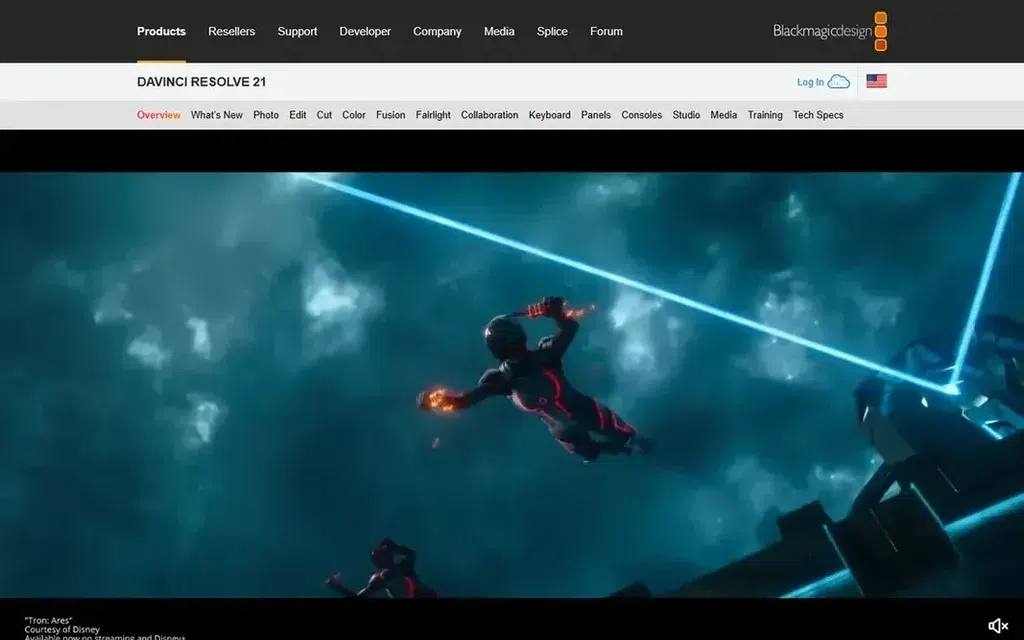
Pick DaVinci Resolve if this describes you: all-in-one editing and color work. Casual creators who only trim clips and add captions may find it more than they need. DaVinci Resolve from Blackmagic Design is a single application that merges professional video editing, color correction, visual effects, and audio postproduction.
It runs on Mac, Windows, and Linux, and the vendor supplies free and premium versions. Consider a more straightforward editor if you want to avoid the complexity, or if your hardware struggles with the full application. Check the vendor site for DaVinci Resolve pricing; none is listed in this comparison. Free access: Not stated.
Watch-outs: Full feature set may overwhelm casual editors.
- Editing, color, VFX
- Available for Mac, Windows, Linux
- Interface can feel complicated for new users
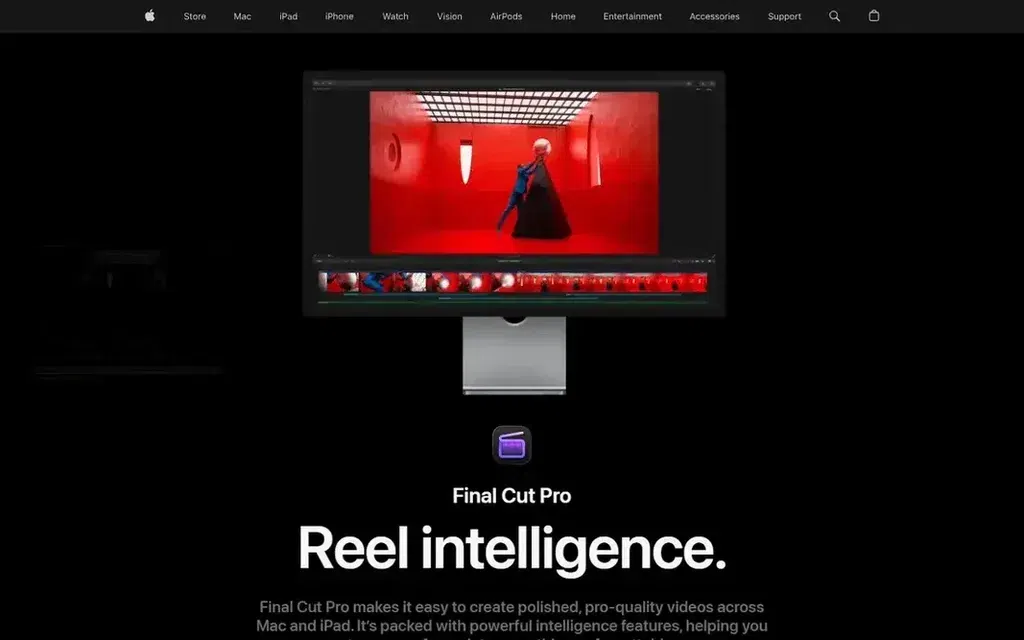
Think of Final Cut Pro for Mac and iPad creators. Final Cut Pro is Apple's professional video editing application for Mac and iPad, packed with intelligence features that aim to make pro-quality creation simpler.
The main drawbacks: Restricted to Apple systems.
From a buyer's view, Final Cut Pro is not available on Windows or Linux, so cross-platform teams may need a different choice. Check the vendor site for Final Cut Pro pricing; none is listed in this comparison. Trial and free access: Not stated.
- Intelligence features for simpler editing
- Pro-quality video creation
- May not suit Windows-based workflows
Choose CapCut for quick social media edits. CapCut is an AI video editor built for YouTube and Instagram videos, offering smart templates and creative effects across desktop, mobile, and online. Content creators who prioritize speed and platform-ready output will appreciate its approachable tools.
Trade-offs to know: May lack depth for complicated projects.
On top of that, CapCut may not offer the depth needed for long-form or highly technical projects. It performs best as a quick choice for social clips instead of a full postproduction suite. No starting price is listed for CapCut here; confirm pricing on the vendor site. CapCut has a free plan.
Reasons to shortlist it: Desktop, mobile.
- Online choices
- AI-powered editing tools
- A good match for short-form content
Camtasia makes the most sense for tutorials and screen recordings. Camtasia from Techsmith is a screen recorder and video editor designed for creating tutorials, training videos, and software demos. Content creators who make instructional content will find its combination of recording and editing convenient.
Limits to weigh: Not concentrated on cinematic editing.
For everyday use, Camtasia is not targeted at cinematic or effects-heavy editing, so creators concentrated on narrative films or advanced motion graphics may need another tool. Its effects and color tools are more entry-level than those in professional suites. For everyday use, pick something else if your content depends on complicated visual polish. Pricing for Camtasia is not stated here, so ask the vendor for current figures. Free access: Not stated.
- Made for tutorials and demos
- Built-in screen recorder
- Restricted advanced effects
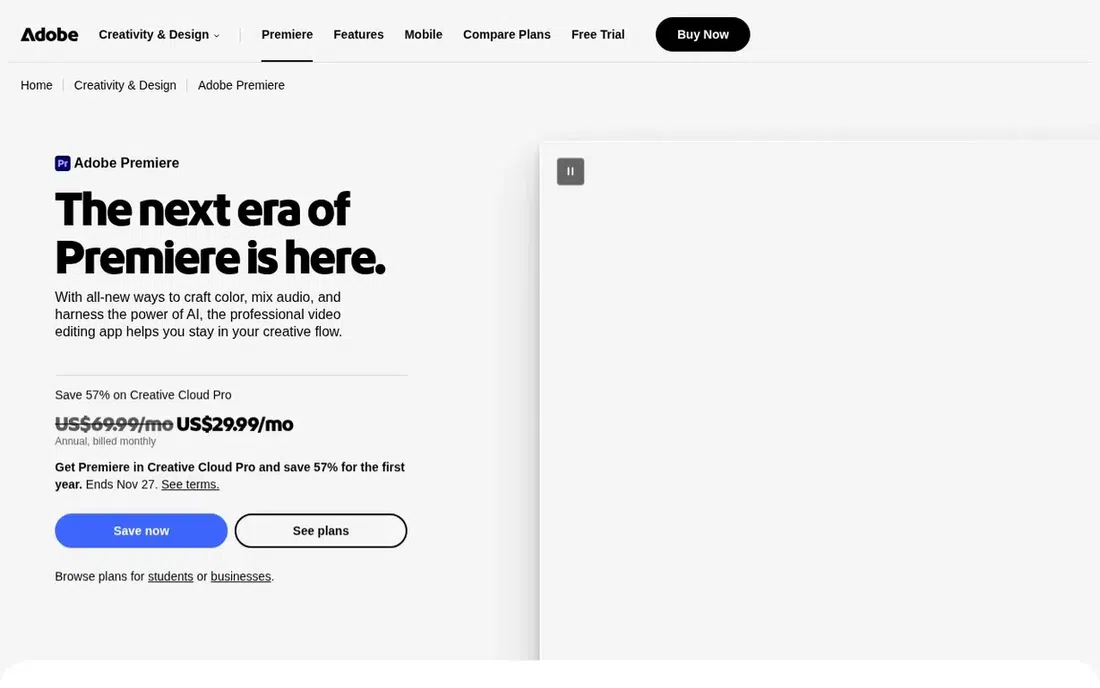
Pick Adobe Premiere Pro if this describes you: professional editing and postproduction. The depth of Premiere Pro includes a steeper ramp-up time and can be heavy on older computers. Adobe Premiere Pro is professional video editing and postproduction software aimed at editors who require control over every part of the timeline.
It spans editing and trimming, effects, audio mixing, and video extension in one application. In daily use, creators who chiefly make short social clips may prefer a more straightforward tool, whereas those who require motion graphics can pair it with a dedicated effects application. Also, pick something else if you want a lighter, more template-driven workflow. Adobe Premiere Pro does not show a starting price in this comparison, so check the vendor site for current pricing. Free access: Not stated.
Points against: Needs a ramp-up time for beginners.
- Thorough editing and trimming tools
- Deep format support
- Can be demanding on older hardware
Pick Filmora if this describes you: AI-assisted editing for beginners. Content creators who want a balance of ease and capability will find it approachable.
Honest limits: May feel restricted for complicated workflows.
For everyday use, consider a more advanced editor if you need deep customization or collaborative workflows. Pricing for Filmora is not stated here, so ask the vendor for current figures. On free options: Not stated.
- Desktop and mobile versions
- AI features, effects, captions
- Fewer advanced controls than pro tools
Our selection method
The comparison looks at four things: starting price, free access, how well the feature set matches editing software for content creators, and the main limit of each tool. Prices and plan limits come from vendor pages and can change, so confirm them on the vendor site before you buy. The ranking is editorial: typical fit first, then clear pricing, then free access. If your needs are unusual, read the profiles rather than relying on position.
What to check before you buy
- Confirm the entry price with every vendor: no tool from DaVinci Resolve to Filmora shows a fixed starting price.
- Test the free plan from CapCut against your real workload before relying on it.
- Before choosing DaVinci Resolve, weigh its main limit: interface can feel complicated for new users.
- Ask the daily users to test Filmora on a live task before you roll it out to everyone.
- Confirm that Camtasia connects to the apps your team already uses, on the plan you would actually buy.
FAQ
How are the tools for editing software for content creators ordered?
The order follows typical fit for editing software for content creators, with DaVinci Resolve first and Filmora last, then price clarity and free access. It is editorial judgement, not a score, so another team could rank the tools differently.
Is DaVinci Resolve the right pick for everyone comparing editing software for content creators?
No single tool suits every team. DaVinci Resolve comes first because it fits all-in-one editing and color work, while Final Cut Pro suits Mac and iPad creators and CapCut suits fast social media edits. Match the tool to your own size, budget and workflow before deciding.
Do these tools publish their prices?
No. None of the tools, from DaVinci Resolve to Filmora, shows a fixed starting price here, so budget time for quotes.
Which editing software is best for beginners?
This list starts with DaVinci Resolve, which fits all-in-one editing and color work. For other needs, Final Cut Pro is aimed at Mac and iPad creators, and CapCut at quick social media edits. Check each tool's price and main limit first.
Can I use DaVinci Resolve at no cost?
The free version gives you professional editing, color, and audio tools, making it a capable starting point. Check the vendor site for the exact differences between versions.
Can I try these tools before paying?
Often, yes. CapCut has a free plan. Use your own data and a real task during the test, and check what the free tier or trial limits before you rely on it. For the full picture, the cards above cover all 6 entries of this editing software for content Creators list, including price, free plan and limits.
Sources
- https://www.blackmagicdesign.com/products/davinciresolve
- https://www.apple.com/final-cut-pro
- https://www.capcut.com
- https://www.techsmith.com/camtasia.html
- https://www.adobe.com/products/premiere.html
- https://filmora.wondershare.com