Best Value Video Editing Software for Creators in 2026: 9 Tools Compared
Compare the best value video editing software for creators in 2026, with free plans, one time prices, exports, and which editor fits your channel best.

- Editor's choice
 DaVinci Resolve
Pro tools at zero cost
Starts atFreeVisit blackmagicdesign.comFull review - Great alternative
 CapCut
Short form social video
Starts atFreeVisit capcut.comFull review - Also consider
 Filmora
Beginners who want templates
Starts at$49.99 per yearVisit filmora.wondershare.comFull review
TL;DR:
- DaVinci Resolve is our pick for most creators because its free version includes professional editing, color, and audio tools with no watermark.
- CapCut and Clipchamp are the fastest routes to short form social video, while Filmora suits beginners who want templates and guided help.
- One time purchases beat subscriptions over time if you edit for years, so compare total cost over three years, not just the first month.
- Free editors differ sharply on exports, so check watermark, resolution, and length limits before you build a workflow around one.
Quick comparison
| Tool | Best for | Starts at | Free plan? | |
|---|---|---|---|---|
| DaVinci Resolve | Pro tools at zero cost | Free | Yes | Visit |
| CapCut | Short form social video | Free | Yes | Visit |
| Filmora | Beginners who want templates | $49.99 per year | Yes | Visit |
 Clipchamp | Free Windows and web editing | Free | Yes | Visit |
 Shotcut | Free open source editing | Free | Yes | Visit |
 Kdenlive | Free open source editing on Linux and Windows | Free | Yes | Visit |
 OpenShot | Simplest free timeline | Free | Yes | Visit |
 Movavi Video Editor | Friendly paid desktop editing | $69.95 per year | Free trial | Visit |
 Lightworks | Pro style editing on a budget | $9.99 per month | Yes | Visit |
The best value video editing software for creators
Value is not just the lowest price. It is what you can actually export, how fast you can finish a video, and whether the tool still fits when your channel grows.
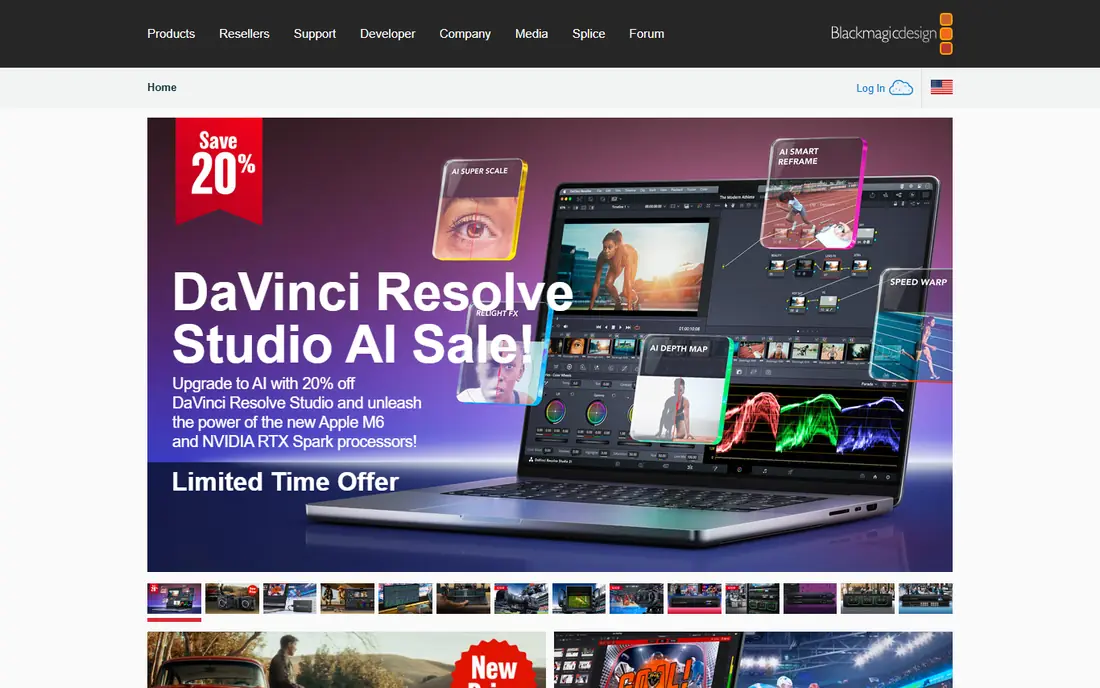
DaVinci Resolve gives creators professional editing, color grading, Fusion effects, and Fairlight audio in one free download, which is why it tops almost every value list. You can cut a YouTube video, grade it, mix audio, and export without a watermark or a time limit in the free version. The paid Studio version costs 295 dollars one time and adds advanced AI tools, multi GPU support, and stereoscopic features, but most creators do not need it to start.
The cost is your time and hardware. Resolve has many pages and settings, and it runs best on a modern computer with a good graphics card. If you are patient and want room to grow into professional work, it is the best value editor here by a wide margin.
- Free version with no watermark
- Professional color grading
- Editing, effects, and audio in one app
- Steep learning curve
- Needs a capable computer for smooth 4K editing

CapCut is built for speed on TikTok, Reels, and Shorts, with templates, auto captions, trending effects, and easy vertical exports. You can go from raw clips to a posted short in one session, and the mobile app makes it easy to edit on the go. For creators whose main output is short form video, that speed matters more than advanced color tools.
CapCut Pro is listed at 19.99 dollars per month in several 2026 comparisons, and some Pro features sit behind that paywall. The free tier still covers a lot, so try it free first and only pay if you use Pro templates, effects, or cloud features often enough to justify the monthly cost.
- Fast templates and auto captions
- Works on desktop, web, and mobile
- Generous free tier
- Pro features need a subscription
- Color and audio tools are more basic than Resolve
Filmora is a friendly middle ground between a phone editor and a professional suite. It offers drag and drop editing, titles, transitions, effects, and AI tools that help beginners finish polished videos without learning a complex interface. The yearly price of 49.99 dollars is modest for a creator who posts weekly and values templates.
The free version is best treated as a trial, since exports carry a watermark. If you post often, the paid plan is good value for a year or two, but compare it with free Resolve over three years, since Resolve costs nothing and Filmora renews each year.
- Friendly interface
- Large template and effect library
- AI helpers for captions and cutting
- Free exports carry a watermark
- Subscription cost adds up over several years
Clipchamp is a strong free option for Windows and web users who want a simple timeline without installing heavy software. You can trim clips, add text, use stock media, and export in 1080p without a watermark on the free tier in many cases, which is enough for most social and YouTube work. Integration with Microsoft 365 also helps if you already use that ecosystem.
The limits appear at higher resolutions and with premium stock and effects, which may need a Microsoft 365 subscription. If you edit in 4K or rely on premium assets, check the current premium terms before you commit. For everyday 1080p creators, Clipchamp is excellent value.
- Free watermark free 1080p editing in many cases
- Simple browser workflow
- Microsoft 365 integration
- 4K export and some premium features need a paid plan
- Browser editing depends on your connection
Shotcut is a free open source editor that gives you a full timeline, filters, transitions, and format support without any subscription or watermark. It is a good choice for creators who want control and privacy, and who do not mind a plainer interface. You can export in high resolutions and use it for long form videos without worrying about a paywall.
Shotcut lacks the template libraries and AI helpers that make Filmora and CapCut fast for beginners, so projects may take longer to polish. If you value zero cost and full control over speed and templates, Shotcut is a solid pick, and it pairs well with free audio and graphics tools.
- Fully free with no watermark
- Wide format support
- Works on Windows, Mac, and Linux
- Interface feels plain
- Fewer templates and AI helpers than paid editors
Kdenlive is another free open source editor, with multi track timelines, effects, transitions, and proxy editing for smoother playback on weaker hardware. It runs well on Linux and also works on Windows and Mac, which makes it a good choice for creators who use Linux as a daily system. Proxy editing is a real plus for 4K footage on modest machines.
Kdenlive has a learning curve and less hand holding than Filmora, and some users report occasional stability quirks depending on their system and plugins. Save often, test it with your footage, and you will get a capable free editor that costs nothing over time.
- Fully free and open source
- Multi track editing
- Customizable interface
- Stability can vary by system
- Smaller template library than commercial editors
OpenShot is the simplest free editor on this list, with a clean timeline, drag and drop clips, titles, and basic transitions. It is a good first editor for a new creator, a student, or anyone who only needs simple cuts, text, and music over footage. Because it is free and open source, you can learn the basics without spending anything.
OpenShot is not built for large, complex projects, and it can feel slow with long timelines or many effects. If your videos stay simple, it is great value. If you start adding multi camera edits, advanced color work, or heavy effects, Resolve or Kdenlive will serve you better.
- Very easy to learn
- Free with no watermark
- Cross platform
- Slower with large projects
- Fewer advanced color and audio tools
Movavi Video Editor targets everyday creators who want a polished result without a professional learning curve. It offers templates, transitions, titles, and AI tools that speed up common tasks, and its interface is easier to grasp than Resolve. For YouTube, promo, and family videos, it strikes a good balance between ease and features.
At 69.95 dollars per year in recent comparisons, Movavi costs more over time than free editors, so weigh it against Filmora and Resolve. If you value a friendly interface and use templates often, it can be worth the price. If you only edit occasionally, a free editor may be better value.
- Easy interface with templates
- AI tools for background removal and enhancement
- Good for everyday creators
- Yearly cost
- Free version exports are limited or watermarked
Lightworks has a long history in professional film editing, and its free tier lets creators learn a pro style timeline without paying upfront. The Create plan is listed at 9.99 dollars per month, which is modest for a creator who wants a professional workflow without a full suite price. Its editing tools are precise, and it suits creators who like keyboard driven cutting.
Beginners may find Lightworks less guided than Filmora or CapCut, and some export and format options sit behind paid tiers. Try the free tier with a real project first, and only subscribe if the workflow clicks for you and your export needs fit the plan.
- Professional editing heritage
- Free tier for learning
- Timeline focused workflow
- Paid plan needed for full export options
- Learning curve for beginners
How we picked these
We compared official pricing pages and recent 2026 editor comparisons, and we favored editors that are free, low cost, or one time purchase, with real export options for creators. We checked watermark rules, resolution limits, and platform support, and we mixed free open source tools with paid editors that add templates and speed.
How to choose on value, not just price
Start by listing your main output, such as Shorts, YouTube long form, or client promos, and your export needs for resolution and length. Then test two editors with the same project and time how long each takes from import to export, since a free tool that slows you down can cost more in time than a paid tool.
Check the total cost over three years
A 49.99 dollar yearly plan costs about 150 dollars over three years, while a 295 dollar one time purchase costs the same total but never renews. A free editor costs nothing in cash but may need a faster computer. Write down the three year total, including any stock, effects, or cloud storage you actually use, before you decide.
FAQ
What is the best free video editing software for creators?
DaVinci Resolve is the best free option for most creators because its free version includes professional editing and color tools with no watermark. Shotcut and Kdenlive are also fully free, while CapCut and Clipchamp are best for fast social and web editing.
Is Filmora worth paying for in 2026?
Filmora is worth it if you want templates, AI helpers, and a friendly interface and you post often enough to use them. At 49.99 dollars per year, it is modest for a year, but free Resolve is better long term value if you are willing to learn a deeper tool.
Do free editors add watermarks?
Some do and some do not. Resolve, Shotcut, Kdenlive, and OpenShot export without a watermark, while Filmora free exports carry one. Always check the current free tier terms for the editor you choose, since watermark rules can change.
Can I edit 4K video with a free editor?
Yes, with the right hardware. Resolve, Shotcut, and Kdenlive support 4K exports for free, but smooth playback needs a capable processor and graphics card. Proxy editing in Kdenlive and Resolve can help on weaker machines.
Is CapCut better than DaVinci Resolve for creators?
CapCut is faster for short form social video, templates, and auto captions. Resolve is better for long form YouTube, color grading, audio mixing, and professional growth. Many creators use both, with CapCut for shorts and Resolve for main videos.
Should I buy a one time editor or subscribe?
Buy one time if you edit for years and want stable costs, such as Resolve Studio at 295 dollars. Subscribe if you need templates, cloud features, or a simple tool for a short project, and cancel when the project ends.