Best DVD Burning Software in 2026: 9 Tools Compared
Compare the best DVD burning software for Windows and Mac in 2026, from free DVD burners to full media suites, with current prices and trade-offs. today.
- Editor's choice
 Nero Burning ROM
Frequent disc burning
Starts at$49.95 one-timeVisit nero.comFull review - Great alternative
 Ashampoo Burning Studio
Beginner-friendly all-round burning
Starts at$30Visit ashampoo.comFull review - Also consider
 BurnAware Free
Simple free burning
Starts atFreeVisit burnaware.comFull review
TL;DR:
- Nero Burning ROM is our pick for most people who still burn discs often, because it covers data, audio, video and Blu-ray in one paid package.
- BurnAware Free and CDBurnerXP are the strongest free starting points for simple data and audio discs on Windows.
- DVDStyler is the best free choice when you need a playable DVD with menus from video files, since many free burners only handle data discs.
- A DVD holds 4.7 GB on a single layer, so check disc size and video length before you start, and keep the original files until the burn is verified.
- You still need a DVD or Blu-ray drive, because most new laptops no longer include one.
Quick comparison
| Tool | Best for | Starts at | Free plan? | |
|---|---|---|---|---|
| Nero Burning ROM | Frequent disc burning | $49.95 one-time | No | Visit |
| Ashampoo Burning Studio | Beginner-friendly all-round burning | $30 | Free trial | Visit |
| BurnAware Free | Simple free burning | Free | Yes | Visit |
 CDBurnerXP | Lightweight free burning | Free | Yes | Visit |
 DVDStyler | Free DVD menus and authoring | Free | Yes | Visit |
 ImgBurn | Precise image and data burns | Free | Yes | Visit |
 Roxio Creator NXT | Video editing plus disc creation | $99.99 | No | Visit |
 WinX DVD Author | Turning video files into DVDs | See website | Free trial | Visit |
 Leawo DVD Creator | Home videos with menus | $29.95 per year | Free trial | Visit |
The best DVD burning software
DVD burning is a niche job in 2026, but it is not dead. People still burn discs for older cars, living room players, family members with slow internet, and offline backups. The tools below cover that range, from free utilities to full media suites.
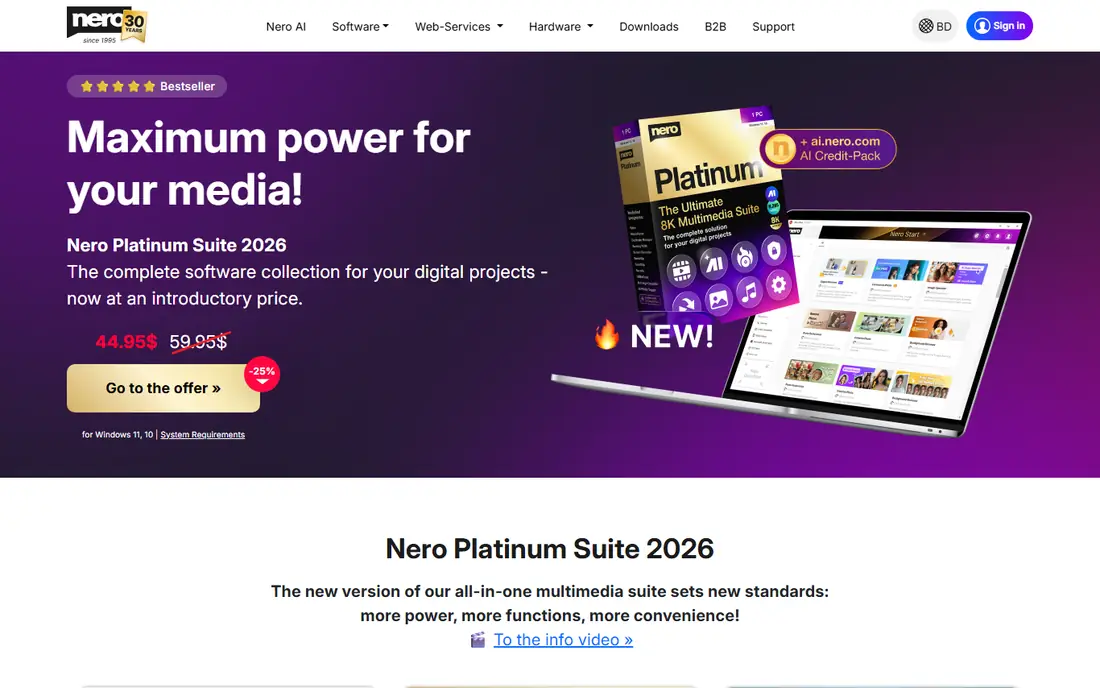
Nero has been the reference name in disc burning for years, and the current version keeps that focus. You can burn data discs, audio CDs, video DVDs and Blu-ray discs, copy discs, create ISO images, and make bootable discs from one program. That breadth matters if you burn discs for work, for family archives, or for client deliverables and do not want to juggle three utilities.
The catch is scope. Nero Burning ROM is a burning tool first, not a full video editor, and it runs on Windows only. If you need deep video editing, the larger Nero Platinum Suite is a separate purchase. For pure burning, though, the one-time price is easy to justify compared with a monthly subscription, and the interface stays focused on getting a verified disc out of the drive.
- Covers CD, DVD and Blu-ray
- Disc copying and ISO creation
- SecurDisc encryption for sensitive files
- Windows only
- The full suite adds cost if you want video editing too
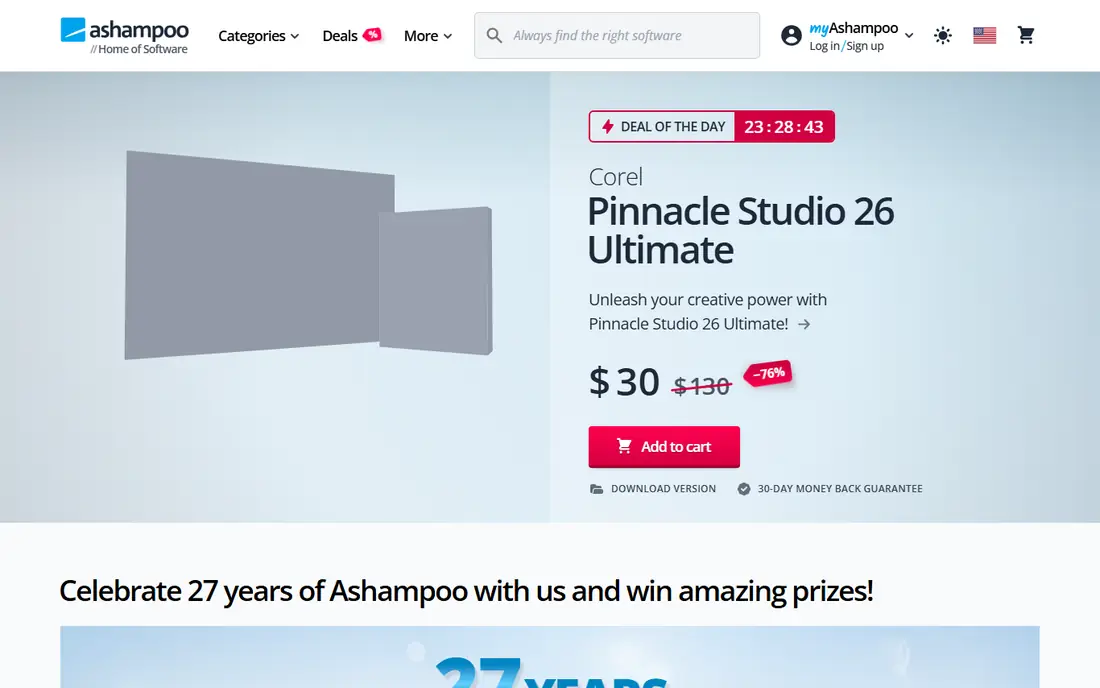
Ashampoo Burning Studio is the easiest paid option to recommend to someone who burns discs only a few times a year. The main jobs are laid out plainly, so you can pick data, music, movie or backup without reading a manual first. Disc spanning is a useful bonus, since it splits a large set of files across several discs instead of forcing you to sort them by hand.
The paid version also adds backups, scratch protection and cover printing, which suit family photo archives and small business records. Windows is the only platform, and Mac users will need a different pick from this list. If you want a calm, guided burning tool and you are happy to pay once, Ashampoo is a strong middle ground between free utilities and Nero.
- Clear layout for beginners
- Disc spanning across several discs
- Backup and cover printing tools
- Windows only
- The free edition is more limited than the paid version

BurnAware Free is our first stop for anyone who wants to burn a data disc or an audio CD without paying anything. It handles CD, DVD and Blu-ray media, plus M-Disc for longer term archiving, and it keeps the interface simple enough that a first burn takes only a few clicks. Verification after burning is built in, which is worth using for backups.
The free edition does not include every feature in the paid Premium version, such as disc copying and data recovery tools. That is a fair trade for a free tool, and most home users will not miss those extras. If you burn discs regularly and want those extras, the paid upgrade is still modest compared with a full media suite.
- Free for basic burning
- Supports Blu-ray and M-Disc
- Clean and light interface
- Advanced features need a paid upgrade
- Windows only
CDBurnerXP is a long-running free burner that stays out of your way. It burns data discs, audio CDs and ISO images, creates bootable discs, and verifies data after a burn. It also supports Blu-ray media, which makes it more useful than its age might suggest. For a basic job on an older Windows PC, it is hard to beat.
The trade-off is presentation and scope. The interface looks plain next to Ashampoo or Nero, and it will not author a DVD with menus from video files. Pair it with DVDStyler for that job, or pick a paid suite if you want one program to do both. As a free data burner, though, CDBurnerXP remains dependable.
- Free and light on system resources
- ISO creation and bootable discs
- Audio CDs with or without gaps
- Windows only
- Interface looks dated
- No DVD menu authoring
DVDStyler solves the problem most free burners ignore. A video file on its own will not play as a proper DVD in a living room player. DVDStyler converts video into the DVD format, adds menus, chapters and subtitles, and then burns the result. That makes it the right free tool for turning home videos into discs that relatives can play without a computer.
Menu design takes a little patience, especially if you want a polished result with custom buttons and backgrounds. The output is also standard definition, because that is what the DVD format supports. Within those limits, DVDStyler is genuinely useful, it costs nothing, and it runs on Windows, Mac and Linux, which is rare in this category.
- Free and open source
- Custom DVD menus and chapters
- Works on Windows, Mac and Linux
- Learning curve for menu design
- Output is standard definition DVD only
ImgBurn is the tool for people who care about exact control. It is small, it handles ISO and other disc images well, and it gives detailed logs so you can see what happened during a burn. If you already have a prepared DVD folder or an image file, ImgBurn will write it cleanly and verify it afterwards.
It is not a beginner tool and it is not an authoring tool. You cannot build DVD menus here, and the settings assume you know terms like layer break and write speed. The program also has not had a major update in years, though it still runs on current Windows versions. Download it only from the official site, since third party mirrors have bundled unwanted software in the past.
- Very light and precise
- Strong ISO and image handling
- Detailed burn logs and verification
- No DVD authoring
- Interface is technical
- Last major update was years ago
Roxio Creator NXT suits someone who edits video and then wants a disc at the end of the project. It combines video editing, photo editing, audio tools and disc authoring, so you can trim a home movie, add titles, and burn a DVD or Blu-ray without exporting to a separate program. That all-in-one flow saves time when you make discs often.
The price reflects the suite, not just burning, so it is poor value if you only need to copy files to a disc. It is also Windows only and the full install is larger than a focused burner. If your workflow already includes editing, though, Creator NXT is a coherent choice, and the Pro version adds more video tools for heavier projects.
- Video editing, photo tools and disc authoring in one suite
- DVD and Blu-ray support
- Screen capture tools
- Higher price than a burner alone
- Windows only
- Suite can feel large for a single disc
WinX DVD Author focuses on one job: turning video files into a playable DVD. It accepts common formats, lets you add a menu from templates, and supports subtitles, which covers most home video projects. The steps are simple enough for a first-time user, and the trial lets you test the workflow before paying.
It does not author Blu-ray discs, so it is not the pick for high definition disc projects. Pricing is listed on the vendor site and can change, so confirm it there before purchase. For standard DVD creation on Windows, WinX is a practical alternative to DVDStyler if you prefer a commercial tool with support.
- Converts common video formats to DVD
- Menu templates included
- Subtitle support
- Windows only
- DVD output only, no Blu-ray authoring
- Check current price before buying
Leawo DVD Creator is a good fit for family videos, school projects and slideshows. It offers ready-made menu templates plus custom menu editing, so a disc can look finished without design skills. A photo slideshow option is handy for anniversaries and memorial discs, where still images matter as much as video.
The main drawback is pricing structure. The entry price is annual, so long term cost is higher than a one-time purchase if you keep it for years. Blu-ray authoring may also sit in a separate Leawo product depending on the edition you choose, so check the edition carefully. For Windows and Mac users who want attractive DVD menus, Leawo remains a solid pick.
- Menu templates and custom menus
- Works on Windows and Mac
- Photo slideshow to DVD option
- Annual pricing rather than one-time
- Blu-ray authoring is a separate product in some editions
How we picked these
We compared official feature pages, pricing pages and app listings for current DVD burning tools, and we checked which platforms each one supports. We favoured tools that are still available and maintained, or in the case of ImgBurn and CDBurnerXP, still work reliably on current Windows versions despite slower update cycles. We also separated data burning from DVD authoring, since many tools do only one of those jobs well, and a list that mixes them up would mislead a first-time buyer.
What to check before you burn a disc
Data discs versus playable DVDs
A data disc stores files for a computer to read. A playable DVD uses a specific folder structure and menu system so a living room player can read it. If your goal is playback on a TV, you need an authoring tool such as DVDStyler, WinX DVD Author or Leawo DVD Creator, not just a data burner. If your goal is backup, a data burner is faster and simpler.
Drive, disc type and speed
Check that you have a working DVD or Blu-ray writer, not just a reader, and that your blank discs match it. Single layer DVDs hold 4.7 GB, dual layer discs hold about 8.5 GB, and Blu-ray discs hold 25 GB or more. Burn at a moderate speed for important archives, and always verify the disc after burning. A failed verify means you should reburn before you delete the original files.
Copyright and personal use
Only burn discs you have the right to copy, such as your own videos, photos and files, or material with clear permission. Copying commercial movies you do not own is not covered here, and some tools include copy features that should only be used for your own discs and backups. When in doubt, keep it to personal material.
FAQ
What is the best free DVD burning software?
For simple data and audio discs, BurnAware Free and CDBurnerXP are the strongest free Windows options. For a playable DVD with menus, DVDStyler is the best free choice. If you need both jobs in one free workflow, use DVDStyler to author the disc and a simple burner to write it.
Can I burn a DVD on a Mac?
Yes, but the choice is narrower. DVDStyler and Leawo DVD Creator both run on Mac, and macOS Finder can burn simple data discs. You will still need an external DVD writer, since current Macs do not include an internal optical drive.
Why will my MP4 not play on a DVD player?
A DVD player expects DVD video format, not an MP4 file copied as data. You need to author the video into DVD format with menus and chapters first, using DVDStyler, WinX DVD Author, Leawo DVD Creator or a similar tool. The resulting disc will play in a standard player.
How long does it take to burn a DVD?
A full single layer DVD usually takes 10 to 20 minutes at normal speeds, plus time for video conversion if you are authoring from MP4 or similar files. Conversion time depends on video length and your computer, so allow extra time for long home movies.
Is DVD burning still worth it in 2026?
It is worth it for specific uses, such as offline backups, cars and players without streaming, and gifts for people with limited internet. For everyday sharing, cloud storage and USB drives are faster. DVDs make sense when the recipient has a player and no reliable internet connection.