Best DVD Burner Software in 2026: 8 Tools Compared
Compare the best dvd burner software in 2026, with top dvd burn software, burning software for discs you own and Windows and Mac prices, before you buy.
- Editor's choice
 Nero Burning ROM
Full-featured burning
Starts atSee websiteVisit nero.comFull review - Great alternative
 Ashampoo Burning Studio
All-round disc toolset
Starts at$19.99Visit ashampoo.comFull review - Also consider
 Roxio Creator NXT
Burning plus video editing
Starts atSee websiteVisit roxio.comFull review
TL;DR:
- The best dvd burner software still matters for backups, car players, older DVD players and computers without fast internet, even as streaming grows.
- Nero Burning ROM and Ashampoo Burning Studio offer the fullest disc toolsets, while ImgBurn and CDBurnerXP suit users who want a free, focused tool.
- Note on copyright: only burn discs you own or have a legal right to copy, and only for lawful personal use where allowed. Do not copy rented, borrowed or protected commercial discs to share or sell.
- Check Windows or Mac support and drive compatibility before you buy, because many new PCs no longer include an optical drive, so you may need an external drive.
Quick comparison
| Tool | Best for | Starts at | Free plan? | |
|---|---|---|---|---|
| Nero Burning ROM | Full-featured burning | See website | Free trial | Visit |
| Ashampoo Burning Studio | All-round disc toolset | $19.99 | Free trial | Visit |
| Roxio Creator NXT | Burning plus video editing | See website | Free trial | Visit |
 ImgBurn | Free and lightweight burning | Free | Yes | Visit |
 CDBurnerXP | Free burning for Windows | Free | Yes | Visit |
 BurnAware | Simple burning with a free tier | Free | Yes | Visit |
 DVDFab DVD Creator | Video to DVD authoring | See website | Free trial | Visit |
 Wondershare UniConverter | Video conversion plus burning | See website | Free trial | Visit |
The best DVD burner software
DVD burner software writes data, music, video or disc images to blank discs, and it can also copy discs you own, rip audio CDs you own and create backups. The tools below cover that range, from free utilities that do one job well to paid suites that handle video authoring, menus and backups. All of them require an optical drive, built in or external, and a blank disc that matches the drive type.
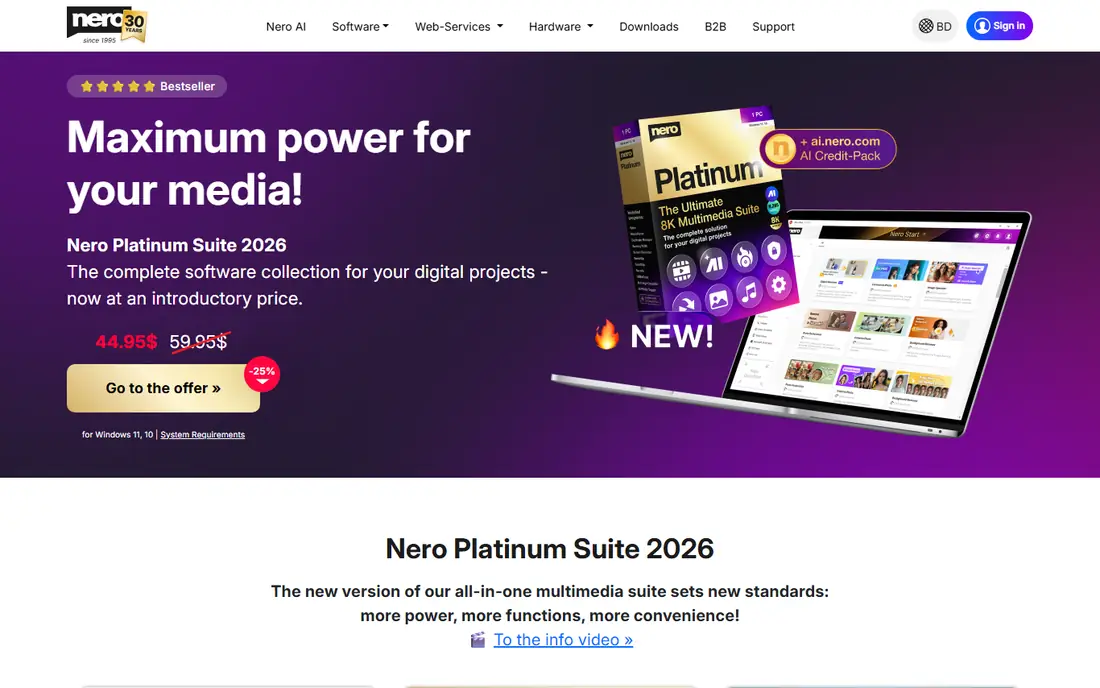
Nero Burning ROM is the long-running standard for disc burning on Windows, with support for CD, DVD and Blu-ray data, audio and video discs. It can burn, copy and back up discs, rip audio CDs you own, and protect data discs with SecurDisc encryption. Cover design tools help label discs clearly, which matters for backups and home video collections.
The price is higher than free tools, and the full Nero suite includes features many users will not need. A trial helps you test drive compatibility before you buy. For users who burn discs often and want a reliable, full-featured tool, Nero remains the safest paid pick.
- Broad disc support
- SecurDisc encryption
- Cover design tools
- Price higher than free tools
- Interface can feel large for simple jobs
Ashampoo Burning Studio is a Windows program that covers data discs, audio CDs, video DVDs and Blu-ray, plus backups that can span multiple discs. It can rip audio CDs you own, create disc images and design covers, all through a clear wizard interface. That breadth makes it a good all-round choice for home users.
Video authoring is basic compared with a dedicated video editor, so users who need advanced menus or editing should pair it with another tool. The program is Windows only, so Mac users need a different option. For Windows users who want one program for most disc jobs, Ashampoo offers strong value.
- Data, audio and video burning
- Backups with spanning
- Cover design
- Windows only
- Video authoring is basic compared with dedicated editors

Roxio Creator NXT, from Corel, combines disc burning with video editing, audio editing and file conversion. That mix suits users who want to edit home video, add menus and burn a finished DVD in one suite, rather than using separate tools. It also handles data discs, audio CDs and disc images.
The suite is Windows only and can feel large if you only need basic burning. Pricing varies by edition, so check which edition includes the video and burning features you need. For home video projects that end on DVD, Roxio is a practical all-in-one choice.
- Burning plus video editing and conversion
- Audio tools
- Disc authoring
- Windows only
- Suite can feel large
- Price varies by edition
ImgBurn is a free, lightweight Windows tool that excels at burning disc images and data discs. It supports ISO, BIN and other image formats, and it gives detailed control over burn speed and verification. That control appeals to users who burn images often and want a small, focused tool.
The interface looks older than paid tools, and ImgBurn does not author video DVDs with menus on its own. It is also Windows only. For users who want a free tool for images and data discs, and who do not need video authoring, ImgBurn is hard to beat.
- Free
- Very light
- Strong image file support
- Older interface
- No built-in video authoring
- Windows only
CDBurnerXP is a free Windows program for data discs, audio CDs, video DVDs and ISO images. It can burn and create ISO files, copy discs you own, and erase rewritable discs. The interface is simple and functional, which helps new users complete a burn without learning a large suite.
It is Windows only, and it lacks the video editing and backup features of paid suites. For Windows users who want a free, straightforward burner for common jobs, CDBurnerXP is a reliable choice that has been maintained for many years.
- Free
- Data, audio and video discs
- ISO burning and creation
- Windows only
- Interface is functional rather than polished
BurnAware offers a free tier for basic data, audio and video burning, with paid editions adding features such as disc spanning, image creation and Blu-ray support. Its interface is clean and easy to follow, which suits users who burn discs only occasionally and want a simple workflow.
Advanced features require a paid edition, so check the edition comparison before you buy. BurnAware is Windows only. For occasional burners who want a free start and a clear upgrade path, BurnAware is a good option.
- Free tier for basic burning
- Clean interface
- Data, audio and video support
- Advanced features need paid editions
- Windows only
DVDFab DVD Creator converts video files to DVD format and authors discs with menus, which suits users who want to put home video or legally owned video files onto DVD for playback on a DVD player. Menu templates help create a polished disc without video editing skill. It supports many input formats.
Pricing is often subscription-based, so check whether a lifetime or annual plan suits your use. As with all tools on this list, use DVDFab only for video you own or have a legal right to copy, and do not use it to copy protected commercial discs for sharing or sale. For video-to-DVD authoring, it is a capable choice.
- Video to DVD authoring
- Menu templates
- Format conversion
- Price is subscription-based in many plans
- Copyright tools need lawful use only
Wondershare UniConverter
Best for: Video conversion plus burning
Wondershare UniConverter is a video converter that also burns DVDs, which suits users who need to convert video formats before burning. It can trim, merge and convert video, then burn a DVD with a menu. That combined workflow saves time for users who work with video files from phones, cameras or downloads they own.
Burning is not the sole focus, so dedicated burners may offer more disc control. Pricing is subscription-based, and the trial limits output. For users who already need a video converter and want DVD burning as well, UniConverter is a convenient all-in-one tool.
- Video conversion
- DVD burning
- Editing tools in one app
- Burning is one feature among many
- Subscription pricing
- Trial limits output
How we picked these
We compared disc burning tools that are sold or offered free today for Windows, with a focus on DVD support, and we checked official vendor sites for features, pricing and platform support. We favored tools with a clear track record, a working trial or free tier where offered, and support for data, audio or video discs. We used See website where pricing varies by edition or region, and we did not recommend tools for copying protected commercial discs, because that use is not lawful in many cases.
How to burn a DVD safely and legally
Start with lawful source material. Burn home video, your own files, backups of data you own, and audio CDs you own where personal copying is allowed. Do not copy rented discs, borrowed discs or commercial discs protected by copy controls for sharing or sale, and do not use burning software to bypass copy protection. If you are unsure whether a copy is allowed, check the disc license and local law, or do not copy it.
Next, choose the right disc and speed. Use DVD-R or DVD+R discs that match your drive, and burn at a moderate speed for video discs, because very high speeds can cause playback errors on older players. Verify the disc after burning if your software offers that option, and test it in the player you will use, whether that is a car player, a DVD player or a computer drive. Label the disc clearly and store it away from heat and sunlight.
Hardware checks before you buy software
Check whether your PC has an optical drive, because many new laptops and desktops do not. If not, buy an external USB DVD or Blu-ray drive that matches the discs you plan to burn. Check that the drive supports the disc type you need, and test it with a blank disc before you start an important project. Also check that your software supports your Windows or Mac version, because older burners may not work on the latest systems.
Backup and organization tips
Use data discs for backups of photos, documents and home video, and keep a second copy on a hard drive or cloud storage if the files matter. Discs can degrade over time, so check important discs every few years and copy them to new media if needed. For audio CDs, rip tracks you own to a digital library as well, so you have a backup if the disc is damaged.
FAQ
What is the best dvd burner software?
Nero Burning ROM is the best full-featured paid pick, while Ashampoo Burning Studio offers strong value for Windows users who want data, audio and video burning in one program. ImgBurn and CDBurnerXP are the best free picks for focused burning jobs. The right choice depends on whether you need video authoring, backups or only basic burning.
What is the best burning software for Windows?
Ashampoo Burning Studio, Nero Burning ROM and CDBurnerXP are all strong Windows options. Ashampoo and Nero suit users who want a full toolset, while CDBurnerXP suits users who want a free, simple burner. Check drive compatibility and Windows version support before you buy or install.
What is the top 10 dvd burn software for home use?
This guide lists eight tools that cover the main home uses, from free image burning to paid video authoring. A top ten list would add niche tools, but most home users need only one of the eight tools here. Choose by job: ImgBurn for images, Ashampoo or Nero for all-round use, and DVDFab DVD Creator for video-to-DVD authoring.
Can I copy a DVD I own with dvd burner software?
You may copy discs you own for lawful personal use where allowed, but you should not bypass copy protection or copy rented, borrowed or commercial discs for sharing or sale. Laws vary by country, so check local law and the disc license. This guide does not recommend tools or steps for bypassing copy protection.
Do I need an external drive to burn DVDs?
Many new PCs no longer include an optical drive, so you may need an external USB DVD drive. Check your PC first, then buy a drive that supports DVD-R, DVD+R or Blu-ray as needed. Test the drive with your chosen software and a blank disc before you start an important project.
Is DVD burning still useful in 2026?
Yes, for backups, car and older DVD players, and for sharing home video with people who lack fast internet or a streaming device. Streaming has replaced discs for most viewing, but discs still offer a physical backup that does not depend on a subscription. For those uses, a good burner remains useful.