Best Conference Line Service in 2026: 9 Services Compared
We compared the best conference line service options across 9 tools for dial in calls, video meetings, audio quality, security, and team pricing in 2026.
- Editor's choice
 Zoom
All round meetings
Starts atSee websiteVisit zoom.usFull review - Great alternative
 Google Meet
Simple Google Workspace calls
Starts atSee websiteVisit meet.google.comFull review - Also consider
 Microsoft Teams
Microsoft 365 teams
Starts atSee websiteVisit microsoft.comFull review
TL;DR:
- Zoom, Google Meet, and Microsoft Teams suit most teams because they combine dial in audio, video, and screen sharing in one plan.
- FreeConferenceCall.com and Google Meet offer the lowest cost entry for simple audio and video calls.
- Dialpad, RingCentral, and Webex suit businesses that need phone system features, call controls, and admin management.
- Audio quality depends on dial in numbers, internet, and host controls, not just the brand, so test with your real participants.
- For sensitive calls, use waiting rooms, passcodes, and host controls, and avoid sharing dial in details in public places.
Quick comparison
| Tool | Best for | Starts at | Free plan? | |
|---|---|---|---|---|
| Zoom | All round meetings | See website | Yes | Visit |
| Google Meet | Simple Google Workspace calls | See website | Yes | Visit |
| Microsoft Teams | Microsoft 365 teams | See website | Yes | Visit |
 Webex | Secure business meetings | See website | Yes | Visit |
 GoTo Meeting | Reliable business meetings | See website | Free trial | Visit |
 Dialpad | Phone plus meetings | See website | Free trial | Visit |
 RingCentral | Business phone and video | See website | Free trial | Visit |
 FreeConferenceCall.com | Free dial in calls | Free | Yes | Visit |
 UberConference | Simple team calls | See website | Yes | Visit |
The best conference line services
A conference line service lets many people join one call by phone or video. Some services are pure dial in lines, while most modern tools combine dial in audio, video, chat, and screen sharing. Choose based on how your participants actually join.
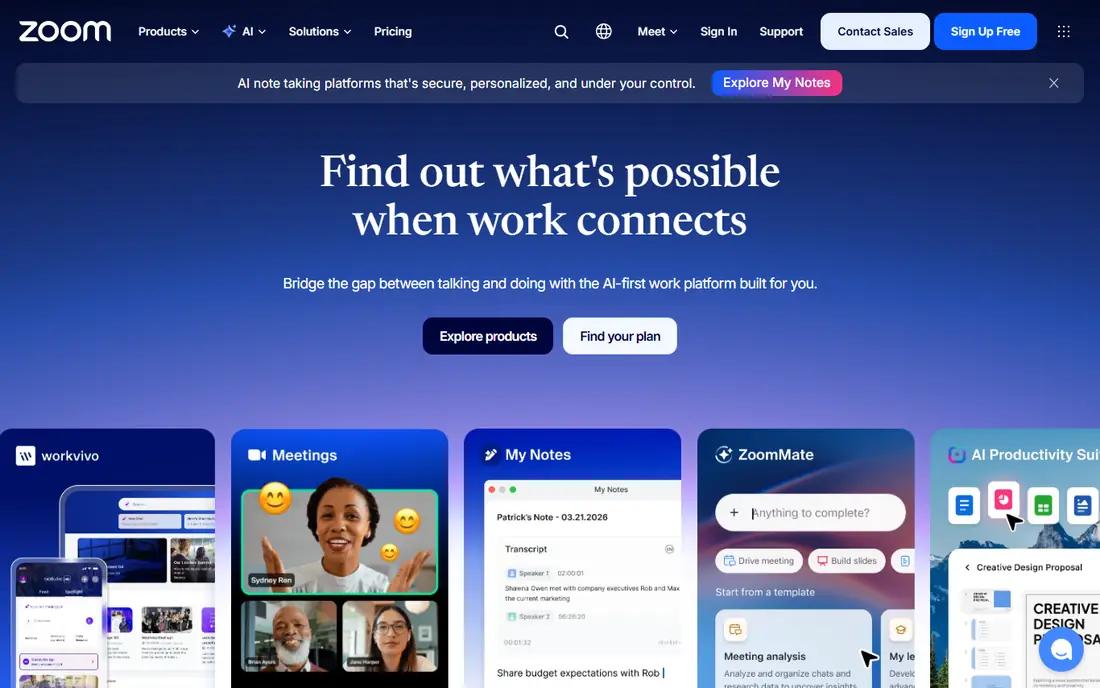
Zoom is our pick for most teams because participants can join by phone, computer, or mobile with little setup. Dial in numbers cover many countries, host controls handle muting, waiting rooms, and recording, and screen sharing works well for presentations. That combination suits client calls, team meetings, training, and larger events.
The free plan is useful but limited, with a 40 minute limit on group meetings in many cases. Paid plans remove that limit and add cloud recording, reporting, and admin controls. If you run client facing calls, use a paid plan, set a passcode or waiting room, and test dial in audio before an important meeting.
- Wide dial in coverage
- Strong host controls
- Recording, breakout rooms, and webinar options
- Free meetings have a time limit for larger groups
- Full features need a paid plan
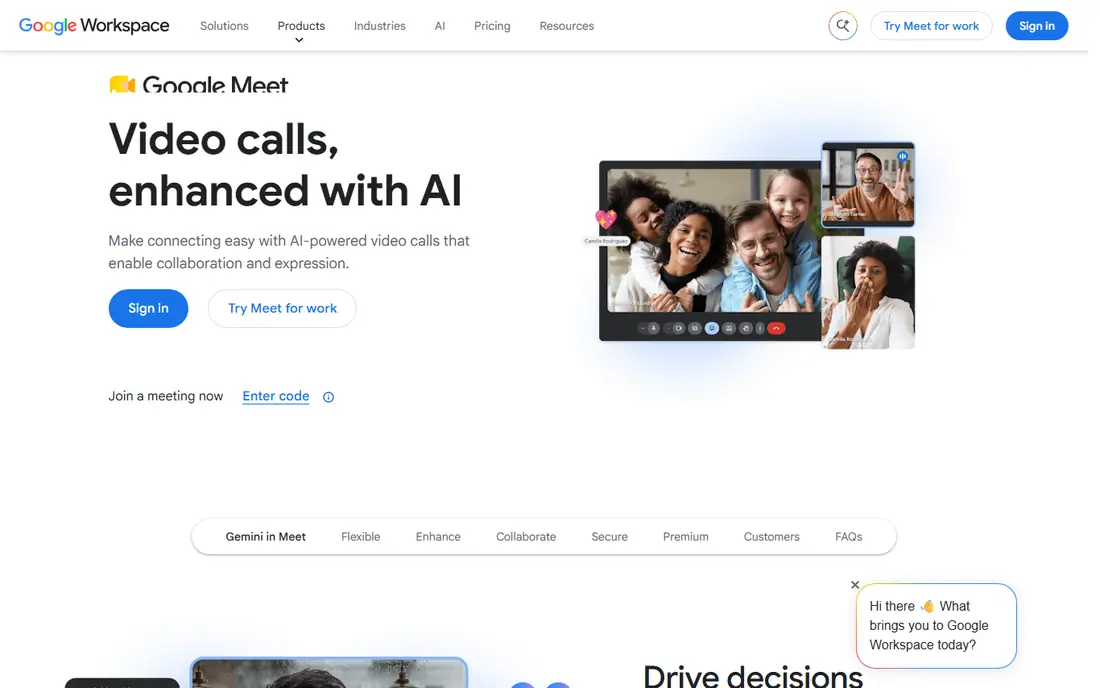
Google Meet suits teams already using Gmail and Google Calendar. You can start a call from a calendar event, share a link, and join from a browser without installing software. Captions, noise cancellation, and screen sharing cover most meeting needs, and the interface is easy for guests who join only occasionally.
Dial in access is the main limit. Free users can join by video, but phone dial in numbers are tied to Workspace plans in many regions. If many participants join by phone only, confirm dial in availability for your country before you rely on Meet as a conference line.
- No install for browser users
- Simple scheduling through Google Calendar
- Good captions and noise handling
- Dial in numbers depend on Workspace plan
- Advanced admin controls need a paid plan
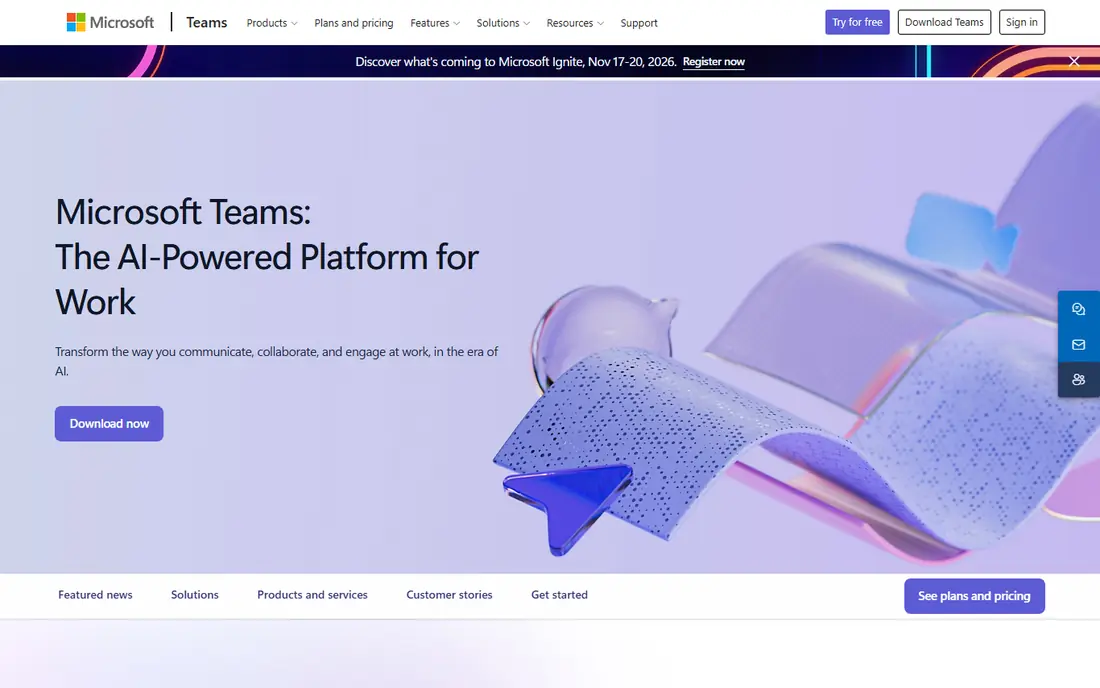
Microsoft Teams is the natural choice for organizations already on Microsoft 365. Meetings, chat, file sharing, and calendars sit in one workspace, and IT teams can manage security, compliance, and recording policies centrally. That integration helps large teams that live in Outlook, SharePoint, and OneDrive.
The trade off is complexity. Teams has many features, and new users can find the interface busy. Audio conferencing and dial in options depend on your Microsoft plan and licenses, so confirm phone dial in coverage if participants join by phone. For pure simplicity, Google Meet or Zoom may feel lighter.
- Chat, files, and meetings in one workspace
- Strong admin and security controls
- Good for large organizations
- Interface can feel busy
- Audio conferencing add ons vary by plan
Webex suits businesses that prioritize security, compliance, and admin control. It offers meeting, calling, and messaging tools, with host controls, recording policies, and enterprise management that IT teams value. Audio quality is generally strong, and dial in options cover many regions.
Webex can feel more formal than Zoom or Meet, and casual users may need a short learning period. For regulated industries, government work, or large enterprises, that formality is often a benefit rather than a drawback. Test guest joining, because first time guests should be able to join without a long setup.
- Strong security and admin controls
- Reliable audio and video
- Webinar and event options
- Interface feels more corporate than some rivals
- Best features need a paid plan
GoTo Meeting is a dependable business meeting tool with a focus on simple joining and clear audio. Hosts can schedule, share screens, record, and manage participants without extra complexity. It suits professional services firms, training providers, and teams that run regular client calls and want a tool that simply works.
The lack of a permanent free plan puts it behind Zoom, Meet, and Teams for casual users. Businesses that meet daily will find the paid plan reasonable, but occasional users should start with a free option and upgrade only if GoTo Meeting fits their workflow better.
- Simple join flow
- Reliable audio
- Good host controls and recording
- No permanent free plan
- Fewer consumer features than Zoom or Meet
Dialpad suits businesses that want a phone system and meetings from one vendor. Its voice, video, and messaging tools share contacts and call history, and AI features can summarize calls and provide transcripts. That integration helps sales, support, and operations teams that live on the phone.
If you only need occasional conference calls, Dialpad may be more than you need. It shines when you also need business phone numbers, call routing, and team phone management. Compare per seat pricing against a meeting only tool plus a separate phone service before you commit.
- Business phone system plus meetings
- AI summaries and transcripts
- Good admin controls
- Best value as a phone system, not a standalone meeting tool
- Pricing depends on seats and features
RingCentral is a strong choice for businesses that need a complete communications system. Phone, video, messaging, and contact center features share one platform, with admin controls for users, numbers, and call routing. Dial in conference calls fit naturally into that system, and integrations with common business apps help teams work in one place.
Setup and cost are the trade offs. RingCentral is a business system, not a quick free meeting link, and per user pricing adds up for large teams. Small teams that only meet occasionally should start with Zoom or Meet, while businesses replacing a phone system should compare RingCentral and Dialpad closely.
- Full business phone system with video meetings
- Wide dial in coverage
- Strong admin and integrations
- Pricing rises with seats and features
- Setup takes more time than a simple meeting app
FreeConferenceCall.com is the best free option for a traditional conference line. You get a dial in number and access code, participants call in from any phone, and you can add screen sharing and recording. It suits community groups, small teams, and anyone who needs a phone only call without a subscription.
It does not match Zoom, Teams, or Webex for integrations, admin controls, or large event features. For a simple audio conference, that simplicity is a strength. For client facing video meetings with branding, recording policies, and calendar integration, a paid platform is a better fit.
- Free dial in conference lines
- Screen sharing and recording options
- Simple setup
- Fewer integrations than major platforms
- Audio quality depends on participant connections
UberConference, now part of Dialpad, was built for simple team calls with a visual participant view and easy joining. It suits small teams that want a clean conference experience without a heavy platform. Participants can see who is speaking, mute easily, and join from a browser or phone.
Because it now sits inside Dialpad, standalone pricing and features depend on Dialpad plans, so confirm current terms before you rely on it. If you want a simple free call, FreeConferenceCall.com or Google Meet may be clearer, while Dialpad itself is the fuller business option.
- Simple visual interface
- No PINs for many calls
- Now part of Dialpad
- Now tied to Dialpad ecosystem
- Fewer standalone features than larger platforms
How we picked these
We compared official feature and pricing pages, dial in coverage, host controls, and free plan terms for meeting and conference services in October 2026. We favored services with clear dial in or video meeting options, ongoing availability, and a free plan or trial, and we mixed meeting platforms, business phone systems, and a free dial in service so different budgets are covered. Prices vary by seats and plan, so we list starting price as See website for most services.
How to run a better conference call
Send the dial in number, access code, link, and agenda in advance, and include a phone only option for participants with poor internet. Start with a roll call for small calls, and use mute controls for larger calls to cut background noise. Assign a host who manages speaking order, screen sharing, and recording, so the meeting does not drift.
For security, use a waiting room or passcode, do not post dial in details publicly, and lock the meeting once all expected participants have joined. If you record, tell participants at the start and store the recording with proper access controls. After the call, send a short summary with decisions and next steps, because a conference call without a written follow up often loses its value.
Audio quality tips
Ask participants to join from a quiet place, use a headset where possible, and mute when not speaking. Hosts should test screen sharing and audio before client calls, and keep a phone dial in backup ready if video fails. A clear audio call beats a glitchy video call, so do not force video when audio is enough.
FAQ
What is the best free conference line service?
FreeConferenceCall.com is best for free phone only conference lines, while Google Meet and Zoom offer strong free video meetings with limits. Choose FreeConferenceCall.com for phone participants, and Zoom or Meet when most people join by video.
Do participants need an account to join a conference call?
Usually no. Most services let guests join from a link or dial in number without an account, while the host needs an account. Check guest joining for your service, because some business plans require sign in for security.
Can I get a dial in number for a video meeting?
Yes, on many paid plans. Zoom, Webex, Teams, and RingCentral offer dial in numbers, but coverage and cost vary by plan and country. Free plans often limit dial in access, so confirm phone joining before you promise it to participants.
How many people can join a conference call?
Limits vary by service and plan, from small group calls on free plans to hundreds or thousands on webinar and event plans. Check the participant limit for your plan, and use a webinar product for large public events rather than a standard meeting.
How do I improve audio on a conference call?
Use a headset, join from a quiet place, mute when not speaking, and use a wired internet connection where possible. Hosts should mute noisy participants, use waiting rooms to control entry, and keep a phone dial in backup if video audio fails.
Is it safe to share a conference link publicly?
No, avoid posting meeting links or dial in codes in public places. Use a passcode or waiting room, share details only with invited participants, and lock the meeting once everyone expected has joined. For public events, use a webinar tool with registration.