Best Color Grading Software in 2026: 9 Products Compared
Compare the best color grading software on color wheels, curves, scopes, HDR, LUTs and price, from free DaVinci Resolve to pro studio tools today in 2026.
- Editor's choice
 DaVinci Resolve
Serious grading and editing
Starts atFreeVisit blackmagicdesign.comFull review - Great alternative
 Adobe Premiere Pro
Adobe-based video teams
Starts at$22.99 per monthVisit adobe.comFull review - Also consider
 Final Cut Pro
Mac editors buying once
Starts at$299.99 one-timeVisit apple.comFull review
TL;DR:
- DaVinci Resolve is the default pick for serious grading, with a powerful free version and Studio at $295 one-time.
- Final Cut Pro suits Mac editors who want fast grading inside a one-time purchase editor, while Premiere Pro suits Adobe-based teams.
- VEGAS Pro, PowerDirector and Filmora offer Windows-friendly grading with editing, at lower one-time prices than subscription suites.
- Lightworks and Shotcut suit budget or open-source workflows, with Shotcut completely free.
- ColourLab AI suits creators who want AI-assisted look creation, but it does not replace manual control for film work.
Quick comparison
| Tool | Best for | Starts at | Free plan? | |
|---|---|---|---|---|
| DaVinci Resolve | Serious grading and editing | Free | Yes | Visit |
| Adobe Premiere Pro | Adobe-based video teams | $22.99 per month | Free trial | Visit |
| Final Cut Pro | Mac editors buying once | $299.99 one-time | Free trial | Visit |
 VEGAS Pro | Windows editors buying once | $219.95 one-time | Free trial | Visit |
 PowerDirector | Fast all-round Windows editing | $139.99 one-time | Free trial | Visit |
 Filmora | Easiest path to a finished look | $79.99 one-time | Yes | Visit |
 Lightworks | Pro editing on a budget | See website | Yes | Visit |
 Shotcut | Free open-source grading | Free | Yes | Visit |
 ColourLab AI | AI-assisted look creation | $149 per year | Free trial | Visit |
The best color grading software
Color grading software adjusts exposure, contrast, color balance, skin tones and overall mood after a video is edited. The best tools offer color wheels, curves, scopes, HDR controls, LUT support and shot matching, with enough precision for consistent results across a whole project. We compared official feature pages, pricing pages and public reviews for tools used for grading today, from free editors to professional suites.

DaVinci Resolve is the tool most professional colorists reach for, and its free version is unusually capable. The Color page offers primary and secondary wheels, curves, qualifiers, tracking, scopes and node-based grading, which lets you build a look in layers and adjust one part of an image without touching the rest. The free version edits, grades and exports up to 4K UHD with no watermark, while Studio at $295 one-time adds HDR grading, Neural Engine AI tools, noise reduction and higher-resolution delivery.
The learning curve is real, especially for node grading and color management, and heavy projects need a capable GPU. For anyone serious about grading, though, Resolve offers the best combination of depth and value. Start with the free version on a real project, then buy Studio only when you hit a Studio-only feature.
- Industry-standard Color page with nodes
- Powerful free version with no watermark
- Studio at $295 one-time, no subscription
- Steep learning curve for beginners
- Needs a strong GPU for heavy grading work
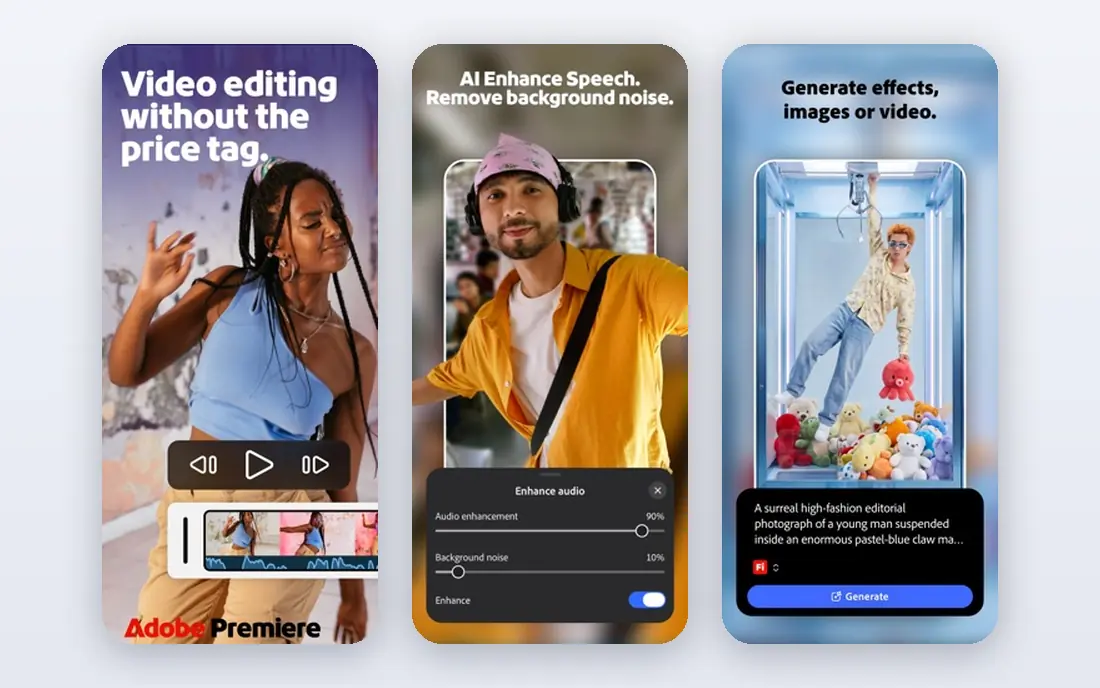
Premiere Pro suits editors already working in Adobe Creative Cloud, since grading happens inside the same timeline as editing. The Lumetri Color panel covers basic correction, creative looks, curves, wheels and LUTs, with scopes for checking exposure and color balance. Dynamic Link to After Effects and Photoshop helps when a project needs graphics or stills work alongside grading.
Pricing is $22.99 per month for Premiere Pro alone, or higher for the full Creative Cloud suite, so long-term cost exceeds a one-time purchase. Dedicated colorists will also find Resolve deeper for node work, HDR and shot matching. For an Adobe-based team that grades as part of editing, Premiere Pro is a practical, familiar choice.
- Lumetri Color panel inside a full editor
- Strong integration with After Effects and Photoshop
- Wide LUT and preset support
- Subscription cost adds up over time
- Grading depth trails Resolve for dedicated color work
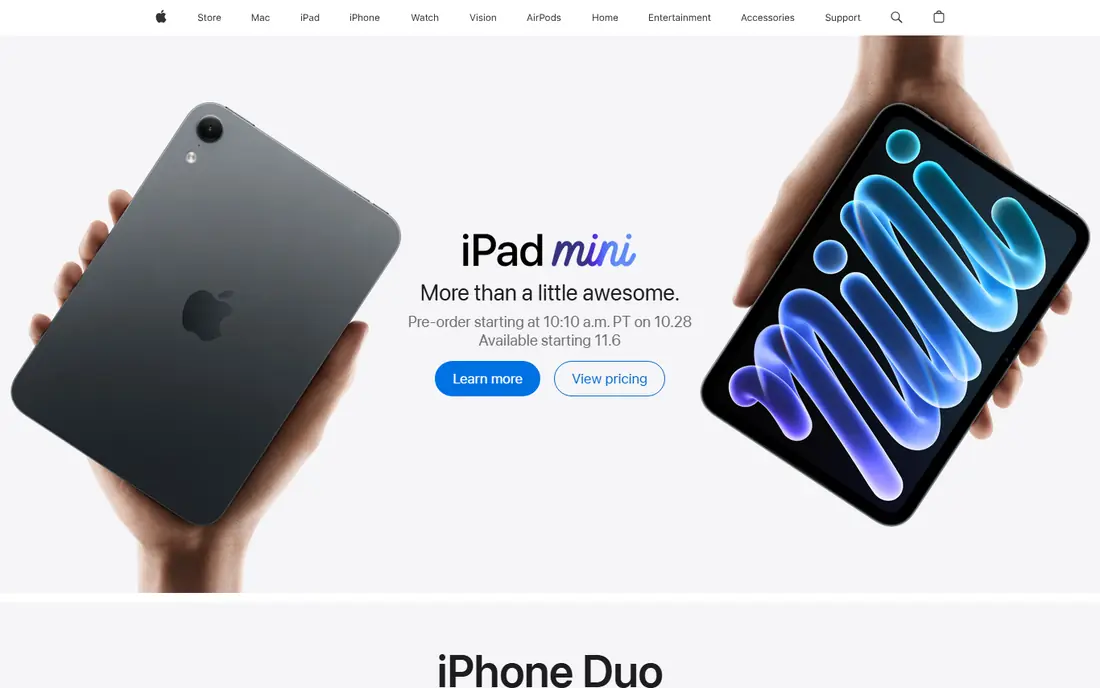
Final Cut Pro is a strong Mac-only pick for editors who want speed and a one-time purchase. It offers color wheels, curves, color boards, scopes and LUT support, with fast rendering on Apple silicon that helps when grading 4K footage. The $299.99 one-time price, with a 90-day free trial, makes long-term cost easy to predict compared with a subscription editor.
The grading toolset is solid for most projects, but it does not match Resolve for node-based work, advanced HDR or dedicated colorist workflows. Windows users cannot use it at all, which limits team adoption in mixed-platform shops. For a Mac editor who grades inside the edit, Final Cut Pro offers speed, simplicity and good value.
- Fast performance on Apple hardware
- Solid color wheels, curves and scopes
- One-time price, no subscription
- Mac only
- Grading depth is lighter than Resolve for dedicated colorists
VEGAS Pro is a long-running Windows editor with a perpetual license, listed at $219.95 for the current perpetual edition in recent comparisons. It offers color correction and grading tools including wheels, curves, scopes and LUT support, inside a timeline that many Windows editors already know. Audio tools are also strong, which helps creators who handle sound and color in one app.
The interface feels less modern than Resolve or Final Cut Pro, and new users will need time to learn the layout. VEGAS Pro also does not match Resolve for dedicated node grading or HDR depth. For a Windows editor who wants to own the software and grade inside the edit, VEGAS Pro remains a capable, one-time purchase option.
- Perpetual license for Windows editors
- Good color wheels, curves and LUT tools
- Strong audio tools alongside video
- Interface feels dated next to newer editors
- Learning curve for new users
PowerDirector suits creators who want a finished video fast, with grading tools that are easy to reach. It offers color adjustment, LUTs, curves and presets, plus templates and effects that help social, wedding and small business videos look polished without a long grading session. Ultimate is listed at $139.99 one-time, with a free trial that exports with a watermark in some editions.
The trade-off is depth: PowerDirector will not replace Resolve for film grading, HDR work or complex shot matching. For a creator who grades as part of a fast edit, rather than as a dedicated color session, that balance is often right. Check which bundle includes the grading and format features you need, since packaging varies.
- Fast, template-friendly editing and grading
- Good LUT and color adjustment tools
- One-time Ultimate price at $139.99
- Grading depth is lighter than Resolve
- Some advanced features need higher bundles
Filmora is the easiest entry point on this list for beginners who want a good-looking video without learning a professional color page. It offers color tuning, LUTs, presets and simple correction tools in a friendly interface, with drag-and-drop editing that suits YouTube, social and small business videos. A perpetual plan is listed at $79.99, while the free version exports with a watermark.
Simplicity is also the limit. Filmora does not offer node grading, advanced HDR controls or the precision a professional colorist needs for film work. For a beginner, a hobbyist or a small business owner who needs a clean, consistent look quickly, Filmora is a friendly, low-cost starting point.
- Very easy to learn
- Good presets, LUTs and color tools for beginners
- Perpetual plan listed at $79.99
- Free version exports with a watermark
- Grading control is simpler than pro tools
Lightworks has a long history in professional editing, and its grading tools include color correction, scopes and controls that suit serious editors on a budget. The free version lets users learn the system and complete smaller projects, while paid plans add higher resolutions, formats and features. That heritage appeals to editors who want a pro timeline without a pro price.
The interface takes time to learn, and current pricing and plan packaging vary, so we list See website and advise checking the vendor page before buying. Lightworks also trails Resolve for dedicated color depth. For an editor who values a professional timeline and is willing to learn it, Lightworks is a credible budget alternative.
- Professional editing heritage
- Color tools with scopes and grading controls
- Free version for learning and small projects
- Pricing and plan packaging vary, so verify the current offer
- Interface takes time to learn
Shotcut is a free, open-source editor with real grading tools, including color wheels, scopes, LUT support and a wide filter set. It runs on Windows, Mac and Linux, with no subscription, watermark or trial limit, which makes it ideal for students, hobbyists and budget creators. For a first grading project, Shotcut teaches core concepts such as exposure, contrast, white balance and color wheels without any cost.
The interface is plain, and performance can vary with hardware and codec choices, so larger 4K projects need a capable PC. Shotcut also lacks the AI tools, HDR depth and collaboration features of Resolve Studio. For free, capable grading with full control over your files, Shotcut is the best no-cost pick here.
- Completely free and open-source
- Color wheels, scopes, LUTs and filters
- Cross-platform on Windows, Mac and Linux
- Interface is plain and less guided than paid editors
- Performance and stability vary with hardware and formats
ColourLab AI focuses on AI-assisted grading: it can transfer a look from a reference image or clip, help match shots, and batch grade material faster than manual work alone. It works across major editing tools, with a node-based interface for building and adjusting looks. Pricing is listed at $149 per year or $299 one-time, with a 14-day free trial.
AI grading is a starting point, not a finished grade, especially for film work where skin tones, contrast and consistency need careful manual control. ColourLab AI also costs more than free editors, so it earns its price only when batch grading or look creation saves real time. For creators with many similar clips and a clear reference look, it can speed up the first pass considerably.
- AI look transfer and batch grading
- Works across major editing tools
- Node-based interface for look building
- AI looks can need manual correction
- Subscription or $299 one-time price needs a clear use case
How we picked these
We compared official feature pages, pricing pages and public reviews for software used for color grading today, including dedicated color tools and editors with strong grading panels. We kept tools with color wheels or curves, scopes, LUT support and export for real projects, and we excluded pure preset packs and discontinued editors. Prices are starting prices from vendor pages or recent vendor listings, and we wrote See website where pricing varies by plan or region.
What to check before you buy
Start with your footage and your delivery target, not with a feature list. Grade a real clip from your camera, in your usual resolution and color space, and check how the tool handles skin tones, highlights and shadows. Test LUTs, scopes and shot matching on a short sequence, since a tool that looks good on one clip can struggle with mixed lighting across a project. Also check GPU needs, since heavy grading can slow an older PC.
Check color management and HDR needs
Ask whether the tool supports your camera color space, HDR grading and the delivery formats your clients need. Resolve Studio and Premiere Pro handle HDR workflows more fully than beginner editors, while free tools may limit HDR or high-bit-depth output. If you deliver for broadcast, streaming or cinema, confirm scopes, monitoring and export specs before you commit to a simpler editor.
Test the full edit-to-grade workflow
Grading rarely happens alone, so test how easily you move from editing to grading and back, whether you grade inside the editor or round-trip to a dedicated tool. A one-app workflow saves time for most creators, while a dedicated color session in Resolve suits film and commercial work. Pick the workflow you will actually finish, not the one with the longest feature list.
FAQ
What is the best free color grading software?
DaVinci Resolve free version is the best free pick for serious grading, with professional color tools, no watermark and 4K UHD export. Shotcut is the best fully free open-source alternative, with wheels, scopes and LUTs across Windows, Mac and Linux. Beginners who want the simplest free start may prefer Filmora free, though exports carry a watermark.
Is DaVinci Resolve Studio worth $295?
For many creators, yes, if you hit a Studio-only feature such as HDR grading, Neural Engine AI tools, noise reduction or higher-resolution delivery. The free version already covers most grading work, so test it first on a real project. One $295 payment with no subscription often costs less over two years than a monthly editor subscription.
Can I grade video in Premiere Pro or Final Cut Pro?
Yes. Premiere Pro offers the Lumetri Color panel with wheels, curves, LUTs and scopes, while Final Cut Pro offers color wheels, curves, boards and scopes. Both suit grading inside an edit, though neither matches Resolve for dedicated node-based color work. Choose by your editing platform, not by grading alone.
What hardware do I need for color grading?
A capable GPU, enough memory and a calibrated monitor matter more than CPU speed alone for smooth grading. Resolve in particular benefits from a strong GPU when using noise reduction, tracking or HDR tools. Start with your current PC and a test project, then upgrade the GPU or monitor if playback and scopes lag.
What is a LUT and should I use one?
A LUT, or look-up table, maps input colors to output colors to apply a consistent look or convert between color spaces. LUTs are useful for a starting look or camera conversion, but they should be adjusted for exposure, white balance and skin tones on each shot. A LUT alone rarely finishes a grade.
How do I learn color grading?
Start with exposure and white balance, then contrast, saturation and skin tones, using scopes to check your work rather than trusting a single screen. Grade short projects in Resolve free or Shotcut, compare shots side by side, and practice matching shots from the same scene. Short, consistent practice on real footage teaches more than presets alone.