Best Apps for Educators in 2026: 9 Apps Compared
Compare the best apps for educators and teachers, from classroom management to quizzes and portfolios, with free plans and real pricing for 2026 today.
- Editor's choice
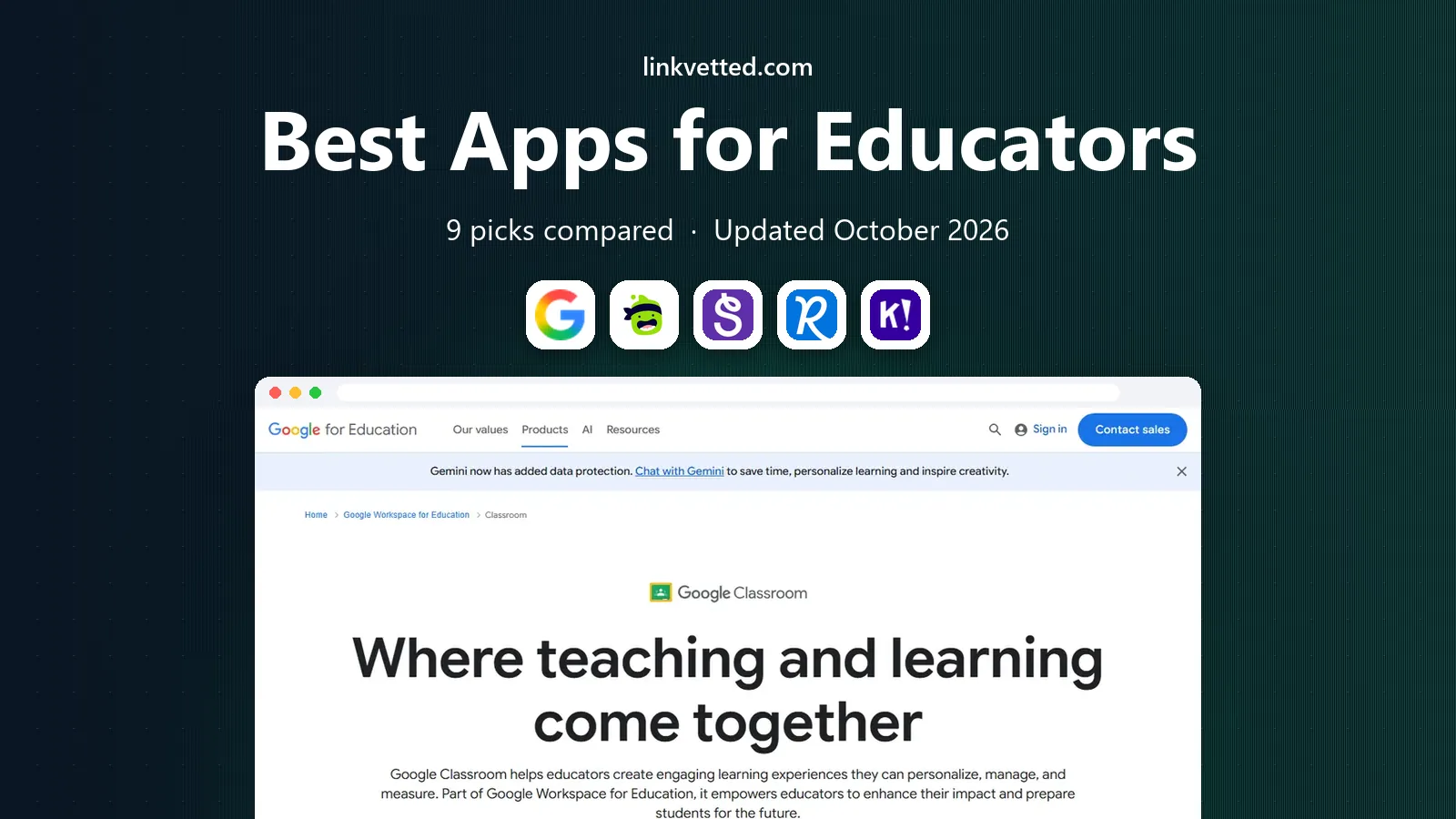
 Google Classroom
Running a class end to end
Starts atFreeVisit classroom.google.comFull review - Great alternative
 ClassDojo
Primary classrooms and family communication
Starts atFreeVisit classdojo.comFull review - Also consider
 Seesaw
Student portfolios for younger pupils
Starts atFreeVisit seesaw.comFull review
TL;DR:
- Google Classroom is the best free hub for running a class end to end, while ClassDojo and Seesaw suit younger pupils and family communication.
- Kahoot, Quizlet and Nearpod cover engagement and revision in different ways, so most teachers need one from each group rather than all three at once.
- Remind is the safest simple choice for messaging families, since it keeps personal phone numbers private and supports translation.
- Most educator apps offer a useful free tier, but school-wide features, extra storage and advanced reports usually sit behind paid plans.
Quick comparison
| Tool | Best for | Starts at | Free plan? | |
|---|---|---|---|---|
| Google Classroom | Running a class end to end | Free | Yes | Visit |
| ClassDojo | Primary classrooms and family communication | Free | Yes | Visit |
| Seesaw | Student portfolios for younger pupils | Free | Yes | Visit |
 Remind | Safe messaging for families | Free | Yes | Visit |
 Kahoot | Live quizzes that hold a room | Free | Yes | Visit |
 Quizlet | Revision and vocabulary practice | Free | Yes | Visit |
 Nearpod | Interactive lessons | Free | Yes | Visit |
 Edpuzzle | Interactive video lessons | Free | Yes | Visit |
 Canva for Education | Design for lessons and classroom materials | Free | Yes | Visit |
The best apps for educators
The best apps for educators save time on admin, make learning visible, and keep families in the loop without adding another inbox to check. The nine apps below cover classroom management, communication, assessment and design, and most of them work well together.

Google Classroom is the hub most teachers reach for first. You create classes, post assignments, collect work, give feedback and return grades, all linked to Google Drive so files do not get lost in email. Students see due dates and announcements in one place, and parents can receive email summaries. For schools already using Google Workspace, setup is straightforward and the core service is free.
The catch is that Classroom is a manager, not a lesson designer. It does not make a dull worksheet engaging on its own, so you will still want Kahoot, Nearpod or Edpuzzle for interactive work. School-wide admin, extra storage and advanced controls sit in paid Workspace for Education tiers. As a free, dependable base for a class, though, Classroom is hard to replace.
- Free for schools
- Assignments, grading and Drive in one place
- Works across devices
- Needs a Google Workspace for Education setup for full school features
- Limited design flair

ClassDojo suits primary classrooms where family connection matters as much as lessons. Teachers share photos, videos and class stories, send messages to parents, and award points for behaviours such as teamwork or persistence. Parents see a window into the school day without needing a separate messaging app, and students enjoy the monster avatars and class community feel.
Use the points system with care. Public point tallies can feel unfair to pupils who struggle, so many teachers use private feedback or group goals instead. The core teacher tools are free, while ClassDojo Plus is a paid option for families. Used thoughtfully, ClassDojo builds community in a way few other apps match for younger pupils.
- Free core for teachers
- Behaviour points and class stories
- Parent messaging built in
- Behaviour points need careful use to avoid shaming
- Family Plus features are paid
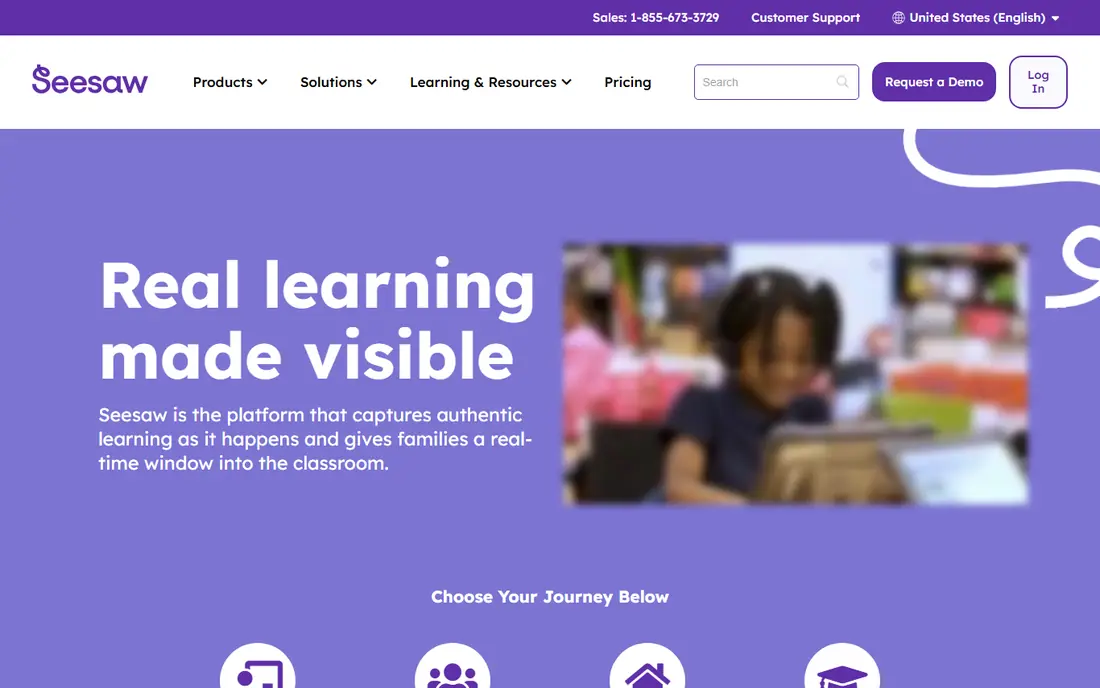
Seesaw gives young pupils a portfolio they can build themselves. A child photographs a drawing, records an explanation, or uploads a piece of writing, and families can see it the same day. Teachers add voice or text feedback, and the portfolio grows across the year, which makes progress visible in a way a single test never does. That is especially valuable in early years, where work is often physical and hard to send home.
The free tier covers core posting and family connection, while Seesaw for Schools adds assessment, admin and reporting tools at a quoted price. Older pupils may find Seesaw too simple compared with Google Classroom, so treat it as a primary tool rather than a whole-school system. For K-5 classrooms, it remains one of the best teacher apps available.
- Pupils post photos, drawings and voice recordings
- Families see work instantly
- Teacher feedback tools
- Advanced assessment needs a school plan
- Best for primary, less for older pupils
Remind solves a practical problem: how to message families without giving out your personal phone number. Teachers send announcements and two-way messages, families can reply by app or plain text, and translation helps in multilingual communities. That low barrier matters, since not every family has a smartphone with space for another app or reliable data.
The free tier covers basic class messaging, while school and district plans add admin tools, rostering and higher limits at a paid price. Remind is not a full classroom platform, so pair it with Google Classroom or Seesaw for assignments and portfolios. For safe, simple family messaging, it is the most focused choice on this list.
- Messaging without sharing personal numbers
- Translation support
- Works by text for families without the app
- School-wide features are paid
- Message limits can apply on some plans
Kahoot turns revision into a game that a whole class can play at once. Students join with a code, answer on their own devices, and see a leaderboard that keeps energy high. Teachers can use ready-made quizzes or build their own, and the format works for quick checks, end-of-unit review and staff training as well as lessons. That instant feedback helps teachers spot misunderstandings in real time.
The competitive edge is also the weakness. Some pupils thrive on leaderboards, others shut down, so use team mode or low-stakes rounds for sensitive topics. The free tier covers basic quizzes, while paid plans add more question types, reports and player limits. For a lively review session, Kahoot still sets the standard.
- Fast, game-like quizzes
- Large library of ready-made games
- Works on any device with a browser
- Paid plans start around $17 a month for fuller features
- Competitive format does not suit every pupil
Quizlet is the best app for teachers who want pupils to practise vocabulary, facts and definitions outside class. Students use flashcards, learn modes, matching games and tests, and teachers can create sets, assign them and track progress. The shared library means you rarely start from zero, especially for common subjects such as languages, science and history.
Quality varies in shared sets, so check a set before assigning it, and correct errors where you find them. Quizlet Plus, at around $36 a year in recent listings, adds offline access, advanced study modes and extra tools. The free tier is enough for most classroom revision, and Quizlet pairs well with Kahoot, since one builds memory over time and the other tests it live.
- Flashcards, learn modes and games
- Huge shared set library
- Teacher assignment tools
- Plus features need a paid plan
- Shared sets vary in quality
Nearpod takes a presentation and adds interaction at every step. Teachers embed polls, open questions, quizzes, videos and virtual field trips, then run the lesson live or let pupils work through it at their own pace. Reports show who answered what, which helps teachers adjust the next lesson rather than guessing. That makes Nearpod useful for both in-person and remote teaching.
Building a good Nearpod lesson takes longer than uploading slides to Classroom, so start with ready-made lessons from its library and adapt them. The free tier covers basic lessons, while paid plans add more storage, features and reports. For teachers who want participation rather than passive listening, Nearpod is a strong investment of prep time.
- Turns slides into interactive lessons
- Polls, quizzes and virtual trips
- Live and self-paced modes
- Paid plans start around $159 a year for fuller features
- Lesson building takes time at first
Edpuzzle is ideal for flipped classrooms and homework videos. Teachers take a YouTube video or upload their own, add questions, notes and voice comments, and assign it to a class. Pupils must answer as they watch, so a video assignment becomes active learning rather than background viewing. Teachers see who watched, who struggled and which questions caused trouble.
The free tier limit on stored videos, around 20 in recent listings, forces regular tidying or an upgrade for heavy users. That is manageable if you reuse a small set of core videos each term, but not if you assign a new video every day. For science demonstrations, language listening and revision videos, Edpuzzle adds accountability that plain video links lack.
- Add questions to any video
- Pupils cannot skip questions
- Progress tracking for teachers
- Free tier limits video uploads to around 20
- Heavy video users need a paid plan
Canva for Education gives verified K-12 teachers access to premium design tools at no cost, which is one of the best deals in education technology. Teachers create worksheets, posters, presentations, newsletters and classroom displays from templates, and pupils can collaborate on projects in the same workspace. That makes it useful for both teacher materials and student creative work.
Verification takes a little time, and schools outside the eligible range should check current terms. Design freedom can also distract, so set a simple brief for pupil projects, with limits on fonts and colours. For polished, readable classroom materials without a design budget, Canva for Education is hard to beat, and it pairs well with Google Classroom for distribution.
- Full Pro features free for verified educators
- Templates for worksheets, posters and presentations
- Student collaboration
- Verification needed for the education plan
- Design tools can distract from content if overused
How we picked these
We compared official feature pages, pricing pages and educator documentation in October 2026, favouring apps with a genuine free tier for teachers, clear privacy information for pupil data, and a distinct classroom job. We mixed management, communication, assessment and design tools, and we left out apps with unclear school pricing or very narrow subject coverage. Teachers should still check their school or district policy on pupil data, since local rules vary.
Building a simple educator app stack
Start with one hub, one communication tool and one engagement tool, then stop. Google Classroom plus Remind plus Kahoot, for example, covers assignments, family messages and live review without overwhelming pupils with logins. Add Seesaw for younger pupils, Edpuzzle for video homework, or Quizlet for revision only when a clear need appears. More apps do not mean better teaching, and each new tool adds setup, passwords and support time.
Check privacy and access before you adopt a new app. Confirm what pupil data it collects, whether families can opt out, and whether it works on the devices pupils actually have. Test a lesson with one class first, gather pupil feedback, and keep the tools that save time or clearly improve learning. Drop the rest, even if they looked impressive in a demo.
FAQ
What are the best apps for teachers?
Google Classroom, ClassDojo, Seesaw, Remind, Kahoot and Quizlet are among the best apps for teachers, each covering a different job. Classroom manages assignments, ClassDojo and Seesaw connect families, Remind handles messaging, and Kahoot and Quizlet cover quiz and revision. Most teachers need a small stack, not every app on this list.
What are the best teacher apps for classroom management?
Google Classroom is best for assignments and grading, ClassDojo is best for primary behaviour and community, and Seesaw is best for portfolios in younger classes. Remind adds safe family messaging to any of those. Choose based on pupil age and whether your school already uses Google Workspace.
Are educator apps free?
Many educator apps offer free tiers, including Google Classroom, ClassDojo, Seesaw, Remind, Kahoot, Quizlet, Nearpod, Edpuzzle and Canva for Education for verified teachers. Paid plans add storage, reports, school admin tools and extra features. Check the free limits, such as Edpuzzle video storage, before building a whole term around one app.
Which app is best for communicating with parents?
Remind is best for simple, safe messaging without sharing personal numbers, and it works by text for families without the app. ClassDojo suits primary families who also want photos and class stories, while Seesaw suits families who want to see pupil work. Pick the tool your families will actually open.
What is the best app for interactive lessons?
Nearpod is best for turning slides into interactive lessons with polls and quizzes, while Edpuzzle is best for interactive video lessons. Kahoot is best for live, game-like quizzes. Use Nearpod for full lessons, Edpuzzle for video homework, and Kahoot for fast review sessions.
Can teachers use Canva for free?
Yes, verified K-12 educators can use Canva for Education at no cost, with access to premium features that normally need a paid Pro plan. Verification is required, and terms may vary by country and school type. Check the Canva for Education page for current eligibility before you plan a project around it.