Best App for Edit in 2026: 8 Apps Compared
Searching for the best app for edit? We compared 8 photo and video editing apps on tools, templates, exports, price, and free plans for creators for 2026.
- Editor's choice
 Adobe Lightroom
Serious photo editing
Starts at$11.99 per monthVisit adobe.comFull review - Great alternative
 VSCO
Preset driven photo style
Starts at$2.49 per monthVisit vsco.coFull review - Also consider
 CapCut
Phone first video editing
Starts at$9.99 per monthVisit capcut.comFull review
TL;DR:
- Adobe Lightroom is our pick for photo editing depth, while CapCut is the strongest phone first video editor in this group.
- Canva suits creators who need social graphics and short video in one place, while VSCO suits a clean, preset driven photo style.
- Free plans are useful for testing, but clean exports, full resolution, and premium assets usually sit behind a paid plan.
- Picsart and Filmora add fun templates and effects, while Adobe Express suits fast branded posts for small teams.
- Check export limits, watermarks, and storage before paying, since those limits decide whether an app fits client work.
Quick comparison
| Tool | Best for | Starts at | Free plan? | |
|---|---|---|---|---|
| Adobe Lightroom | Serious photo editing | $11.99 per month | Free trial | Visit |
| VSCO | Preset driven photo style | $2.49 per month | Yes | Visit |
| CapCut | Phone first video editing | $9.99 per month | Yes | Visit |
 Canva | Design plus short video | $12.99 per month | Yes | Visit |
 Picsart | Creative photo and video effects | See website | Yes | Visit |
 InShot | Fast mobile video edits | See website | Yes | Visit |
 Adobe Express | Quick branded content | See website | Yes | Visit |
 Filmora | Desktop and mobile video | See website | Yes | Visit |
The best edit apps
We focused on apps for photo and video editing that a creator can use every week, not desktop only suites with a steep learning curve. Here are eight that cover different styles and budgets.
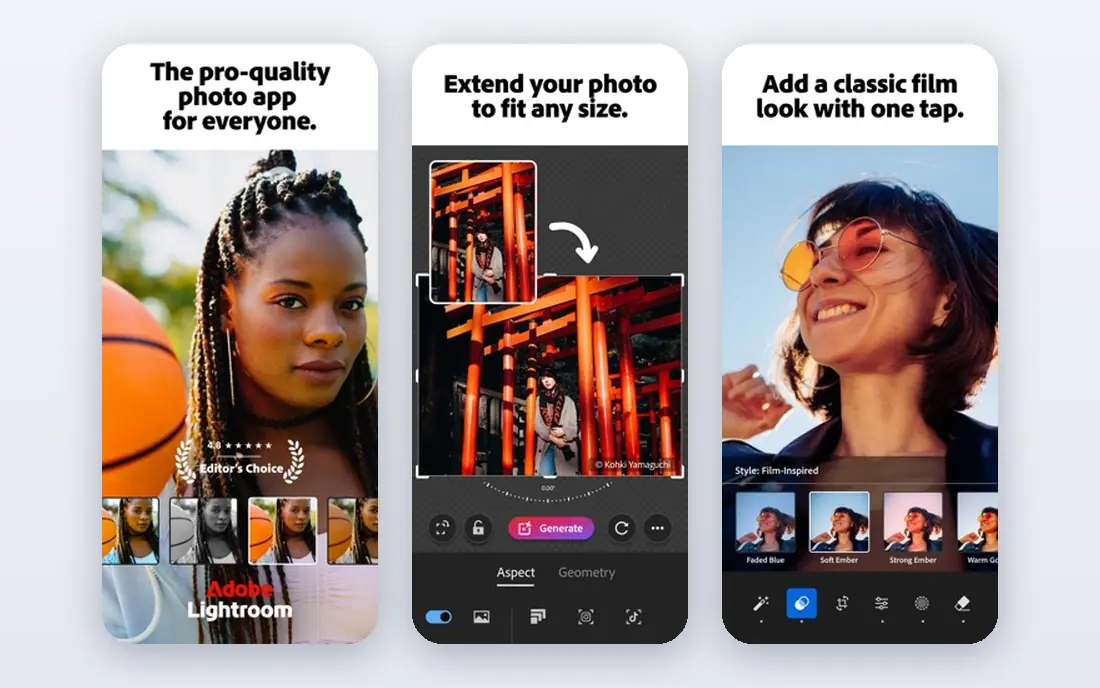
Lightroom remains the default for photographers who edit a lot of photos and want them organised. You can adjust exposure, colour, noise, and lens issues with fine control, and you can copy edits across a whole shoot in seconds. Cloud sync means an edit started on a phone can be finished on a desktop without moving files by hand.
The cost is ongoing, and stopping payment limits editing access even though your files stay yours. Lightroom also rewards patience: casual users may find the panels busy at first. If you edit photos weekly and care about RAW quality, it is still the safest long term pick in this list.
- Strong RAW editing and organisation
- Syncs across phone, desktop, and web
- Huge preset and tutorial community
- Subscription only
- Full power takes time to learn
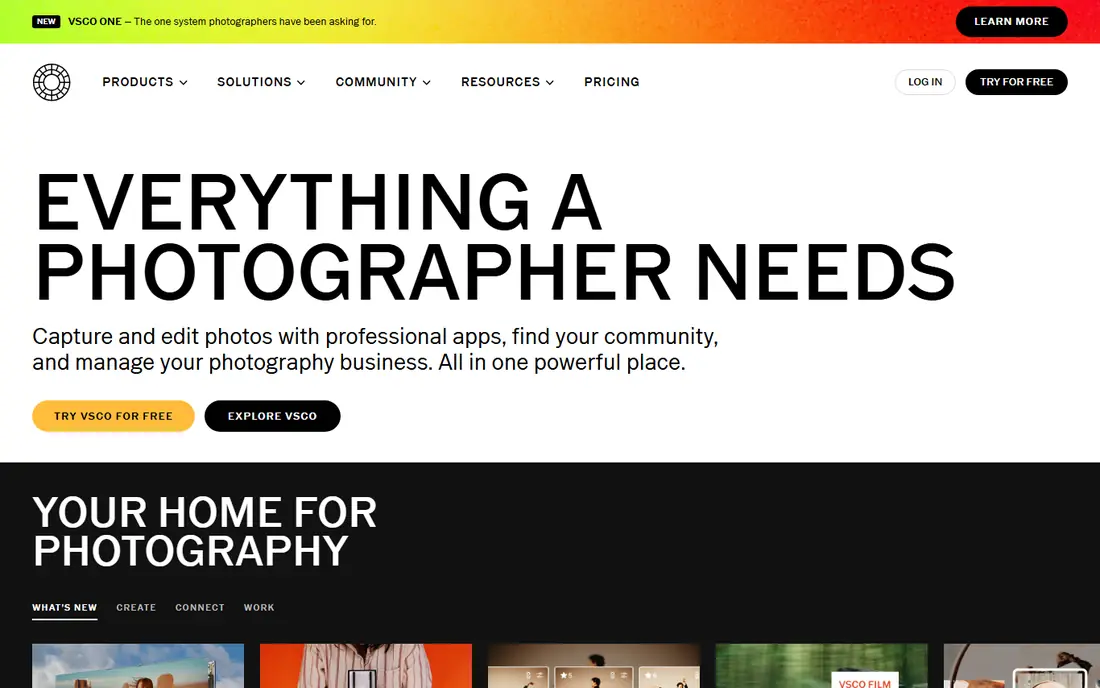
VSCO suits photographers who want a consistent look without spending an hour on each photo. Its presets give a film style starting point, and manual tools let you tune exposure, tone, and colour after that. Saved recipes help you repeat a look across a set, which is handy for social feeds.
The limits are worth noting. RAW editing is strongest on supported iPhones, and the desktop experience runs through the web rather than a full desktop app. Paid plans start low when billed annually, but monthly billing costs more. VSCO is best for mobile photographers who value style and speed over deep retouching.
- Film inspired presets
- Clean editing tools
- Video editing on paid plans
- RAW support varies by device
- Desktop editing is web based

CapCut is the fastest route from raw phone footage to a finished social clip. The timeline supports layers, effects, and captions, and its AI tools can cut silence, add captions, or remove a background with little manual work. Templates help when you need a trend style video in a hurry.
Free use is real, but paid plans remove limits and add higher quality exports and more AI capacity. Prices vary between web and mobile billing, so check the plan in the store you will actually use. For short form video, CapCut gives the most editing power for the least learning time.
- Multi track timeline
- Auto captions and background removal
- Templates for social video
- Free exports can carry limits
- Higher tiers add cost for 4K and full AI tools
Canva is the best edit app for creators whose work mixes graphics and video. You can resize a post for each network, keep brand colours and fonts in one place, and build a short video from clips, text, and stock. That all in one flow saves time when content volume matters more than frame level control.
The video editor is not a replacement for a full timeline editor if you cut long, layered projects. Some stock and AI uses are capped by plan, so heavy users should check monthly limits. For small teams and solo creators who publish daily, Canva is hard to beat for speed and consistency.
- Huge template library
- Brand kits on paid plans
- Video, graphics, and docs in one place
- Video timeline is simpler than CapCut
- Premium assets need a paid plan
Picsart is a playful editor for people who want bold effects, stickers, and collages without learning a pro tool. It handles both photos and short video, and its community templates give quick starting points for memes, covers, and stories. The range of filters is wider than VSCO, though less tuned for natural photo work.
The catch is that the best tools sit behind payment, and free use includes ads. Check the current price on the vendor site, since mobile pricing varies by region and plan. Picsart suits creators who prize fun, fast, eye catching edits over subtle colour work.
- Wide sticker, filter, and effect library
- Collage and drawing tools
- Easy social sharing
- Paid features are spread across plans
- Ads appear on free use
InShot wins on simplicity. Trim a clip, add music and text, adjust speed, and export. That is the whole job for many short videos, and the app keeps each step within easy reach. It runs well on phones that struggle with heavier editors, which matters for creators on a budget.
Depth is the limit. You will not get the same keyframe control, audio shaping, or AI toolkit as CapCut or Filmora. Paid access removes watermarks and ads, so check the in app price before using it for client work. For quick personal or social edits, InShot is a fine, low friction choice.
- Simple trim, text, and music workflow
- Works well on modest phones
- Auto captions
- Audio tools are basic
- Free exports can include a watermark
Adobe Express is built for fast, on brand posts, flyers, and short videos. Templates cover most social sizes, and brand assets stay consistent across a team. It is easier to learn than full Adobe desktop apps, and it works in a browser as well as on mobile.
It will not replace Lightroom for photo depth or a full video editor for long projects. Think of it as a production tool for marketing content, not a craft editor for a photo portfolio. Small businesses that already use Adobe tools will get the most from it, while solo creators may prefer Canva for a lower learning curve.
- Brand kits and templates
- Ties into Adobe stock and fonts
- Simple video and animation tools
- Less depth than Lightroom or Premiere
- Best value needs an Adobe plan
Filmora sits between phone editors and pro desktop suites. You get a real timeline, transitions, titles, and audio controls, plus mobile apps for edits on the go. That range suits YouTube creators and small teams who need longer videos than a phone app handles well.
The free version watermarks exports, so budget for a paid plan if you publish. Check the vendor shop for current pricing, since sale prices change often. Filmora is a good step up when CapCut or InShot start to feel limiting, but you are not ready for a pro suite.
- Runs on desktop and mobile
- Effects, titles, and audio tools
- Good for YouTube style edits
- Free exports carry a watermark
- AI generated assets may have use limits
How we picked these
We compared official feature pages, pricing pages, and app store listings for photo and video editing apps that work today on phone, web, or desktop. We favoured apps with a real free tier or trial, clear export options, and a large user base, and we left out desktop only pro suites and closed apps. Prices shown are starting paid prices where we could verify them, and we used See website where pricing varies by store or region.
How to choose an editing app
Start with your main output. Photo creators should prioritise RAW support, colour tools, and organisation. Video creators should prioritise timeline control, captions, export quality, and audio. Design led creators should prioritise templates, brand tools, and resizing. One app rarely wins all three, so pick for the work you do most often.
Next, test the free tier on a real project, not a demo clip. Export at the size you publish, check for watermarks, and see how long a typical edit takes. Also check storage: cloud plans help when you switch devices, but they add cost over time. Local exports keep costs down if you only edit on one device.
Finally, think about growth. A simple app is fine for now, but switching later costs time as you relearn tools and presets. If you plan to take client work, pick an app whose paid plan already covers clean exports, commercial use terms, and the resolution your clients expect.
FAQ
What is the best app for edit on a phone?
CapCut is our pick for video and Lightroom or VSCO for photos, depending on whether you want depth or a fast preset style. Try both free tiers on the same photos or clips before you pay.
What is the best edit app for beginners?
Canva and InShot are the easiest starts, because templates and simple timelines remove most setup. Move to Lightroom or Filmora when you need finer control over colour, layers, or longer timelines.
Are free editing apps good enough?
Yes for personal and casual social posts, as long as you accept watermarks, ads, or resolution limits on some plans. Paid plans matter for client work, clean exports, and premium assets.
Do I need a paid plan to remove watermarks?
In most cases, yes. CapCut, InShot, and Filmora add watermarks or limits on free exports, while Canva and Adobe Express limit premium assets rather than watermarking every export. Check the plan terms before publishing client work.
Can one app edit both photos and video well?
Canva, Picsart, and Adobe Express cover both at a basic to mid level. For top quality in each area, pair Lightroom for photos with CapCut or Filmora for video.
Which edit app is best for social media?
CapCut for short video, Canva for graphics plus short video, and VSCO or Picsart for photo style. The best choice depends on whether video, graphics, or photos drive your feed.