Best AI Portrait App for PC in 2026: 8 Apps Compared
Find the best ai portrait app for pc with 8 desktop editors for retouching, enhancement, raw editing, and AI portraits compared in detail in 2026 today.

- Editor's choice
 Luminar Neo
AI portrait editing without a subscription
Starts atSee websiteVisit skylum.comFull review - Great alternative
 Topaz Photo AI
Fixing noise, blur, and resolution
Starts atSee websiteVisit topazlabs.comFull review - Also consider
 Adobe Photoshop
Full generative portrait editing
Starts at$22.99 per monthVisit adobe.comFull review
TL;DR:
- Luminar Neo is the best all-round PC portrait editor for photographers who want AI retouching without a subscription.
- Topaz Photo AI is strongest for fixing noise, blur, and low resolution in portraits.
- Adobe Photoshop and Lightroom remain best for full control, large libraries, and professional work.
- Check whether AI runs on your PC or uploads photos to a server, since that matters for client privacy.
Quick comparison
| Tool | Best for | Starts at | Free plan? | |
|---|---|---|---|---|
| Luminar Neo | AI portrait editing without a subscription | See website | Free trial | Visit |
| Topaz Photo AI | Fixing noise, blur, and resolution | See website | Free trial | Visit |
| Adobe Photoshop | Full generative portrait editing | $22.99 per month | Free trial | Visit |
 Adobe Lightroom | Portrait libraries and batch edits | See website | Free trial | Visit |
 DxO PhotoLab | High-quality raw portraits | See website | Free trial | Visit |
 ON1 Photo RAW | All-in-one editing without a subscription | See website | Free trial | Visit |
 Evoto | High-volume portrait retouching | See website | Free trial | Visit |
 PortraitPro | Fast face retouching | See website | Free trial | Visit |
The best AI portrait apps for PC
PC portrait tools fall into two groups: full editors with AI features, and specialists that retouch faces fast. The list below covers both, so you can pick a main editor and, if needed, a specialist for volume work.

Luminar Neo is our pick for most PC portrait editors because it puts AI retouching, relighting, and enhancement in one app. Portrait tools can smooth skin, brighten eyes, and adjust light without manual masking, which saves time on headshots and family photos. It also works as a plugin for Lightroom and Photoshop, so you can add it to an existing workflow.
The catch is licensing detail. Some perpetual licenses limit how long generative features run, and major upgrades can cost extra. Check the current license terms before buying, and try the trial on your own portraits to judge skin texture at full size.
- AI portrait tools for skin, eyes, and light
- Works as a standalone app or plugin
- One-time license options
- Generative features may have time limits on some licenses
- Catalog tools are lighter than Lightroom
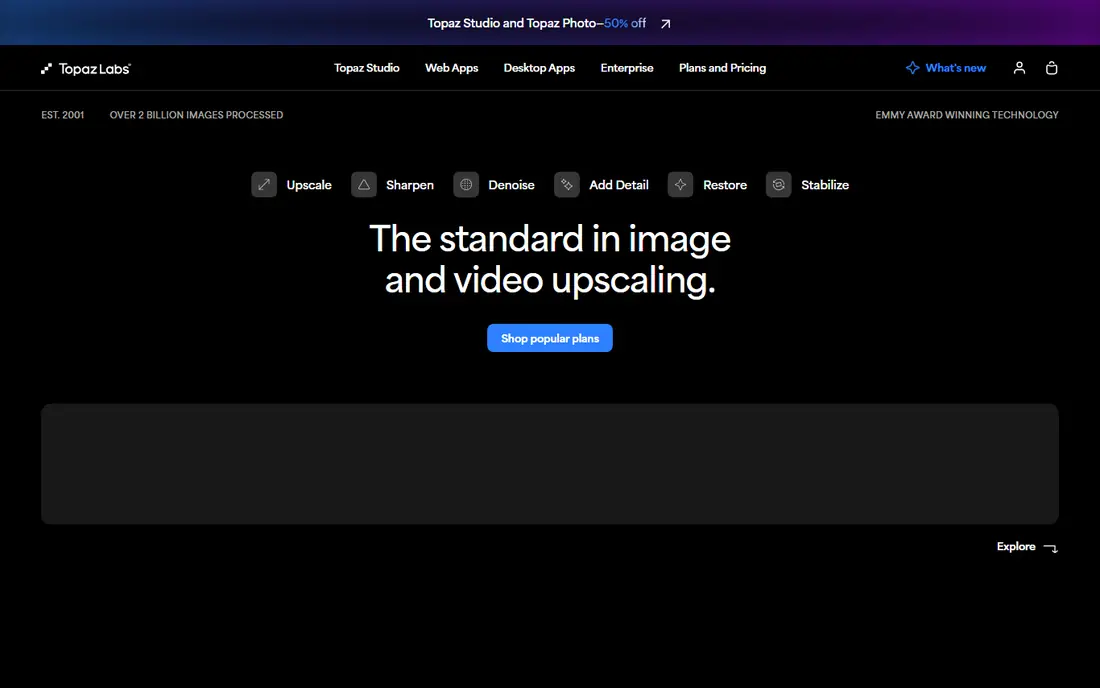
Topaz Photo AI is the specialist to use when a portrait is technically flawed. It removes noise from high ISO shots, sharpens soft focus, and upscales small images for print. Processing runs on your PC, which helps with client privacy and offline work.
For portraits, the risk is over-processing. Default settings can make skin look plastic, so pull sliders back and compare before and after at 100 percent zoom. Use Topaz for repair, then do creative retouching in Luminar Neo, Lightroom, or Photoshop.
- Strong denoise, sharpen, and upscale models
- Works standalone or as a plugin
- Local processing
- Can over-smooth skin if settings are high
- Slower on older PCs
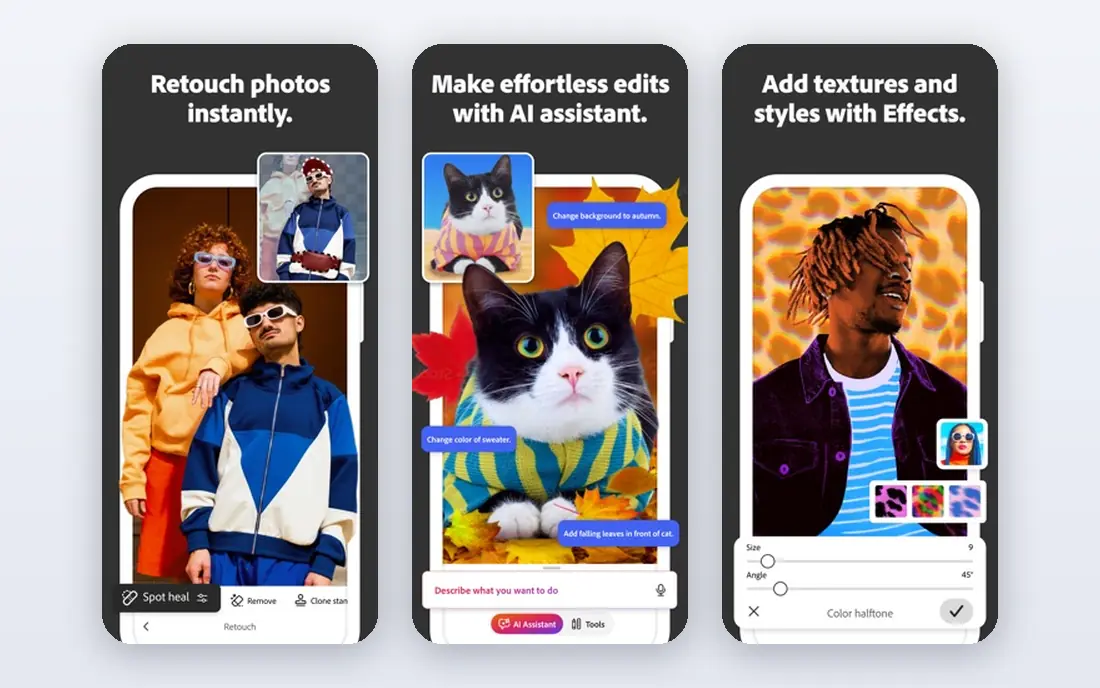
Photoshop remains the most complete portrait editor for PC, with layers, masks, and generative tools for removing objects, expanding backgrounds, and changing elements. For commercial portraits that need compositing or precise retouching, no simpler app matches its control. The large tutorial base also helps when you hit a tricky edit.
The price and learning curve are real drawbacks. At about $22.99 per month on an annual plan, it costs more over time than a one-time editor, and beginners may find the interface dense. If you only need quick retouching, Luminar Neo or Evoto may be faster.
- Generative fill and expand
- Layers and masks
- Huge plugin and tutorial base
- Subscription only
- Learning curve for beginners
Lightroom is best for photographers who shoot many portraits and need to organize, cull, and edit them fast. AI masking can select a person, face, or background in one step, and you can apply the same edit across a whole shoot. That batch workflow is where Lightroom beats a single-image editor.
It is not a full pixel editor, so heavy retouching or compositing still needs Photoshop. Check the current Photography plan price on the Adobe site, since plan names and prices change. For a portrait business, Lightroom plus Photoshop is still a common pair.
- AI masking for people and backgrounds
- Strong library tools
- Batch editing for shoots
- Subscription only
- Less pixel-level control than Photoshop
DxO PhotoLab is known for raw quality, with strong denoise and lens corrections that give portraits a clean starting point. Its DeepPRIME denoise is especially useful for indoor and low-light portraits, where noise can ruin skin tones. Processing stays on your PC, which suits client work.
Portrait-specific retouching is thinner than in Luminar Neo or Evoto, so you may still need another tool for skin and face work. Use DxO as your raw converter and first-stage editor, then finish portraits in a retouching specialist if needed.
- Excellent raw conversion and denoise
- Lens corrections
- Local processing
- Portrait retouching tools are lighter than Luminar Neo
- Catalog is basic
ON1 Photo RAW aims to be a single app for organizing, raw editing, and AI portrait work on PC. It offers AI masking, portrait tools, and layers without a required subscription, which appeals to photographers who dislike monthly fees. The one-time purchase model also makes long-term cost easier to predict.
The interface packs in many tools, so new users may need time to learn where portrait features live. Performance depends on your PC, especially with large raw files. Try the trial with your own shoots before replacing Lightroom or Luminar Neo.
- Full editor with AI masking
- One-time purchase option
- Local processing
- Interface can feel busy
- Performance varies by PC
Evoto is built for photographers who retouch hundreds of portraits, such as school, wedding, and studio shoots. Its AI can retouch skin, adjust makeup, and clean backgrounds across a batch, with controls to keep results consistent. That speed is hard to match with manual editing in Photoshop.
Costs depend on credits or subscription, so high-volume users should calculate the per-image cost before committing. Also check where processing happens, since some features use cloud servers. For client portraits, confirm that the privacy terms fit your contracts.
- Fast AI retouching for many portraits
- Skin, makeup, and background tools
- Batch workflow
- Credit or subscription costs add up at volume
- Cloud processing for some features
PortraitPro focuses on faces, with sliders for skin smoothing, eye brightening, face shaping, and makeup. That narrow focus makes it fast for headshots and profile photos, since you do not need to learn a full editor. Beginners can get a clean result in minutes.
The same simplicity is a limit. PortraitPro does not replace Lightroom for libraries or Photoshop for compositing, and heavy slider use can look artificial. Use it for quick face work, and keep the effect subtle, especially for professional headshots where a natural look matters.
- Face detection and sliders for retouching
- Simple workflow
- Good for headshots
- Narrower than a full editor
- Results can look overdone if sliders are high
How we picked these
We compared official product pages, pricing pages, and feature lists for PC portrait editors active in October 2026. We favored apps that run on Windows or macOS, offer AI portrait or enhancement features, and are still maintained. We included full editors, raw converters, and retouching specialists, and we noted where pricing is subscription, one-time, or credit-based.
How to choose a PC portrait app
Start with your volume and output. A hobbyist editing family photos needs a different tool than a studio editing hundreds of headshots. For occasional portraits, Luminar Neo or ON1 Photo RAW covers most needs. For volume work, add Evoto or PortraitPro for speed.
Next, check your PC and privacy needs. Local processing tools like Topaz Photo AI, DxO PhotoLab, and ON1 Photo RAW keep photos on your machine, which helps for client work. Browser and cloud tools may be faster to start, but they upload images to servers, so read the privacy terms.
Finally, test on your own portraits before paying. Run the same headshot through two or three apps, zoom to 100 percent, and check skin texture, eyes, and hair edges. A tool that looks good in a small preview can fail at print size, and only your own photos will show that.
FAQ
What is the best AI portrait app for PC for beginners?
Luminar Neo is a good beginner pick, since its AI portrait tools are easy to use and it does not require a subscription for a perpetual license. PortraitPro is even simpler for face-only work, while Photoshop is better once you want full control.
Can AI portrait apps run on a normal laptop?
Most can, but speed depends on your processor, memory, and graphics card. Topaz Photo AI and raw editors are slower on older machines, so try a trial with large files before buying. Close other apps during batch exports to avoid slowdowns.
Are AI portraits safe for client work?
They can be, if you check privacy terms and keep edits natural. Local tools keep photos on your PC, while cloud tools upload them to servers. Tell clients how their photos are processed if your contract requires it, and avoid over-retouching that changes a person's appearance in a misleading way.
Do I need Photoshop if I have Luminar Neo?
Not always. Luminar Neo covers most portrait retouching and enhancement, and ON1 Photo RAW covers libraries and raw editing. You still need Photoshop for complex compositing, precise masking, and commercial work that requires layers.
How much should I pay for a portrait app?
It depends on use. A one-time editor can cost less over two years than a subscription, while a volume retouching tool may charge per image. Calculate your yearly cost based on how many portraits you edit, and start with a trial before committing.