Best Text to Speech App for PC in 2026: 8 Apps Compared
Compare the best text to speech app for pc in 2026, with natural voices, document reading, study help, and audio export for Windows PC users for daily use.
- Editor's choice
 NaturalReader
All-round PC reading
Starts atFreeVisit naturalreaders.comFull review - Great alternative
 Balabolka
Free PC text to speech
Starts atFreeVisit cross-plus-a.comFull review - Also consider
 Murf AI
Realistic voiceover studio
Starts atSee websiteVisit murf.aiFull review
TL;DR:
- NaturalReader is the best all-round PC text to speech app, with natural voices, document reading, and a simple interface.
- Balabolka is the best free PC option, with wide file support and voice control, though its design looks dated.
- Murf AI and ElevenLabs lead for realistic voiceover work, with studio tools and voice cloning options for creators.
- Speech Central and TTSReader suit readers who want a free, simple way to listen to articles, books, and documents.
- Our pick for most PC users is NaturalReader for daily reading, with Balabolka as a free backup.
Quick comparison
| Tool | Best for | Starts at | Free plan? | |
|---|---|---|---|---|
| NaturalReader | All-round PC reading | Free | Yes | Visit |
| Balabolka | Free PC text to speech | Free | Yes | Visit |
| Murf AI | Realistic voiceover studio | See website | Free trial | Visit |
 ElevenLabs | Most natural AI voices | Free | Yes | Visit |
 Speech Central | Simple article and book reading | Free | Yes | Visit |
 TTSReader | Free browser and PC reading | Free | Yes | Visit |
 Voice Dream Reader | Accessible reading with sync | See website | Free trial | Visit |
 Capti Voice | Study reading and playlists | See website | Free trial | Visit |
The best text to speech app for pc options
We compared official feature pages, pricing pages, and app listings for text to speech tools that work on Windows PCs in October 2026. The list covers daily reading, study, accessibility, and voiceover work, with a note on the difference from speech to text software for PC.
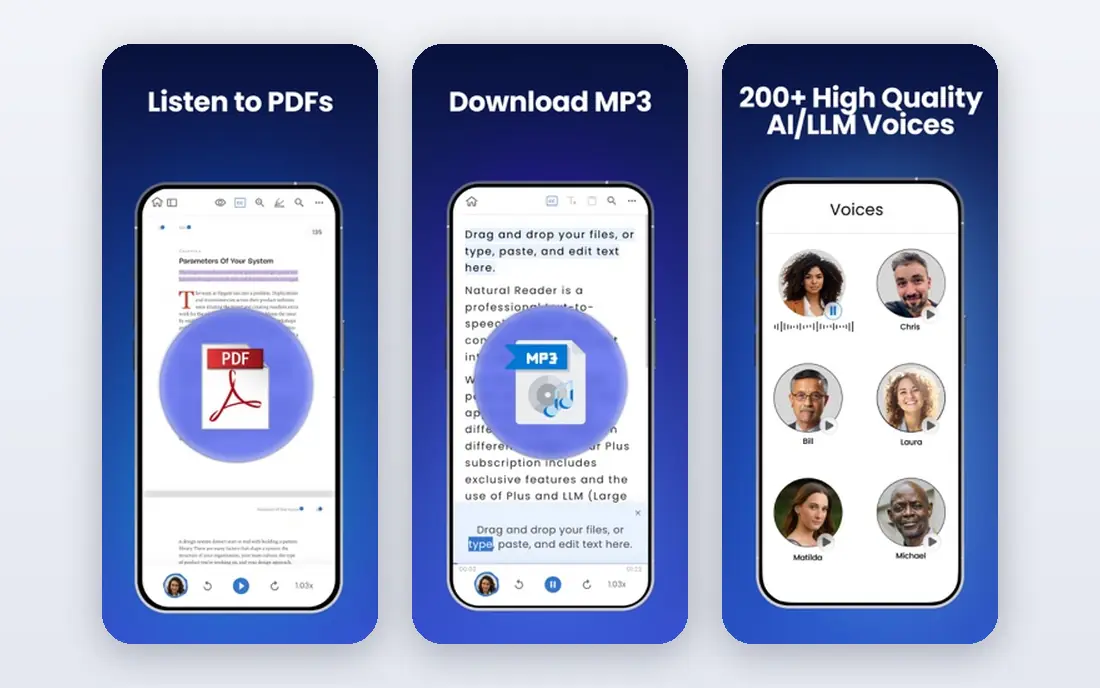
NaturalReader is the most complete daily reading app on this list. Open a PDF, Word document, ebook, or web page, press play, and it reads aloud with a voice that sounds far more natural than older computer voices. You can change speed, follow along with highlighted text, and switch voices for different kinds of material.
The free tier is enough to test daily reading, but the most natural voices and longer listening sit behind paid plans. That is a fair trade for most users, since free voices are still usable for articles and study notes. For students, workers, and readers who listen for hours each week, NaturalReader is our top pick among PC text to speech apps.
- Natural sounding voices
- Reads PDFs, Word docs, and web pages
- Speed and highlight controls
- Best voices need a paid plan
- Free tier limits daily use

Balabolka is a long-running free Windows program that turns text into speech without a subscription. It opens TXT, DOCX, PDF, EPUB, and other formats, reads with voices installed on your system, and can save spoken text as an audio file for listening later. You can also adjust speed, pitch, and pronunciation with a dictionary for tricky words.
The interface looks old, and voice quality depends on which voices you have on your PC, since Balabolka uses system voices by default. If you add better Microsoft or third-party voices, quality improves a lot. For a free, offline-capable PC tool with no monthly cost, Balabolka is hard to beat.
- Completely free for Windows
- Supports many file types
- Can save audio to MP3 and other formats
- Dated interface
- Voice quality depends on voices installed on your PC

Murf AI suits creators who need voiceover, not just reading. You paste a script, pick a voice, adjust pauses and emphasis, and export audio for video, training, or presentations. The studio layout makes it easy to match voice timing to slides or video clips, which a simple reader cannot do as well.
That focus means Murf is more than most daily readers need, and paid plans are needed for longer projects and commercial use. Check the current trial and plan limits on the vendor site before you start a large project. For voiceover work on a PC, Murf is a strong, polished choice.
- Studio for voiceover projects
- Many realistic voices and languages
- Easy audio editing and export
- Paid plans needed for serious use
- More studio than simple reader
ElevenLabs is known for voices that sound close to human speech, with natural pauses and intonation. The free tier lets you test voices and generate short audio, while paid plans add more characters, more voices, and commercial rights. It also offers voice cloning, where you can create a voice model from your own recorded voice with consent and verification steps.
Use voice tools with care. Do not clone another person voice without clear permission, and follow ElevenLabs rules for synthetic media. For narration, audiobooks, and video voiceover where voice quality matters most, ElevenLabs is a leading PC-friendly option through its web studio.
- Very natural voices in many languages
- Voice cloning for own voice
- API for developers
- Free tier limits characters per month
- Ethical rules restrict some voice uses
Speech Central is a reader built for people who listen to a lot of web content. Save articles, books, and documents into a playlist, press play, and listen through them in order, even when you step away from the screen. That playlist model suits commutes, workouts, and long reading lists that would take hours to read on screen.
The app is less polished than NaturalReader, but it is practical and affordable for daily use. Free features cover core reading, while extra voices and features may need a purchase. For readers who want a simple queue of articles and books on PC, Speech Central is a solid pick.
- Reads web articles, books, and documents
- Playlist for listening
- Works on Windows and mobile
- Interface is functional rather than polished
- Some voices are paid extras
TTSReader is the quickest way to try text to speech on a PC, because it runs in a browser with no install. Paste text, upload a file, or open a web page, and it reads aloud with voices available in your browser. You can change speed and voice, and listen while you do other work in another window.
The trade-off is offline use and voice quality, which depend on your browser and system. For occasional reading, proofreading your own writing aloud, or listening to a short article, TTSReader is excellent and free. For long daily listening, a dedicated app such as NaturalReader or Balabolka will feel smoother.
- Free and easy to use in a browser
- Reads pasted text and uploaded files
- No install needed
- Browser-based, so offline use is limited
- Voice choice depends on browser voices
Voice Dream Reader is well known for accessible reading, with features that help readers with dyslexia, low vision, and other reading needs. It offers synchronized highlighting, adjustable fonts and spacing, and support for PDFs, ebooks, and web articles. The reading experience is calm and focused, with controls that are easy to reach.
PC users should check the current Windows and web options on the vendor site, since Voice Dream started on mobile and its desktop path has changed over time. For accessibility-first reading across devices, it remains a respected choice, and its focus on readability sets it apart from general voiceover studios.
- Strong accessibility features
- Syncs across devices
- Supports many document types
- PC use is through web and companion tools
- Pricing varies by platform
Capti Voice is built for education, with playlists that help students work through readings, articles, and books in order. Teachers can assign readings, students can listen at their own pace, and the app tracks progress through a list. That structure suits coursework where a reading list is long and time is short.
Capti is less useful for voiceover production or casual article reading, since its strength is study playlists. The free trial lets you test the workflow, while paid plans cover school and individual use. For students who need to get through many readings, Capti is a focused, helpful tool.
- Built for students and educators
- Playlists for articles and books
- Accessibility focused
- Paid after trial for full use
- Less suited to voiceover production
How we picked these
We compared official feature pages, pricing pages, and Windows compatibility notes, and we favored tools that still work on PC in October 2026, that offer a usable free tier or trial, and that fit text to speech rather than only dictation. We note the difference clearly: text to speech reads text aloud to you, while speech to text software for PC turns your spoken words into written text, which is a different tool for dictation.
We also weighed voice quality, file support, and offline use. A reader that only handles pasted text is less useful than one that opens PDFs and ebooks, and a studio that only makes voiceovers is less useful for daily reading. The list therefore mixes simple readers, free PC programs, and voiceover studios, so you can pick based on your main job.
How to pick a PC text to speech app
Start with how you will listen. If you read articles and books daily, pick a reader with highlighting, speed control, and playlist support, such as NaturalReader or Speech Central. If you only need occasional reading and want no cost, Balabolka or TTSReader will cover you. If you make videos or training audio, pick a studio such as Murf AI or ElevenLabs.
Voices and listening comfort
Test voices before you pay. A voice that sounds fine for one paragraph can feel tiring after an hour, so listen to a full article with each candidate. Check speed controls, pause handling, and how the app reads headings, lists, and numbers. For study, highlighting that follows the spoken word helps you stay on track and find your place again after a break.
Files, offline use, and export
Check which files the app opens, whether it works offline, and whether you can export audio. Balabolka exports audio well and works offline with system voices, while browser tools need a connection. If you listen on a phone as well as a PC, pick an app with sync or a web version so your place and playlists carry over.
Accessibility and proofreading uses
Text to speech also helps with proofreading and accessibility. Listening to your own draft aloud catches awkward sentences and repeated words that eyes miss on screen. For readers with dyslexia or low vision, look for adjustable text size, spacing, and highlighting, as in Voice Dream Reader and Capti Voice, rather than only voice quality.
FAQ
What is the best text to speech app for pc?
NaturalReader is the best all-round PC text to speech app for daily reading, with natural voices and broad file support. Balabolka is the best free PC option, while Murf AI and ElevenLabs lead for voiceover work. Pick based on whether you read, study, or create audio.
Is there a free text to speech app for Windows?
Yes. Balabolka is free for Windows, and TTSReader is free in a browser. NaturalReader, ElevenLabs, and Speech Central also offer free tiers, with paid plans for better voices and longer use. Voice quality on free tiers depends on system and browser voices.
What is the difference between text to speech and speech to text software for pc?
Text to speech reads written text aloud to you, which helps with reading, study, and accessibility. Speech to text software does the reverse: it turns your spoken words into written text for dictation and transcription. Some suites offer both, but most tools on this list focus on reading aloud.
Can text to speech apps read PDFs and ebooks?
Yes, most PC readers on this list open PDFs, Word documents, and ebooks, though scanned PDFs with no text layer may need optical character recognition first. NaturalReader, Balabolka, and Voice Dream Reader all support common document types, so check file support for your exact format before you pay.
Which text to speech voice sounds most natural?
ElevenLabs and Murf AI currently offer some of the most natural AI voices, with realistic pauses and intonation. NaturalReader paid voices are also strong for daily reading. Test voices with a full article, since a short sample can hide pacing issues that show up over longer listening.
Can I save text to speech audio as an MP3?
Balabolka can save spoken text as audio files, and Murf AI and ElevenLabs export audio for projects. Simple browser readers may not export audio, so check export options if you want to listen offline on another device or use the audio in a video.