Best AI Generative Recolor Service in 2026: 9 Tools Compared
Best AI generative recolor service, compared for photos, vectors, products and brand palettes, so you can change colours easily without a reshoot in 2026.
- Editor's choice
 Recraft
Vector recolor and brand styles
Starts atFreeVisit recraft.aiFull review - Great alternative
 Adobe Firefly
Photos and vectors in Adobe apps
Starts atFreeVisit firefly.adobe.comFull review - Also consider
 Canva
Quick recolor for social and marketing
Starts atFreeVisit canva.comFull review
TL;DR:
- Recraft and Adobe Firefly lead for true generative recolor, one for vectors and brand styles, the other for photos inside Adobe apps.
- For product photos, Photoroom, Picsart and Pixelcut recolor faster than a general image generator, because they keep the product shape intact.
- Check commercial rights, credit costs and output resolution before you commit, because a pretty preview at low resolution may not print or publish well.
- Always test a recolor on your real product or artwork, not just on a demo image, because colour accuracy varies by subject and lighting.
Quick comparison
| Tool | Best for | Starts at | Free plan? | |
|---|---|---|---|---|
| Recraft | Vector recolor and brand styles | Free | Yes | Visit |
| Adobe Firefly | Photos and vectors in Adobe apps | Free | Yes | Visit |
| Canva | Quick recolor for social and marketing | Free | Yes | Visit |
 Photoroom | Product photo recolor and backgrounds | Free | Yes | Visit |
 Picsart | Mobile photo recolor and edits | Free | Yes | Visit |
 Fotor | Easy online photo recolor | Free | Yes | Visit |
 Pixlr | Browser photo editing and recolor | Free | Yes | Visit |
 Kittl | Design and vector recolor | See website | Free trial | Visit |
 Pixelcut | Ecommerce photo recolor | Free | Yes | Visit |
The best AI generative recolor services
Generative recolor means using AI to change the colours in an image or design from a prompt, a palette or a reference, without redrawing it by hand. Some tools recolor vectors, some recolor photos, and some do both. The best choice depends on whether you are recoloring a logo, a product photo, a social graphic or a full illustration.
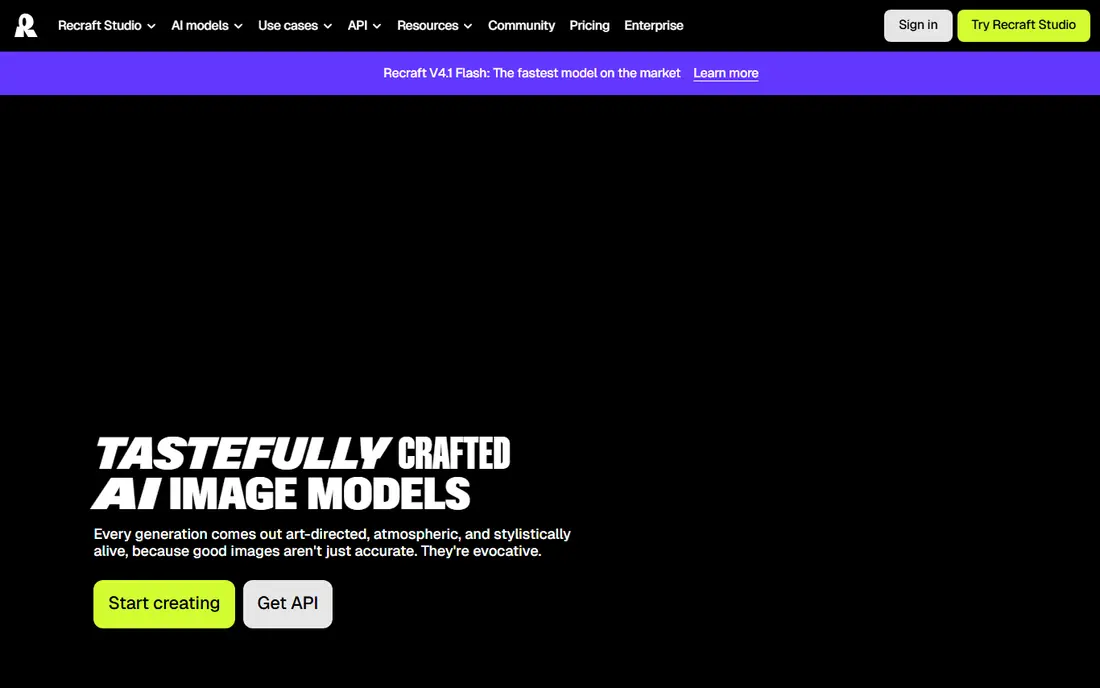
Recraft is our pick for vector recolor, because it was built for design work that ends in a scalable file. You can generate or upload vector artwork, then recolor it with a prompt or palette, and keep clean edges that scale to print or web. Paid plans start at $10 per month billed annually for Basic, with 1,000 credits and commercial rights, while Pro at $16 per month billed annually adds more credits and video features.
The catch is the free plan. It is useful for trying Recraft, but images are public and do not include commercial rights, so business use needs a paid plan. Credit costs also vary by task, so a high-volume team should test its real workflow before committing. For brand vectors, illustrations and logo variations, Recraft is the strongest generative recolor service here.
- Strong vector generation and recolor
- Brand styles and palettes
- Commercial rights on paid plans
- Free plan images are public and lack commercial rights
- Credit system needs checking for volume work
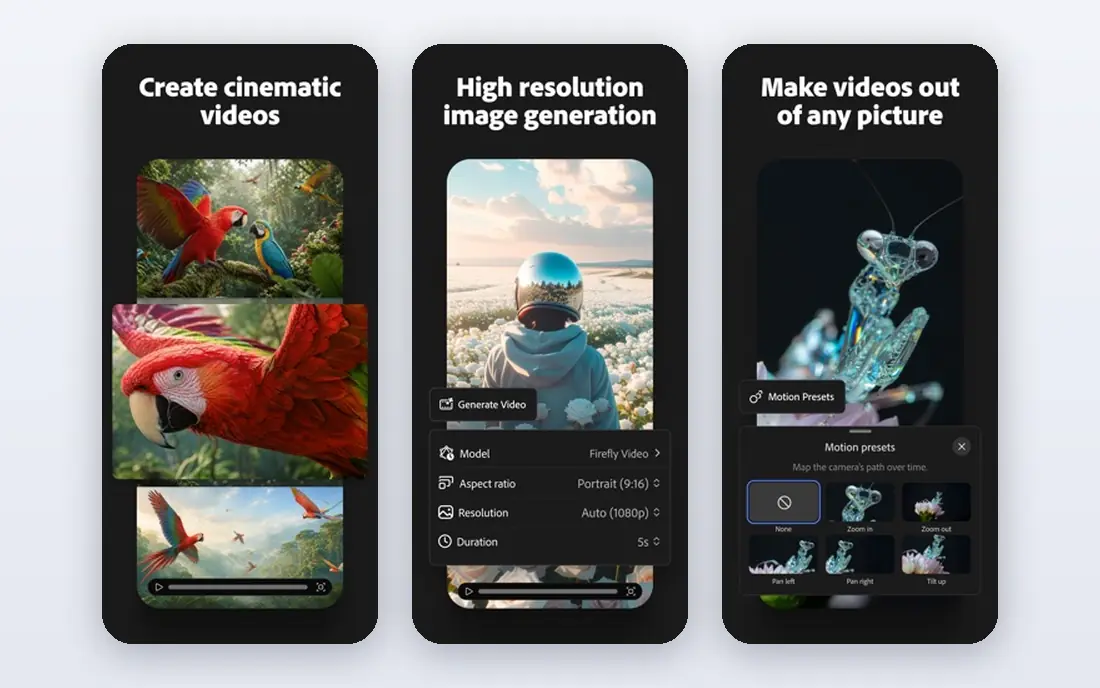
Adobe Firefly is the best generative recolor choice inside the Adobe ecosystem. In Illustrator, Generative Recolor can create colour variations of vector artwork from a natural-language prompt, such as autumn forest colours or a neon palette. In Photoshop, generative fill and related tools can change colours and elements in a photo while keeping the rest of the image intact. Standard starts at $9.99 per month with 2,000 generative credits, and Pro at $19.99 adds more credits plus Photoshop and Express access.
The drawback is credit maths. Partner models and video use credits faster, and a Creative Cloud subscriber may already have credits bundled, so buying a separate Firefly plan can be redundant. For a designer already in Illustrator or Photoshop, Firefly's recolor tools are convenient and commercially positioned. For a standalone recolor tool, Recraft may be simpler.
- Generative Recolor in Illustrator
- Photo recolor in Photoshop
- Commercially safer Adobe models
- Credit system can get costly on partner models and video
- Best value if you already use Creative Cloud
Canva suits marketers and small teams who need a quick recolor inside a design they are already making. You can adjust colours, apply brand palettes, remove a background and recolor elements in a social post, presentation or ad, without leaving the editor. The free plan covers basic design, while Pro at $144 per year adds brand kits, background removal and fuller AI features.
The limitation is precision. Canva's recolor tools are easy, but they do not match the vector control of Recraft or the photo control of Photoshop for detailed work. A team that needs exact brand colours across many assets should set up a Canva brand kit and test output carefully. For fast social and marketing recolors, Canva is the easiest tool on this list.
- Very easy to use
- Recolor tools inside a full design suite
- Huge template library
- Recolor control is less precise than Recraft or Firefly
- Pro needed for full brand and background tools
Photoroom is built for product photos, and that focus shows in its recolor workflow. You can change a product colour, clean up a background and prepare marketplace-ready images in batches, which matters when a catalogue has the same product in several colours. Pro starts at $7.50 per month billed annually, which is competitive for a small ecommerce team.
The catch is scope. Photoroom is excellent for product shots on clean backgrounds, but less suited to recoloring a complex illustration or a vector logo. If your main job is product listings, Photoroom's speed and batch tools make it a strong pick. If you need vector recolor, pair it with Recraft or Firefly instead.
- Fast batch edits
- Clean backgrounds
- Pro from $7.50 per month billed annually
- Best for product photos, less for complex illustrations
- Some features need Pro
Picsart is the mobile-first recolor option, with AI tools that can change colours, replace backgrounds and restyle photos from a phone. That suits creators, social teams and small sellers who shoot and edit on mobile, and who need a quick colour change before posting. The app is easy to learn, and sharing to social platforms is built in.
The drawback is that the free plan is limited, and full AI features need a paid subscription, with pricing varying by region and platform. Precision is also lower than desktop tools for detailed product work. For fast, mobile recoloring and social content, Picsart is convenient and fun to use. For catalogue accuracy, a desktop product tool such as Photoroom will be steadier.
- Strong mobile editing
- AI recolor and replacement tools
- Easy social sharing
- Free plan has limits and watermarks on some exports
- Subscription needed for full AI features
Fotor is a straightforward browser photo editor with AI recolor tools, suitable for users who want to change colours without installing software or learning Photoshop. Upload a photo, use the AI tools to adjust or replace colours, and export the result for web or social use. The interface is friendly for beginners, and basic editing is free.
The limitation is depth and export limits. Free use is limited, and the most useful AI features sit behind a paid plan, with pricing shown on Fotor's site. Colour accuracy on complex photos can also vary, so test on a real image before relying on it for a product catalogue. For occasional, easy online recoloring, Fotor is a practical choice.
- Simple browser editor
- AI photo tools including recolor
- No software install needed
- Free exports have limits
- Advanced AI features need a paid plan
Pixlr offers a fuller browser editor than Fotor, with layers, masks and AI tools that can help with recoloring and background work. That extra control suits users who want more than a one-click colour change, but who still prefer a browser tool to a desktop app. The free tier lets you try the editor, with paid plans for fuller AI access and higher-resolution exports.
The catch is complexity. Pixlr's interface packs in many tools, so a beginner may feel overwhelmed at first, and some AI features need a paid plan or credits. For a user comfortable with layers who wants browser-based recolor control, Pixlr is a strong, flexible option. For a one-click product recolor, Photoroom will be faster.
- Full browser editor with layers
- AI tools for colour and background
- Free tier to start
- Interface can feel busy for beginners
- Some AI features need a paid plan or credits
Kittl is a design platform for illustrations, logos, merch and print designs, with tools that support recoloring vector-style artwork and applying consistent palettes. It suits designers and small brands who want to create and recolor artwork for t-shirts, posters and social graphics in one place, with outputs that work for print as well as web.
The drawback is that Kittl is a broader design tool, not a single-purpose recolor service, so a user who only needs photo recoloring will find it more than necessary. Pricing varies by plan and should be checked on Kittl's site, and new designers will need time to learn the editor. For design-led recolor work, especially for merch and print, Kittl is worth a trial.
- Design-focused editor
- Vector and illustration tools
- Brand and print-ready outputs
- Pricing is shown on Kittl's site and varies by plan
- Learning curve for new designers
Pixelcut is built for sellers who photograph products on a phone and need clean, marketplace-ready images quickly. Background removal, colour changes and studio-style backgrounds can be applied in the app, and Pro starts at $8 per month billed annually. For a small seller listing on marketplaces or social shops, that mobile workflow saves time.
The limitation is desktop depth. Pixelcut is mobile-first, so a team that needs precise desktop editing, vector recolor or batch catalogue work at scale may prefer Photoroom or Recraft. For a phone-based seller who needs a fast, affordable recolor and background tool, Pixelcut is a practical pick.
- Built for selling from a phone
- Background removal and recolor
- Pro from $8 per month billed annually
- Mobile-first focus means desktop depth is lighter
- Some features need Pro
How we picked these
We compared official feature pages, pricing pages and public AI image tool comparisons in October 2026. We favoured tools with a clear generative recolor feature for photos, vectors or products, plus commercial rights information and export options, and we noted where pricing was free, published or shown on the vendor site. We did not claim hands-on testing. We included vector, photo, mobile and ecommerce tools, because generative recolor means different things for a logo, a product photo and a social graphic.
How to get a recolor that looks real
Start with the best original you have. A well-lit, sharp photo recolors far better than a dark or blurry one, because the AI has clear edges and colours to work from. Describe the new colour precisely, such as navy blue cotton, rather than just blue, and name what should stay the same, such as the label, texture and shadows. If the first result changes the product shape or adds a strange detail, try a more specific prompt or switch to a tool that keeps the product intact, such as Photoroom for product photos.
Next, check the result at full size, not just as a small preview. Zoom in on edges, text and patterns, and compare the new colour against a real sample or a brand colour code where accuracy matters. For a product catalogue, recolor one item first and show it to a colleague or customer before batching the whole range, because a small colour error repeated across hundreds of listings is costly to fix. Keep the original file, so you can redo a recolor if a tool updates its model or credits run out.
Colour accuracy and commercial use
Generative recolor is not a perfect colour match, and it should not be presented as one for products where exact shade matters, such as paint, fabric or cosmetics, without a disclaimer or a real photo of the actual colour. Check the tool's terms for commercial use, because free plans often limit commercial rights, as with Recraft. If you recolor a photo you do not own, or a brand logo you do not have rights to, the tool's terms do not give you those rights. Use your own images, or images you have a licence for, and keep a record of the source.
FAQ
What is the best AI generative recolor service?
Recraft is best for vector recolor and brand styles, Adobe Firefly is best inside Adobe apps for photos and vectors, and Photoroom is best for product photo recolor at scale. Canva suits quick social recolors, while Picsart and Pixelcut suit mobile work. Choose based on whether you are recoloring a vector, a product photo or a social graphic, and test on a real image before committing.
Can AI recolor a product photo without changing its shape?
Often, yes, especially with product-focused tools such as Photoroom and Pixelcut, which are built to keep the product shape intact while changing colour and background. General image generators can be less reliable, and may alter details, text or texture. Test on your real product, zoom in on edges and labels, and use a product tool rather than a general generator when catalogue accuracy matters.
Is Adobe Firefly Generative Recolor free?
Adobe Firefly has a free plan with limited generative credits, and paid plans start at $9.99 per month for Standard with 2,000 credits. Generative Recolor in Illustrator is part of the Adobe workflow, so a Creative Cloud subscriber may already have credits bundled. Check the current Firefly plan page, because credit allowances and promotions change, and partner models can use credits faster than Adobe's own models.
Can I use recolored images commercially?
It depends on the tool and plan. Recraft's free plan does not include commercial rights, while its paid plans do, and Adobe positions outputs from its own Firefly models as commercially safer, subject to its terms. Canva, Photoroom and other tools also vary by plan. Always check the current terms for your plan, use images you own or have a licence for, and avoid recoloring protected brands or characters without permission.
How do I recolor a logo or vector illustration?
Use a vector tool such as Recraft or Adobe Illustrator with Firefly Generative Recolor, rather than a photo editor. Upload or open the vector file, choose a palette or prompt, and export as SVG or another vector format so edges stay sharp at any size. Check brand colours against their exact codes after recoloring, because AI palettes are a starting point, not a guaranteed brand match.
What is the difference between recolor and a colour filter?
A colour filter shifts the whole image toward a tint, often affecting shadows, highlights and skin tones in ways that look unnatural. Generative recolor aims to change a specific object or palette while keeping lighting, texture and other elements plausible. For a product, a targeted recolor is usually better than a filter, because it preserves the product's material and shading while changing only its colour.