Best AI Generative Expand Tools in 2026: 8 Tools Compared
Compare the best ai generative expand tools for 2026, from Photoshop and Firefly to Canva, Fotor, and dedicated outpainting apps, with prices and limits.
- Editor's choice
 Adobe Photoshop
High-resolution professional edits
Starts atSee websiteVisit adobe.comFull review - Great alternative
 Adobe Firefly
Web-based Adobe expansion
Starts atSee websiteVisit firefly.adobe.comFull review - Also consider
 Canva Magic Expand
Designs, ads, and social posts
Starts at$15 per monthVisit canva.comFull review
TL;DR:
- Adobe Photoshop gives the most control for high-resolution work, while Canva and Fotor suit quick social and design jobs.
- Free tiers are useful for a first test, but the best resolution and commercial options usually sit behind a paid plan.
- Check the join between the original image and the new area at full size before you publish or print it.
- Small expansions on simple backgrounds usually look cleaner than large expansions on busy scenes with hands, text, or faces.
Quick comparison
| Tool | Best for | Starts at | Free plan? | |
|---|---|---|---|---|
| Adobe Photoshop | High-resolution professional edits | See website | Free trial | Visit |
| Adobe Firefly | Web-based Adobe expansion | See website | Yes | Visit |
| Canva Magic Expand | Designs, ads, and social posts | $15 per month | Yes | Visit |
 Fotor AI Expand | Fast browser and mobile expansion | See website | Yes | Visit |
 PromeAI | Creative and design outpainting | See website | Yes | Visit |
 getimg.ai | Batch resizing and production work | See website | Yes | Visit |
 Photoroom | Product photos and catalog images | See website | Yes | Visit |
 Clipdrop Uncrop | Fast aspect-ratio changes | See website | Yes | Visit |
The best AI Generative Expand Tools
Generative expand tools, also called outpainting tools, extend an image beyond its original edges and fill the new area with matching content. We compared official feature pages, pricing pages, and app store listings to build this shortlist.
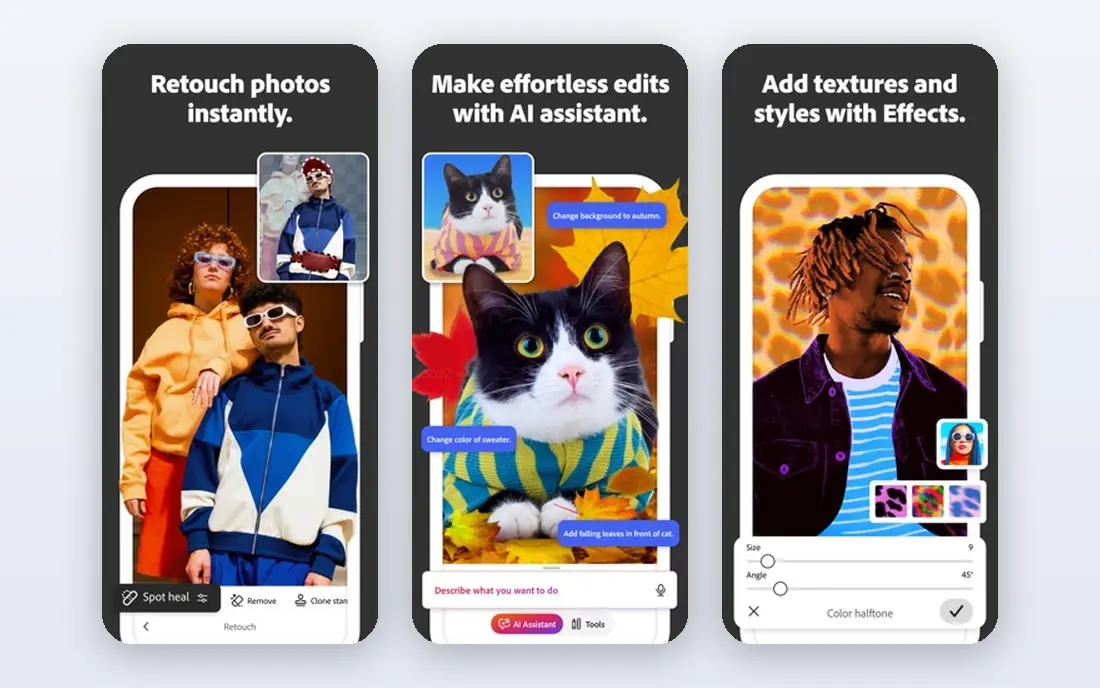
Adobe Photoshop suits designers and photographers who already work in Adobe apps. Its Generative Expand tools extend a canvas and fill new areas based on surrounding pixels or a short prompt. Layer control and high-resolution output make it easier to refine an expansion before export.
The subscription cost and learning curve make it heavy for a one-off resize. Pricing is subscription based, so check the Adobe page for the current plan before buying. Our shortlist came from official feature pages, pricing pages, and public reviews, not from claimed hands-on use.
Before you commit, test Adobe Photoshop with a real task from your own work, not a demo file. Check how it handles high-resolution professional edits, whether the result holds up at full size or in a real workflow, and whether the starting price of see website still makes sense once you add the features you actually need.
- Layer and mask control
- High-resolution output
- Strong edge matching on photos
- Subscription cost
- Learning curve for new users
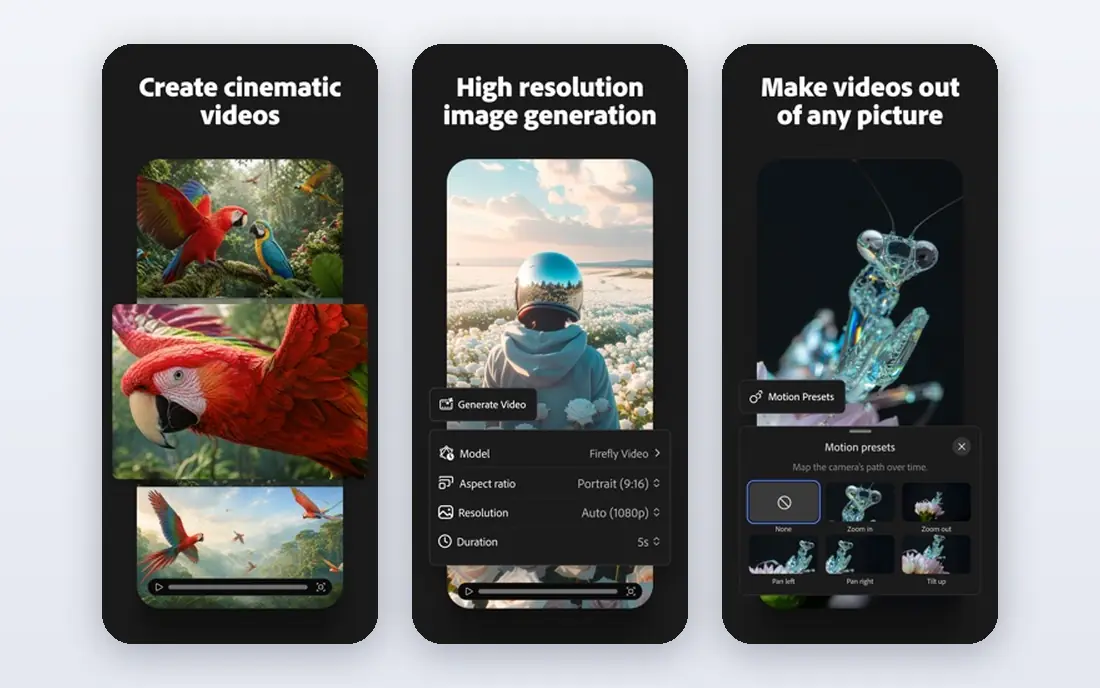
Adobe Firefly suits creators who want Adobe quality without installing desktop software. Its Generative Expand feature extends an image on the web and offers several versions to choose from. The Adobe link makes it easy to move a result into Photoshop for finishing.
Credit limits can slow a large batch, and it lacks full layer editing on its own. Check the current credit allowance on the Firefly page, since free and paid allowances change. We checked official pricing and feature pages before including this option, and we note its limits honestly below.
Before you commit, test Adobe Firefly with a real task from your own work, not a demo file. Check how it handles web-based adobe expansion, whether the result holds up at full size or in a real workflow, and whether the starting price of see website still makes sense once you add the features you actually need.
- No install needed
- Adobe ecosystem link
- Prompt and size controls
- Credit limits
- Less layer control than Photoshop

Canva Magic Expand suits marketers and small teams who expand images inside a design. Magic Expand extends a photo inside a Canva design and returns several options to pick from. Working inside the design saves an export and reimport step for social posts and ads.
Results can soften on detailed photos, and the full feature needs a Pro plan. Canva Pro is listed from $15 per month, with a free plan that covers basic design work. We compared official feature pages, pricing pages, and app store listings for this pick, rather than claiming hands-on use.
Before you commit, test Canva Magic Expand with a real task from your own work, not a demo file. Check how it handles designs, ads, and social posts, whether the result holds up at full size or in a real workflow, and whether the starting price of $15 per month still makes sense once you add the features you actually need.
- Expansion inside designs
- Preset and freeform sizes
- Templates and publishing in one place
- Magic Expand needs Pro
- Less photo precision than Photoshop
Fotor AI Expand suits casual users who want a fast expansion without learning a photo editor. Its AI expander extends an image to a chosen ratio and then lets you edit the result in the same editor. The browser-first flow is fast for a single image or a social crop.
Complex scenes can lose detail, and the free tier has limits on use and export. Check the Fotor pricing page for the current free limits before a large project. Our shortlist came from official feature pages, pricing pages, and public reviews, not from claimed hands-on use.
Before you commit, test Fotor AI Expand with a real task from your own work, not a demo file. Check how it handles fast browser and mobile expansion, whether the result holds up at full size or in a real workflow, and whether the starting price of see website still makes sense once you add the features you actually need.
- Quick browser workflow
- Mobile app
- Built-in editor for cleanup
- Free tier limits
- Variable detail on complex scenes
PromeAI suits designers who want prompt and direction control over an expansion. PromeAI outpainting lets you set direction, ratio, and prompts, which helps when the expansion must follow a layout. Direction control is useful for banners and posters where one side matters more than the other.
Credit costs add up on repeated generations, and photoreal results vary by scene. Use the free credits for a test image, then check paid credit packs for regular use. We checked official pricing and feature pages before including this option, and we note its limits honestly below.
Before you commit, test PromeAI with a real task from your own work, not a demo file. Check how it handles creative and design outpainting, whether the result holds up at full size or in a real workflow, and whether the starting price of see website still makes sense once you add the features you actually need.
- Direction and ratio controls
- Prompt guidance
- Design-focused outputs
- Credit-based pricing
- Photo realism varies by scene
getimg.ai suits creators and small studios with repeat resizing jobs. Getimg.ai offers outpainting with batch processing and ratio choices for repeat work. Batch tools save time when many images need the same new size.
The credit model needs care on large batches, and prompts matter for a clean join. Start with a small batch to learn credit use, then scale to a paid plan if the results hold up. We compared official feature pages, pricing pages, and app store listings for this pick, rather than claiming hands-on use.
Before you commit, test getimg.ai with a real task from your own work, not a demo file. Check how it handles batch resizing and production work, whether the result holds up at full size or in a real workflow, and whether the starting price of see website still makes sense once you add the features you actually need.
- Batch processing
- Several ratios
- Higher-resolution delivery options
- Credit model
- Interface suits creators more than casual users
Photoroom suits online sellers who need consistent product image sizes. Photoroom expands and adapts product photos while trying to keep the product itself intact. Catalog consistency matters here, and the tool is built around repeat product layouts.
It is less suited to general scenes, portraits, or editorial photos. Check the Photoroom pricing page, since product and team plans differ. Our shortlist came from official feature pages, pricing pages, and public reviews, not from claimed hands-on use.
Before you commit, test Photoroom with a real task from your own work, not a demo file. Check how it handles product photos and catalog images, whether the result holds up at full size or in a real workflow, and whether the starting price of see website still makes sense once you add the features you actually need.
- Product preservation
- Catalog-friendly workflow
- Background and layout tools
- Best for product shots, not general photo scenes
Clipdrop Uncrop suits social creators who need a quick reframe. Clipdrop Uncrop extends an image to a new aspect ratio with a simple upload and download flow. Speed is the point, and it suits a quick social reframe better than a print job.
Controls are limited, so a busy scene may need a second tool for cleanup. Use the free tier for a test, and check current limits on the Clipdrop site. We checked official pricing and feature pages before including this option, and we note its limits honestly below.
Before you commit, test Clipdrop Uncrop with a real task from your own work, not a demo file. Check how it handles fast aspect-ratio changes, whether the result holds up at full size or in a real workflow, and whether the starting price of see website still makes sense once you add the features you actually need.
- Very fast workflow
- Simple ratio choices
- Companion cleanup tools
- Limited controls
- Variable results on busy images
How we picked these
We started with products that exist and work in October 2026 and truly fit the topic, then we compared official feature pages, pricing pages, app store listings, and privacy terms. We kept a mix of well-known leaders and strong smaller options, and we left out products that did not fit, had unclear pricing, or raised safety concerns we could not resolve.
We also weighted the details that affect daily use, such as free-plan limits, total cost at real usage levels, and honest weaknesses. Where a price could not be verified from the vendor site or app store, we wrote See website rather than guessing a number.
How to Get a Clean Expansion
Start with the largest, cleanest source file you have, because a small or compressed image gives the tool less detail to copy. Keep the first expansion modest, then generate a few versions and pick the one where light, perspective, and texture line up. If a face, hand, or line of text sits near the edge, crop it out or expect to fix it by hand, since those details are the first to look wrong.
Match the tool to the job. A design tool is right when the expanded image goes straight into a post, slide, or ad. A photo editor is right when you need layers, masking, and print resolution. A dedicated outpainting site can be right for a single image, but check export size, watermark rules, and commercial terms before you rely on it for client work.
A final check before you pay is to read the cancellation, data export, and refund terms in full. A tool that is easy to leave is often easier to trust, since you can test it without feeling locked in. Keep a note of the renewal date, the plan limits, and the support route, so a small problem does not become a billing surprise later.
FAQ
What are the best ai generative expand tools for beginners?
Canva and Fotor are the easiest starting points, because expansion sits inside a familiar editor with preset sizes. Adobe Firefly is also approachable on the web, while Photoshop suits users who already know layers and masking.
What is top ai generative expand software for professional photo work?
Adobe Photoshop is our pick for professional work, thanks to layer control, masking, and high-resolution export. Firefly pairs well with it when you want a web-based start and a Photoshop finish.
Can free tools expand an image without a watermark?
Some free tiers do, but limits vary by tool and plan, so check the export screen before you start. Paid plans usually remove watermarks and raise resolution and monthly credits.
How large can I expand an image?
That depends on the tool, the source resolution, and the plan. Small to moderate expansions tend to hold up best, and very wide expansions may need upscaling or manual cleanup.
Do I own the expanded image?
Ownership and commercial use depend on the tool terms and, for client work, on the rights in the source image. Read the licence for the plan you buy, especially for advertising use.