Best Backblaze Alternatives in 2026: 9 Backup Services Compared
Looking for backblaze alternatives? We compare 9 cloud backup services on price, storage limits, device support, and restore options for home and business use.
- Editor's choice
 IDrive
Backing up many devices on one plan
Starts at$99.50 per yearVisit idrive.comFull review - Great alternative
 Carbonite
Simple backup for Windows PCs
Starts atSee websiteVisit carbonite.comFull review - Also consider
 CrashPlan
Small business endpoint backup
Starts atSee websiteVisit crashplan.comFull review
TL;DR:
- Backblaze charges per computer, so households and teams with many devices often pay less with a pooled storage plan such as IDrive.
- If you want full disk images plus security tools in one app, Acronis is the closest match, but it costs more and uses more system resources.
- Sync services such as pCloud and Sync.com are handy for access across devices, but they are not a full replacement for versioned computer backup unless you set them up that way.
- Restore speed matters as much as backup speed, so check version history, file size limits, and whether you can order a physical drive for a large restore.
- Our pick for most people is IDrive for multi-device value, with Carbonite as the simpler choice for one or two Windows PCs.
Quick comparison
| Tool | Best for | Starts at | Free plan? | |
|---|---|---|---|---|
| IDrive | Backing up many devices on one plan | $99.50 per year | Yes | Visit |
| Carbonite | Simple backup for Windows PCs | See website | No | Visit |
| CrashPlan | Small business endpoint backup | See website | No | Visit |
 Acronis Cyber Protect | Disk images plus security tools | $49.99 per year | No | Visit |
 pCloud | Cloud storage with backup options | $49.99 per year | Yes | Visit |
 Sync.com | Private cloud storage and sharing | See website | Yes | Visit |
 SpiderOak One Backup | Privacy focused backup | See website | No | Visit |
 Arq 7 | Backup to your own storage | $49.99 one time | No | Visit |
 Duplicati | Free backup to your own storage | Free | Yes | Visit |
The best backblaze alternatives
Backblaze is popular because setup is simple and storage for one computer is unlimited. The trade-offs appear when you add a second computer, need server backup, or want a full disk image. The services below cover those gaps without forcing you into a plan that does not fit.
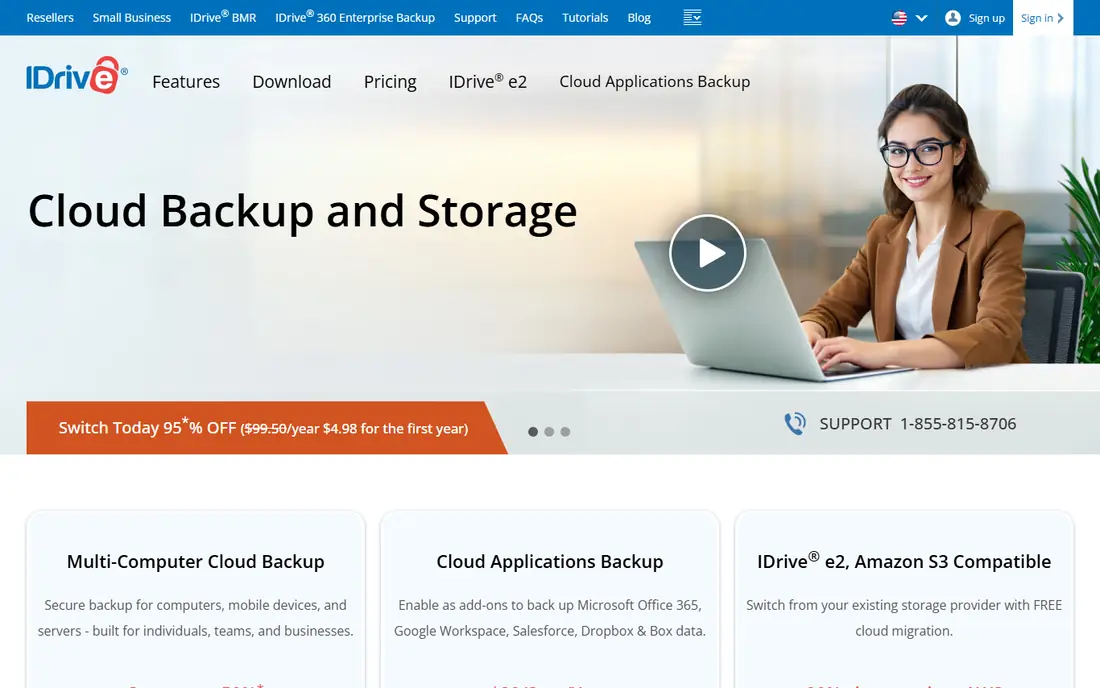
IDrive is our pick for most people because one storage pool can cover a household or a small team. You are not paying a separate unlimited fee for every laptop, and the same account can hold phone backups and external drive backups. That pooled model is the main reason it beats Backblaze for multi-device homes.
The catch is the learning curve. IDrive packs in sync, sharing, disk cloning, and server backup, so the first setup takes longer than Backblaze. Take time to confirm which folders are selected and to test a small restore before you trust it with everything.
- Pooled storage across unlimited devices
- Backs up computers, phones, and servers on business plans
- 10 GB free plan for basic use
- Interface feels busy at first
- Restore speeds vary with file size and connection
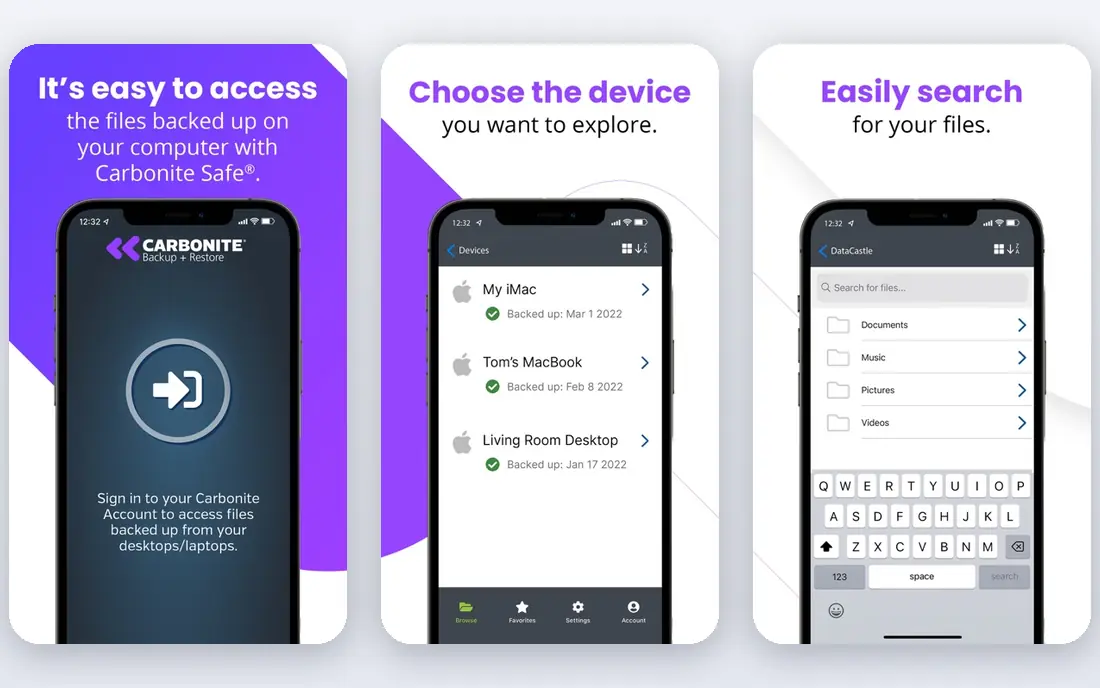
Carbonite suits people who want backup to run quietly in the background and do not want to manage storage pools. Once installed, it backs up common file types automatically, which is close to the Backblaze experience. Support for recovering files by courier on higher plans is a useful option after a major failure.
The main weakness is plan limits. Unlike Backblaze, Carbonite plans are not all unlimited for every device, so a household with large photo and video libraries should read the storage cap for the chosen tier. Windows users get the fullest experience, so Mac owners should check current feature details before buying.
- Straightforward setup for home users
- Automatic backup after install
- Courier recovery service on higher plans
- Mac support is more limited than Windows support
- Storage and device limits vary by plan
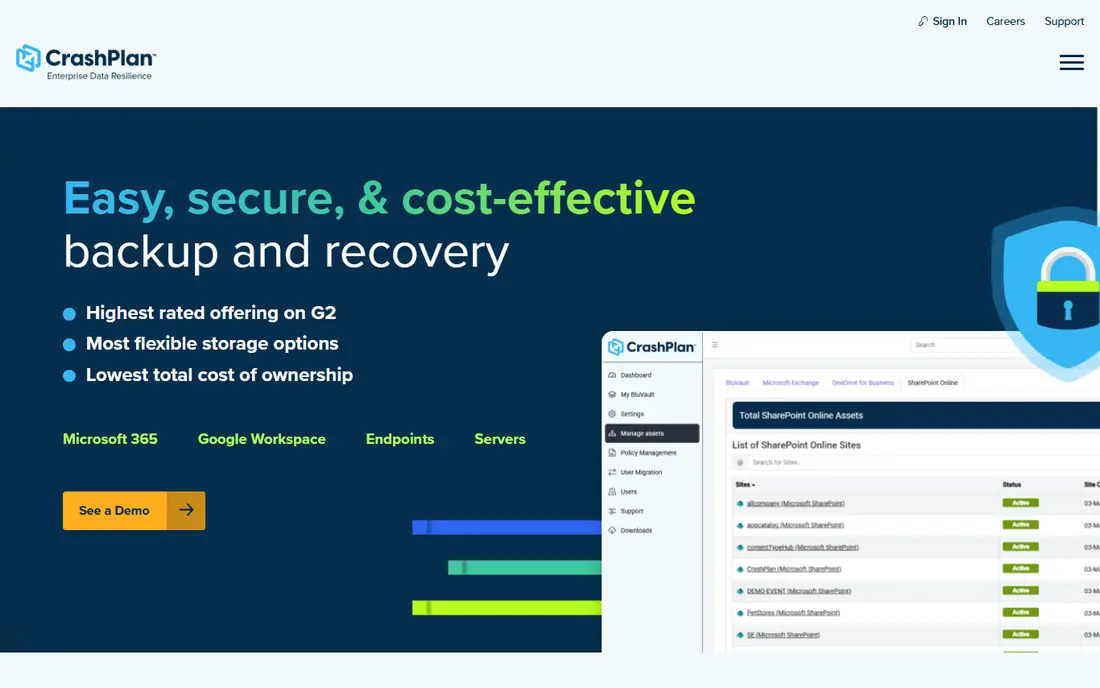
CrashPlan is built for teams that need to protect laptops across an office or a remote workforce. Admins can see backup status in one console, set retention rules, and restore files for a user without taking over that person's computer. That control is a clear step up from a consumer-only tool.
Home users may find it plain compared with friendlier apps, and pricing is quoted for business use. If you only need one home PC backed up, a consumer plan elsewhere will feel simpler and cheaper. For a small business, the admin tools justify the extra structure.
- Unlimited storage for covered devices on business plans
- Central admin console for teams
- Continuous backup with version history
- No free plan for new users
- Interface is business focused rather than home friendly
Acronis is the right choice if a failed drive should mean a full system restore, not just recovered documents. A disk image can bring back the operating system, apps, and settings together, which saves hours after hardware failure. The added security tools also appeal to people who want backup and protection in one subscription.
That breadth has a cost in complexity and performance. Backups and scans can slow an older computer, and cloud storage is not unlimited on every plan, so large collections need a higher tier. If you only need document backup, Acronis is more tool than you need.
- Full disk imaging and bare metal restore
- Built-in malware protection and ransomware defenses
- Local and cloud backup in one app
- Heavier on system resources than simple file backup
- Pricing rises with cloud storage and added devices
pCloud is best thought of as cloud storage first, with backup features added on top. Files stored in pCloud are available on every device, and you can share folders and links without sending large attachments. The lifetime option appeals to people who dislike yearly bills, though you should only choose it if you expect to use the service for years.
Be clear about what you are buying. Syncing a folder is not the same as a versioned backup of your whole computer, so use the backup feature for folders that matter and keep version history turned on. For pure disaster recovery, a dedicated backup service remains stronger.
- Lifetime plans available for one time payment
- File versioning and rewind options
- Apps for desktop, mobile, and web
- True computer backup requires the separate backup feature
- Lifetime plan value depends on how long you use it
Sync.com appeals to people who care about privacy and want their stored files encrypted so that only they hold the keys. The free plan is useful for testing, and paid plans add more storage, version history, and team controls. Sharing links with passwords and expiry dates is handled well.
The limit is scope. Sync.com protects files you place in it, but it does not image a whole drive or back up system settings by default. Pair it with a dedicated backup tool if full machine recovery matters, or use it as your main store for documents, photos, and shared work.
- End to end encryption for stored files
- Generous free starter storage
- Clean sharing and collaboration tools
- Not a full computer backup replacement on its own
- Upload speeds can be slow for very large libraries
SpiderOak One Backup is built around the idea that your backup provider should not be able to read your files. That privacy stance, plus Linux support, makes it a strong pick for technical users and for anyone handling sensitive work. Backups run in the background and older versions can be restored when a file is changed by mistake.
Support and polish are not at the level of larger brands, and setup asks more of the user. If you want a guided, set it and forget it experience, Carbonite or IDrive will feel easier. If privacy is the deciding factor, SpiderOak earns its place on this list.
- Zero knowledge encryption approach
- Backup for Windows, Mac, and Linux
- Version history and point in time restore
- Smaller company with less hand holding than big rivals
- Interface looks dated next to newer apps
Arq 7 is for people who want control over where backups live. You buy the app once, then point it at storage you already use, such as a cloud bucket, a network drive, or an external disk. That freedom avoids lock-in and lets you pick storage pricing that fits your data size.
The trade-off is responsibility. You must choose a storage provider, watch its costs, and confirm backups are completing. Arq does not include storage, so the total price depends on your choice. For hands-on users, that control is a benefit, not a drawback.
- Works with major cloud storage providers and local drives
- Strong encryption and versioning
- One time license rather than a subscription
- You pay separately for cloud storage
- Setup requires choosing and connecting a storage target
Duplicati is the budget pick for people comfortable with setup. It runs on Windows, Mac, and Linux, encrypts backups, and can send them to cloud storage, a server, or a local drive. Scheduled incremental backups keep later runs fast after the first full backup.
There is no vendor storage or guided onboarding, so beginners may struggle with storage targets and restore testing. If you are willing to read the docs and test a restore, Duplicati delivers real backup protection for the cost of storage alone.
- Free and open source
- Supports many storage backends
- Encrypted, incremental backups with scheduling
- Interface is technical
- No included cloud storage or phone support line
How we picked these
We compared official feature pages, pricing pages, app store listings, and public documentation for backup services that work in October 2026. We favored services with clear version history, encryption details, and restore options, and we left out sync-only tools unless their backup features were clear. Prices shown are starting list prices or marked as See website where the vendor quotes by plan, device count, or storage tier.
What to check before you switch
Count devices and storage honestly
Add up every computer, phone, and external drive you need covered. A per-device plan looks cheap for one laptop and expensive for five, while a pooled plan flips that math. Check whether servers, network drives, and external drives are included or excluded.
Test a restore before you cancel Backblaze
Run a small restore to a different folder and open the files. Check version history by restoring an older copy of a changed file. Keep your old backup active until the new service has completed at least one full backup and one test restore.
Read the fine print on limits
Look for file size caps, excluded file types, retention periods, and throttling after large uploads. A service that backs up everything except video files or virtual machines may miss the files you care about most. Confirm how long deleted files stay recoverable.
FAQ
Are backblaze alternatives cheaper than Backblaze?
It depends on device count. For one computer, Backblaze is hard to beat on price. For several computers or a mix of devices, pooled plans such as IDrive often cost less in total, while per-device business plans can cost more.
Is cloud backup the same as cloud storage?
No. Backup keeps versioned copies and can restore older files after deletion, ransomware, or hardware failure. Storage and sync services mirror current files across devices, so a deleted or encrypted file can sync everywhere unless version history saves it.
How much storage do I need for computer backup?
Start with the used space on each drive you plan to back up, then add room for growth and version history. Photo and video libraries grow fast, so a plan with a fixed cap needs a margin. Unlimited plans remove that guesswork but may limit devices.
Can I back up an external drive with these services?
Many services do, but rules differ. Some include external drives on the same plan, some require the drive to stay connected, and some exclude network drives. Check the vendor page for your drive type before you buy.
What happens if my computer is stolen?
A cloud backup lets you restore files to a replacement computer once you sign in and verify your account. Disk image tools can restore a full system, while file backup tools restore documents, photos, and selected folders. Keep account recovery details safe and separate from the stolen device.
Should I keep a local backup too?
Yes, for most people. A local copy restores large libraries faster than a download, and a cloud copy protects against theft, fire, and local drive failure. Use both when the data matters, and test each one at least once.