Best Driver Update Software in 2026: 9 Tools Compared
Compare the best driver update software in 2026, with free scans, backup and restore, offline installs, scheduling, and safe update practices for Windows.
- Editor's choice
 Driver Booster
Easiest overall updater
Starts atSee websiteVisit iobit.comFull review - Great alternative
 Driver Easy
Beginners
Starts atSee websiteVisit drivereasy.comFull review - Also consider
 Snappy Driver Installer Origin
Fully free offline installs
Starts atFreeVisit snappy-driver-installer.orgFull review
TL;DR:
- For most Windows users, Windows Update and the PC maker app cover most drivers safely, and a third party updater is only needed for missing or faulty devices.
- Snappy Driver Installer Origin is the only fully free tool on this list with no paywall for installing drivers, but it suits confident users.
- Driver Booster and Driver Easy offer the easiest paid experience, with backup and restore built in.
- Always create a restore point and a driver backup before installing a batch of updates, since a bad driver can break audio, display, or Wi-Fi.
- Avoid tools that pressure you with alarming scan results, and download updaters only from the official vendor site.
Quick comparison
| Tool | Best for | Starts at | Free plan? | |
|---|---|---|---|---|
| Driver Booster | Easiest overall updater | See website | Yes | Visit |
| Driver Easy | Beginners | See website | Yes | Visit |
| Snappy Driver Installer Origin | Fully free offline installs | Free | Yes | Visit |
 AVG Driver Updater | Hands off premium updates | See website | No | Visit |
 Avast Driver Updater | Simple premium updates | See website | No | Visit |
 DriverMax | Backup focused updates | See website | Yes | Visit |
 Auslogics Driver Updater | Scheduled updates | See website | Yes | Visit |
 Ashampoo Driver Updater | Simple interface | See website | Yes | Visit |
 Windows Update | Built in safe updates | Free | Yes | Visit |
The best driver update software
Driver update software scans your Windows PC, finds outdated or missing drivers, and installs newer versions. It can help after a fresh Windows install, when Device Manager shows unknown devices, or when a device stops working. It can also cause problems if it installs a wrong driver, so backup and restore features matter as much as scan speed. The tools below all work on Windows in October 2026. Start with Windows Update first, and use a tool below only if a driver remains missing or faulty.
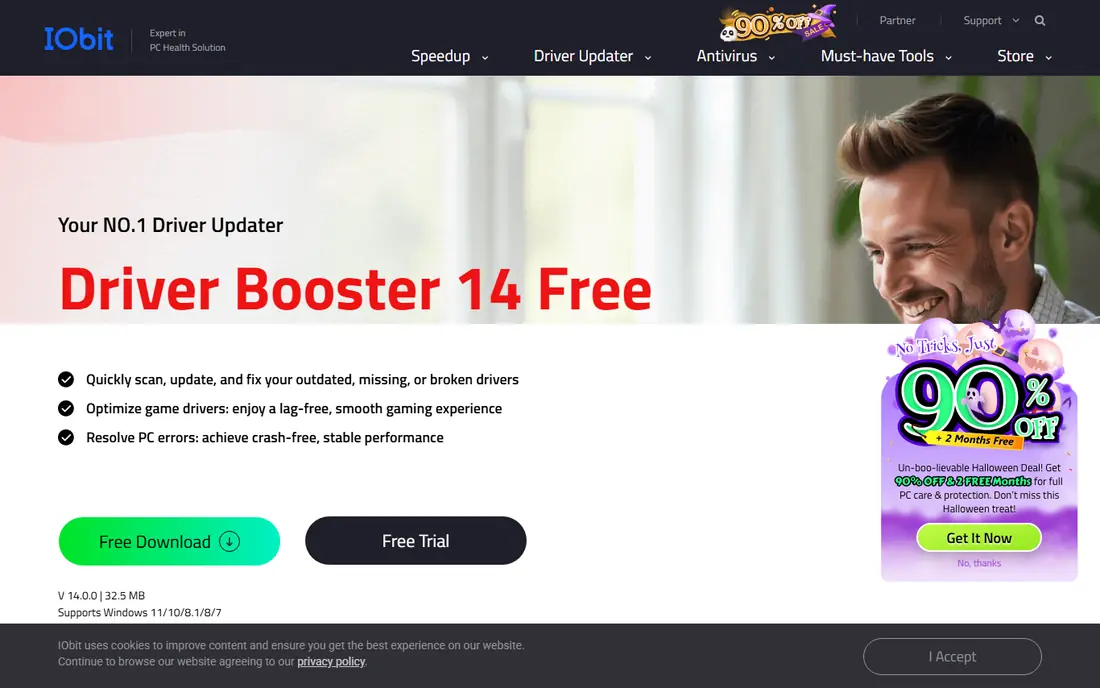
Driver Booster from IObit is our pick for most users who want a straightforward updater. It scans quickly, lists outdated drivers clearly, and lets you update them in one action. The Pro version adds automatic updates, a larger database, faster downloads, and an offline updater, which helps on a PC with no working network driver. Backup and restore features give you a way back if a new driver causes trouble.
The catch is the free tier. Free users face limits on daily updates and download speed, and the installer can offer extra software if you click through without reading. Choose custom install, decline extras, and create a system restore point before a large update batch. Used carefully, Driver Booster is the easiest paid updater on this list.
- Large driver database
- One click updates
- Backup and restore in Pro
- Offline driver updater in Pro
- Free version limits daily updates and speed
- Installer may offer bundled software if you rush through setup

Driver Easy suits beginners because its scan results are easy to read and its workflow is step by step. The free version scans your PC and shows which drivers are outdated, while the Pro version installs them automatically, backs up existing drivers, and offers faster downloads. That split makes Driver Easy a good test tool: run the free scan first, then decide whether the Pro features are worth paying for.
The limit is that free users must install many drivers manually, which takes time and can be confusing for a new user. If you only need one or two drivers, the free scan plus manual install from the device maker site may be enough. If you need many drivers after a reinstall, Pro saves a lot of clicking.
- Clear scan results
- Backup and restore
- Pro adds automatic install and faster downloads
- Free version scans but does not auto install all drivers
- Pro needed for full automation
Snappy Driver Installer Origin
Best for: Fully free offline installs
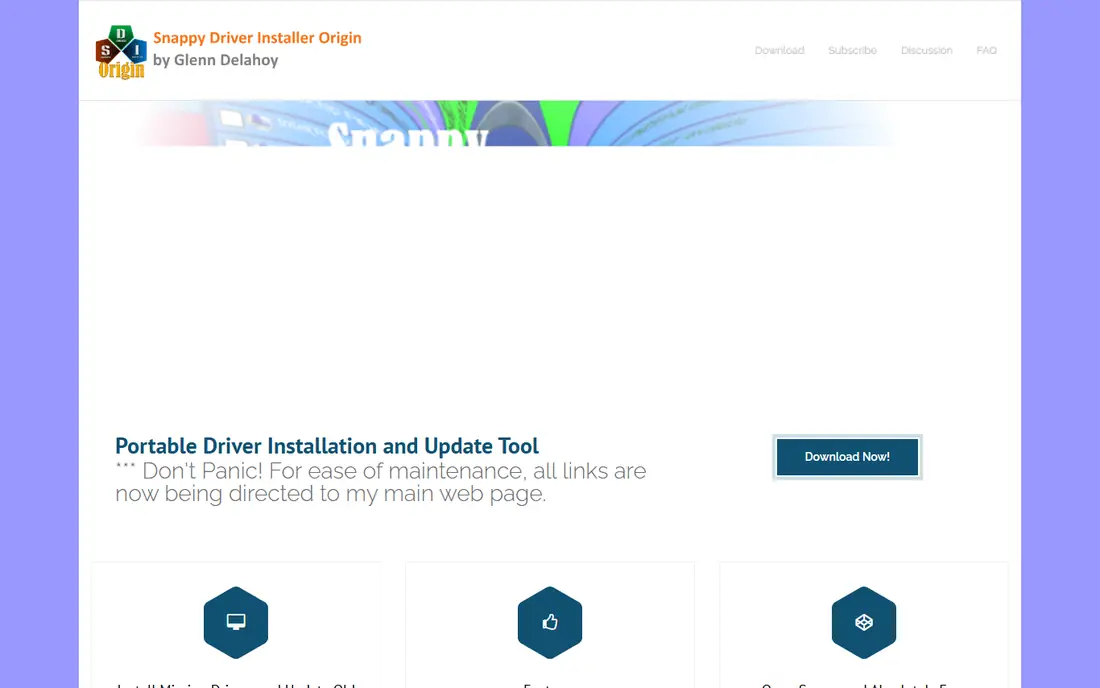
Snappy Driver Installer Origin, often called SDIO, is the only tool here that is fully free for installing drivers, with no trial or paywall. It downloads driver packs or indexes, lets you choose which drivers to install, and works offline once packs are downloaded. That makes it ideal for technicians and for PCs with no network driver, where an online updater cannot even start.
The trade-off is usability. SDIO has no simple scan and fix button in the way commercial tools do, and its interface assumes you know what you are doing. Downloading the full driver collection is also large, so choose the network only pack first if you just need internet access. For confident users, SDIO is the safest free choice. For beginners, Driver Booster or Driver Easy will feel easier.
- Completely free with no install paywall
- Offline driver packs
- Good for fresh Windows installs
- Interface is technical
- No automatic install in the usual sense
- Large downloads for full packs
AVG Driver Updater is a premium tool for users who already trust AVG security products and want a hands off updater. It scans for outdated drivers, backs up existing versions, and installs updates with minimal clicks. The interface is clean, and the database covers a wide range of hardware, including graphics, audio, network, and printer drivers.
The drawback is price model. AVG offers a trial, but ongoing use needs a paid subscription, and there is no free install tier like Driver Booster. If you already pay for AVG, adding Driver Updater is convenient. If you only need a one off fix, a free tool or the device maker site may be cheaper.
- Large driver database
- Backup and restore
- Simple scan and update workflow
- Trial only for free use
- No free install tier
- Subscription cost for ongoing use
Avast Driver Updater follows a similar pattern to AVG, since both brands sit under the same parent company. It scans for outdated drivers, creates backups before installing, and presents results in a simple list. For users who already use Avast antivirus, the updater fits into a familiar account and interface.
The limit is automation. Avast offers fewer scheduling and automatic update options than Driver Booster Pro, and ongoing use needs a subscription. It is a solid premium updater, but it does not stand out enough to beat Driver Booster for most users unless you already use Avast products.
- Very large driver database claimed
- Backup and restore
- Simple interface
- Paid after trial
- Fewer automation options than Driver Booster Pro
- Subscription cost
DriverMax appeals to users who care most about backup. It can back up all installed drivers to a folder, restore them after a reinstall, and scan for updates on a schedule. That backup feature is genuinely useful, since a driver backup can save hours after a Windows reinstall, even if you never use the updater itself.
The catch is free limits. Free users face daily download limits, and the driver database is smaller than Driver Booster or Avast. The interface also feels dated compared with newer tools. If backup is your priority, DriverMax is worth a look. If update breadth matters more, Driver Booster covers more hardware.
- Driver backup and restore
- Scheduled scans
- Offline install support in Pro
- Free version limits downloads per day
- Database smaller than some rivals
- Interface feels dated
Auslogics Driver Updater suits users who want scheduled scans rather than manual checks. You can set it to scan regularly, review the list, and install updates with backup and restore protection. The interface is clear, and the tool covers common hardware categories well.
The drawback is speed and free limits. Scans can take longer than Driver Booster, and free users face install limits that push toward the paid version. For a user who wants a set and forget schedule, Auslogics is a reasonable choice. For a one off fix, a faster free scan from Driver Booster or SDIO may be quicker.
- Scheduled scans
- Backup and restore
- Clear driver list
- Free version has limits
- Scan can be slower than rivals
- Paid version needed for full automation
Ashampoo Driver Updater is a simple, tidy updater for users who find other tools busy. It scans, lists outdated drivers, backs up current versions, and can schedule future scans. The interface is easy to follow, which helps beginners who feel overwhelmed by technical driver lists.
The limit is database size. Ashampoo covers fewer drivers than Driver Booster or Avast, so it may miss some niche hardware. Free use is also limited, with full automation in the paid version. If your hardware is mainstream, Ashampoo works well. If you have unusual devices, check Driver Booster or the device maker site first.
- Simple interface
- Backup and restore
- Scheduled scans
- Smaller driver database than leaders
- Free version limited
- Paid version needed for full use
Windows Update is the safest starting point, and it belongs on this list because many users do not need a third party updater at all. It installs Microsoft tested drivers for most hardware, and optional updates in Settings cover additional drivers for graphics, audio, and peripherals. Device Manager can also search for a driver for a specific unknown device.
The catch is recency. Windows Update may lag behind the latest graphics driver from Nvidia or AMD, and it may not cover very niche hardware. For gamers who need the latest graphics driver, use the GPU maker app instead. For everyone else, try Windows Update and the PC maker app first, and only use a tool above if a device remains missing or faulty.
- Built into Windows
- Safest source for many drivers
- Free
- No extra software to install
- May not offer the latest graphics or niche drivers
- Optional driver updates are easy to miss
How we picked these
We compared official vendor pages, free tiers, backup and restore features, offline support, and public driver updater guides in October 2026. We favoured tools that clearly state backup and restore, offer a free scan or free install tier, and are still maintained for Windows 10 and 11. We also included Windows Update itself, since it is the safest baseline many guides recommend first.
How to update drivers safely
Create a restore point first
Before installing a batch of drivers, create a Windows restore point and, if the tool offers it, a driver backup. If a new driver breaks audio, display, or Wi-Fi, you can roll back quickly instead of troubleshooting for hours.
Update one category at a time for problem devices
If a specific device is faulty, update that driver alone first, then test the device. Updating twenty drivers at once makes it hard to tell which change caused a new problem. For a fresh install, a batch update is fine, but for a working PC, be selective.
Prefer the device maker for graphics and network drivers
For graphics cards, use Nvidia GeForce Experience, AMD Software, or Intel Driver and Support Assistant. For network adapters, use the PC maker or adapter maker site. Third party updaters are best for the long tail of older or unknown devices, not for flagship graphics drivers.
FAQ
What is the best driver update software?
Driver Booster is easiest overall, Driver Easy is best for beginners, and Snappy Driver Installer Origin is best fully free option. Windows Update is safest first step for most users, and it covers many drivers without extra software.
Is driver update software safe?
Reputable tools from official vendor sites are generally safe when used with backup and restore, but any updater can install a wrong driver. Create a restore point first, download only from the official site, and avoid tools that use alarming scan results to pressure a purchase.
Do I need driver update software?
Most users do not need it regularly, since Windows Update and PC maker apps cover most drivers. You need an updater mainly after a fresh Windows install, when Device Manager shows unknown devices, or when a device stops working.
Can I update drivers for free?
Yes, Windows Update is free, Snappy Driver Installer Origin is fully free for installs, and Driver Booster, Driver Easy, DriverMax, Auslogics, and Ashampoo offer free scans with limits. Free scans often need manual install or a paid version for automatic updates.
Should I update all drivers at once?
Not on a working PC with a single faulty device. Update the faulty driver first and test it. On a fresh install, a batch update is more practical, but still create a restore point before you start.
How do I roll back a bad driver?
Use Device Manager to roll back a driver, use the updater backup and restore feature, or use a Windows restore point created before the update. If display or Wi-Fi breaks, boot into Safe Mode to reach those tools.
Sources
- https://www.iobit.com/en/driver-booster.php
- https://www.drivereasy.com
- https://www.snappy-driver-installer.org
- https://www.avg.com/en-us/driver-updater
- https://www.avast.com/driver-updater
- https://www.drivermax.com
- https://www.auslogics.com/en/software/driver-updater
- https://www.ashampoo.com/en-us/driver-updater
- https://support.microsoft.com/en-us/windows