Best Digitizing Software for Embroidery in 2026: 8 Tools Compared
Compare the best digitizing software for embroidery, from Hatch and Wilcom to Embrilliance and Ink/Stitch, and pick the right tool for your machine in 2026.

- Editor's choice
 Hatch Embroidery
Hobbyists to small shops
Starts atSee websiteVisit hatchembroidery.comFull review - Great alternative
 Wilcom EmbroideryStudio
Commercial digitizing
Starts atSee websiteVisit wilcom.comFull review - Also consider
 Embrilliance StitchArtist
Mac users and modular buying
Starts atSee websiteVisit embrilliance.comFull review
TL;DR:
- Hatch is our pick for most serious hobbyists and small shops, with a clear upgrade path from organising to full digitizing.
- Wilcom EmbroideryStudio leads for commercial digitizers who need production-grade control and output.
- Embrilliance StitchArtist suits Mac users and modular buyers, while Ink/Stitch is the best free starting point.
- Embird, SewArt, Brother PE-Design, and Bernina ArtLink each suit a specific machine brand or budget.
Quick comparison
| Tool | Best for | Starts at | Free plan? | |
|---|---|---|---|---|
| Hatch Embroidery | Hobbyists to small shops | See website | Free trial | Visit |
| Wilcom EmbroideryStudio | Commercial digitizing | See website | Free trial | Visit |
| Embrilliance StitchArtist | Mac users and modular buying | See website | Free trial | Visit |
 Embird | Budget modular setup | See website | Free trial | Visit |
 Ink/Stitch | Free open source digitizing | Free | Yes | Visit |
 SewArt | Low-cost auto-digitizing | See website | Free trial | Visit |
 Brother PE-Design | Brother machine owners | See website | Free trial | Visit |
 Bernina ArtLink | Free viewing and basic editing | Free | Yes | Visit |
The best digitizing software for embroidery
Digitizing software turns artwork into stitch files your machine can sew, controlling stitch type, order, density, and direction. We compared official product pages and pricing for tools that genuinely digitize, not just view designs, and we note where a tool only edits or converts files.
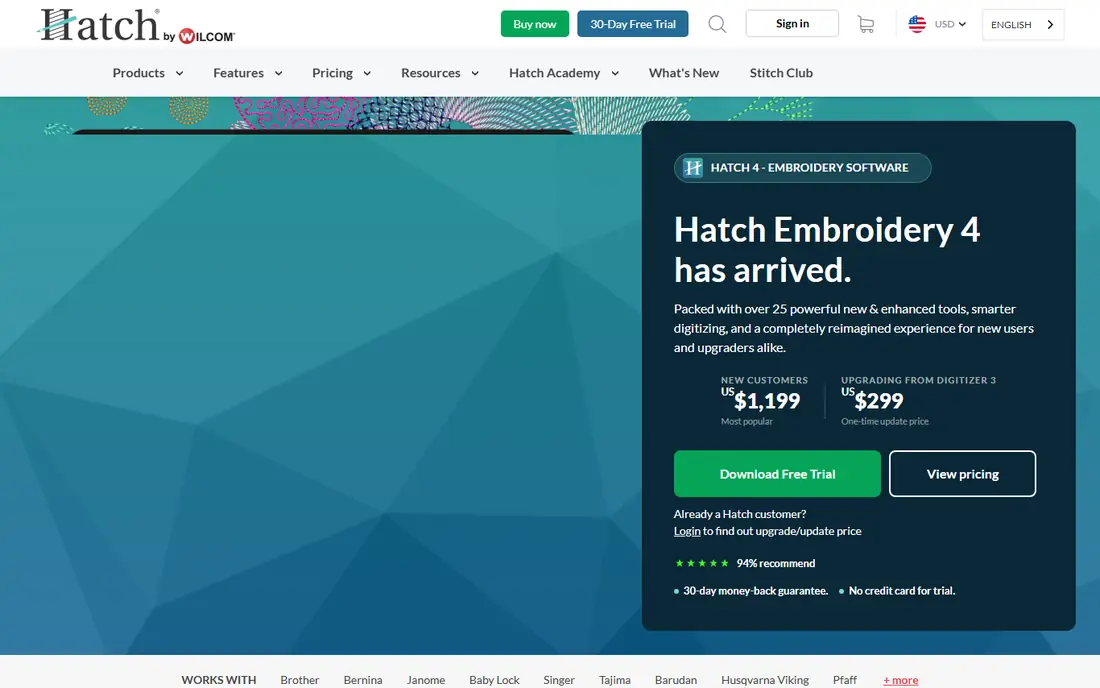
Hatch, from Wilcom, is the most balanced choice for people moving from buying designs to creating their own. Its levels let you start with organising and personalising designs, then step up to composing and full manual digitizing as your skills grow. That path avoids paying for professional tools before you need them. Auto-digitizing handles simple artwork well, while manual tools give control over stitch angles, underlay, and sequencing for harder designs.
The main limits are platform and price. Hatch runs on Windows, so Mac users need another option, and the full Digitizer level costs far more than the entry levels. For a hobbyist or small shop that sews regularly and wants room to grow, though, Hatch offers the best blend of guidance, power, and upgrade path on this list.
- Clear levels from Organizer to Digitizer
- Strong auto and manual digitizing
- Good tutorials
- Windows only
- Full Digitizer level is a major purchase
Wilcom EmbroideryStudio is the professional standard many commercial digitizers learn first. It gives fine control over stitch types, densities, pull compensation, and sequencing, which matters when a design must sew cleanly on many machines and fabrics. Production features such as team workflows, extensive format support, and detailed editing suit shops that digitize for clients all day. If embroidery is your business, this is the tool other tools get compared with.
That power comes with cost and complexity. Pricing runs into thousands for a full licence, and beginners can feel lost among its many settings. It is also Windows only. For a home hobbyist, Hatch or Embrilliance will serve better. For a commercial digitizer who needs repeatable, production-grade output, EmbroideryStudio remains the benchmark.
- Industry-standard precision
- Advanced stitch control
- Built for production workflows
- High price
- Steep learning curve for beginners
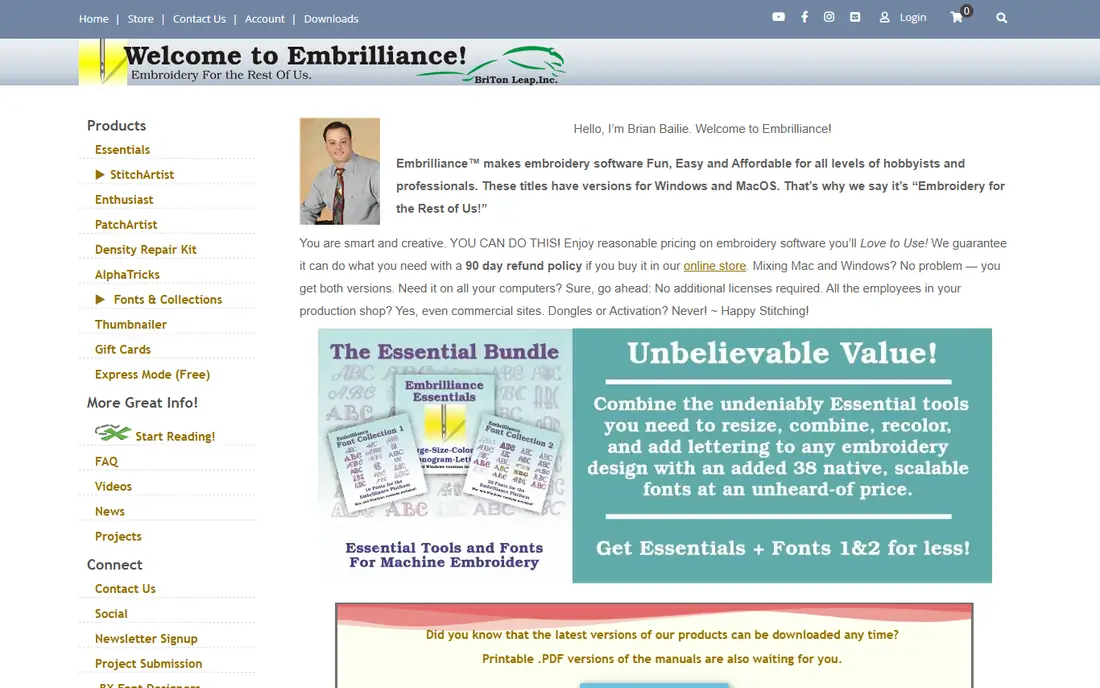
Embrilliance is the friendliest serious option for Mac users, since it runs natively on Mac and Windows without workarounds. StitchArtist comes in levels, so you can start with basic digitizing and add tools for applique, gradients, and advanced effects only when you need them. The interface feels approachable for a hobbyist, and the Essentials companion tools handle editing, lettering, and merging designs. That modular approach keeps the first purchase manageable.
Costs rise as you add levels, and the highest levels still do not match Wilcom for every production feature. Support and tutorials are solid, though, and the Mac support alone makes it the pick for Apple households. If you sew on a Mac and want real digitizing rather than just editing, start with StitchArtist Level 1 and upgrade when a project demands more.
- Runs on Mac and Windows
- Modular levels let you upgrade step by step
- Friendly interface
- Higher levels add up in cost
- Some advanced features trail Wilcom
Embird appeals to budget-conscious digitizers who like to build a setup piece by piece. The basic licence covers editing and management, and you add modules for digitizing, fonts, and other tools as needed. That keeps the first cost low and lets you spend only on features you actually use. Format support is broad, which helps if you work with designs from many sources or older machines.
The interface looks dated, and the trial limits saving, so testing a full project takes a purchase decision. Module costs also add up if you eventually buy most of them. Even so, Embird remains a practical path for Windows users who want manual digitizing control without paying for a top-tier suite on day one.
- Low-cost basic licence
- Buy only the modules you need
- Long history with many formats
- Dated interface
- Trial does not save work
- Modules add up over time
Ink/Stitch is an extension for Inkscape that turns vector artwork into embroidery files, and it is the best free digitizing option by a clear margin. If you already draw in vectors, you can assign stitch types, set densities, and preview stitch paths without paying anything. The community provides tutorials and updates, and the open source licence means no subscription or licence lock-in. For students, makers, and curious beginners, it removes the cost barrier entirely.
The trade-off is effort. You must learn Inkscape as well as embroidery basics, and auto-digitizing is more basic than in Hatch or Wilcom. Complex designs need manual vector work and test stitching. If you enjoy learning tools and you already work with vector art, Ink/Stitch can produce genuinely good results. If you want guided automation, a paid tool will save time.
- Completely free
- Works with Inkscape vectors
- Active open source community
- Needs Inkscape and vector skills
- Less automation than paid tools
SewArt is one of the cheapest paid routes into auto-digitizing. You load an image, reduce colours, and convert it into stitches, which suits simple logos, clip art, and bold designs. The workflow is straightforward, and companion tools from the same maker handle editing and lettering. For a hobbyist who mainly wants to turn simple artwork into stitch files without a large investment, SewArt is an easy first purchase.
Complex photos and fine detail expose its limits, since auto-digitizing needs manual cleanup to sew cleanly. It also runs on Windows only. Treat SewArt as a budget auto tool for simple designs, and test stitch every new design on scrap fabric before sewing a final item. Used that way, it delivers good value for its price.
- Low price for auto-digitizing
- Simple workflow for images
- Companion editor available
- Auto results need cleanup on complex art
- Windows only
Brother PE-Design is the natural choice if you already own a Brother embroidery machine. It speaks the machine's formats fluently, handles lettering and monogramming well, and includes PhotoStitch for turning photos into stitch art. The workflow from design to machine feels smooth, since the software and hardware come from the same maker. Owners who want one supported path from idea to stitching will appreciate that fit.
The price sits above hobby tools such as SewArt, and it makes less sense if you use another machine brand. It is also Windows only. For Brother owners who digitize often, the convenience and format fit justify the cost. For mixed-brand households, a brand-neutral tool such as Hatch or Embrilliance may serve better.
- Tight fit with Brother machines
- PhotoStitch for photo designs
- Strong lettering tools
- Higher price for hobby use
- Windows only
- Less appealing outside Brother machines
Bernina ArtLink is free software for Bernina and Bernette owners, and it is best understood as a viewer and editor rather than a full digitizer. You can open designs, resize them, change colours, convert formats, and preview stitching before sending a file to the machine. That makes it useful for managing a design library and for learning how stitch files behave. It costs nothing, which makes it an easy download for any Bernina household.
Do not buy it expecting full manual digitizing, since advanced creation tools are limited. Pair it with Ink/Stitch for free creation, or with Hatch or Wilcom for commercial work, and use ArtLink for everyday viewing and editing. As a free companion, it earns its place for Bernina owners exploring digitizing for the first time.
- Free for Bernina owners
- Easy resizing and format conversion
- Good learning aid
- Not a full digitizer
- Limited advanced features
How we picked these
We compared official product pages, pricing, and platform support, keeping tools that create or edit machine embroidery files and work with current machines. We covered free, budget, mid-range, and professional options, and we noted Windows-only limits clearly, since many embroiderers use Macs. We excluded pure design marketplaces and services that only sell finished designs, since this list is about software you run yourself.
How to choose the right tool
Start with your machine and your computer. Check which formats your machine reads, and whether the software runs on your operating system without workarounds. A Windows-only tool is a poor pick for a Mac-only household, no matter how good its reviews. Then decide whether you need auto-digitizing for simple art, manual tools for client work, or just editing for designs you buy.
Always test stitch before committing to a tool. Digitize a small design with text and a filled shape, sew it on scrap fabric, and check for gaps, puckering, and thread breaks. That single test reveals more than a feature list. Also check tutorial availability, since digitizing has a real learning curve, and a tool with good teaching will get you to clean results faster.
FAQ
What is the best digitizing software for embroidery for beginners?
Ink/Stitch is the best free beginner option, especially if you already use vector graphics. Hatch and Embrilliance suit beginners willing to pay for guided tools and tutorials. Start free to learn the basics, then buy a paid tool when you know which features you actually need.
What is the best machine embroidery software for a small business?
Hatch suits most small shops, with a clear upgrade path and strong digitizing tools. Wilcom EmbroideryStudio suits shops that digitize for clients at volume and need production-grade control. Embrilliance suits Mac-based shops. Match the tool to your volume and your computer, not just to the price.
Can I digitize embroidery designs for free?
Yes. Ink/Stitch turns vector art into stitch files at no cost, and Bernina ArtLink handles free viewing and basic editing for Bernina owners. Free tools need more manual work and learning, but they produce real stitch files. Test stitch every design, since free or paid tools both need checking on fabric.
Do I need different software for different machine brands?
Not always. Most digitizing tools export common formats such as DST, PES, and EXP, so one tool can serve many machines. Brand tools such as Brother PE-Design and Bernina ArtLink add convenience for their own machines, but brand-neutral tools work across brands. Check your machine's accepted formats before buying.
What is auto-digitizing, and is it good enough?
Auto-digitizing converts an image into stitches automatically, which works well for simple, bold artwork. Complex photos, fine lines, and gradients usually need manual cleanup to sew cleanly. Treat auto results as a starting point, test stitch them, and learn manual tools for designs that must look professional.
Is digitizing software hard to learn?
It takes real practice, since you must learn stitch types, densities, underlay, and sequencing alongside the software itself. Expect several weeks of test stitching before results look polished. Good tutorials and a patient approach help a great deal, and starting with simple designs builds skills faster than tackling a complex logo first.