Best Collaboration Tools for Remote Teams in 2026: 8 Tools Compared
We compare 8 best collaboration tools for remote teams in 2026, covering chat, video, docs, and whiteboards, with free plans, prices, team fit, and setup tips.
- Editor's choice
 Slack
Fast team chat and integrations
Starts at$8.75 per user per monthVisit slack.comFull review - Great alternative
 Microsoft Teams
Teams using Microsoft 365
Starts atSee websiteVisit microsoft.comFull review - Also consider
 Zoom
Reliable video meetings
Starts at$15.99 per user per monthVisit zoom.usFull review
TL;DR:
- Slack suits fast team chat, while Microsoft Teams suits teams already using Microsoft 365 for mail, docs, and meetings.
- Zoom suits video first teams, while Notion and Miro suit docs, planning, and visual work that needs a shared canvas.
- Most teams need two or three tools, not one, so pick a chat hub, a meeting tool, and a shared workspace.
- Free plans cover small teams well, but message history, storage, and admin controls usually require paid plans.
Quick comparison
| Tool | Best for | Starts at | Free plan? | |
|---|---|---|---|---|
| Slack | Fast team chat and integrations | $8.75 per user per month | Yes | Visit |
| Microsoft Teams | Teams using Microsoft 365 | See website | Yes | Visit |
| Zoom | Reliable video meetings | $15.99 per user per month | Yes | Visit |
 Google Workspace | Docs, mail, and meetings together | $7 per user per month | Free trial | Visit |
 Notion | Docs, wikis, and project planning | $10 per user per month | Yes | Visit |
 Miro | Visual planning and workshops | $8 per user per month | Yes | Visit |
 Asana | Task tracking for remote teams | $10.99 per user per month | Yes | Visit |
 Loom | Async video updates | See website | Yes | Visit |
The best collaboration tools for remote teams
We compared official feature pages, pricing pages, and app store listings to build this list, and we focused on tools that work today and fit the topic closely. Use the comparison table to narrow the field, then read the write ups for the two or three options that match your needs best.
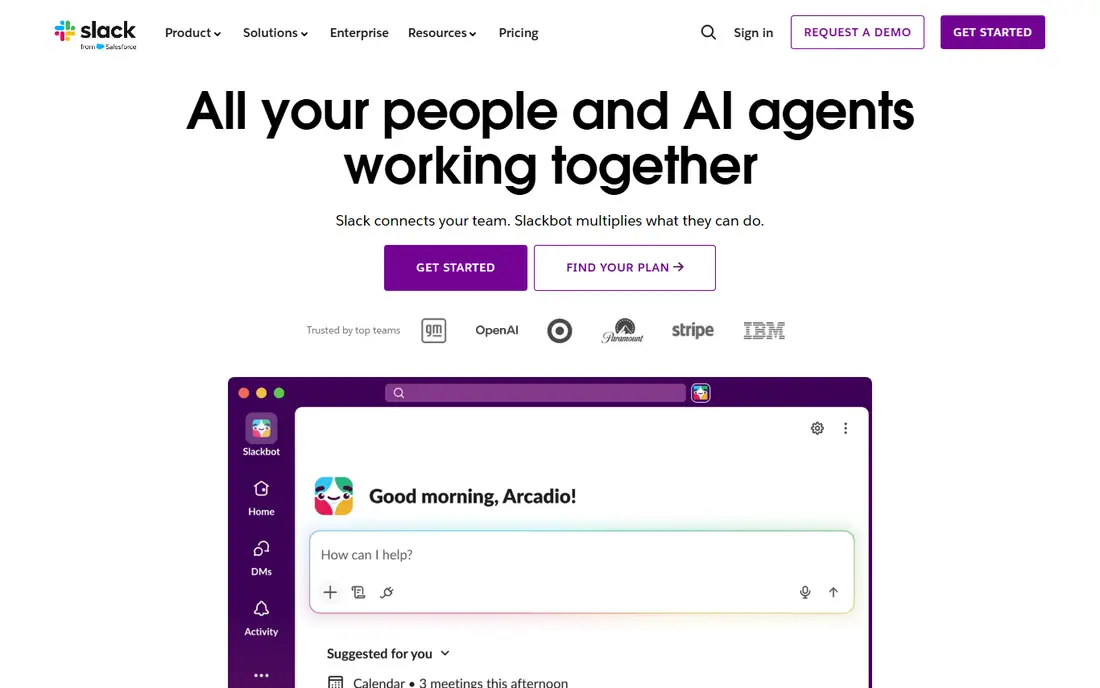
For teams weighing Slack, the fit depends on daily workflow more than on a feature list. Slack organizes remote work into channels, threads, and direct messages, with integrations that bring alerts and files into one place. That focus matters because a tool that tries to do everything often makes its core job harder to find, while a focused tool keeps the daily path clear.
Slack works best when you set it up around one real project first. Add your team, import a small set of real items, and run a full week of work before you judge it. That trial will reveal gaps in permissions, integrations, and exports that a demo will not show.
The honest catch with Slack is in its limits, so read the cons above as a checklist, not a warning to avoid it. Every tool here trades depth for simplicity or breadth for focus, and Slack is no exception. If those limits touch your core workflow, pick a different option. If they touch only edge cases, Slack can still be the right pick, especially when its strengths match your main job.
- Huge integration library
- Channels and threads
- Search
- Free plan limits history
- Costs rise with team size

If you want teams using microsoft 365, Microsoft Teams is worth a close look, because it centers that job in its design. Microsoft Teams combines chat, meetings, file storage, and Office apps, which suits teams that already live in Microsoft tools. That focus matters because a tool that tries to do everything often makes its core job harder to find, while a focused tool keeps the daily path clear.
Pricing deserves a second look before you commit to Microsoft Teams. Check what the free plan actually includes, what happens when you hit limits, and whether guests, viewers, or extra seats change the bill. Annual billing often lowers the monthly rate, but it also locks you in, so start monthly when you can.
Our view on Microsoft Teams is balanced: it earns its place for teams using microsoft 365, but it will not suit every team or every project. Test it against your real constraints, such as budget, team size, and existing tools, before you buy. A short pilot with clear success measures will tell you more than any review, including this one, so use the free plan or trial to prove the fit.
- Chat, video, and docs together
- Strong admin controls
- Best inside Microsoft 365
- Can feel heavy for small teams

Our pick for reliable video meetings is Zoom, and the reason is practical rather than flashy. Zoom remains a reliable pick for video meetings, with breakout rooms, recordings, and webinar features for larger sessions. That focus matters because a tool that tries to do everything often makes its core job harder to find, while a focused tool keeps the daily path clear.
A practical test for Zoom is to hand it to the least technical person on your team and watch how long a basic task takes. Clear labels, search, and templates help new users succeed, while hidden settings and jargon slow adoption.
Choose Zoom when reliable video meetings is your priority and its limits are acceptable for now. Revisit the choice as your team grows, since needs change and pricing changes with them. Keep your data exportable, document your setup, and review the tool each quarter. That habit keeps a good pick from turning into a costly default.
- Stable video
- Breakout rooms
- Webinar options
- Free meetings are time limited
- Add ons add cost
Google Workspace stands out for docs, mail, and meetings together, especially when you need a tool that stays simple under real use. Google Workspace pairs Gmail, Drive, Docs, and Meet, which suits teams that collaborate in real time on documents and sheets. That focus matters because a tool that tries to do everything often makes its core job harder to find, while a focused tool keeps the daily path clear.
Google Workspace works best when you set it up around one real project first. Add your team, import a small set of real items, and run a full week of work before you judge it. That trial will reveal gaps in permissions, integrations, and exports that a demo will not show.
The honest catch with Google Workspace is in its limits, so read the cons above as a checklist, not a warning to avoid it. Every tool here trades depth for simplicity or breadth for focus, and Google Workspace is no exception. If those limits touch your core workflow, pick a different option. If they touch only edge cases, Google Workspace can still be the right pick, especially when its strengths match your main job.
- Real time docs
- Gmail and Drive
- Meet included
- Less chat depth than Slack
- Admin setup takes care
When docs, wikis, and project planning is the main job, Notion earns its place by doing that job with fewer detours. Notion gives remote teams a flexible workspace for docs, wikis, databases, and light project tracking in one place. That focus matters because a tool that tries to do everything often makes its core job harder to find, while a focused tool keeps the daily path clear.
Pricing deserves a second look before you commit to Notion. Check what the free plan actually includes, what happens when you hit limits, and whether guests, viewers, or extra seats change the bill. Annual billing often lowers the monthly rate, but it also locks you in, so start monthly when you can.
Our view on Notion is balanced: it earns its place for docs, wikis, and project planning, but it will not suit every team or every project. Test it against your real constraints, such as budget, team size, and existing tools, before you buy. A short pilot with clear success measures will tell you more than any review, including this one, so use the free plan or trial to prove the fit.
- Flexible pages and databases
- Templates
- AI options
- Can get messy without norms
- Learning curve for databases
Teams that need visual planning and workshops often land on Miro, since it keeps that workflow front and center. Miro provides a shared whiteboard for brainstorming, planning, and workshops, with templates and voting tools for remote sessions. That focus matters because a tool that tries to do everything often makes its core job harder to find, while a focused tool keeps the daily path clear.
A practical test for Miro is to hand it to the least technical person on your team and watch how long a basic task takes. Clear labels, search, and templates help new users succeed, while hidden settings and jargon slow adoption.
Choose Miro when visual planning and workshops is your priority and its limits are acceptable for now. Revisit the choice as your team grows, since needs change and pricing changes with them. Keep your data exportable, document your setup, and review the tool each quarter. That habit keeps a good pick from turning into a costly default.
- Infinite canvas
- Many templates
- Facilitation tools
- Free plan limits boards
- Large boards can feel busy
Asana is a strong match for task tracking for remote teams, with a setup that rewards a short trial. Asana keeps remote work visible with tasks, timelines, and portfolios, so distributed teams can see who owns what and when it is due. That focus matters because a tool that tries to do everything often makes its core job harder to find, while a focused tool keeps the daily path clear.
Asana works best when you set it up around one real project first. Add your team, import a small set of real items, and run a full week of work before you judge it. That trial will reveal gaps in permissions, integrations, and exports that a demo will not show.
The honest catch with Asana is in its limits, so read the cons above as a checklist, not a warning to avoid it. Every tool here trades depth for simplicity or breadth for focus, and Asana is no exception. If those limits touch your core workflow, pick a different option. If they touch only edge cases, Asana can still be the right pick, especially when its strengths match your main job.
- Clear ownership
- Timelines
- Automation
- Free plan is limited
- Chat is not its strength
For async video updates, Loom offers a focused path that is easy to test before you commit. Loom lets team members record short screen videos with narration, which suits async updates across time zones and cuts down on live meetings. That focus matters because a tool that tries to do everything often makes its core job harder to find, while a focused tool keeps the daily path clear.
Pricing deserves a second look before you commit to Loom. Check what the free plan actually includes, what happens when you hit limits, and whether guests, viewers, or extra seats change the bill. Annual billing often lowers the monthly rate, but it also locks you in, so start monthly when you can.
Our view on Loom is balanced: it earns its place for async video updates, but it will not suit every team or every project. Test it against your real constraints, such as budget, team size, and existing tools, before you buy. A short pilot with clear success measures will tell you more than any review, including this one, so use the free plan or trial to prove the fit.
- Quick screen recordings
- Comments
- Reduces meetings
- Free plan limits videos
- Not a live meeting tool
How we picked these
We started with official homepages, pricing pages, and app store listings, and we kept only products that exist today and truly fit the topic. We checked free plans, entry paid prices, and core features on vendor pages, and we used See website where a price could not be verified at the time of writing. We favored a mix of well known leaders and smaller options, and we noted honest limits for each pick rather than listing only strengths.
How to build a remote collaboration stack
Start by naming the jobs your stack must do: daily chat, video meetings, shared docs, task tracking, and file storage. One tool rarely does all five well. A common stack pairs Slack or Teams for chat, Zoom or Teams for video, and Notion or Google Workspace for docs. Add Miro only when visual planning is a weekly need, not a rare one. Fewer tools mean less context switching and fewer places where decisions get lost.
Set norms before you add more software. Agree on which channel is for urgent work, how fast replies are expected, and where final decisions live. Use threads, clear channel names, and a single source of truth for project status. Review the stack each quarter, drop tools no one uses, and check security settings such as guest access, data retention, and single sign on on paid plans.
FAQ
What is the best collaboration tool for remote teams?
Slack is a strong pick for chat, Microsoft Teams is a strong pick for Microsoft shops, and Zoom is a strong pick for video. Notion suits docs and planning, while Miro suits visual workshops. Most remote teams combine two or three of these.
What collaboration tools are free for remote teams?
Slack, Zoom, Notion, Miro, Asana, and Loom all offer free plans with limits. Free plans suit small teams and pilots, but paid plans add history, storage, admin controls, and longer meetings.
Is Microsoft Teams better than Slack?
Teams wins when your team already uses Microsoft 365, since chat, mail, docs, and meetings sit together. Slack wins for teams that want a large integration library and a chat first workflow. Try both with a real project before you commit.
Do remote teams need video and chat tools?
Yes, most need both. Chat suits quick questions and async updates across time zones, while video suits complex discussions, reviews, and team bonding. A shared doc or board then keeps the decision visible after the call ends.
How do I keep remote collaboration from becoming noisy?
Use fewer channels, name them clearly, and move decisions to a doc or task. Set expectations for response times, use threads, and mute non urgent channels during focus time. A weekly review of channels and tools helps cut noise.