Best Child Safety Apps in 2026: 8 Apps Compared
Compare the best child safety apps for parents, with location sharing, screen time limits, and content filters used openly with your own child in 2026.
- Editor's choice
 Qustodio
Direct controls and screen limits
Starts atFreeVisit qustodio.comFull review - Great alternative
 Bark
Alerts about risky content
Starts atSee websiteVisit bark.usFull review - Also consider
 Life360
Family location sharing
Starts atFreeVisit life360.comFull review
TL;DR:
- We frame every app here as a tool parents use for their own minor child's phone with the child's knowledge, through location sharing, screen time limits, and content filters.
- We left out covert spyware and secret monitoring tools, since trust and open rules work better for families than hidden tracking.
- Qustodio and Bark cover different needs: Qustodio for direct controls and limits, Bark for alerts about risky messages and content.
- Google Family Link is the best free starting point for Android families, while Life360 is strongest for location and family coordination.
- Talk with your child about what an app checks and why, and adjust controls as they grow, rather than setting one rule for all ages.
Quick comparison
| Tool | Best for | Starts at | Free plan? | |
|---|---|---|---|---|
| Qustodio | Direct controls and screen limits | Free | Yes | Visit |
| Bark | Alerts about risky content | See website | Free trial | Visit |
| Life360 | Family location sharing | Free | Yes | Visit |
 Google Family Link | Free Android parental controls | Free | Yes | Visit |
 Norton Family | Web filtering and school time | See website | Free trial | Visit |
 FamiSafe | Location plus controls in one app | See website | Free trial | Visit |
 Aura | Family digital safety bundle | See website | Free trial | Visit |
 Find My Kids | Younger children and GPS watches | Free | Yes | Visit |
The best child safety apps
These apps are for parents managing their own minor child's device with that child's knowledge. Set rules together, explain what is checked, and review the settings as your child gets older.
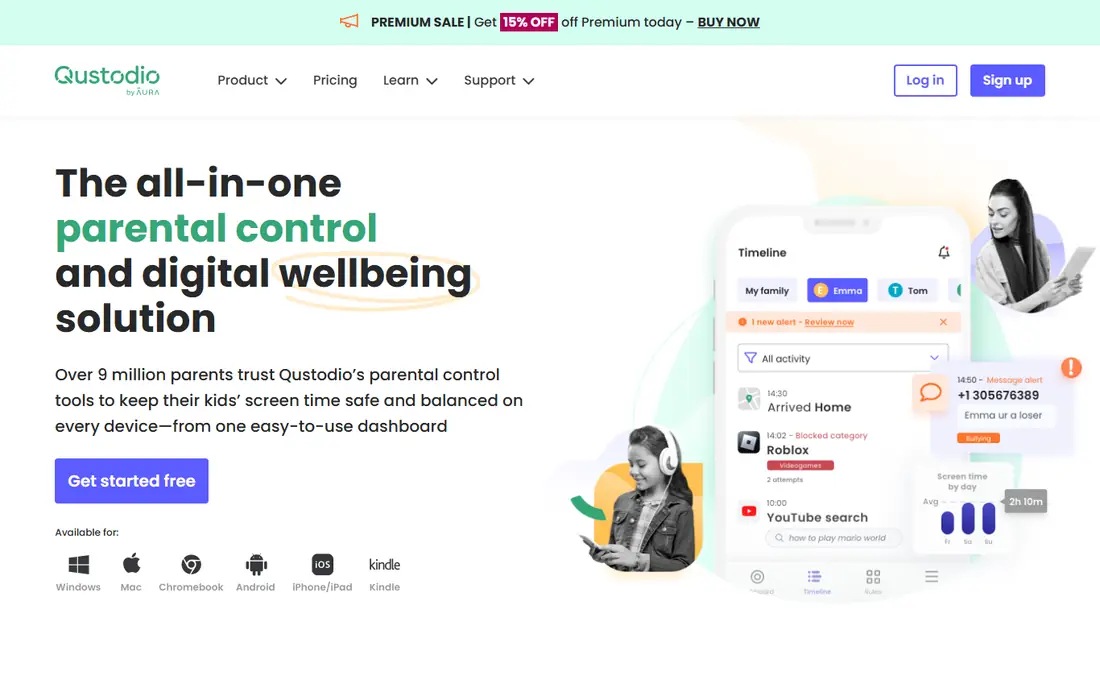
Qustodio is our pick for parents who want clear, hands-on controls. You can filter web content by category, set screen time limits per device, block apps, and see location with geofencing alerts, all from a parent dashboard. That direct approach suits younger children, where a parent needs to set firm boundaries and see a simple activity timeline.
A free tier covers one device with basic filtering and screen time, while paid plans, starting at $54.95 per year in vendor and review listings, add more devices and features. The honest limit is platform variation: some social and messaging features work better on Android than on iPhone, so check the feature list for your child's device before paying. Used openly, with rules your child knows, Qustodio gives a family a clear, adjustable set of limits.
- Web filtering across categories
- Per-device screen time
- Location with geofencing
- Social features vary by platform
- Full features need a paid plan

Bark takes a different approach from Qustodio: instead of blocking everything, it monitors supported texts, emails, and social accounts and alerts a parent when it detects a concern, such as bullying, predatory contact, explicit content, or self-harm language. Parents see the flagged item, not every message, which gives older children more privacy while keeping a safety net in place.
Pricing is on the Bark site, with Bark Jr and Bark Premium tiers, so we list it as See website, and a trial lets families test coverage. Location alerts can lag, so Bark is not the best pure location tool, and iPhone monitoring can have gaps when a device is off Wi-Fi. For teens, where strict blocking often gets bypassed, Bark's alert model is more sustainable, provided you discuss it openly with your child.
- Alerts for bullying, predatory contact, and self-harm language
- Covers many platforms
- Less intrusive than full message reading
- Location alerts can be delayed
- IPhone coverage varies by connection
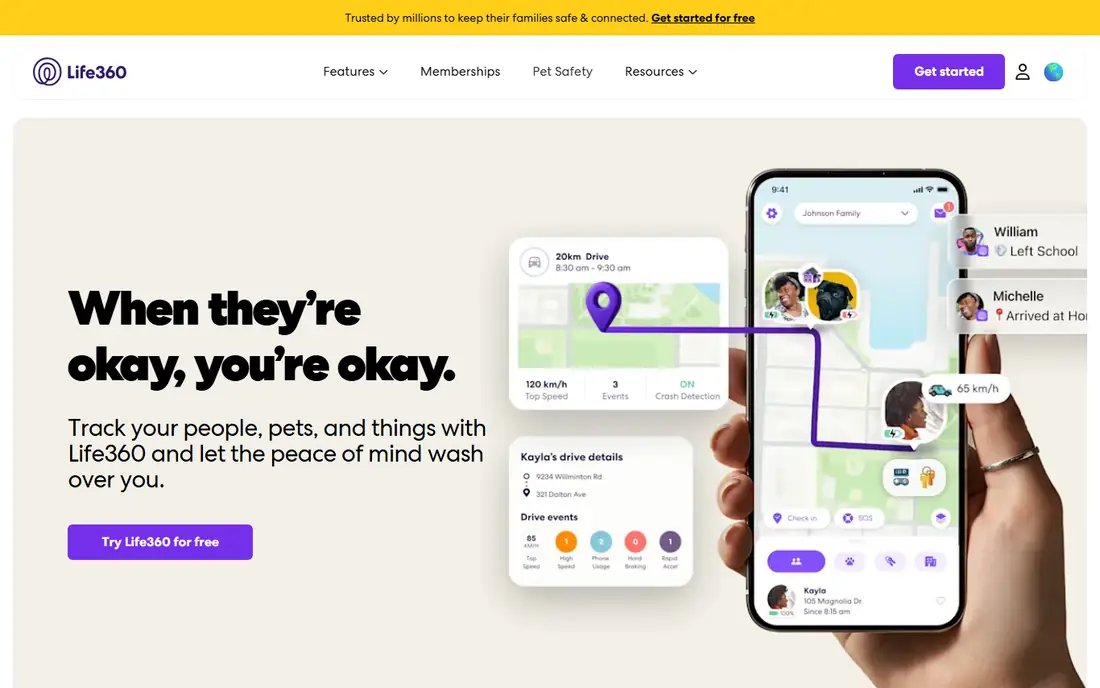
Life360 is the strongest choice when location is the main need. Family members share location in a private circle, get alerts when a child arrives at school or home, and can check driving reports for teen drivers, including speed and phone use. That coordination also helps in daily life, from school pickup to a child walking home from practice.
A free tier covers basic location sharing, with paid plans adding more alerts, driving details, and safety features, priced on the vendor site. Life360 is not a parental control suite: it does not filter the web or set screen time limits, so pair it with Family Link, Qustodio, or Bark for those jobs. Location sharing works best when everyone in the circle agrees to it and knows when it is on.
- Real-time family location
- Place alerts
- Driving safety reports for teen drivers
- No full web filtering or screen time suite
- Location sharing needs family agreement
Google Family Link is the best free starting point for Android families, and it is the app we suggest trying before paying for anything. Parents can set screen time limits, approve app downloads, set content restrictions, and see location for a supervised child device, all without a subscription. For a younger child getting a first phone or tablet, those basics often cover the real needs.
The limits are platform and depth. Family Link is strongest on Android and ChromeOS, with a thinner experience for parents managing an iPhone child device, and it does not offer deep social media monitoring or detailed reports. If those basics are enough, Family Link saves money and complexity. If you need fuller filtering or alerts, add Qustodio or Bark rather than replacing Family Link entirely.
- Free
- Screen time limits
- App approvals
- Content restrictions
- Strongest on Android
- Limited social monitoring and reporting
Norton Family focuses on web safety and school hours, with filtering, search supervision, and time controls that can block distracting sites during school time while allowing homework tools. Activity reports show which sites a child visited and what was blocked, which helps a parent have a specific conversation rather than a vague worry about screen time.
Pricing and bundling are on the Norton site, since Norton Family is often sold with Norton 360 plans, so we list it as See website, with a trial available. Some features work best in supported browsers, so check your child's browser before relying on a filter. For families who already use Norton security software, Norton Family is a natural addition. For others, Qustodio may be simpler to buy on its own.
- Web and search supervision
- School time controls
- Activity reports
- Now tied to Norton 360 plans in many cases
- Some features need a supported browser
FamiSafe sits in the middle of this list, offering location, screen time, app blocking, and web filtering in one app, which suits families who want one dashboard rather than two apps. Geofencing alerts, location history, and app rules cover the daily safety jobs, and reports give parents a view of screen time patterns over a week.
Pricing is on the FamiSafe site, with a trial, so we list it as See website. As with other tools here, exact features vary by Android and iPhone, so verify location, filtering, and app blocking for your child's model before subscribing. For a mixed-device household that wants location plus controls together, FamiSafe is a practical middle option between Family Link and Qustodio.
- Location tracking and geofencing
- Screen time and app blocking
- Web filtering
- Feature depth varies by device
- Subscription needed after trial
Aura bundles parental controls with broader digital safety features, including device security and identity protection for the family, which appeals to parents who want one subscription for several safety jobs. Parental controls cover content filtering, screen time, and location alerts, while the wider bundle adds fraud and identity monitoring for adults in the household.
Pricing is on the Aura site, with a trial, so we list it as See website, and the bundle cost is higher than a single-purpose control app. If you already pay for identity protection, the bundle can make sense. If you only need child controls, Qustodio or Bark will be cheaper and simpler. Either way, set the child controls openly and explain what they cover.
- Parental controls beside identity and device safety
- Content filtering
- Location alerts
- Bundle pricing is higher than a single control app
- Some features overlap with other security tools
Find My Kids is designed for younger children, including those with a GPS watch rather than a full phone. Parents get location, geofencing, arrival alerts, and, on supported watches, an SOS button and related safety features, all in a child-focused interface. That focus makes it easier for a parent of a primary school child to use than a full control suite.
A free tier covers basic location features, with a paid plan adding fuller history and alerts, priced on the vendor site. It does not offer the deep web filtering or app controls of Qustodio, so it fits the younger-child stage best, before a child needs a full phone with social apps. For school runs, after-school activities, and a first watch, it is a clear, focused choice.
- Child-focused location alerts
- GPS watch support
- SOS and listening features on supported devices
- Less full parental control than Qustodio
- Watch features depend on the watch model
How we picked these
We compared official feature, pricing, and privacy pages for parental control and family safety apps that still operate in October 2026, and we kept only tools a parent can use openly for their own minor child's device. We favored apps with clear screen time, filtering, location, or alert features, honest platform limits, and a free tier or trial. We excluded covert spyware, secret monitoring tools, and apps marketed for hidden tracking, since those do not fit open family safety use.
How to set up child safety apps with your child
Start with a conversation, not an install. Explain what the app will check, what it will not check, and why each rule exists, such as location for pickup safety or filters for age-inappropriate content. Let your child ask questions, agree on screen time and bedtime rules together where possible, and write the rules down so they do not feel arbitrary.
Review the setup together on the child's device. Show them the parent dashboard in broad terms, test a geofence alert, and agree on what happens if a limit is hit. Revisit the rules every few months, loosening controls as trust and age grow, so safety tools support independence rather than replacing it.
Age matters more than features
A younger child needs firm limits and simple location alerts, while a teen needs alerts for serious risks and room to learn judgment. Buying the most powerful app for a young child, or the strictest blocking for a teen, often backfires. Match the tool to the age, start with the lightest controls that meet the safety need, and add more only if a real problem appears.
FAQ
Should I tell my child I am using a safety app?
Yes. Tell your child what the app checks, why you are using it, and what will happen if an alert appears. Open rules build trust and reduce attempts to bypass controls, while hidden monitoring can damage trust and may break platform rules or local laws depending on the device and age.
Which child safety app is best for younger children?
Google Family Link for Android families and Find My Kids for GPS watches are strong starting points, since both focus on basic limits and location. Qustodio adds fuller filtering and screen time for a first phone, and you can move to Bark alerts as a child grows older.
Which app is best for teens?
Bark is our pick for many teens, since it alerts parents about serious risks without showing every message. Pair it with Life360 for location if needed, and discuss the alert categories with your teen so they understand what triggers a parent notification.
Do these apps work on both Android and iPhone?
Most do, but feature depth varies. Qustodio, Bark, Life360, FamiSafe, and Aura support both, while Family Link is strongest on Android and some Bark and Qustodio features work better on Android than on iPhone. Check the vendor feature page for your exact devices before paying.
Can a child bypass parental controls?
Yes, determined children can find workarounds, especially with a second device, a friend's phone, or a changed setting. No app replaces conversation, agreed rules, and regular check-ins about online life, and you should review settings and devices together rather than assuming a filter is foolproof.
Is location sharing safe for children?
Location sharing inside a private family circle, with alerts for home and school, is safer than public sharing, but it still needs care. Keep circles small, review who can see location, turn off sharing for apps that do not need it, and teach your child never to share location publicly on social media.