Best Benchmark Software in 2026: 8 Tools Compared
Compare the best benchmark software for CPU, GPU, and whole system speed in 2026, with free tools, paid tests, and picks for gamers, builders, and buyers.

- Editor's choice
 Geekbench
Cross platform CPU and GPU scores
Starts atFreeVisit geekbench.comFull review - Great alternative
 Cinebench
CPU rendering performance
Starts atFreeVisit maxon.netFull review - Also consider
 3DMark
Gaming graphics and CPU together
Starts at$34.99Visit 3dmark.comFull review
TL;DR:
- Geekbench is the best cross platform benchmark for comparing phones, Macs, and PCs on one scale.
- Cinebench is the free standard for CPU rendering, while 3DMark is the leading paid test for gaming graphics.
- CrystalDiskMark covers storage speed, and PCMark 10 covers real world whole system work, so use them together for a full picture.
- Scores only compare inside the same tool and version, so never compare a Geekbench score with a PassMark score.
- Most people need one or two free tools, not a paid suite, unless they review hardware or troubleshoot often.
Quick comparison
| Tool | Best for | Starts at | Free plan? | |
|---|---|---|---|---|
| Geekbench | Cross platform CPU and GPU scores | Free | Yes | Visit |
| Cinebench | CPU rendering performance | Free | Yes | Visit |
| 3DMark | Gaming graphics and CPU together | $34.99 | Free trial | Visit |
 PCMark 10 | Real world whole system work | See website | Free trial | Visit |
 PassMark PerformanceTest | Detailed per component scores | $39 | Free trial | Visit |
 CrystalDiskMark | SSD and drive speed | Free | Yes | Visit |
 Novabench | Quick free overall check | Free | Yes | Visit |
 AIDA64 | Diagnostics plus stress testing | See website | Free trial | Visit |
The best benchmark software
We compared official product pages, pricing, and documentation for benchmark tools that are actively maintained in 2026. These eight cover CPU, GPU, storage, and whole system performance, with a mix of free and paid options.
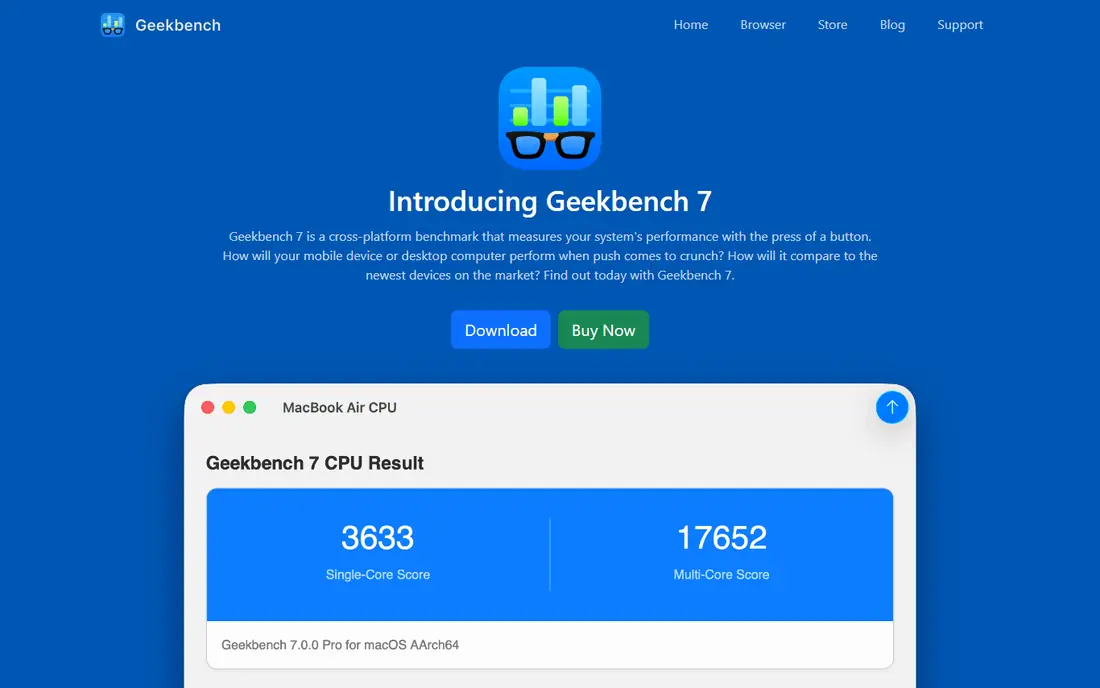
Geekbench is the easiest way to compare very different devices. It runs CPU tests for single core and multi core work, plus GPU compute tests, and it publishes results to an online browser where you can compare your machine with similar systems. That cross platform range is why reviewers and buyers use it so often. The limit is that Geekbench is synthetic, so a high score does not guarantee that a specific game or editing app will feel fast. Use it for broad comparisons and for checking whether a new machine performs as expected, then pair it with a real world test for your main app.
- Runs on Windows, Mac, Linux, Android, and iOS
- Clear CPU and GPU scores
- Large online database
- Synthetic scores do not capture every real app
- Paid license needed for some commercial use

Cinebench, from Maxon, renders a complex scene using all available CPU cores, which makes it a strong test for creators, 3D artists, and anyone who renders video or images. It is free, it is widely cited in reviews, and its single core and multi core scores help you see whether a CPU is strong for lightly threaded work, heavily threaded work, or both. The drawback is scope. A great Cinebench score does not mean a laptop has a fast SSD, a good GPU, or long battery life. Use Cinebench when CPU rendering matters, and add a storage or GPU test when you need a fuller picture.
- Free from Maxon
- Standard for CPU rendering
- Single and multi core results
- Rendering only, so it says little about gaming or office work
- Runs can take several minutes

3DMark is the benchmark most gamers know, and for good reason. It offers tests for high end graphics cards, midrange systems, ray tracing, and older hardware, plus CPU focused tests and stress tests for stability. Its online database lets you compare your graphics card and CPU combination with similar builds. The full Windows version costs $34.99 in recent listings, though a free demo covers popular tests on Steam. It is also Windows focused for the full suite, with free mobile apps on other platforms. Buy it if you review graphics cards or tune a gaming PC, and use the free demo first if you only need a basic check.
- Leading gaming benchmark suite
- Many tests for different hardware levels
- Large result database
- Full Windows suite is paid
- Full runs take time and produce large downloads
PCMark 10 tries to answer a different question from Cinebench or 3DMark, which is how fast a PC feels for everyday work. It runs tasks based on web browsing, video calls, documents, spreadsheets, and photo and video editing, then gives an overall score plus category scores. That makes it useful for comparing laptops and office desktops. The limit is that it is Windows only for the full suite, and the full version is paid beyond a free demo. It also does not replace a dedicated GPU or storage test. Use PCMark 10 when you buy a work PC and want a realistic overall score.
- Tests office, browsing, and content tasks
- Good for laptops and office PCs
- Clear overall score
- Windows only for the full suite
- Paid for the full version beyond the demo
PassMark PerformanceTest measures CPU, 2D and 3D graphics, disk, and memory, then combines them into an overall PassMark Rating. Its database of results from many computers helps you see whether your machine is typical for its parts. Standard tests are free, while advanced tests need a license, listed at $39 for the Windows version in recent pricing. The interface is practical rather than polished, and the sheer number of results can be confusing at first. It suits builders, repair shops, and buyers who want component level detail. Casual users may prefer Novabench or Geekbench for a quicker answer.
- Per component CPU, GPU, disk, and memory scores
- Huge comparison database
- Portable use
- Advanced tests require a paid license
- Interface is functional rather than modern
CrystalDiskMark is the standard free tool for measuring drive speed. It reports sequential read and write speeds, which matter for large files, plus random speeds, which matter for small files and everyday responsiveness. Reviewers cite it for almost every SSD test, so your numbers are easy to compare. It only tests storage, so it will not explain a slow CPU or GPU. It also writes data during tests, which is normal but means you should not run it in a loop all day on a solid state drive. Use it once after installing a new drive, or when a PC feels slow and you suspect storage.
- Free and simple
- Clear sequential and random speed results
- Widely cited for SSDs
- Storage only
- Repeated runs write data, so do not run it constantly on an SSD
Novabench is the fastest way to answer whether a PC is performing normally. It tests CPU, GPU, memory, and disk in one run that takes only a few minutes, then gives component scores and an overall score you can compare online. It is free, and it works on Windows and Mac. The trade off is depth. Novabench will not stress test a system for an hour, and it will not give the detailed rendering or gaming breakdowns of Cinebench or 3DMark. Use it as a first check after a repair, an upgrade, or a purchase, then run a specialist tool if a score looks off.
- Free full system test in minutes
- Simple scores for CPU, GPU, RAM, and disk
- Online comparison
- Less depth than specialist tools
- Smaller database than Geekbench or PassMark
AIDA64 combines hardware identification, sensor monitoring, and benchmarking with system stability tests. It can show temperatures, voltages, fan speeds, and detailed component data, then stress the CPU, memory, and GPU to check stability under load. That makes it popular with overclockers, repair technicians, and builders. It is paid beyond a trial, and the amount of data can overwhelm a first time user. Choose AIDA64 if you troubleshoot, overclock, or need detailed diagnostics. For a simple speed score, Geekbench or Novabench will be faster and easier.
- Deep hardware detail and sensor monitoring
- Strong stress tests
- Useful for troubleshooting
- Paid beyond a trial
- More information than most casual users need
How we picked these
We compared official product pages, pricing, and documentation for benchmark tools that run on current Windows, Mac, or mobile systems in 2026. We favored tools with a clear purpose, an active developer, and a result database or a widely cited score. We left out discontinued tools and tools that only monitor temperatures, since this list is about measuring performance.
How to run a fair benchmark
Close background apps, plug a laptop into power, and let the machine cool between runs, since heat, power settings, and background updates can change scores. Run the same tool and the same version for every comparison, and run a test twice if the first result looks odd. A single score is a clue, not a verdict.
Match the tool to the question
Use Geekbench for cross device comparison, Cinebench for CPU rendering, 3DMark for gaming graphics, CrystalDiskMark for storage, and PCMark 10 for everyday office speed. Using the wrong tool is the most common reason benchmark results feel confusing.
FAQ
What is the best free benchmark software?
Geekbench, Cinebench, CrystalDiskMark, and Novabench are all free for personal use in their basic forms. Geekbench covers CPU and GPU across devices, Cinebench covers CPU rendering, CrystalDiskMark covers storage, and Novabench covers a quick whole system check. Together they cover most needs without paying.
What is the best benchmark tool for gaming?
3DMark is the leading choice for gaming, because it offers graphics tests for different hardware levels, ray tracing tests, and CPU tests in one suite. Use its free demo first, then buy the full suite if you need the complete test set or stress testing.
Can benchmarking damage my computer?
Normal benchmarking is safe, since it loads parts the way demanding software does. Sustained stress tests can overheat a poorly cooled system, and repeated storage tests write data to a drive, so watch temperatures and do not run stress tests in a loop. Stop a test if temperatures climb sharply.
Why do my scores differ from reviews of the same hardware?
Background programs, power settings, cooling, drivers, and room temperature all affect scores. Reviews often test with clean installs and controlled cooling. Close background apps, use a high performance power plan on a laptop, and let the system cool between runs for a fair comparison.