8 Best Apps to Convert MOV to MP4 in 2026
Find the best app to convert mov to mp4 for clear, playable files on Mac, Windows, and the web, with free and paid picks for any file size in October 2026.
- Editor's choice
 HandBrake
Free batch conversion on desktop
Starts atFreeVisit handbrake.frFull review - Great alternative
 CloudConvert
Quick web conversion without installing software
Starts atSee websiteVisit cloudconvert.comFull review - Also consider
 Convertio
Simple online conversion for small files
Starts atSee websiteVisit convertio.coFull review
TL;DR:
- HandBrake is our first pick for most people, because it is free, handles batches, and gives clear control over quality and file size.
- Web converters suit one-off files, while desktop apps suit large files, private footage, and repeated work.
- Check the output codec before you share a file, since MP4 with H.264 plays on the widest range of phones, TVs, and browsers.
- Free tools can be slower or harder to learn, so match the app to your patience and your file size, not only to the price.
Quick comparison
| Tool | Best for | Starts at | Free plan? | |
|---|---|---|---|---|
| HandBrake | Free batch conversion on desktop | Free | Yes | Visit |
| CloudConvert | Quick web conversion without installing software | See website | Yes | Visit |
| Convertio | Simple online conversion for small files | See website | Yes | Visit |
 Movavi Video Converter | Beginner-friendly conversion with editing extras | See website | Free trial | Visit |
 Wondershare UniConverter | All-in-one video toolkit for frequent converters | See website | Free trial | Visit |
 VLC Media Player | Conversion with a player you may already own | Free | Yes | Visit |
 Any Video Converter | Affordable desktop conversion for Windows and Mac | See website | Yes | Visit |
 HitPaw Video Converter | Fast conversion with a modern interface | See website | Free trial | Visit |
The best apps to convert MOV to MP4
MOV files from an iPhone or a camera often refuse to play on other devices, and MP4 fixes most of those problems in one step. The picks below cover free desktop converters, quick web tools, and paid apps for large batches.
HandBrake is the tool we suggest first when you want a free converter that does not cut corners on quality. It runs on Windows, Mac, and Linux, and it turns MOV files into MP4 files with presets for phones, tablets, and the web. The batch queue lets you line up many files, set each one, and let the computer work through them. The trade-off is the learning curve, since terms such as constant quality and encoder preset assume some video knowledge. That matters less if you start with a preset and only change resolution or quality when you need to. For regular conversion work, the control on offer is worth the first half hour of learning. In practice, HandBrake suits free batch conversion on desktop best when the work is regular rather than occasional, because the setup pays off over repeated use and the routine becomes easy to repeat.
- Free with no watermarks
- Strong quality controls
- Batch queue for many files
- Interface can feel busy for beginners
- Output is limited to MP4, MKV, and WebM
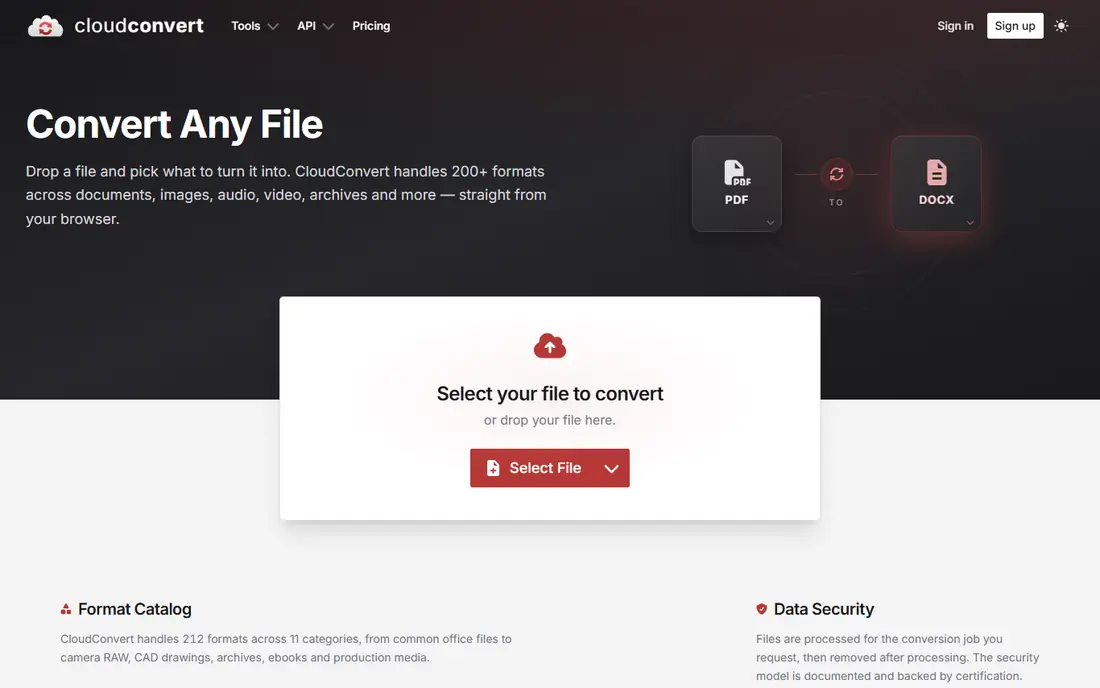
CloudConvert works in a browser, so it suits a single MOV file on a borrowed computer or a Chromebook. You upload the file, pick MP4, adjust the main settings if needed, and download the result. The interface stays plain, which helps when you only want a converted file and nothing else. The catch is the free allowance, which may not cover large or frequent jobs, and uploads take time on slow connections. Private footage also leaves your computer during conversion, so desktop tools suit sensitive clips better. For occasional use, though, the convenience is hard to beat. Day to day, the main test is simple: does CloudConvert save time on the next job, or does it add steps that slow you down when you are in a hurry and need a result fast.
- No install needed
- Supports many formats
- Clear options for resolution and codec
- Free tier has limits
- Large files depend on upload speed and connection
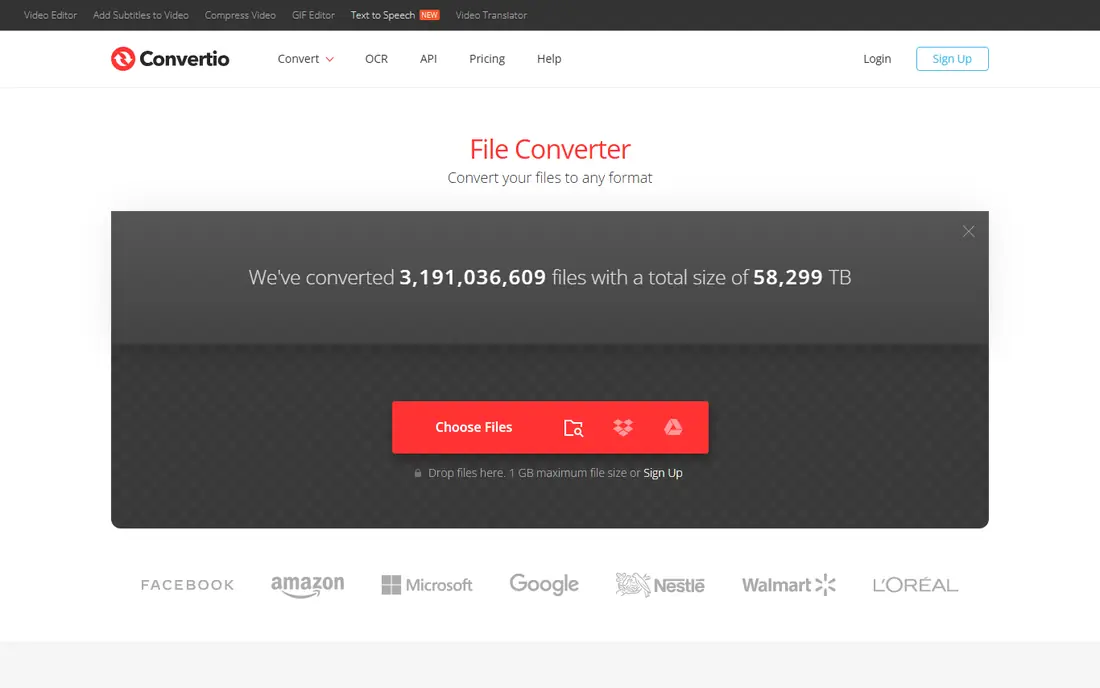
Convertio keeps the process to three steps, which makes it a good choice for people who convert video only a few times a year. It accepts files from a computer, Google Drive, and Dropbox, and it handles MOV to MP4 without asking you to learn encoding terms. The result downloads straight from the browser when conversion finishes. Free accounts face size and daily limits, so this is not the pick for a folder of 4K clips. Paid plans raise those limits and add faster processing, but check the plan details against your file sizes before you pay. For a short phone clip, the free tier is often enough. If price is the deciding factor, start on the free option where one is listed, run one real task through it, and only pay when a limit or a missing feature gets in the way.
- Very simple steps
- Works from cloud storage
- No software to install
- Free use is limited
- Larger files need a paid plan
Movavi suits people who want a converter that looks friendly from the first screen. Presets are grouped by device and purpose, so you can pick MP4 for a phone, a TV, or the web without studying codecs. It also adds simple trimming, which helps when a clip needs a short cut before sharing. The price is the main drawback, since free rivals cover basic conversion at no cost. A trial lets you test speed and output quality on your own files, and that test matters more than any feature list. Buy it if the interface and the editing extras save you real time each week. A good test is to try Movavi Video Converter with a real file, a real schedule, or a real question from your own work, since demo examples often hide the awkward parts of a tool.
- Clear interface
- Fast presets
- Basic trimming and editing included
- Paid software
- Trial has limits on output
Wondershare UniConverter
Best for: All-in-one video toolkit for frequent converters
Wondershare UniConverter is built for people who convert, compress, and tidy video files every week. It handles MOV to MP4 in batches, and it adds tools for trimming, compressing, and moving files to devices. Hardware acceleration on supported computers can speed up large jobs, which matters when time is short. The cost is higher than a single-purpose converter, and the busy interface can distract from a simple task. Try the trial with a real batch, and compare the time saved against the yearly price. If you only convert one file a month, a free tool will serve you just as well. Before you commit, check the current pricing page and the cancellation terms, because plans change and the cheapest starting price is not always the cheapest over a year.
- Wide format support
- Batch conversion
- Extra tools for compression and editing
- Subscription cost adds up
- Interface packs in many features you may not need
VLC is best known as a media player, but its Convert and Save menu also turns MOV into MP4. That makes it a useful pick when you do not want another install, or when you need a quick conversion on a computer that already has VLC. The process takes a few clicks, and the output settings cover the main codecs and containers. The conversion workflow is not as polished as a dedicated converter, and batch jobs are awkward without scripts. Quality controls are present, but they are harder to find than in HandBrake. Use VLC for one-off files, and move to a dedicated app if conversion becomes a weekly task. The clearest fit for VLC Media Player is conversion with a player you may already own, and that focus is also its limit, so pair it with a second tool if your work regularly crosses into a different kind of task.
- Free and widely available
- Plays almost any file
- No account needed
- Conversion menu is buried and less clear
- Batch work needs extra steps
Any Video Converter
Best for: Affordable desktop conversion for Windows and Mac
Any Video Converter has served casual users for years, and its free version still covers the core job of turning MOV into MP4. Presets for common devices keep the setup short, and batch conversion handles a small folder of clips without much fuss. It runs on Windows and Mac, which covers most home computers. The free version lacks some extras found in the paid edition, and the interface looks dated next to newer rivals. That matters little if the output plays well and the price stays low. Test it with your own clips, since output quality and speed vary by computer and settings. What stands out after a few uses is how Any Video Converter handles the boring parts, such as repeats, exports, and reminders, because those details decide if you keep using it.
- Free version covers core conversion
- Simple presets
- Batch support
- Free version has fewer extras
- Paid version needed for full features
HitPaw aims at users who want speed and a clean screen rather than a wall of settings. It converts MOV to MP4, handles batches, and supports high resolution files, which suits phone footage and camera clips. The steps stay short, and presets cover common devices and web use. The trial limits what you can export, so test it with short clips before you buy. Paid plans vary by length and features, so compare the one-time and subscription options on the pricing page. If you convert often and value a tidy interface, HitPaw is worth a trial. On a busy week, HitPaw Video Converter earns its place by keeping the workflow short, and that matters more than a long feature list that you may never open after the first day.
- Modern interface
- Batch conversion
- Support for high resolution files
- Paid plans needed for full use
- Trial limits output
How we picked these
We compared official feature pages, pricing pages, and app store listings for converters that accept MOV input and produce MP4 output. We kept only tools that are still offered and supported, and we checked that each website loads and belongs to the product named. We favored tools with clear quality controls, batch handling, and honest limits on free use. We left out converters that add watermarks without warning, hide their price, or only convert a narrow set of formats.
How to choose a MOV to MP4 converter
Match the tool to the file size
Small clips under a few hundred megabytes work well in a browser, and you can finish the job without installing anything. Large 4K clips, long recordings, and folders full of files belong in a desktop app, where uploads, timeouts, and daily limits will not slow you down. If you convert video often, a desktop queue will save more time than any web shortcut.
Pick the right quality setting
For sharing and playback, MP4 with H.264 and AAC audio is the safest choice, and most apps offer it as a preset. H.265 can make smaller files, but older TVs and some browsers may struggle with it, so test one file before you convert a whole batch. Keep the original MOV until you have checked the MP4 on the device where it will be played.
Watch for hidden limits
Free web tools may cap file size, daily conversions, or speed, and some paid tools charge per minute or per file rather than a flat monthly price. Read the limits before you upload private footage, and prefer desktop tools for sensitive video, since the file never has to leave your computer.
FAQ
Is MP4 better than MOV?
MP4 is not always higher quality, but it plays on more devices and browsers than MOV, so it is the better choice for sharing. MOV is common on Apple devices and in editing, while MP4 suits delivery, upload, and playback. Convert a copy and keep the original if you plan to edit later.
Will converting reduce quality?
Re-encoding can reduce quality, especially at low bitrates or low quality settings, so choose a high quality preset for important footage. Some tools can copy the video stream into an MP4 container without re-encoding when the codec already fits, which avoids quality loss. Check the output before you delete the original.
What is the fastest way to convert one small MOV file?
A web converter is usually fastest for one small file, since there is nothing to install and the steps are short. Upload the file, choose MP4, and download the result, then check that audio and video stay in sync. For files over a few hundred megabytes, a desktop app is usually more reliable.
Can I convert MOV to MP4 for free?
Yes, HandBrake and VLC convert MOV to MP4 at no cost, and several web tools offer a free tier with limits. Free desktop tools have no file size cap in most cases, while free web tools may limit daily use. Paid apps mainly add speed, batch polish, and support.
Why does my MP4 have no sound after conversion?
Missing sound often comes from an audio codec that the player does not support, or from a conversion preset that dropped the audio track. Try a preset with AAC audio, convert the file again, and test it in a different player. If the original MOV also has no sound, the problem is in the source file.