Best AI Tools to Turn Photo into Video in 2026: 8 Tools Compared
Compare the best AI tools to turn photo into video, from free short clips to avatar presenters, with prices, clip lengths, credits and honest limits today.
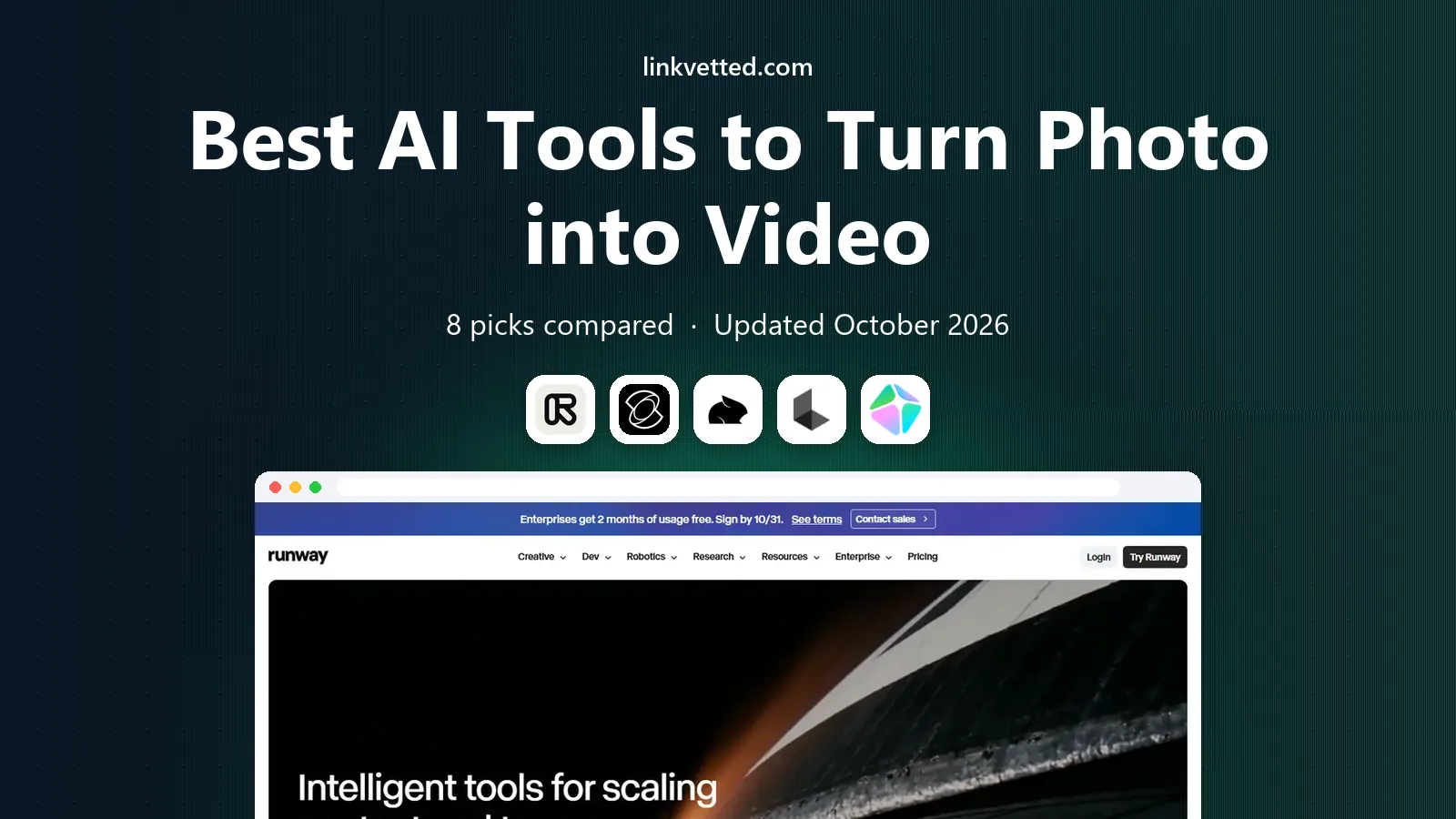
- Editor's choice
 Runway
Creator studio control
Starts at$12 per monthVisit runwayml.comFull review - Great alternative
 Kling AI
Realistic short clips
Starts at$8.80 per monthVisit klingai.comFull review - Also consider
 Pika
Fun social clips
Starts at$10 per monthVisit pika.artFull review
TL;DR:
- Runway is our pick for creators who want camera control and editing in one studio.
- Kling offers strong value for realistic short clips, with a low entry price and longer clip options.
- Pika is best for cheap, fun social clips and effects, while HeyGen and Synthesia suit avatar-led explainers.
- Free plans are useful for testing, but expect short clips, watermarks or credit limits on most tools.
Quick comparison
| Tool | Best for | Starts at | Free plan? | |
|---|---|---|---|---|
| Runway | Creator studio control | $12 per month | Yes | Visit |
| Kling AI | Realistic short clips | $8.80 per month | No | Visit |
| Pika | Fun social clips | $10 per month | Yes | Visit |
 Luma Dream Machine | Fast image to video | $30 per month | No | Visit |
 HeyGen | Avatar presenters | $29 per month | Yes | Visit |
 Synthesia | Training videos | $29 per month | Yes | Visit |
 Adobe Firefly | Brand-safe video | $9.99 per month | Yes | Visit |
 InVideo AI | Prompt to draft video | $20 per month | Yes | Visit |
The best AI tools to turn photos into videos
Turning a photo into video means different things: a still image that starts moving, a talking avatar, or a full edited clip. The tools below cover each use, so pick by the kind of video you actually need.
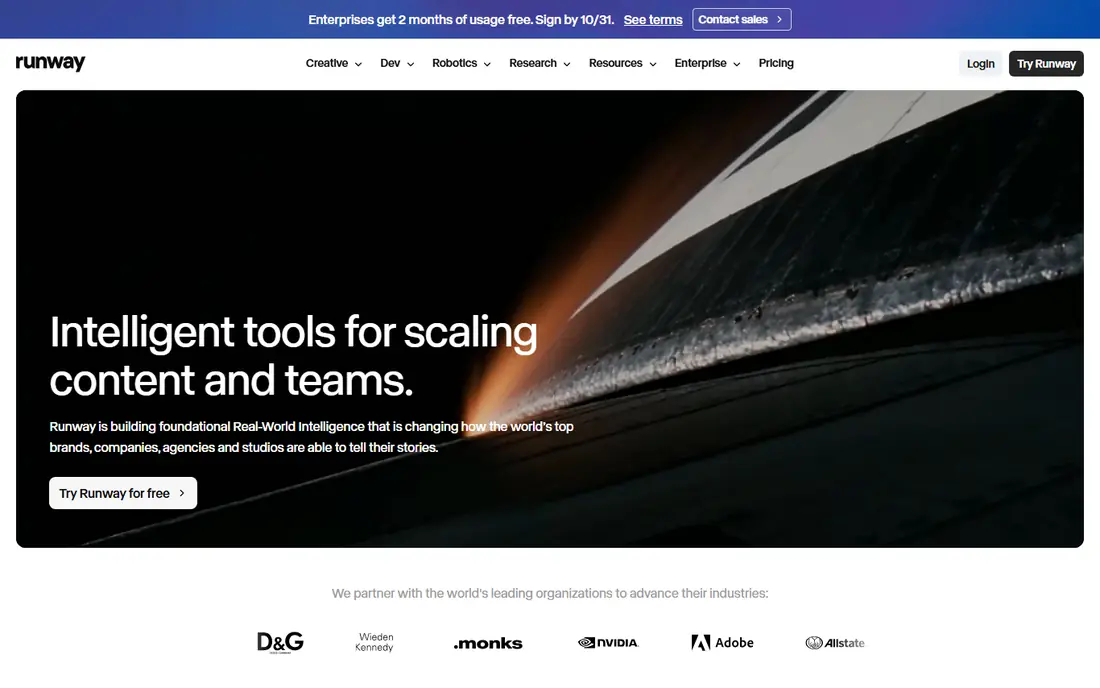
Runway is the closest thing on this list to a full video studio. You can upload a photo, describe the motion you want, adjust camera movement, and then edit the result with other tools in the same workspace. That control matters when you need a specific shot, not just any moving version of an image.
The cost model is the catch. Generation is credit-based, and a few failed attempts can use a month of credits on the entry plan. It is best for creators who plan shots carefully and accept that some generations will need retries. For casual social clips, a cheaper tool will feel less stressful.
- Strong image to video control
- Camera and motion tools
- Editing and effects in one place
- Credits run out fast on longer work
- Entry plan gives limited generation time
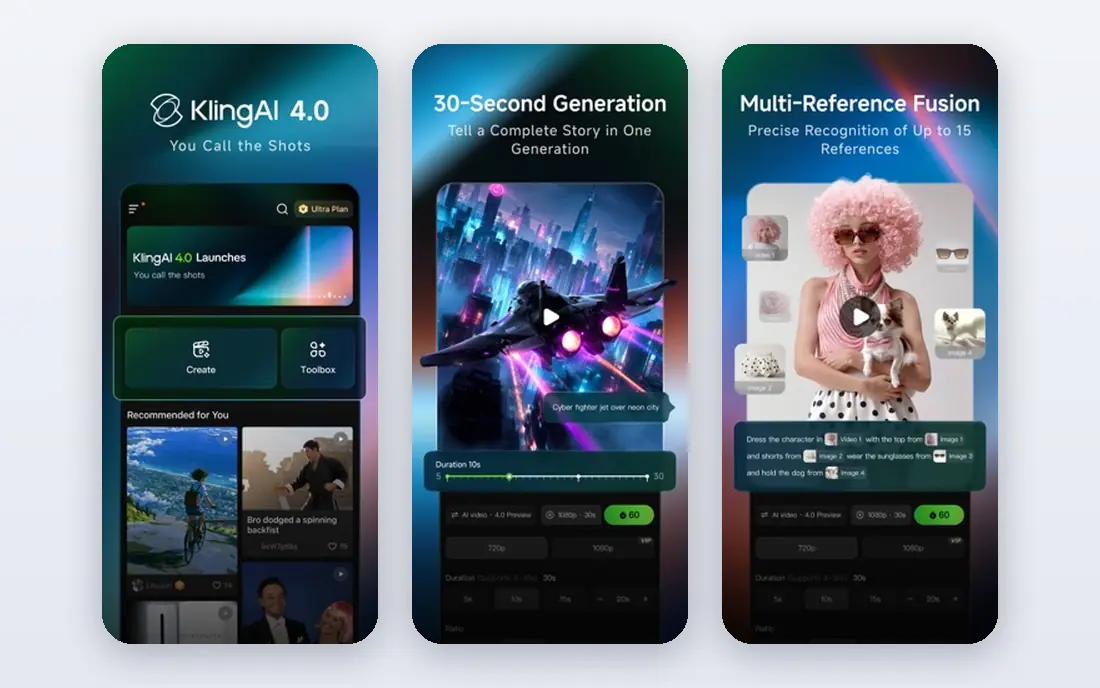
Kling has earned a strong reputation for realistic motion, especially for people and everyday scenes. Upload a clear photo, write a simple motion prompt, and you often get a clip that holds together better than cheaper tools. It also supports longer generations than the very short clips common elsewhere, which helps for ads and social stories.
Pricing has changed often, and promotional first-month rates differ from ongoing rates, so check the current page before you pay. There is no lasting free tier to rely on for regular use. If realism is your main goal and you will generate often, Kling is a strong value pick despite that limit.
- Realistic human motion
- Good lip sync options
- Longer clips than many rivals
- No published free plan on the main pricing page
- Results vary by prompt and image quality
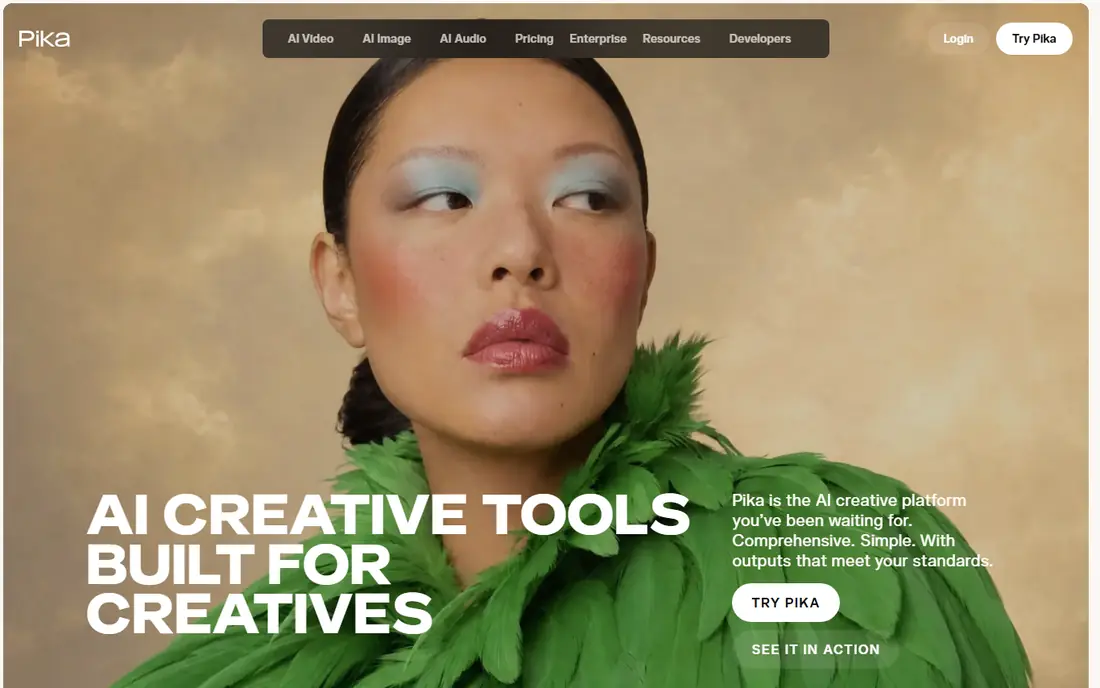
Pika is a good place to learn image to video without a large budget. The interface is simple, effects are easy to try, and the free plan lets you test whether your photos animate well. For TikTok, Reels and short ads, that is often enough to judge a tool.
The limits show up quickly if you need longer, polished work. Clips stay short, and you will need to stitch results in an editor for a longer story. Pika is best as a fast, affordable generator for social content, not as a replacement for a full editing suite.
- Low entry price
- Fun effects and stylized looks
- Easy for short social video
- Clips are short
- Free plan credits are limited and may not allow commercial use
Luma Dream Machine is built for speed. You can try an idea, see a result, adjust the prompt and try again without a long wait. That fast loop helps when you are exploring a look for a campaign or a personal project, and the quality of its image to video work is competitive with Runway and Kling.
The price is the main barrier. At a higher starting point and no free plan, it makes sense for agencies and regular creators more than for a one-off user. If you only need one or two clips, a free or low-cost tool will be cheaper. If you generate daily, the speed may justify the cost.
- Fast iteration
- Strong image to video quality
- Good for creative and commercial drafts
- Higher entry price
- No free plan listed in 2026
- Credit costs vary by output
HeyGen answers a different question: what if the photo needs to speak? You can create an avatar from a photo, add a script, and get a presenter video in many languages. That is useful for training, product explainers and social content where a face on screen helps trust and attention.
It is not the best tool for a scenic photo that should pan, zoom or show natural motion. Use HeyGen when the goal is a talking head, and use Runway or Kling when the goal is a cinematic clip. The free plan gives a small number of watermarked videos per month, which is enough to test voice and avatar quality.
- Turns a photo into a talking avatar
- Translation and voice options
- Good for explainers
- Avatar work is not the same as cinematic motion
- Free plan videos are watermarked and limited
Synthesia is a business tool first. It turns scripts into presenter videos with avatars, templates and translations, which suits onboarding, compliance training and internal updates. You do not need a camera, a studio or editing skill to produce a clean result, and updates are as simple as editing text.
For a single photo that should come alive as a scene, Synthesia is the wrong pick. Its strength is structured, spoken video, not free-form motion. If your team makes training content often, the time saved can outweigh the monthly cost. For casual creators, HeyGen or Pika will be cheaper and more flexible.
- Large avatar and voice library
- Templates for training
- Easy script to video workflow
- Less suited to turning scenic photos into motion clips
- Higher cost for heavy use
Adobe Firefly appeals to people who already work in Adobe apps and care about commercial use. You can generate video from images and text, then finish the work in Premiere or Express without leaving the Adobe workflow. For brands that need to check rights and usage terms carefully, that positioning matters.
The video side is still part of a wider creative suite, so it does not match every specialist tool on clip length or motion control. It is best when you want a safe, integrated option for marketing assets, rather than a single-purpose generator. Check your Adobe plan, since credits and video access vary by tier.
- Adobe integration
- Commercially safer training approach
- Credits included in Adobe plans
- Video features vary by plan
- Not as focused on long cinematic clips as Runway
InVideo AI is useful when you start with an idea, not a finished edit. Give it a prompt and your photos, and it builds a draft with scenes, text, voiceover and music. You can then swap clips, change text and adjust timing in the editor. That workflow suits small businesses and creators who need a complete video quickly.
The trade-off is control. A draft is a starting point, not a final film, and you should review faces, text and motion before publishing. If you want precise camera work from one photo, use a specialist generator first, then assemble the result in InVideo or another editor. For speed and completeness, InVideo is a practical pick.
- Turns a prompt and photos into a full draft video
- Stock media and voiceover built in
- Easy editing
- Drafts need human review
- Less precise motion control than Runway or Kling
How we picked these
We compared official pricing pages, feature pages and recent 2026 pricing checks for AI video tools that accept a photo as a starting image. We favored tools that are still offered in the United States, that clearly support image to video, and that publish at least some pricing or free tier details. We excluded tools that had closed, that only accept text, or that had no official homepage.
Prices are starting paid prices, and many tools bill by credits rather than by minutes. That means the headline price does not tell you how much finished video you will get, since failed generations also use credits. We wrote See website in other cases where pricing varies by plan, and we based the comparison on published features rather than claimed hands-on testing.
How to get better results from a photo
Start with a sharp, well-lit photo. Blurry or crowded images give the model less to work with, and faces, hands and text are the most likely to distort. A simple subject on a clear background usually animates more cleanly than a busy group scene. Crop to the main subject before you upload, and keep the original photo safe in case you need to try again.
Write a short, specific motion prompt
Describe one main motion, not five at once. For example, ask for a slow camera push-in, a gentle head turn, or leaves moving in wind, rather than a long story in one prompt. Short prompts are easier for the model to follow, and they make it clear which attempt worked when you compare results. If a result is close, change one detail at a time instead of rewriting the whole prompt.
Plan for retries and editing
Expect to generate several versions of a shot and keep only one. That is normal for AI video, and it is why credit limits matter so much. Budget for two to four attempts per finished clip, and stitch short clips in a video editor for longer stories. Always check faces, hands and any text in the output before publishing, since small errors are easy to miss on a phone screen.
Check rights and consent before publishing
Only animate photos you own or have permission to use, and do not create misleading videos of real people. Many tools block or flag certain uses, and platforms may remove deceptive content. If you animate a photo of a person, get their consent first, especially for ads or public posts. For brand work, keep a record of the source photo and the tool terms for that project.
FAQ
What is the best free AI tool to turn photo into video?
Pika and Runway offer free tiers that are good for testing, while HeyGen and Synthesia offer limited free avatar videos. Free plans usually limit credits, clip length or commercial use, and some add a watermark. If you need regular, watermark-free work, a paid plan will be needed.
What is the best AI app to turn photos into videos for social media?
Pika is a strong low-cost pick for short, fun social clips, and Kling is better when you want more realistic motion. InVideo AI helps when you want a full draft with voiceover and text, rather than a single clip. Choose by clip length and style, then test the same photo in two tools before you commit.
Can AI turn a single photo into a long video?
Not in one generation on most tools. Most image to video clips last only a few seconds, so longer videos are built by stitching several clips in an editor. HeyGen and Synthesia are exceptions for presenter videos, since they can run for minutes when the avatar is speaking from a script.
How much does AI photo to video cost?
Entry paid plans on this list start around $9 to $30 per month, but credit use decides the real cost. A short clip may take one generation, while a polished shot may take several tries. Start on a free tier, measure how many credits your typical clip uses, and only then pick a monthly plan.
Is it safe to animate photos of real people?
Only with consent and honest use. Do not create videos that imply a person said or did something they did not, and avoid animating photos of children or private individuals without clear permission. For business use, follow the tool terms and the platform rules where you will publish.