Best Cloud Backup Services in 2026: 9 Services Compared
We compared storage, devices, restore options and renewal prices to find the best cloud backup services for one computer, a household or a small business.
- Editor's choice
 Backblaze
One computer, unlimited backup
Starts at$9 per monthVisit backblaze.comFull review - Great alternative
 IDrive
Households with many devices
Starts at$9.99 per monthVisit idrive.comFull review - Also consider
 Carbonite
Simple set and forget backup
Starts atSee websiteVisit carbonite.comFull review
TL;DR:
- The best cloud backup services run quietly in the background and make restores simple, so test a restore before you trust any service.
- Unlimited backup suits one computer with lots of data, while a pooled storage plan suits households with many devices.
- Check version history, encryption and restore options, not just storage size, since those decide what you actually recover.
- First year discounts can be steep, so confirm the renewal price before you sign up.
Quick comparison
| Tool | Best for | Starts at | Free plan? | |
|---|---|---|---|---|
| Backblaze | One computer, unlimited backup | $9 per month | Free trial | Visit |
| IDrive | Households with many devices | $9.99 per month | Free trial | Visit |
| Carbonite | Simple set and forget backup | See website | Free trial | Visit |
 Acronis Cyber Protect Home Office | Backup plus security tools | $49.99 per year | Free trial | Visit |
 CrashPlan | Small business endpoint backup | See website | Free trial | Visit |
 SpiderOak One | Privacy focused backup | See website | Free trial | Visit |
 pCloud | Cloud storage with backup features | See website | Yes | Visit |
 Sync.com | Zero knowledge storage and backup | See website | Yes | Visit |
 Livedrive | UK based backup with unlimited plans | See website | Free trial | Visit |
The best cloud backup services
We compared cloud backup services on storage model, device coverage, encryption, versioning, restore options and price, using vendor pricing pages and published 2026 comparisons.
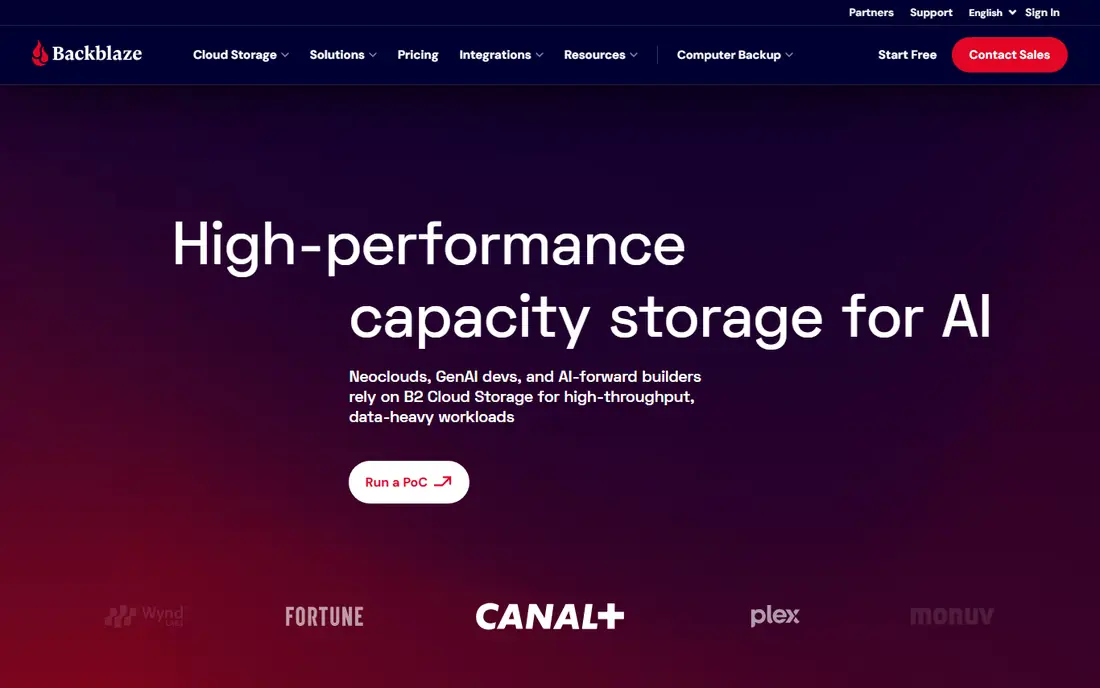
Backblaze is the simplest pick for a single computer with a large drive or attached external drives. One flat price covers unlimited backup data, and the software runs quietly once installed, backing up new and changed files automatically. Restores can be done by download, or by mailed USB drive for large restores, with a refund if the drive is returned within 30 days.
The main limit is device coverage. Each license covers one computer, so a household with several machines needs several licenses or a different service. Mobile devices are not backed up either. If you have one main computer and a lot of data, Backblaze is our first recommendation.
- Unlimited backup for one computer
- Simple setup
- Restore by mail option
- One license covers one computer
- Mobile backup not included
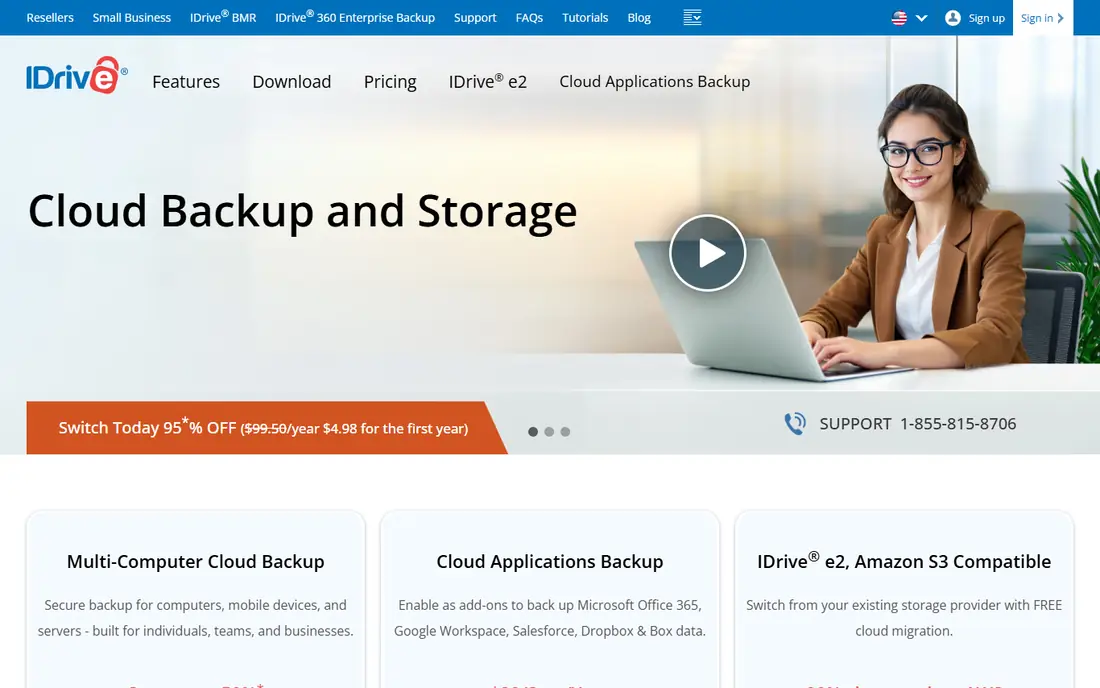
IDrive suits households and small offices with many computers and phones, because one account covers an unlimited number of devices under a shared storage pool. Personal plans offer 5 TB and 10 TB options, with monthly billing for the 5 TB plan listed around 11.99 dollars and annual renewal around 119.88 dollars per year, after a cheaper first year. IDrive Express ships a physical drive for large backups or restores, which helps when internet speeds are slow.
The trade off is the storage cap. Unlike Backblaze, you cannot back up unlimited data, so large media collections need the bigger plan. Check the renewal price at checkout, since first year discounts are steep. For multi device households, IDrive is the best value in this list.
- One storage pool for unlimited devices
- Physical Express restore
- Strong versioning
- Fixed storage cap
- Renewal price is higher than the first year price
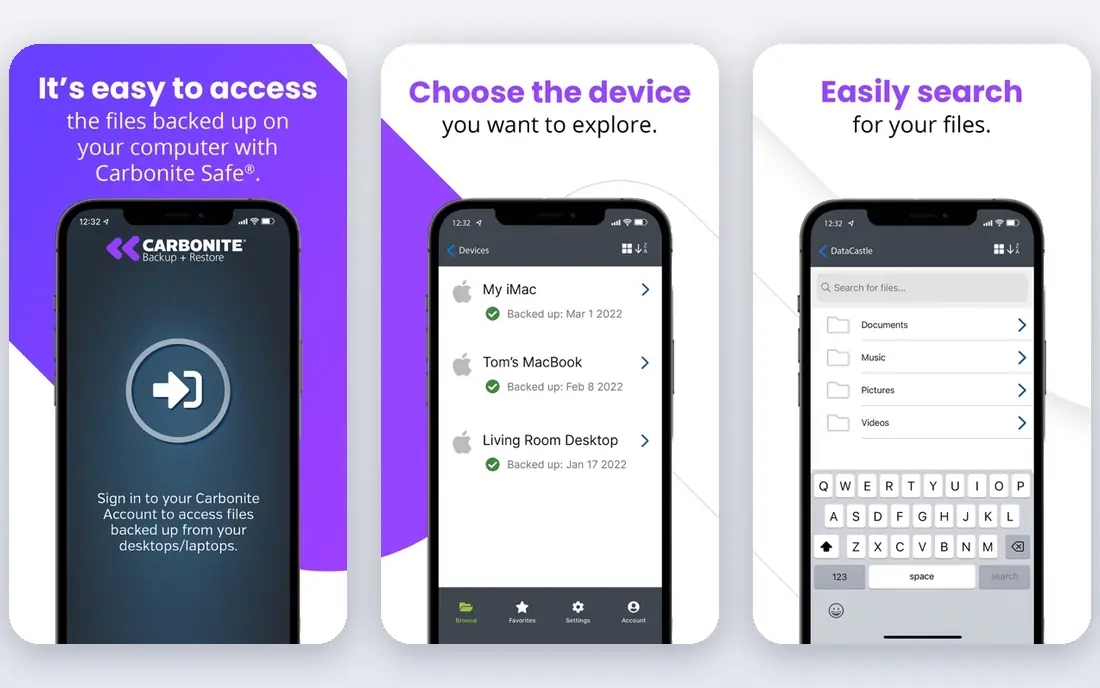
Carbonite has long sold itself as backup for people who do not want to think about backup, and that still holds. Personal plans offer unlimited storage, automatic backup and a simple restore process, with courier recovery available for a fee. Higher tiers add features such as external drive backup and automatic video backup, so check which tier covers your setup.
The basic plan is more limited than it first looks, and some plans bill annually rather than monthly, so read the tier details before buying. Carbonite is a good pick for one computer users who want the simplest possible setup and do not need multi device coverage.
- Unlimited backup on personal plans
- Very simple interface
- Courier restore option
- Basic plan limits some features
- Annual billing only on some plans
Acronis Cyber Protect Home Office, formerly True Image, is more than a file backup tool. It offers full disk imaging, so you can restore an entire system, plus local and cloud backup in one product, and security features such as ransomware protection. The Essentials subscription starts around 49.99 dollars per year for one computer for local backup, while Advanced plans add 500 GB of cloud storage from around 89.99 dollars per year, and Premium adds 1 TB from around 124.99 dollars per year.
Cloud storage caps mean heavy users need the higher tiers or extra storage packs. The interface packs in many features, which can overwhelm new users. If you want imaging, local backup and cloud backup in one package, Acronis is the strongest all rounder here.
- Full disk imaging
- Local plus cloud backup
- Built in anti ransomware tools
- Cloud storage caps on lower tiers
- Interface can feel busy
CrashPlan focuses on small business endpoint protection, backing up laptops and desktops with unlimited storage per user on business plans. A central console lets an admin manage devices, retention and restores, which matters once you pass a handful of machines. Published business pricing puts entry plans around 10 dollars per user per month in some comparisons, though current list pricing should be confirmed on the vendor site.
CrashPlan can be resource heavy during initial scans, and it is less of a household product than Backblaze or IDrive. For a small business that needs managed endpoint backup with a clear admin view, CrashPlan is a solid choice.
- Unlimited endpoint backup
- Central admin console
- Strong versioning
- Can use more system resources during scans
- Business focused pricing
SpiderOak One is built around zero knowledge encryption, meaning the provider cannot read your files because encryption keys stay with you. That privacy model appeals to journalists, lawyers, researchers and anyone handling sensitive material. Plans are tiered by storage, with larger plans such as 5 TB listed around 29 dollars per month in published comparisons.
You pay more per terabyte than with Backblaze or IDrive, and the product focuses on backup rather than media streaming or sharing extras. If privacy is your top priority and you are willing to pay for it, SpiderOak One is the most privacy focused backup service in this list.
- Zero knowledge encryption
- No knowledge architecture
- Strong privacy stance
- Higher price per terabyte
- Fewer consumer friendly extras
pCloud is primarily a cloud storage service, but its backup features, file versioning and sync make it a useful option for people who want storage and backup in one place. A free plan offers starter storage, and paid plans add more space, with lifetime purchase options that appeal to users who dislike subscriptions. Sharing and media playback are stronger here than in most dedicated backup tools.
It is not a full replacement for a dedicated backup service if you need continuous system imaging or bare metal restore. Client side encryption is available as a paid add on rather than included by default. For users who mainly need synced storage with solid backup features, pCloud is a flexible pick.
- Lifetime plans available
- Free starter storage
- Good file sharing
- True continuous backup is less deep than dedicated backup tools
- Crypto add on costs extra
Sync.com encrypts files on your device before upload, so the provider cannot read them, and it applies that protection by default rather than as an add on. Personal plans cover unlimited devices, with a 1 TB plan listed around 72 dollars in the first year and around 144 dollars per year after, and larger plans including 5 TB and unlimited options. Teams plans start around 6 dollars per user per month billed annually with a three user minimum.
The first year discount is steep, so budget for the renewal rate. Sync can also feel slower than mainstream storage services when handling very large files. If you want zero knowledge protection with a straightforward storage product, Sync.com is a strong choice.
- Zero knowledge encryption by default
- Unlimited devices
- Canadian jurisdiction
- Renewal price rises after the first year
- Sync can be slower than rivals
Livedrive is a UK based backup and storage provider offering unlimited backup plans for home users, along with briefcase sync for files you want available everywhere. Its appeal is simple unlimited backup from a provider outside the large US backup brands, with support aimed at home and small business users. Plans and pricing vary, so confirm current rates on the vendor site before buying.
It is less widely reviewed than Backblaze, IDrive or Acronis, so there is less independent testing to lean on. For UK users or anyone who prefers a smaller provider with unlimited plans, Livedrive is worth including in a shortlist alongside the bigger names.
- Unlimited backup plans
- UK based company
- Simple briefcase sync
- Less widely reviewed than US rivals
- Pricing varies by plan
How we picked these
We compared services that are actively sold in 2026, offer real cloud backup rather than sync alone, and publish enough pricing and feature detail to verify. We weighed storage model, device coverage, encryption, versioning and restore options, and we favored a mix of unlimited backup, multi device and privacy focused options. Where vendor pricing changes often or varies by plan, we marked the price as See website rather than guessing. We also favored services with a clear restore path, since a backup you cannot restore is not a backup.
How to set up cloud backup that actually saves you
Follow the 3-2-1 rule as a starting point: three copies of important data, on two different media, with one copy off site. Cloud backup covers the off site copy, but keep a local external drive as well for fast restores. Turn on automatic backup, include external drives if your plan covers them, and check that large folders such as photos and documents are actually selected.
Test a restore within the first week. Restore a few files to a different folder and confirm they open correctly, and check version history by restoring an older version of a changed file. Set a calendar reminder to review your backup status monthly, since a paused backup or a full storage plan can silently stop protecting new files.
What to check before you pay
Confirm device limits, storage caps, version retention, encryption type and restore costs. Ask whether deleted files are kept, for how long, and whether a mailed drive restore is available for large recoveries. Read the renewal price, not just the first year price, and confirm whether the plan covers your operating system and external drives.
FAQ
What is the best cloud backup service?
The best cloud backup service depends on your setup. Backblaze suits one computer with unlimited data, IDrive suits households with many devices, and Acronis suits users who also want disk imaging and security tools. Privacy focused users should look at SpiderOak One or Sync.com.
How much does cloud backup cost?
Prices vary by storage model. Backblaze is listed at 9 dollars per month for unlimited backup of one computer, IDrive personal 5 TB renews around 119.88 dollars per year, and Acronis Essentials starts around 49.99 dollars per year for local backup. Always confirm the renewal price, since first year discounts are common.
Is cloud backup safe?
Reputable cloud backup services encrypt data in transit and at rest, and zero knowledge services such as SpiderOak One and Sync.com encrypt data so the provider cannot read it. Use a strong, unique password and two factor authentication on your backup account, since account security matters as much as encryption.
What is the difference between cloud backup and cloud storage?
Cloud backup automatically copies your files and system data to the cloud on a schedule, with versioning and restore tools. Cloud storage syncs files you place in a folder and focuses on access and sharing. Backup is for recovery, storage is for access, and many people benefit from having both.
How long does the first backup take?
The first backup can take days for large collections, depending on upload speed and total data size. Most services back up in the background and resume after interruptions, and some offer a physical drive service for the first backup or a large restore. Start the first backup when you will not need full upload speed for other work.