Best Clip Alternatives in 2026: 8 AI Clipping Tools Compared
Looking for the best clip alternatives? We compare 8 AI video clipping tools that turn long videos into shorts, with pricing, free plans, and honest trade-offs.
- Editor's choice
 Opus Clip
Most creators turning long videos into shorts
Starts at$15 per monthVisit opus.proFull review - Great alternative
 Vizard
Teams that want scheduling and 4K exports
Starts atSee websiteVisit vizard.aiFull review - Also consider
 Klap
Multilingual channels
Starts at$14 per monthVisit klap.appFull review
TL;DR:
- A note on framing: the keyword gives no single product called Clip, so this article covers short-form video clipping tools, the category most readers mean when they search for clip alternatives.
- Opus Clip is our pick for most creators, thanks to its free plan and broad feature set for turning long videos into shorts.
- Vizard and Klap are strong choices for teams and multilingual channels that need scheduling, captions, and bulk output.
- Eklipse stands out for gaming streamers, because it finds highlights from full stream recordings rather than only cutting clips you pick by hand.
- CapCut remains the best free manual option when you would rather edit each cut yourself than trust an automated pick.
Quick comparison
| Tool | Best for | Starts at | Free plan? | |
|---|---|---|---|---|
| Opus Clip | Most creators turning long videos into shorts | $15 per month | Yes | Visit |
| Vizard | Teams that want scheduling and 4K exports | See website | Yes | Visit |
| Klap | Multilingual channels | $14 per month | No | Visit |
 Submagic | Caption polish on short clips | $12 per month | No | Visit |
 Eklipse | Gaming streamers | Free | Yes | Visit |
 Ssemble | High-volume repurposing on a budget | See website | Yes | Visit |
 Descript | Transcript-based editing plus clips | $16 per month | Yes | Visit |
 CapCut | Free manual short-form editing | Free | Yes | Visit |
The best clip alternatives
Clipping tools take a long video, such as a podcast, stream, or webinar, and cut it into short vertical clips for TikTok, Shorts, and Reels. Some use AI to pick the moments for you, while others give you a fast editor to make the cuts yourself. The right pick depends on how much control you want and how many clips you need each week.
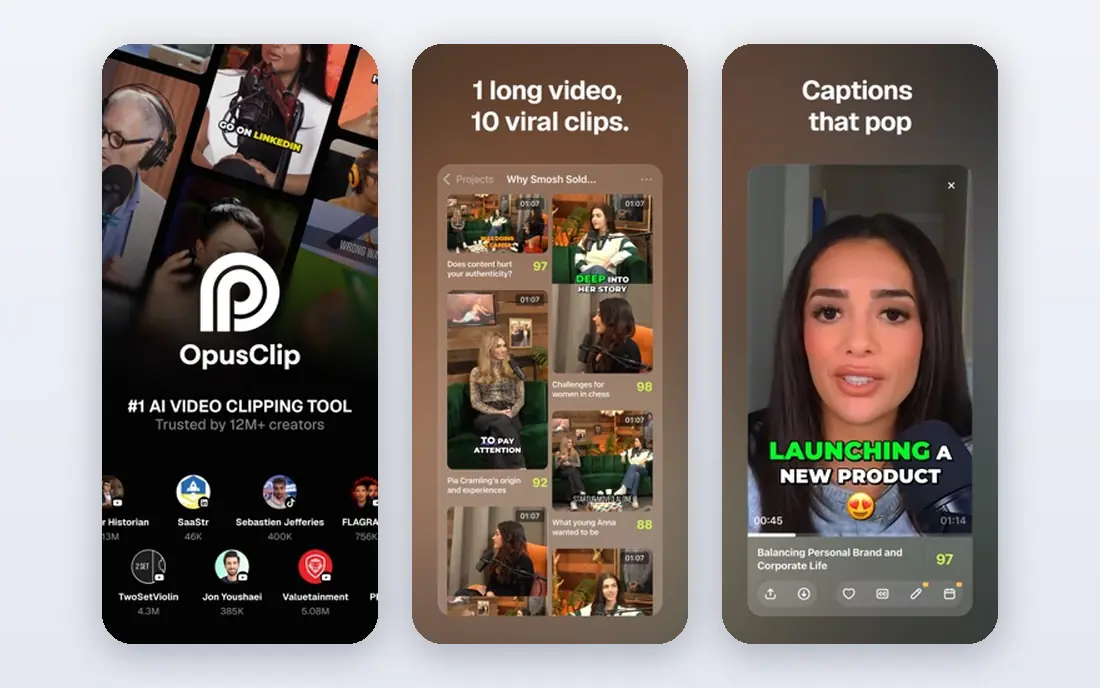
Opus Clip is the default recommendation in this category for a simple reason: it handles the whole job, from finding moments to captioning and reframing them for vertical screens. Upload a long video or paste a link, and the tool returns a set of scored clips you can edit, trim, and export. For a weekly podcast or YouTube show, that workflow saves hours compared with scrubbing through footage by hand.
The pricing model deserves a close look. Credits are charged on the minutes you upload, so a long recording can eat a monthly allowance even if you keep only two clips. The free plan is still a genuine way to test the tool, and the paid plan from $15 per month suits regular creators. If you publish daily at high volume, compare Vizard or Ssemble before committing.
- Free plan with monthly processing minutes
- Virality scoring for clip ideas
- Captions and reframing built in
- Credits are metered by upload minutes, not clips kept
- Free exports carry limits
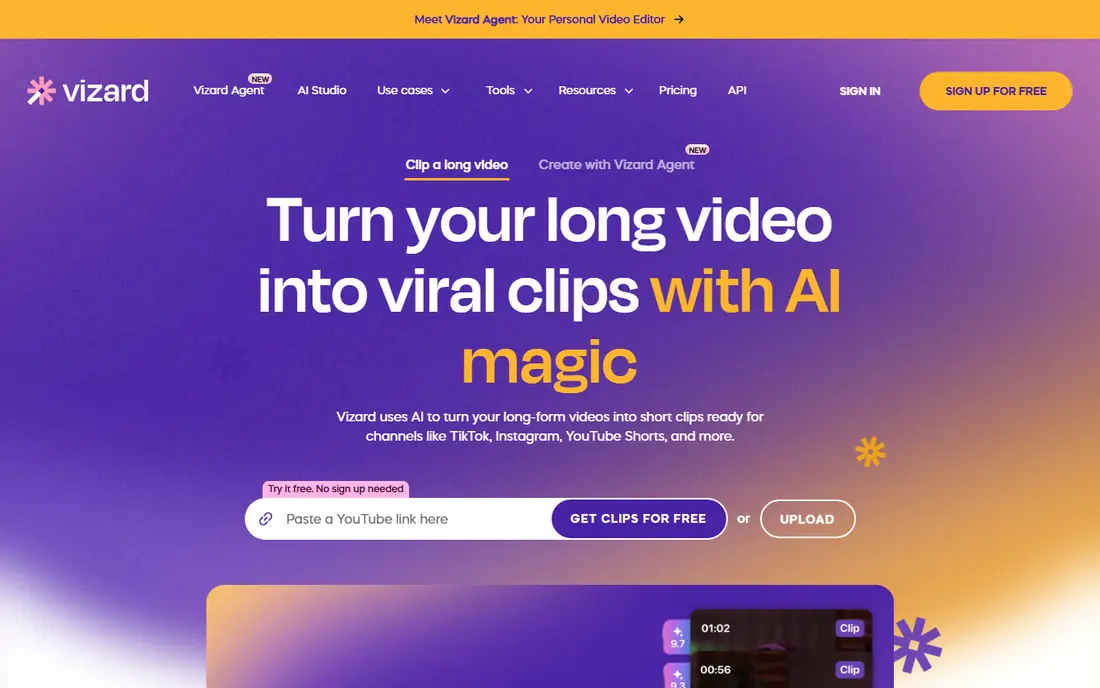
Vizard suits creators and small teams who want clipping to feed a posting calendar, not just a folder of files. Its AI picks clips, adds captions, and can schedule posts to major platforms, which cuts down on the copy-and-paste work between tools. Higher tiers add sharper exports and more room for team review, which matters when more than one person approves content.
The downside is pricing transparency. Entry paid pricing is not as easy to compare at a glance as Opus Clip, so check the in-app pricing page before you judge value. The free plan, with monthly credits and a watermark, is still enough to learn whether the clip quality fits your style.
- Free plan to try AI clipping
- Team collaboration features
- Scheduling and publishing built in
- Paid pricing is shown in the app rather than as one simple public tier
- Free exports are watermarked at lower resolution
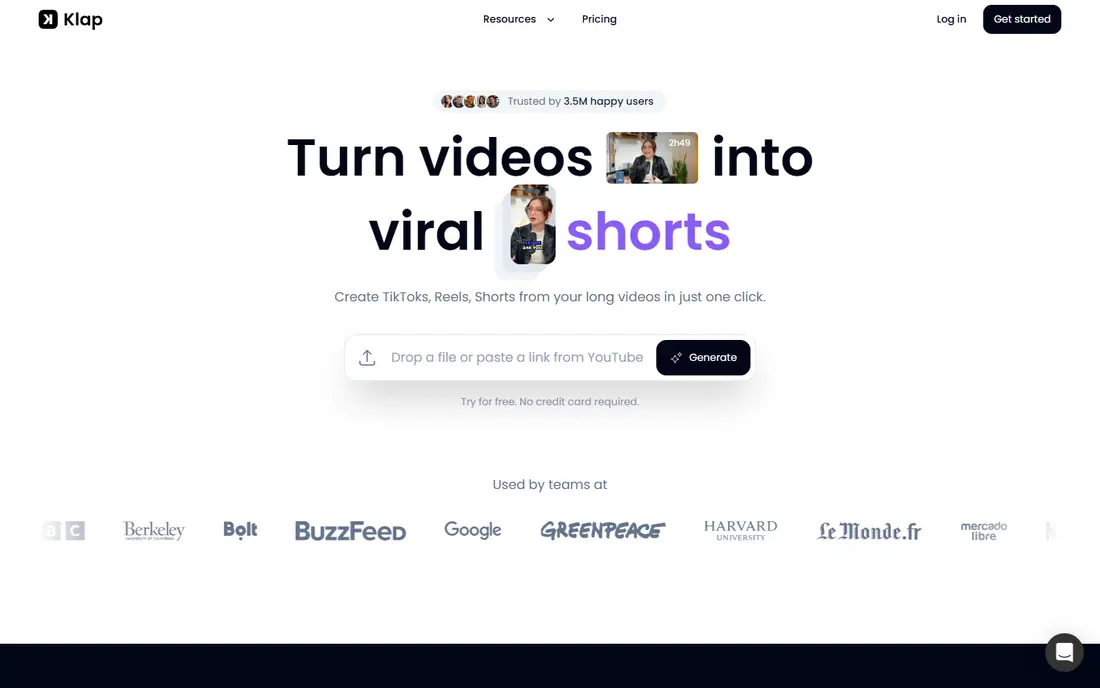
Klap is the pick for channels that publish in more than one language. Paste a video link or upload a file, and Klap cuts clips, captions them, and can reframe them for each platform. Its language support, covering dozens of languages, is a real advantage for creators with audiences in several countries, and the interface stays simple enough for solo creators.
There is no permanent free plan, only a trial, so you need to pay to use it regularly. Paid plans start at $14 per month billed yearly, which is competitive for the feature set. If you publish only in English and want a free tier, Opus Clip or Vizard may suit you better.
- Supports many languages for captions and dubbing
- Simple link-to-clip workflow
- Auto-posting to major platforms
- No permanent free plan
- Best value comes from annual billing
Submagic is best understood as a polish tool rather than a pure clip finder. If you already have a short clip, or you use another tool to pick moments, Submagic adds animated captions, zooms, B-roll, and sound effects that make the result feel native to TikTok and Reels. Creators who care about caption style will notice the difference at once.
The catch is that its own long-video clipping sits behind a paid add-on, so the headline price does not tell the full story for that workflow. Paid plans start at $12 per month billed yearly, with a limited trial available. Pair it with a clip finder if you need both jobs done, or pick it alone if captions are your main gap.
- Animated captions and trendy styles
- B-roll and sound effects
- Fast editing for clips you already have
- Long-to-short clipping is a paid add-on
- No permanent free plan
Eklipse is the only tool on this list built first for streamers. Instead of asking you to pick a clip, it watches your full stream recording, finds strong moments across many games, and cuts them into vertical clips with captions. For a streamer who finishes a long session and wants five usable shorts without rewatching the whole broadcast, that is a major time saving.
The trade-off is scope. Eklipse is less suited to a talking-head podcast or a corporate webinar, where other tools on this list make smarter picks. Its free tier is a fair way to test highlight quality on your own streams, and paid plans add higher resolution and more publishing features.
- AI finds highlights from full stream recordings
- Built for Twitch, Kick, and YouTube
- Free to start
- Gaming focus means less fit for podcasts or talks
- Advanced features require a paid plan
Ssemble is aimed at creators and agencies that turn many long videos into shorts each month. It combines AI clip detection with captions, B-roll, sound effects, and transitions, plus scheduling on higher plans, so one tool can cover most of the repurposing chain. For teams that post at volume, its pricing structure can work out cheaper than per-minute credit systems.
The honest catch is complexity. With several plans and add-ons, the cheapest route depends on your volume and whether you need an API or team seats. Start with the free option, measure how many videos you actually process in a month, and only then pick a paid tier.
- Per-video pricing can suit high volume
- Captions, B-roll, and transitions
- Scheduling included on higher plans
- Pricing varies by plan and add-ons, so compare carefully
- Interface has a learning curve
Descript takes a different approach: it transcribes your video, and you edit the footage by deleting or moving words in the transcript. That makes precise cuts easy, and it is ideal when you want exact control over wording, such as removing a filler phrase or reordering a segment. Clips for social platforms are one output among many, alongside full edited videos and audio.
Because Descript is a full editor, it costs more than a clip-only tool, with paid plans from $16 per month billed yearly and a free plan with limited media minutes. If clips are your only output, a dedicated clipper may be cheaper. If you also edit podcasts or long videos, Descript can replace two tools at once.
- Edit video by editing text
- Strong transcription
- Full editor beyond clips
- Clipping is one feature inside a larger editor
- Paid plans start higher than clip-only tools
CapCut is the manual option, and for many creators that is a feature, not a flaw. You get a complete short-form editor, with templates, effects, transitions, and captions, without paying anything to start. If you already know which moments you want, or you enjoy editing, CapCut gives you full control and a fast path to a polished clip.
What you give up is automation. CapCut will not watch a two-hour video and hand you the best moments, so high-volume creators will spend more time per clip. Used alongside an AI clip finder, though, it is an excellent finishing tool, and on its own it remains the best free way to learn short-form editing.
- Full editor at no cost
- Templates, effects, and captions
- Huge template community
- No AI clip detection on the free tier
- You pick and cut every moment yourself
How we picked these
We compared official feature pages, pricing pages, and app listings, along with public comparisons of clipping tools published in 2026. We favored tools that are actively maintained, offer a clear free plan or trial, and genuinely produce short-form clips rather than only hosting video. We also made sure the list covers different starting points: stream recordings, podcasts, talks, and clips you already have.
Choosing by how you start
The most useful question is not which tool is best in general, but what you start with each week. If you start with a long stream, Eklipse will save the most time. If you start with a podcast or interview, Opus Clip, Vizard, or Klap will pick moments for you. If you start with a clip you already like, Submagic or CapCut will polish it fastest.
Watch the credit model before you pay
Clip tools meter their work in different ways: some charge by upload minutes, some by clips exported, and some by videos processed. A plan that looks cheap can run out fast if you upload long recordings every week. Before subscribing, check how your longest typical video counts against the allowance, and test the free plan with a real recording, not a short demo.
FAQ
What are the best clip alternatives for beginners?
Opus Clip and CapCut are the easiest starting points. Opus Clip picks clips for you and offers a free plan, while CapCut is free and teaches you manual editing. Try both with the same video and keep the one whose results you would actually post.
Is there a free AI clipping tool?
Yes. Opus Clip, Vizard, Eklipse, Ssemble, Descript, and CapCut all offer a free plan or free tier, though exports may be watermarked or limited in resolution and minutes. For regular publishing, most creators move to a paid plan once they know which tool fits their style.
Which clip tool is best for gaming streamers?
Eklipse is built for gaming streamers, because it finds highlights from full stream recordings on Twitch, Kick, and YouTube. Other tools on this list can reformat clips you pick yourself, but they do not watch a whole stream to find moments in the same way.
Do these tools post directly to TikTok and YouTube Shorts?
Many do, including Vizard, Klap, and Eklipse on their paid plans, with scheduling and publishing built in. Others focus on editing and export, leaving posting to you or to a scheduler. Check the publishing features on the pricing page before you buy, since this varies by plan.
What is the difference between AI clipping and manual editing?
AI clipping picks moments from a long video for you, using speech, engagement signals, and topic changes. Manual editing means you watch, pick, and cut each moment yourself, which gives more control but takes longer. Many creators use AI to find candidates, then finish the best ones by hand.
Can I use these tools for podcasts?
Yes. Podcast episodes are a strong fit for Opus Clip, Vizard, Klap, and Descript, which handle speech-heavy content well. Descript is especially useful if you also want to edit the full episode, since its transcript editor covers both jobs.