8 Best Apps for Making Transparent Backgrounds
Find the best app for making transparent backgrounds, from free one-click cutouts to batch tools for sellers, with prices and honest trade-offs for 2026.

- Editor's choice
 Adobe Express
Free cutouts inside a design app
Starts at$9.99 per monthVisit adobe.comFull review - Great alternative
 Canva
Cutouts inside templates and brand kits
Starts at$15 per monthVisit canva.comFull review - Also consider
 PhotoRoom
Product photos for online sellers
Starts at$12.99 per monthVisit photoroom.comFull review
TL;DR:
- Adobe Express gives most casual users a free, watermark-free cutout, while Canva is better when the cutout feeds a larger design.
- PhotoRoom and PicWish suit sellers, because batch processing matters more than a single perfect image.
- Clipping Magic is the backup for tricky edges that automatic tools miss, such as jewelry and plants.
- Check free export limits before you commit, since resolution, watermarks, and commercial use vary by plan.
Quick comparison
| Tool | Best for | Starts at | Free plan? | |
|---|---|---|---|---|
| Adobe Express | Free cutouts inside a design app | $9.99 per month | Yes | Visit |
| Canva | Cutouts inside templates and brand kits | $15 per month | Yes | Visit |
| PhotoRoom | Product photos for online sellers | $12.99 per month | Yes | Visit |
 Pixelcut | Mobile-first sellers on a budget | $10 per month | Yes | Visit |
 Fotor | Cutouts plus general photo editing | $8.99 per month | Yes | Visit |
 Pixlr | Browser editing without installing software | See website | Yes | Visit |
 Clipping Magic | Precise manual edge fixes | See website | Free trial | Visit |
 PicWish | Low-cost batch cutouts | See website | Yes | Visit |
The best transparent background apps
A clean transparent background makes a logo, product photo, or headshot usable almost anywhere. The tools below all make transparent PNG files, but they differ on edge quality, batch work, and what the free plan actually lets you export.

Adobe Express is the easiest free starting point for most people, because background removal is included without a watermark on the free plan. You upload a photo, remove the background in one tap, and drop the result straight into a social post, flyer, or presentation. Its real strength is the workflow around the cutout. You do not need to move files between apps to add text, resize for a platform, or place the image on a new background.
The trade-off is control. If an edge needs careful repair, Express gives you fewer manual tools than a full photo editor, so tricky photos may need a second app.
- Free background removal
- Simple design tools included
- Works in a browser and on mobile
- Premium features need a paid plan
- Manual edge control is limited

Canva suits people who already design in Canva and want the cutout to live where the final design lives. Once the background is gone, the image can go straight into a post, ad, menu, or slide without a separate export step. That closeness to templates is the point. You can test the same cutout on several backgrounds in minutes, which helps when a client or manager wants options fast.
The weakness is price for cutouts alone. If you only need transparent PNG files and never use templates, a cheaper specialist tool makes more sense than a full Canva Pro plan.
- Background Remover built into design projects
- Huge template library
- Team brand tools
- Background Remover needs a paid plan
- Export control is basic compared with photo editors
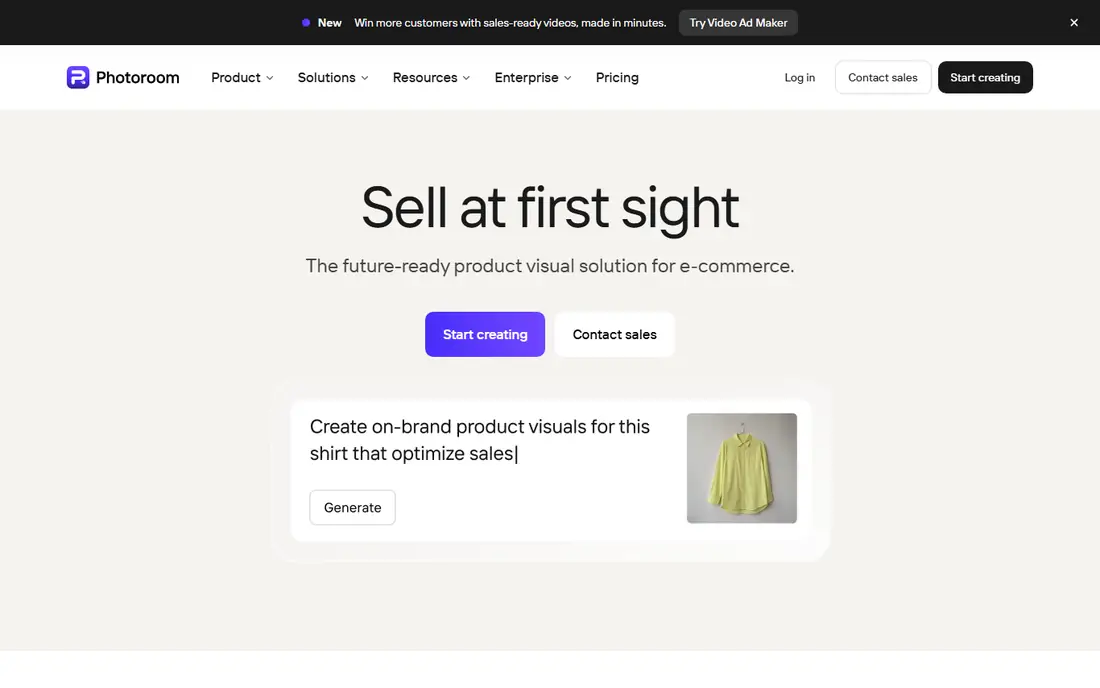
PhotoRoom is built for sellers who photograph products on a phone and need listing-ready images the same day. It removes backgrounds, adds consistent studio looks, and handles many images at once. Batch work is where it earns its fee. A seller with a new shipment can process a whole set in one pass instead of opening each photo by hand.
The free plan is best treated as a trial. Export limits mean serious sellers will need a paid plan, so test the batch flow with real product photos before you commit.
- Batch processing for catalogs
- Marketplace templates
- Clean product backgrounds
- Free exports are limited
- API access is separate from consumer plans
Pixelcut feels made for phone-first creators. You shoot, cut out, and stage a product photo without moving to a computer, which keeps small shops moving. Its templates help when you need a consistent look across a store. A white studio shot, a colored backdrop, or a simple scene can be applied in a few taps.
On a large screen, the editing controls feel lighter than a desktop editor. For fine retouching, plan to finish the image elsewhere.
- Fast phone workflow
- Product photo templates
- Simple background options
- Desktop editing is less deep
- Some features need the paid plan
Fotor is a good middle ground for people who want more than a one-job tool. You can remove a background, adjust light and color, and build a simple graphic in the same place. That breadth helps casual users and small teams. One subscription covers quick edits that would otherwise need two or three separate apps.
Hair and fine edges are its weak spot. Check those areas closely, and keep expectations modest for portraits with loose hair.
- Background remover plus filters and design tools
- Batch options on paid plans
- Easy browser use
- Free exports can carry limits
- Edge refinement is basic
Pixlr appeals to anyone who works on shared or borrowed computers. There is nothing to install, and you can open a layered project from a browser tab. Layer support is a real advantage here. You can keep the cutout on its own layer, try backgrounds underneath it, and adjust each part without starting over.
The free experience includes ads and credit limits, so heavy users may hit friction. It is still a strong choice for occasional work and quick fixes.
- Runs fully in a browser
- Layered editing
- AI cutout tools
- Free use is ad-supported
- AI credits can run out
Clipping Magic is the pick when automatic tools keep getting an edge wrong. Its manual brushes let you mark what to keep and what to remove, then refine the boundary yourself. That control matters for jewelry, plants, lace, and other shapes that confuse automatic detection. A few minutes of manual work can save an image that other tools would ruin.
It is not a design app, so you will still need another tool for layouts and text. Treat it as a specialist for difficult cutouts, not an all-in-one editor.
- Manual brush and edge tools
- Clear preview
- Good for tricky outlines
- Credit-based pricing
- No full design suite
PicWish is worth a look when price and volume matter more than design extras. The interface stays simple, and batch processing helps with catalogs and repeated jobs. Occasional users benefit from flexible credit options instead of a large monthly plan. You pay in line with how much you actually process.
It will not replace a design suite. If you need layouts, text, and brand assets, pair it with a design app rather than expecting everything in one place.
- Batch processing
- Simple interface
- Pay options for occasional use
- Paid features vary by plan
- Design tools are limited
How we picked these
We compared official feature pages, pricing pages, and app store listings for each product, and checked privacy policies and public reviews where they helped explain limits. We favored products that exist and work today, fit the topic directly, and offer a clear use case, rather than padding lists with near matches.
We also weighed honest trade-offs. A low price means less if the free plan limits exports, a strong feature set means less if it only serves one region, and a high rating means less if the product does not serve the reader need in the headline. Where pricing was unclear or varied by plan, we wrote See website instead of guessing a number.
What to check before you pay for a cutout tool
Start with edge quality, not speed. Upload the hardest photo you own, one with hair, fur, glass, or thin straps, and zoom in at full size before you trust any tool with a full catalog. A tool that looks perfect on a plain product shot can still leave a white halo around hair. Next, check the export rules. Some free plans cap resolution, add a watermark, or limit commercial use, and those limits matter more than the monthly price if you sell what you make.
Then match the tool to your volume. One-off users do best with a free plan or pay-per-image credits. Sellers with hundreds of photos should weigh batch processing, file naming, and marketplace templates, since those features save more time than a slightly lower monthly fee. Finally, keep an original copy of every photo. Automatic cutouts are easy to redo, but a lost original is not.
FAQ
Can a transparent background app keep hair looking natural?
It can do a good job on many portraits, but hair is still the hardest test. Zoom in at full size, check for halos and missing strands, and use a manual tool such as Clipping Magic when an automatic cutout leaves rough edges. A clean original photo with good light helps more than any setting.
What file format should I export for a transparent background?
Use PNG for most uses, since it supports transparency and works across websites, documents, and design apps. Keep the original photo too, so you can redo the cutout later if you change the background or need a larger size.
Do free background removers add watermarks?
Some do, and some limit resolution or commercial use instead. Adobe Express is notable for free removal without a watermark, while other free plans may watermark exports or cap size. Read the export terms on the vendor site before using images for sale.
Is a phone app good enough for product photos?
Yes, for many small stores, especially when the app offers batch processing and marketplace templates. Phone apps work best with even light and a plain backdrop. For high-end catalog work, a desktop editor still gives finer control.
How many images can I process at once?
It depends on the plan. PhotoRoom and PicWish offer batch tools on paid plans, while free plans often process one image at a time. If you list new products often, test batch speed with a real set before paying.
Should I pay monthly or buy credits?
Pay monthly if you process images every week, since a subscription usually works out cheaper at steady volume. Buy credits if your work comes in bursts, such as a seasonal catalog, because unused subscription months add up fast.