8 Alternatives to Excel for Large Data Sets in 2026
Looking for alternatives to excel for large data sets? We compare eight tools that handle big files, linked records and team work with less slowdown today.
- Editor's choice
 Google Sheets
Team editing in a browser
Starts atFreeVisit google.comFull review - Great alternative
 LibreOffice Calc
Free offline spreadsheets
Starts atFreeVisit libreoffice.orgFull review - Also consider
 ONLYOFFICE Sheets
Excel style files
Starts atFreeVisit onlyoffice.comFull review
TL;DR:
- A single spreadsheet slows down when rows, formulas and images pile up, so the best switch is often a database style tool, not a prettier grid.
- Google Sheets and LibreOffice Calc are the easiest low cost starts, while Airtable, Grist and Quadratic suit teams that need linked records or code.
- Smartsheet fits project work with dates and owners, and Zoho Sheet and ONLYOFFICE suit teams that want Excel style files without a high price.
- Check row limits, import limits and file size caps before you move a large file, because those limits decide the real ceiling.
Quick comparison
| Tool | Best for | Starts at | Free plan? | |
|---|---|---|---|---|
| Google Sheets | Team editing in a browser | Free | Yes | Visit |
| LibreOffice Calc | Free offline spreadsheets | Free | Yes | Visit |
| ONLYOFFICE Sheets | Excel style files | Free | Yes | Visit |
 Zoho Sheet | Free online collaboration | Free | Yes | Visit |
 Airtable | Linked records for teams | $20 per user per month | Yes | Visit |
 Smartsheet | Project grids with dates | $9 per user per month | Free trial | Visit |
 Grist | Relational data with formulas | $8 per user per month | Yes | Visit |
 Quadratic | Python and SQL in a grid | See website | Yes | Visit |
The best alternatives to Excel for large data sets
Excel stays strong for analysis, but a very large workbook can turn slow, hard to share and easy to break. These eight tools take different routes to the same goal: a file that stays usable when the data grows.
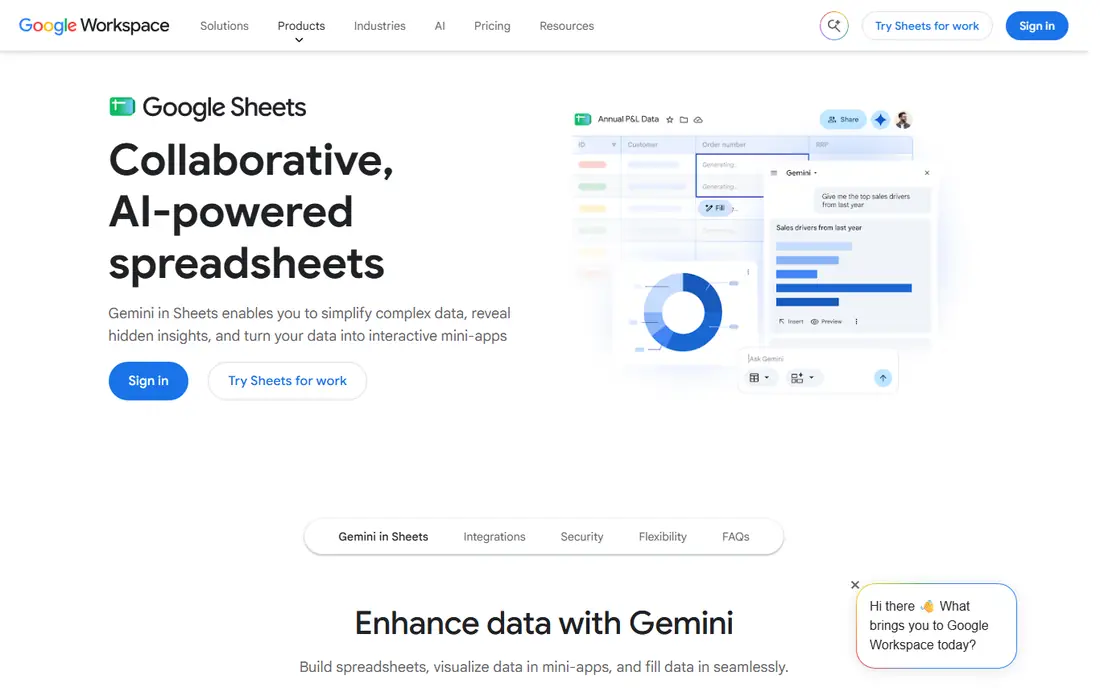
Google Sheets is our pick for most teams that need to edit one sheet together. Several people can work in the same file at once, comments stay attached to cells, and version history makes it simple to undo a bad change. It also opens Excel files directly, so a move does not have to start from scratch.
The catch is scale. Sheets handles everyday business data well, but tens of thousands of rows with heavy formulas can feel sluggish. If your main problem is a file with millions of rows, a database tool below will serve you better than any browser grid.
- Real time collaboration
- Strong sharing and version history
- Large add on library
- Slows with very large sheets
- Fewer advanced analysis tools than Excel
LibreOffice Calc is a full desktop spreadsheet that costs nothing and needs no account. It runs on Windows, Mac and Linux, supports pivot tables and macros, and keeps your files on your own computer. For a solo analyst with a large local file, that control is a real benefit.
It is less suited to live team editing. You can share files through a drive or a document system, but you will not get the same live co editing that Google Sheets offers. Pick Calc when price, privacy and offline work matter more than live collaboration.
- Free and open source
- Works offline
- Opens and saves Excel files
- Collaboration is weaker than cloud tools
- Interface feels dated

ONLYOFFICE Sheets aims to feel familiar to Excel users, with similar tabs, formulas and formatting. That matters when files move back and forth between teams, because less formatting breaks in the transfer. Desktop editors are free, and a cloud workspace is available for teams that want sharing.
For very large data sets, test your own file before you commit. Format fidelity is the strength here, not a magic speed gain. If your sheets are mostly shared Excel files that need careful formatting, ONLYOFFICE is a strong, low cost choice.
- Strong Excel format compatibility
- Desktop and cloud options
- Clean interface
- Advanced features can sit behind paid cloud plans
- Smaller add on library
Zoho Sheet gives small teams a free, capable online spreadsheet with live editing, data validation and version history. It imports Excel files and exports them again, which keeps it practical for mixed tool offices. Charts and pivot tables cover most reporting needs without a paid plan.
The trade off is depth. Complex Excel macros and some advanced functions may not carry over cleanly. Zoho Sheet is best for teams that want a free shared sheet for analysis and reporting, rather than a direct Excel clone for heavy modelling.
- Free for most users
- Real time collaboration
- Good charts and pivot tables
- Excel macro support is limited
- Best value inside the Zoho suite
Airtable looks like a spreadsheet and behaves like a database. Each row can link to rows in other tables, fields have strict types, and views let each team see only what it needs. That structure helps a large data set stay tidy, because a customer, an order and a product are not just repeated text in cells.
Airtable is not the right home for heavy financial modelling. Formulas exist, but they are simpler than Excel, and the free plan caps records. Choose it when your data is really a set of linked records, such as inventory, content plans or customer lists.
- Linked records and field types
- Many views
- Strong integrations
- Free plan caps records
- Not built for heavy calculation
Smartsheet suits work that lives in a grid but is really a project: tasks with owners, dates, status and dependencies. You can switch the same data between grid, Gantt and card views, set alerts, and build simple automations without code. Templates speed up common jobs such as budgets and campaign plans.
It is not a replacement for deep analysis. If you need complex formulas and pivot style modelling, keep that work in a spreadsheet or a database tool and use Smartsheet for tracking and delivery. For operations teams, that split works well.
- Grid, Gantt and card views
- Templates
- Automation and approvals
- Analysis features are lighter than Excel
- Costs grow with team size
Grist is an open source spreadsheet database that handles linked tables with more formula power than most grid tools. You can write Python formulas, build linked views, and set access rules for different users. A free self hosted option appeals to teams that want control over their data.
The community is smaller than Airtable, so templates and tutorials are fewer. Grist rewards a team that is willing to learn its model. Once that model clicks, it handles growing, linked data far better than a flat sheet.
- True relational tables
- Python formulas
- Self hosting option
- Smaller community than Airtable
- Learning curve for new users
Quadratic puts code next to cells, so analysts can run Python or SQL on data that lives in a grid. That is useful when a data set is too large or too messy for formulas alone, but the team still wants a visual sheet to check results. It suits data teams that already use Python and want a shared workspace.
As a newer tool, Quadratic has a smaller track record than the leaders here. Check its current pricing, row limits and export options before you move a core data set. For code friendly analysis, it is the most interesting option in this list.
- Python and SQL inside cells
- Modern grid
- Good for analysts
- Newer product
- Pricing and limits can change
How we picked these
We compared official feature pages, pricing pages, app listings and public documentation for tools that handle large data, and we kept only tools that exist and work in October 2026. We favoured tools with a clear answer to scale: a database model, a code layer, a desktop engine, or a cloud grid with stated limits. We also weighed Excel file compatibility, collaboration, price and the learning curve, because a fast tool that your team will not use is not a good switch.
What to check before you move a large file
Start with size and structure, not with the brand. Count rows and columns, list the formulas that matter, and note any macros, images or linked files. A tool that imports your rows but drops your macros is not a like for like replacement, and you need to know that before migration day.
Test with a copy of a real file, not a demo sheet. Time how long it takes to open, filter, sort and recalculate, and try editing it with a colleague at the same time. Check export options too, because you should be able to leave with your data intact. A short trial with real data will tell you more than any feature list.
Split the job when one tool cannot do it all
Many teams keep analysis in one tool and tracking in another. A database can hold the master records, a spreadsheet can handle a monthly model, and a project grid can track delivery. That split adds a sync step, but it avoids forcing one tool to do work it was not built for.
Watch the limits that are easy to miss
Row caps, file size caps, API limits and free plan record caps all shape the real ceiling. Ask about concurrent editors, version history length and audit logs if several people touch the data. A tool that looks free can turn costly once your team grows past a free tier.
FAQ
What is the best alternative to Excel for data analysis?
For most teams, Google Sheets is the easiest shared option, while Airtable or Grist suit linked records and Quadratic suits code based analysis. The right pick depends on your data shape, not on a single ranking. Test your largest real file in two tools before you decide.
Can these tools open Excel files?
Yes, most of them can. Google Sheets, LibreOffice Calc, ONLYOFFICE and Zoho Sheet all open and save Excel files, with some formatting or macro differences. Airtable and Grist import Excel data into tables rather than keeping the exact sheet layout, so plan for a small clean up step.
Why does Excel slow down with large data sets?
Large files slow down when many formulas recalculate, when volatile functions refresh often, and when images, formatting and external links add weight. Splitting data into tables, removing unused formatting and moving lookup data to a database can help, even before you switch tools.
Is a database better than a spreadsheet for large data?
A database is better when rows represent linked things, such as customers and orders, and when many people need controlled access. A spreadsheet stays better for quick models, what if checks and one off analysis. Many teams use both, with the database as the master record.
Which option is free for large data sets?
LibreOffice Calc and Google Sheets are free for most use, and Zoho Sheet and ONLYOFFICE desktop editors are also free. Free plans for Airtable and Grist cap records or features, so check those caps against your row count before you rely on a free tier.