Topaz Video AI Alternatives in 2026: 8 Tools Compared
Topaz video ai alternatives, with 8 tools compared on upscaling, denoising, frame interpolation, price, and editing for creators in 2026 for US teams.

- Editor's choice
 VideoProc Converter AI
Upscaling and conversion
Starts atSee websiteVisit videoproc.comFull review - Great alternative
 HitPaw Video Enhancer
Simple AI enhancement
Starts atSee websiteVisit hitpaw.comFull review - Also consider
 AVCLabs Video Enhancer AI
AI upscaling and denoising
Starts atSee websiteVisit avclabs.comFull review
TL;DR:
- No single tool matches Topaz Video AI on every upscaling task, so pick by your main job: old footage, product video, or full editing.
- VideoProc Converter AI and AVCLabs are the closest one job rivals for upscaling and enhancement, while DaVinci Resolve suits full edits.
- AI enhancement can sharpen and clean footage, but it cannot restore detail that was never recorded, so test on your worst clip first.
- Check GPU needs and export limits before buying, since AI video work is heavy on hardware and time.
Quick comparison
| Tool | Best for | Starts at | Free plan? | |
|---|---|---|---|---|
| VideoProc Converter AI | Upscaling and conversion | See website | Free trial | Visit |
| HitPaw Video Enhancer | Simple AI enhancement | See website | Free trial | Visit |
| AVCLabs Video Enhancer AI | AI upscaling and denoising | See website | Free trial | Visit |
 UniFab | All in one video toolkit | See website | Free trial | Visit |
 DVDFab Enlarger AI | Upscaling for home media | See website | Free trial | Visit |
 Winxvideo AI | Upscaling plus editing | See website | Free trial | Visit |
 DaVinci Resolve Studio | Full editing with enhancement | $295 one time | Yes | Visit |
 Adobe Premiere Pro | Pro editing with AI tools | $22.99 per month | Free trial | Visit |
The best Topaz Video AI alternatives
These tools cover AI upscaling, denoising, frame interpolation, and full video editing, so you can replace Topaz for a specific job or for a full workflow.
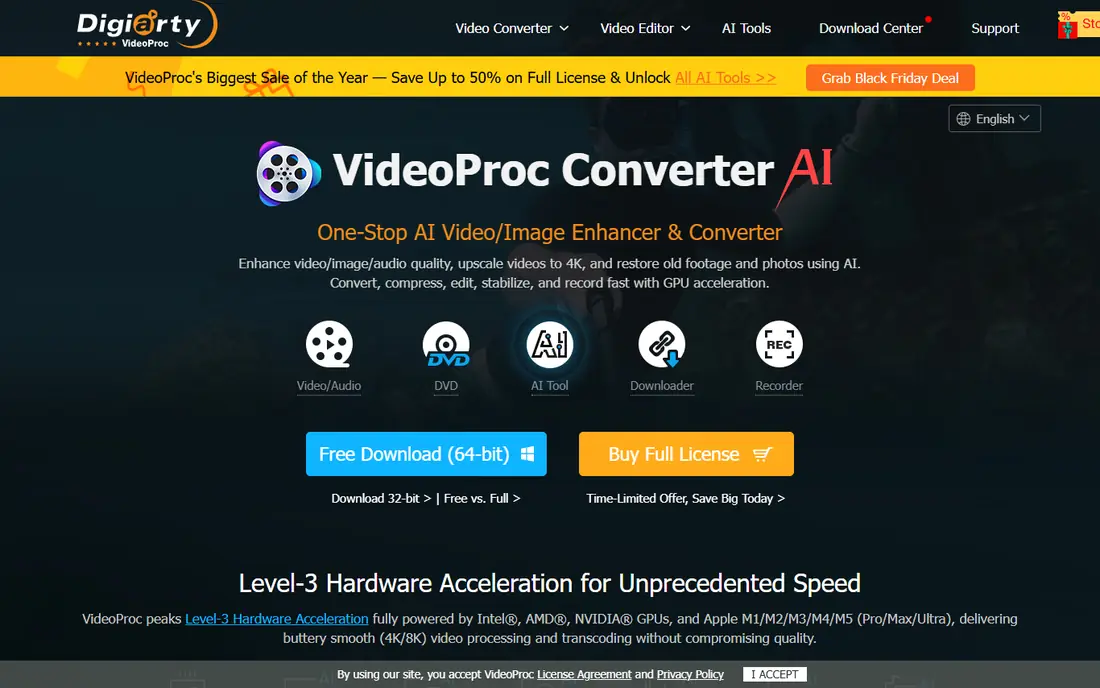
VideoProc Converter AI is the closest one job alternative for many Topaz users, since it pairs AI upscaling with conversion, compression, and basic editing in one desktop app. It can upscale low resolution clips, stabilize shaky footage, and convert between formats for web or archive use. GPU acceleration helps keep processing times reasonable on a capable machine.
The interface packs many tools into one window, so new users should start with one task, such as upscaling a short clip, before exploring the full toolkit. Check the license for your use, since trial exports may be limited. For archive and web video, VideoProc is a practical, direct rival.
- AI upscaling plus conversion
- GPU acceleration
- Good for old and low resolution clips
- Interface can feel busy
- Full features need a paid license
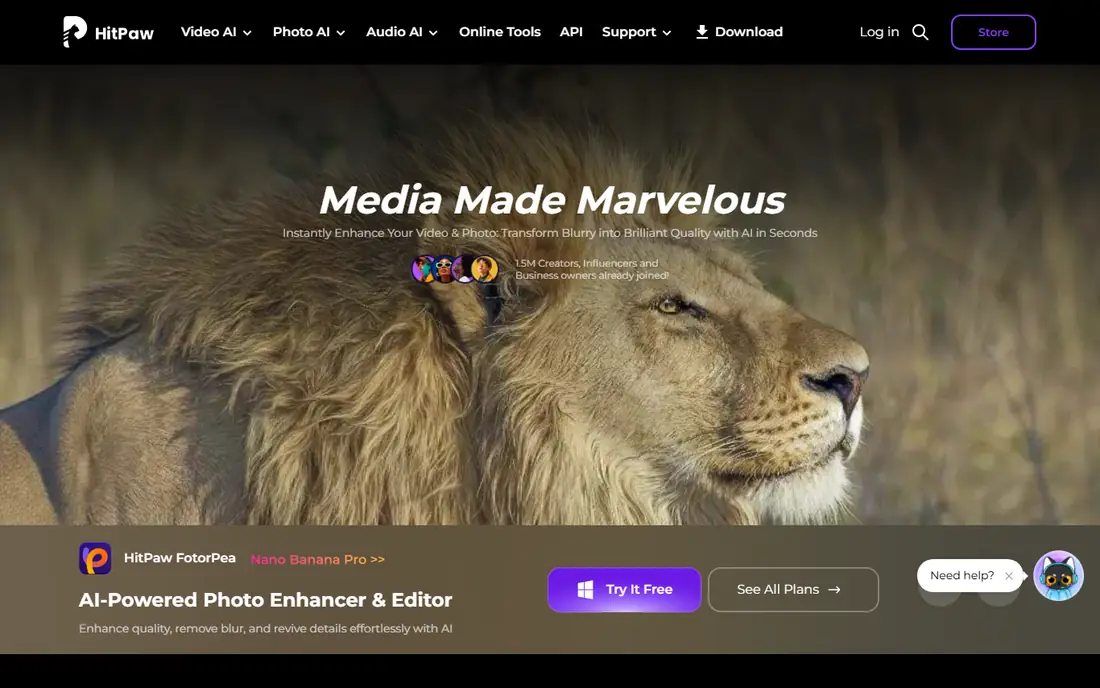
HitPaw Video Enhancer suits creators who want a simple AI pass over a clip, with models for general scenes, faces, and animation. Upload a video, pick a model, and export an enhanced version without learning a full editor. That simplicity helps for social clips, family footage, and short product videos that need a quick lift.
Control is the limit. HitPaw offers fewer fine tuning options than Topaz, so a difficult clip with mixed noise and motion may not reach the same result. Test with your hardest footage, and use HitPaw for straightforward enhancement rather than for a complex restoration.
- Simple AI models for faces and scenes
- Easy for beginners
- Batch processing
- Less control than Topaz
- Paid license needed for full exports
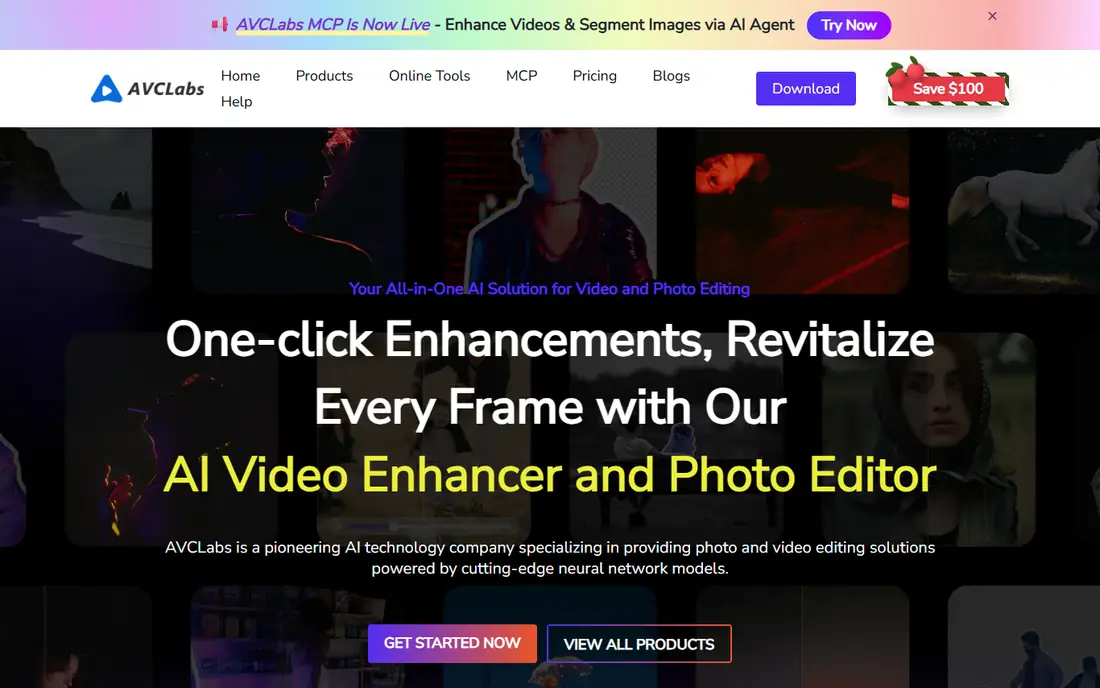
AVCLabs Video Enhancer AI focuses on upscaling, denoising, and face refinement, which matches the core Topaz use case for many creators. It can take an old or low resolution clip to a higher resolution, reduce noise, and sharpen faces, with models tuned for different source types. That focus makes it a strong direct alternative for restoration work.
Processing time depends on your GPU and clip length, so a long 4K upscale can take a while on a modest machine. Start with a short, hard clip, compare the result at full size, and check the license term that fits your project volume before buying.
- AI upscaling to 4K
- Denoising and deblurring models
- Face refinement
- Processing can be slow on older hardware
- License pricing varies by term
UniFab bundles AI upscaling with conversion, editing, and disc tools, which suits creators who want one app for several video jobs. You can upscale a clip, trim it, convert it, and prepare it for playback without switching apps. That range helps for home media, archive projects, and small studio work.
The breadth can feel scattered, since not every tool in the bundle is best in class. Use UniFab when you need several jobs done well enough in one place, and use a specialist editor when a single clip needs full creative control.
- Upscaling plus conversion and editing
- Many AI models
- Good for home media
- Toolkit range can feel scattered
- Trial limits apply
DVDFab Enlarger AI is a good pick for home media and archive footage, where old DVDs or low resolution files need a cleaner, larger version for modern screens. It uses AI enlargement to add sharpness and detail, and it fits into DVDFab workflows for discs and files. For family archives and home collections, that focus is useful.
It is not a pro editor, so creators who need timelines, color grading, and effects should pair it with an editor or choose a different tool. For a straightforward upscale of archive footage, DVDFab is a clear, focused alternative.
- AI enlargement for video
- Works with disc and file workflows
- Good for archive footage
- Niche focus on home media
- Less suited to pro editing
Winxvideo AI combines AI upscaling with editing and conversion, which suits creators who want to enhance and trim a clip in one app. It can upscale low resolution video, improve clarity, and export for web or device playback, with GPU support to speed processing. That mix covers many everyday enhancement jobs.
Advanced control trails Topaz, so a clip with heavy noise, fast motion, and low light may not match a specialist result. Winxvideo is best for straightforward enhancement and editing, not for a full restoration project with many problem clips.
- AI upscaling and enhancement
- Basic editing and conversion
- GPU support
- Less advanced AI control
- Interface feels dated in places
DaVinci Resolve Studio is the best pick when upscaling is only part of a larger edit. It offers a full timeline, color grading, audio, and effects, plus AI tools such as Super Scale for upscaling within a project. That means a clip can be enhanced, graded, and exported without leaving the editor, which saves time for pro work.
The learning curve is real, and the free version already covers much of the editing, so buy Studio only when you need its extra features such as higher resolution and advanced AI tools. For creators who edit as well as enhance, Resolve is a strong long term home.
- Full pro editing suite
- Strong color and audio tools
- One time Studio price
- Learning curve
- AI upscaling is part of a larger suite, not a single job tool
Adobe Premiere Pro suits pro editors who need a full timeline, team collaboration, and a wide plugin range, with AI tools for transcription, reframing, and enhancement. It can handle a project from ingest to export, and its ecosystem makes it easy to share files with other Adobe users. For studio work, that integration matters.
Premiere Pro is a subscription, and AI enhancement is one part of a large app, not a single click upscale tool. Use it when editing is the main job and enhancement supports that edit, and use a specialist upscaler when a single clip needs maximum AI restoration.
- Industry standard editing
- AI transcription and effects
- Wide plugin support
- Subscription cost
- AI upscaling needs careful settings
How we picked these
We compared official feature pages, pricing pages, and public reviews for tools that offer AI upscaling, denoising, or frame work in October 2026, plus full editors with AI enhancement. We favored tools with a trial or free tier, clear GPU guidance, and a real export path, and we noted where a tool is a specialist upscaler versus a full editor. We did not claim hands-on testing.
How to choose a Topaz Video AI alternative
Start with your source footage. Old, noisy, low resolution clips need a specialist upscaler, while clean modern footage for a full edit needs an editor with AI tools. Testing one hard clip on two tools will tell you more than a feature list.
Hardware and time
AI video work uses GPU power and time, so check the vendor GPU guidance and test a short clip on your own machine before buying a license. A tool that looks fast on a demo machine can be slow on an older laptop, and a long upscale can tie up a computer for hours. Plan batch work overnight where possible.
Quality checks at full size
Compare results at full screen, not in a small preview, and look for faces, text, and fine detail. AI can add plausible texture that was not in the original, which can look good on a phone and wrong on a large screen. Keep the original file, and export a short test for client approval before processing a full project.
Cost over a project
Compare one time prices with subscriptions over the life of a project. A one time Studio license can be cheaper than a year of subscriptions, while a specialist upscaler with a short license may suit a single archive job. Check export limits on trials, since a watermarked test does not show final quality.
FAQ
What is the best Topaz Video AI alternative?
VideoProc Converter AI and AVCLabs are the closest direct alternatives for upscaling and enhancement, while DaVinci Resolve Studio is best if you also need full editing. Test your hardest clip on two tools, since results vary by source footage.
Can AI really restore old video to 4K?
AI can sharpen, denoise, and upscale old video to 4K size, but it cannot restore detail that was never recorded. Results look cleaner and larger, yet fine texture may be estimated by the model. For archive work, keep the original and treat AI output as an enhanced version, not a true original.
Do I need a strong GPU for AI video enhancement?
Yes, a capable GPU speeds AI upscaling greatly, and older or integrated graphics can make processing very slow. Check the vendor GPU list, test a short clip on your machine, and consider cloud or overnight processing for long projects if your hardware is modest.
Is DaVinci Resolve free version enough for upscaling?
The free version of DaVinci Resolve covers much editing work, but Studio adds higher resolution output and advanced AI features that matter for pro upscaling. Test the free version first, then buy Studio only if you need those specific features for your project.
Which alternative is best for beginners?
HitPaw Video Enhancer is the simplest start, with clear models and a short workflow, while VideoProc is a good next step for more control. Beginners should start with a short clip, compare results at full size, and avoid buying a full license before a test.
Can I use these tools for commercial work?
Yes, if you own or license the footage and follow the vendor license for your plan. Check commercial use terms, especially on trial and consumer tiers, and keep records of footage licenses for client work. For client projects, confirm export and resolution limits before promising a delivery.
Sources
- https://www.videoproc.com/pricing
- https://www.hitpaw.com/pricing
- https://www.avclabs.com/pricing
- https://www.unifab.ai/pricing
- https://www.dvdfab.cn/pricing
- https://www.winxdvd.com/pricing
- https://www.blackmagicdesign.com/products/davinciresolve/pricing
- https://www.adobe.com/products/premiere/pricing