Top Software for Team Coding in 2026: 9 Tools Compared
Compare the top software for team coding in 2026, from VS Code Live Share and GitHub Codespaces to JetBrains, Replit, and Gitpod for distributed teams today.
- Editor's choice
 Visual Studio Code Live Share
Most teams
Starts atFreeVisit code.visualstudio.comFull review - Great alternative
 GitHub Codespaces
Cloud development
Starts atFreeVisit github.comFull review - Also consider
 JetBrains Code With Me
JetBrains teams
Starts atFreeVisit jetbrains.comFull review
TL;DR:
- Visual Studio Code with Live Share is our pick for most teams because it is free, familiar, and easy to start.
- GitHub Codespaces suits teams that want a ready-to-code cloud environment without local setup.
- JetBrains Code With Me is best for teams already using IntelliJ, PyCharm, or other JetBrains IDEs.
- Replit and CodeSandbox suit teaching, interviews, and quick prototypes more than large production codebases.
- The best team coding tool is the one that matches your stack, security rules, and review workflow.
Quick comparison
| Tool | Best for | Starts at | Free plan? | |
|---|---|---|---|---|
| Visual Studio Code Live Share | Most teams | Free | Yes | Visit |
| GitHub Codespaces | Cloud development | Free | Yes | Visit |
| JetBrains Code With Me | JetBrains teams | Free | Yes | Visit |
 Replit | Quick collaboration | Free | Yes | Visit |
 CodeSandbox | Web prototypes | Free | Yes | Visit |
 Gitpod | Cloud workspaces | Free | Yes | Visit |
 Zed | Fast collaborative editing | Free | Yes | Visit |
 Visual Studio Live Share | .NET teams | Free | Yes | Visit |
 Codeanywhere | Browser-based coding | See website | Free trial | Visit |
The best software for team coding
Team coding means more than sharing a screen. The tools below let several developers edit the same code, follow each other, review changes, and run code together in real time. Some work inside a desktop editor, while others run fully in the browser. The right pick depends on your language, team size, and security needs.
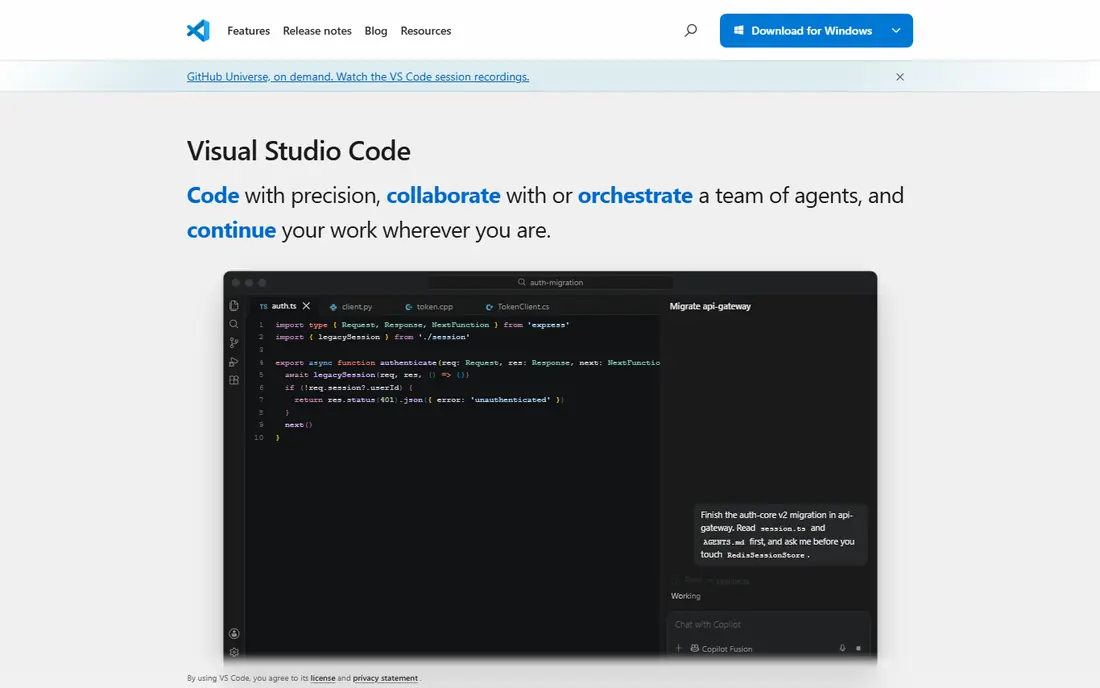
Visual Studio Code with Live Share is the easiest team coding setup for most developers. A host shares a session link, guests join in their own VS Code, and everyone can edit, follow cursors, and share a terminal or server. Because VS Code is already common, most teams need no new editor or training to start.
Live Share is a collaboration layer, not a full cloud environment, so guests still rely on the host machine for running code. That works well for pairing, mentoring, and reviews, but teams that need identical cloud environments should look at Codespaces or Gitpod as well.
- Free and widely used
- Real-time editing and shared terminals
- Works with most languages
- Host controls the session
- Large projects can be slow over weak connections
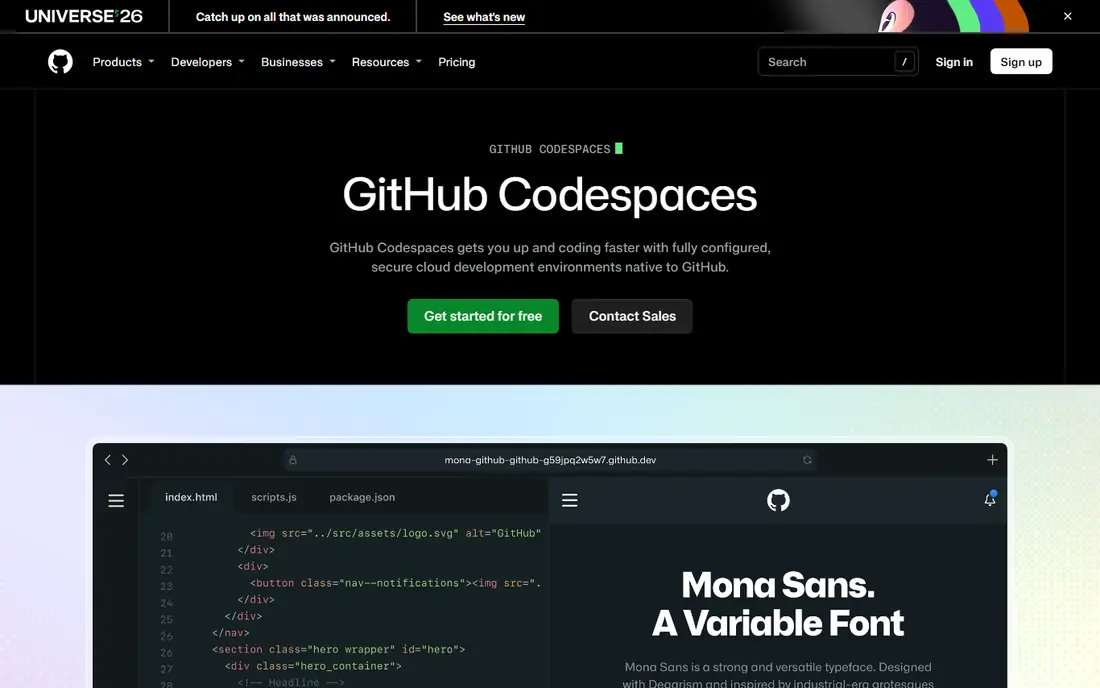
GitHub Codespaces gives every developer a cloud workspace configured from the repository, so setup differences disappear. New team members can start coding in minutes, without installing tools locally, and the environment matches the project definition. That consistency helps onboarding and reduces works-on-my-machine problems.
Free use includes a monthly allowance, after which usage is billed, so teams should set spending limits and stop idle workspaces. Codespaces is best for teams already on GitHub that want reproducible environments, rather than teams that only need occasional pair programming.
- Ready cloud dev environments
- Consistent setup for teams
- GitHub integration
- Usage beyond free allowance is billed
- Large environments can cost more
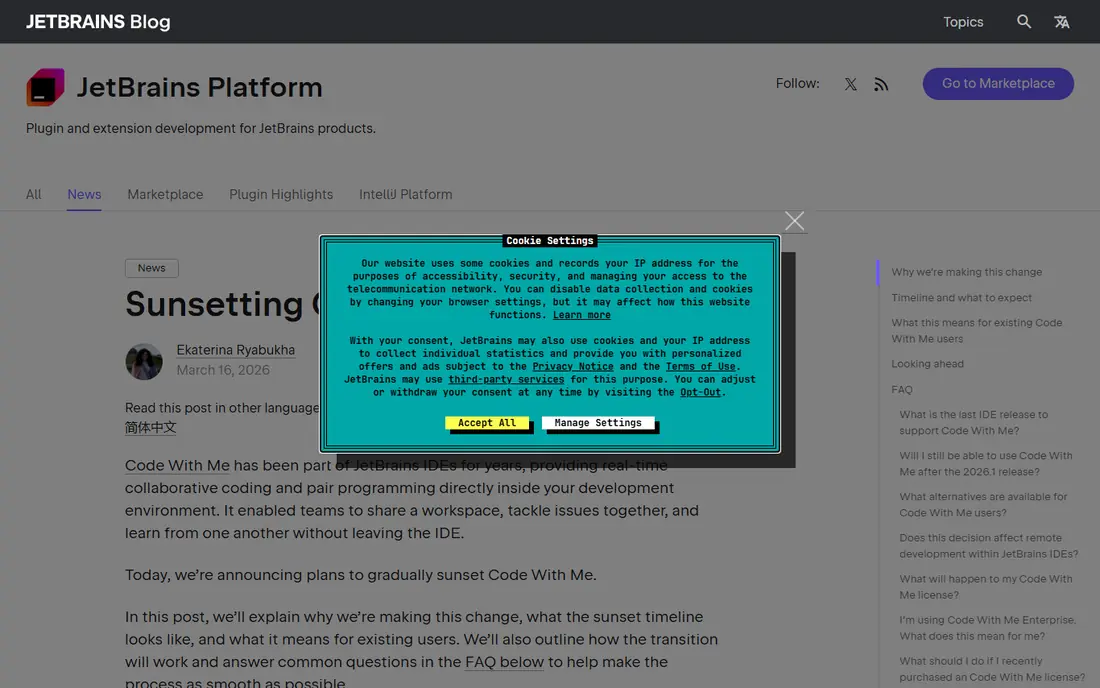
Code With Me brings Live Share-style collaboration to IntelliJ IDEA, PyCharm, WebStorm, and other JetBrains IDEs. Team members can edit together, follow a host, and discuss code without leaving the IDE they already use. That matters for teams with deep JetBrains workflows, such as refactoring tools and language support they do not want to give up.
Teams outside the JetBrains ecosystem will get less from it, since guests still need a compatible client. For JetBrains shops, though, it is the most natural team coding option, and the free tier covers many pairing and review sessions.
- Real-time collaboration inside JetBrains IDEs
- Follow mode and shared editing
- Strong for Java, Python, and Kotlin
- Best value only inside JetBrains IDEs
- Guest features depend on host plan
Replit is the fastest way to code together in a browser. Create a repl, share a link, and several people can edit and run code at once, with no install step. That speed makes it popular for teaching, interviews, hackathons, and prototypes, where setup friction would kill momentum.
Large production projects with complex build steps, private infrastructure, or strict security rules are less suited to Replit. Use it for learning, demos, and early prototypes, and move to a desktop IDE or cloud workspace when a project grows into production work.
- Browser-based and instant
- Multiplayer editing
- Easy sharing and deployment
- Less suited to large production codebases
- Paid plans needed for more resources and privacy
CodeSandbox is built for web developers who want to prototype and share front-end work quickly. Sandboxes run in the browser, collaborators can edit together, and preview links make it easy to show work to clients or teammates. Templates for React, Vue, and other frameworks speed up starting a demo.
Backend, mobile, and large monorepo projects fit less well, since CodeSandbox is centered on web sandboxes. For front-end teams, design reviews, and hiring tasks, it is a strong, low-friction choice.
- Fast web app sandboxes
- Live collaboration
- Easy sharing and preview links
- Focused on web projects
- Less suited to backend or mobile code
Gitpod creates cloud development environments automatically from a repository, with tools and dependencies defined in code. That gives teams the same consistency as Codespaces, with support for GitHub and GitLab. Developers open a workspace in the browser or in VS Code, and they can start work without local setup.
Free hours cover testing and small projects, but regular use needs a paid plan. Teams should also invest time in workspace configuration, since a poorly defined environment can slow onboarding rather than speed it up. Done well, Gitpod is a strong option for distributed teams.
- Automated cloud workspaces from Git
- Consistent environments
- GitHub and GitLab integration
- Free hours are limited
- Configuration takes planning for complex projects
Zed is a fast, modern editor with collaboration built in. Teams can share projects, edit together, and use channels for discussion, all in an editor that feels noticeably quick on large files. That speed appeals to developers who find heavier editors slow, especially on older machines.
The extension ecosystem is smaller than VS Code, and some language or framework integrations are still maturing. If your workflow depends on specific VS Code extensions, test Zed first. If speed and built-in collaboration matter most, it is worth a serious look.
- Very fast editor
- Built-in collaboration and channels
- Clean interface
- Smaller extension ecosystem than VS Code
- Newer tool with fewer integrations
Visual Studio Live Share brings real-time collaboration to the full Visual Studio IDE, including shared debugging sessions. .NET and C++ teams can pair on complex projects, step through code together, and share servers without leaving their normal environment. That depth is hard to match in a lightweight editor.
Teams that do not use Visual Studio will find little reason to adopt it, since its strength is tied to that IDE. For Microsoft-stack teams, though, it is the most complete pairing and review tool available, and it is free to use.
- Collaboration inside Visual Studio
- Debugging together
- Strong for .NET and C++ teams
- Main value is inside Visual Studio
- Less relevant for teams on other editors
Codeanywhere offers cloud development environments that run in the browser, with containers, collaboration, and sharing tools. It suits teams and schools that want coding from any device, including Chromebooks, without local installs. Container-based workspaces also help keep project setups consistent.
Its community and integration ecosystem are smaller than GitHub Codespaces or Gitpod, so check support for your stack before committing. For browser-first teams and education, Codeanywhere is a practical, flexible option.
- Cloud development in the browser
- Container-based environments
- Collaboration features
- Smaller community than larger rivals
- Pricing needs checking for team use
How we picked these
We compared official product pages and documentation for team coding tools still available in October 2026, focusing on real-time editing, shared running, and team review features. We favored tools that let several developers work in the same code at once, rather than tools that only share screens or repositories. We used See website where a vendor did not publish a clear starting price, and we included both desktop and browser options because teams work in both ways.
Setting up team coding that actually helps
Agree on simple rules before you start: who hosts, who drives, and when to hand over control. Use follow mode for mentoring, and free editing for brainstorming, but switch to one driver when debugging a tricky issue, since too many simultaneous edits can confuse the session. Keep sessions short, with a clear goal, and save or commit work at the end of each session.
Security and review habits
Do not share secrets, tokens, or production credentials in a shared terminal or session. Use separate development credentials, and revoke any session links after use. After a pairing session, review the changes as you would any pull request, since real-time editing does not replace code review.
FAQ
What is the best software for team coding?
Visual Studio Code with Live Share is the best general pick because it is free, widely used, and easy to start. GitHub Codespaces is better for cloud environments, while JetBrains Code With Me is best for JetBrains teams. The right choice depends on your editor and stack.
Is team coding the same as pair programming?
Pair programming is one use of team coding, where two developers work together on one task. Team coding tools also support group editing, mentoring, code reviews, and interviews, where several people edit or follow the same code at once.
Can I code together without installing software?
Yes. Replit, CodeSandbox, Gitpod, and Codeanywhere run in the browser, so collaborators only need a link and a browser. Browser tools are best for prototypes, teaching, and quick reviews, while desktop IDEs suit larger production projects.
Do team coding tools replace Git?
No. Team coding tools handle real-time editing, while Git handles version history, branching, and merging. Use both: collaborate live to solve a problem, then commit and review the result through Git as normal.
Which team coding tool is best for beginners?
Replit and CodeSandbox are the easiest for beginners because they run in the browser and need no setup. Visual Studio Code with Live Share is the best next step once beginners are comfortable with a desktop editor and Git.