Top Software for PDF Conversion in 2026: 9 Tools Compared
Compare the top software for pdf conversion in 2026, with accurate Word, Excel, and image conversion, editing, compression, and pricing for every budget.
- Editor's choice
 Adobe Acrobat
Most complete PDF toolkit
Starts atSee websiteVisit adobe.comFull review - Great alternative
 Smallpdf
Simple browser conversions
Starts at$9 per monthVisit smallpdf.comFull review - Also consider
 iLovePDF
Everyday PDF tasks
Starts at$9 per monthVisit ilovepdf.comFull review
TL;DR:
- Adobe Acrobat remains the most complete PDF tool, while Smallpdf and iLovePDF are easier for quick browser conversions.
- PDF24 Tools and PDFgear offer strong free options, so occasional users may not need a paid plan at all.
- Conversion accuracy matters most for tables and forms, so test a real document before you pay for a year.
- Desktop editors suit daily PDF work, while browser tools suit one-off conversions on any computer.
Quick comparison
| Tool | Best for | Starts at | Free plan? | |
|---|---|---|---|---|
| Adobe Acrobat | Most complete PDF toolkit | See website | Free trial | Visit |
| Smallpdf | Simple browser conversions | $9 per month | Yes | Visit |
| iLovePDF | Everyday PDF tasks | $9 per month | Yes | Visit |
 PDFelement | Desktop editing with AI tools | $79.99 per year | Free trial | Visit |
 Nitro PDF Pro | Office-style desktop editing | $15 per user per month | Free trial | Visit |
 Foxit PDF Editor | Acrobat-level features for less | $10.99 per user per month | Free trial | Visit |
 Sejda | Occasional browser edits | $7.50 per month | Yes | Visit |
 PDF24 Tools | Unlimited free browser tools | Free | Yes | Visit |
 PDFgear | Free desktop and web editing | Free | Yes | Visit |
The best software for PDF conversion
These tools convert PDFs to Word, Excel, images, and back again, with editing and compression tools for the jobs that follow conversion.
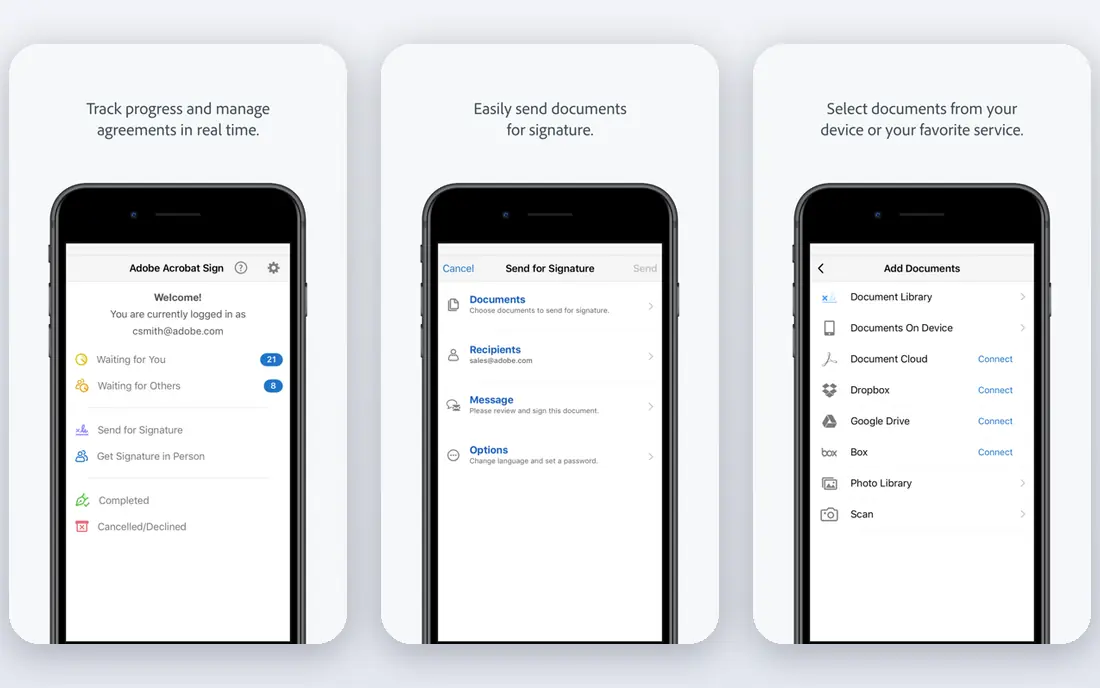
Adobe Acrobat is the reference point for PDF work. It converts PDFs to Word, Excel, and PowerPoint, creates PDFs from almost any file type, and handles editing, forms, redaction, and signatures in one app. Online tools cover quick conversions, while the desktop app handles large files, scanned documents with OCR, and complex layouts more reliably.
The main drawback is cost and complexity. Pricing varies by plan and region, so check the Adobe pricing page for your current rate before budgeting. Casual users may find a free or cheaper tool covers their needs. Daily PDF users, legal teams, and businesses that need reliable conversion and signing will find Acrobat hard to replace.
- Best overall conversion and editing depth
- Trusted e-signatures
- Strong cloud and mobile apps
- Price is not published as a single simple rate
- Subscription cost adds up
- Some features need higher plans
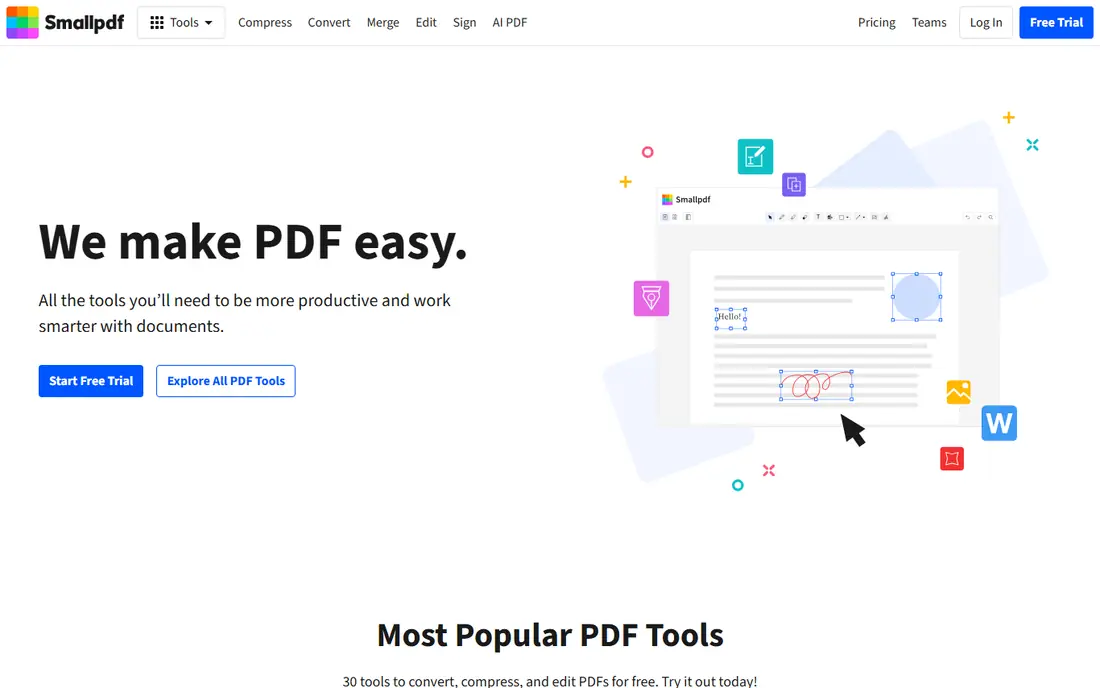
Smallpdf is built for people who want a fast browser conversion without installing software. Drag in a PDF, pick Word, Excel, PowerPoint, or image output, and download the result. It also covers merging, splitting, compressing, and signing, which makes it a handy all-round web toolkit. Pro pricing starts at about $9 per month when billed annually, with a limited free plan.
Free users face daily task limits, so regular users will need Pro. Conversion quality is good for standard documents, though heavily formatted tables may still need a check after conversion. For occasional and light daily use, Smallpdf is one of the simplest choices on this list.
- Very easy to use
- Covers conversion, compression, and merging
- Good mobile apps
- Free plan has daily limits
- Advanced editing is lighter than desktop editors

iLovePDF covers almost every common PDF job in the browser, from conversion to merging, splitting, compressing, watermarking, and signing. It is a good pick for office teams that need many small PDF tasks without learning a desktop editor. Premium starts at about $9 per month, with a free plan that has limits on file size and daily tasks.
The free limits mean heavy users will need to pay, and the site nudges free users toward Premium. Paid users get batch processing and larger files, which help when converting a folder of documents. For a team that does a bit of everything with PDFs, iLovePDF is a practical, low-cost hub.
- Wide tool set in one place
- Batch processing on paid plans
- Desktop app available
- Free plan has file size and task limits
- Interface shows upgrade prompts
PDFelement, from Wondershare, is a desktop PDF editor with conversion, editing, forms, OCR, and AI helpers. It converts PDFs to Office formats and images, and it can summarize long documents, translate text, and explain content with its AI tools. Pricing starts at about $79.99 per year for the standard plan, with a free trial that adds watermarks to some outputs.
AI features and cloud services can add cost, so check what your plan includes before you rely on them. The interface packs in many tools, which takes a little learning. For users who want a desktop Acrobat alternative with AI help at a lower yearly price, PDFelement is a strong option.
- Strong desktop editing
- AI tools for summaries and translation
- One-time options in some regions
- Some AI features need a separate plan
- Interface is busy for new users
Nitro PDF Pro suits Windows and Mac users who want a desktop editor that feels like an Office app. It converts PDFs to Word, Excel, and PowerPoint, edits text and images, fills forms, and handles e-signatures. Pricing starts at about $15 per user per month, with a 14-day free trial.
The monthly price is higher than a yearly desktop license from some rivals, so compare the annual total before you choose. Nitro's strength is team use, with admin controls and consistent desktop tools across a company. For a single user who only converts occasionally, a browser tool may be cheaper.
- Familiar Office-style interface
- Good conversion and editing
- Strong for teams
- Higher monthly cost than some rivals
- Fewer browser tools than web-first options
Foxit PDF Editor is a long-standing desktop alternative to Acrobat, with conversion, editing, annotation, forms, and signing. It handles large PDFs well and offers a familiar ribbon interface. Pricing starts at about $10.99 per user per month, with a 14-day free trial, and some plans offer a perpetual license option.
The catch is tiering. The base Editor plan covers most daily work, but Editor Plus adds features such as advanced editing and some AI tools. Check the plan comparison before you buy, especially if you need redaction or advanced form features. For teams that want Acrobat-level depth without Adobe pricing, Foxit is a serious contender.
- Deep editing and form tools
- Perpetual license options in some plans
- Good performance
- Some advanced features need the higher Editor Plus plan
- Cloud features vary by plan
Sejda offers browser PDF tools with a desktop app for offline work, covering conversion, editing, merging, splitting, and signing. It is a good fit for occasional users who want a clean interface and do not want a large subscription. Pricing starts at about $7.50 per month, and a week pass is available for short projects, with a free plan limited to a few tasks per hour.
The free limits mean you cannot rely on Sejda for a full workday of conversions without paying. File size and page limits also apply on free and lower plans. For students, freelancers, and small teams with sporadic PDF needs, Sejda's week pass is a flexible and fair way to pay only when you need it.
- Clean browser tools
- Desktop app available
- Week pass for short projects
- Free plan limits tasks per hour
- File size limits apply
PDF24 Tools stands out because its browser tools are free without the daily caps that limit Smallpdf and iLovePDF. It covers conversion to and from PDF, merging, splitting, compressing, and signing, plus a desktop PDF Creator for Windows. That makes it the best free starting point for most occasional users.
It does not match Acrobat or Foxit for deep desktop editing, forms, and redaction. As with any browser tool, sensitive documents should be handled with care, since files are uploaded for processing. For everyday conversions and simple PDF jobs, PDF24 Tools is hard to beat on price, because there is none.
- Completely free browser tools
- No daily task limits on core tools
- Desktop creator available
- No advanced desktop editor depth
- Privacy depends on uploading files to the web
PDFgear offers a free PDF editor for desktop and web, with conversion, editing, annotation, compression, and signing. Unlike many free tools, it does not add a watermark to core outputs, which makes it genuinely useful for daily work. That combination of free desktop editing and conversion is rare, and it suits students, freelancers, and small teams on a tight budget.
The main risk is the future. PDFgear's maker has hinted that pricing may change, so treat the free offer as a current benefit rather than a permanent promise. Support and advanced enterprise features are also thinner than Adobe or Foxit. For now, PDFgear is the best free desktop option on this list, and it is worth trying before you pay for a subscription.
- Fully free desktop and web editor
- No watermark on core tools
- Good conversion and editing
- Smaller company than Adobe
- Some advanced features are newer
- Future pricing is not guaranteed
How we picked these
We compared official pricing pages, feature lists, and public reviews for tools that convert PDFs to editable formats and back. We favored tools that are actively maintained in 2026, that handle Word and Excel conversion well, and that cover a range of prices from free to enterprise. Prices are starting prices and can vary by billing term and region.
What to check before you buy PDF conversion software
Test with your own documents. A tool that converts a simple letter perfectly may struggle with a table-heavy report, a scanned form, or a document with small fonts and footnotes. Convert the same file in two or three tools and compare tables, headings, and images before you commit.
Accuracy, privacy, and format
Check whether the tool uses OCR for scanned PDFs, whether it keeps table structure in Excel output, and whether it preserves fonts and layout in Word output. For sensitive files, prefer a desktop tool that processes files locally, or check the vendor's data retention policy for browser uploads. Also confirm which formats you need, since some tools convert to Word well but handle Excel or images less reliably.
FAQ
What is the best pdf conversion software?
Adobe Acrobat is the most complete choice, while Smallpdf and iLovePDF are easier for quick browser jobs. PDF24 Tools and PDFgear are the best free options for occasional use. Your document type and frequency should decide the pick.
Is there free software for PDF conversion?
Yes. PDF24 Tools and PDFgear offer free conversion and editing, and Smallpdf, iLovePDF, and Sejda offer limited free plans. Free plans usually cap file size or daily tasks, so heavy users will need a paid plan.
How accurate is PDF to Word conversion?
Accuracy depends on the source file. Clean, text-based PDFs convert well in most tools here, while scanned pages need OCR and complex tables may need manual cleanup. Always check headings, tables, and numbers after conversion.
Can I convert PDF to Excel?
Yes, most tools here convert PDF tables to Excel, but results vary with table layout. Acrobat, Foxit, and PDFelement handle complex tables better than simple browser tools. Test a real table from your work before you pay.
Is it safe to convert PDFs online?
Browser tools upload your file to a server, so avoid them for highly sensitive documents unless you have checked the vendor's retention policy. Desktop tools such as Acrobat, Foxit, and PDFelement process files locally and are safer for confidential work.