Best PuTTY Alternatives in 2026: 9 SSH Clients Compared
Looking for putty alternatives? We compare 9 SSH clients for Windows, Mac and Linux, covering tabs, file transfer, sync and price, to help you pick one.

- Editor's choice
 MobaXterm
All-in-one Windows toolkit
Starts atFree / $69 per user one-timeVisit mobaxterm.mobatek.netFull review - Great alternative
 Termius
Cross-device SSH and sync
Starts atFree / $10 per monthVisit termius.comFull review - Also consider
 KiTTY
Lightweight PuTTY fork
Starts atFreeVisit 9bis.netFull review
TL;DR:
- MobaXterm is the closest all-in-one replacement on Windows, with SSH, SFTP, RDP and an X server in one window.
- Termius is the best pick if you move between a desktop and a phone, because its paid plan syncs hosts and keys across devices.
- KiTTY, Tabby, Bitvise, mRemoteNG and WinSCP are free, which makes them strong first tries before you pay for anything.
- SecureCRT suits teams that need polished session management and long-term support, and its price reflects that focus.
- Pick by platform first, then by session count, file transfer and whether you need RDP or X11 alongside SSH.
Quick comparison
| Tool | Best for | Starts at | Free plan? | |
|---|---|---|---|---|
| MobaXterm | All-in-one Windows toolkit | Free / $69 per user one-time | Yes | Visit |
| Termius | Cross-device SSH and sync | Free / $10 per month | Yes | Visit |
| KiTTY | Lightweight PuTTY fork | Free | Yes | Visit |
 Bitvise SSH Client | SFTP and tunneling on Windows | Free | Yes | Visit |
 SecureCRT | Polished business sessions | See website | Free trial | Visit |
 Tabby | Custom cross-platform terminal | Free | Yes | Visit |
 Solar-PuTTY | Simple tabbed Windows SSH | Free | Yes | Visit |
 mRemoteNG | Many protocols in one window | Free | Yes | Visit |
 WinSCP | File transfer with a console | Free | Yes | Visit |
The best PuTTY alternatives
PuTTY still works well for a single SSH window, but many people now want tabs, saved sessions, file transfer and a client that runs on more than one system. The tools below cover that range, from free forks that feel familiar to paid clients built for daily server work. We compared official feature pages, pricing pages and platform support to sort them by the job each one does best.
MobaXterm is our pick for most Windows users who want to replace several tools at once. When you open an SSH session, a graphical file browser appears beside the terminal, so moving files does not mean opening a second program or learning a separate command. The built-in X server also lets graphical Linux programs show on your Windows desktop, which is handy for remote administration and older graphical tools.
The trade-off is scope. The free Home Edition is limited to 12 saved sessions and two SSH tunnels, and it is for personal use, so a busy admin or a team will likely need the Professional Edition. The window can also feel crowded at first, because so many protocols and panels sit in one place. If you only need plain SSH, a lighter client below will feel faster.
- SSH, SFTP, RDP, VNC and X11 in one app
- Graphical SFTP pane opens with each session
- Portable edition available
- Windows only
- Free Home Edition caps saved sessions and tunnels
- Busy interface for new users
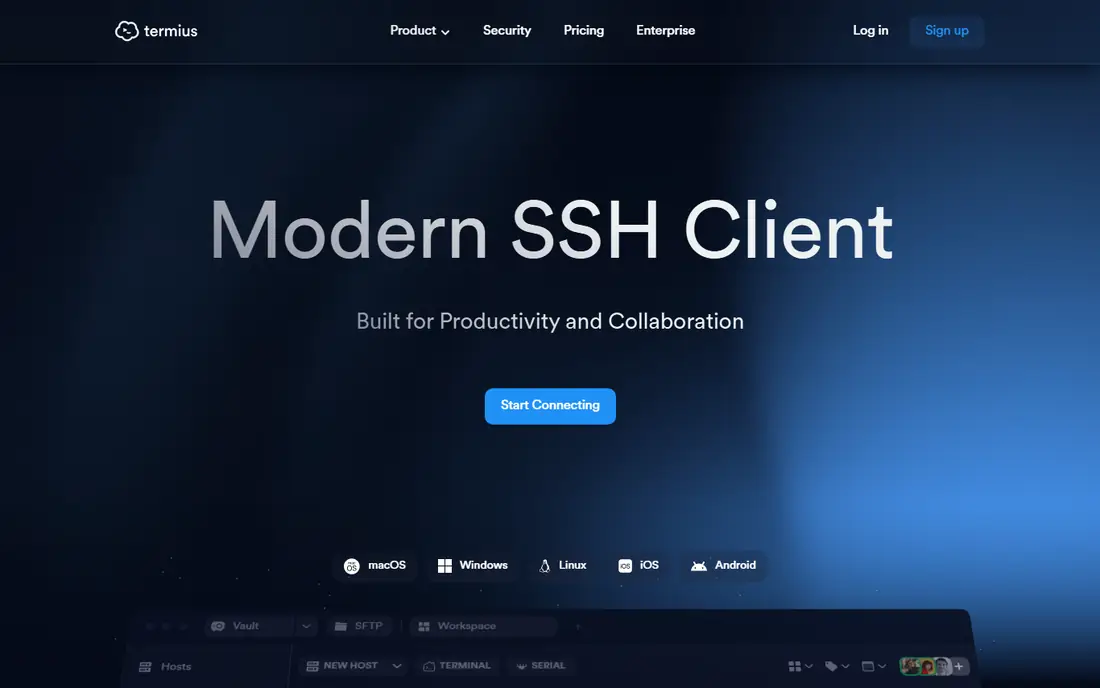
Termius is the best choice if your work does not stay on one computer. You can start a session on a laptop, then check the same host from a phone without retyping addresses, ports and key details. The interface is clean and modern, and features such as port forwarding, snippets and SFTP cover the everyday tasks that PuTTY users handle with separate tools.
The free Starter plan covers SSH, SFTP, Telnet and port forwarding on one device, which is enough for many personal users. Sync across devices, the encrypted cloud vault and team sharing sit behind the Pro plan, so the cost only makes sense if you actually use more than one device or share access with colleagues. For a single Windows desktop, MobaXterm gives you more in one window for less.
- Runs on Windows, Mac, Linux, iOS and Android
- Encrypted vault for hosts and keys
- Tabs, split view and SFTP included
- Sync and team vaults need a paid plan
- Mobile typing is still slower than a desktop keyboard
KiTTY is a fork of PuTTY, so the move feels almost invisible. If you like PuTTY but want session filters, a launcher, automatic commands on login and a few extra conveniences, KiTTY adds them without changing the basic workflow. It stays small and fast, and it runs from a portable copy, which suits technicians who carry tools on a USB drive.
That familiarity is also its limit. The interface still looks like PuTTY, there is no built-in SFTP pane as polished as MobaXterm, and there is no sync to a phone or a second computer. KiTTY is best for Windows users who want PuTTY, only a little better, and who do not want to learn a new system.
- Familiar PuTTY feel with extra features
- Session filters and automatic login options
- Portable and light
- Windows only
- Dated interface
- No mobile app or cloud sync
Bitvise stands out for people who spend as much time moving files as typing commands. Its SFTP window is full featured, with a clear folder view, transfer queue and support for remote editing, while the terminal stays beside it for server work. Port forwarding is also well handled, with saved profiles that make repeat tunnels less error prone.
New users may find the settings dense, because Bitvise exposes a lot of control over authentication, forwarding and terminal behaviour. That depth is a plus once you know what you need, and a hurdle on day one. If file transfer is your main job and you work on Windows, Bitvise is hard to beat at its price.
- Strong graphical SFTP and terminal in one client
- Flexible port forwarding
- Free for personal and commercial use
- Windows only
- Interface takes time to learn
- No mobile version
SecureCRT is the client to shortlist when session management matters more than price. Folders, saved credentials, tab groups and scripting help an admin keep dozens or hundreds of hosts in order, and the terminal itself is steady and well finished. Teams that need consistent settings across staff will value that polish.
The catch is cost and scope. There is no ongoing free plan, only a trial, so casual users should try the free options first. File transfer is also less central than in Bitvise or MobaXterm, and VanDyke sells a companion file transfer tool for that job. SecureCRT fits a workplace that will pay for order, support and a mature tool.
- Tabbed sessions with strong organisation
- Scripting and automation support
- Long track record in business use
- Paid licence with no free plan
- Windows and Mac focus
- File transfer needs a companion product for full SFTP
Tabby is a modern, open source terminal that works on Windows, Mac and Linux, which makes it a good pick for people who switch systems. You can shape the look with themes and fonts, split the window into panes, and keep SSH profiles beside local shells. For developers who live in a terminal all day, that flexibility matters more than a wizard-led setup.
Tabby is a terminal first and a session manager second, so it does not hold your hand as much as Termius or MobaXterm. Plugins extend it, but their quality varies, and you will need to organise your own backups if you want the same profiles on two machines. If you like to tune your tools, Tabby rewards the effort.
- Open source and cross-platform
- Tabs, panes and themes
- SSH, Telnet and serial support
- Setup takes more effort than a simple client
- Plugin quality varies
- No built-in cloud sync
Solar-PuTTY answers the most common PuTTY complaint in the simplest way: it adds tabs. You can keep several sessions in one window, save credentials and connection details, and use SCP and SFTP without a separate client for basic transfers. The layout is plain and easy to read, which helps when you manage a handful of servers rather than a fleet.
It is not a power tool. There is no X server, no RDP pane and no mobile companion, and admins with complex automation needs will outgrow it. For a Windows user who wants PuTTY with tabs and a tidy session list, and nothing more, Solar-PuTTY is a sensible free step.
- Free tabbed SSH, Telnet, SCP and SFTP
- Clean session list
- Easy move from PuTTY
- Windows only
- Fewer advanced features than MobaXterm
- Development pace is modest
mRemoteNG is for admins who jump between SSH, RDP and VNC all day. Instead of three programs, you get one tabbed window with folders, shared settings and quick switching between hosts. That mix is common in small IT teams, where one person looks after Linux servers, Windows desktops and network gear.
The SSH side is based on PuTTY, so it will feel familiar but not modern, and there is no graphical SFTP pane to match Bitvise. The interface is practical rather than pretty. If your day mixes protocols, mRemoteNG saves window clutter. If you only use SSH, a dedicated client will feel smoother.
- Open source
- SSH, RDP, VNC and Telnet in tabs
- Folders and inheritance for session settings
- Windows only
- PuTTY-based SSH feels dated
- Interface is functional rather than polished
WinSCP is best seen as a file transfer tool that happens to open a terminal, rather than a terminal that happens to move files. Its two-pane view, drag and drop, synchronisation and scripting make routine uploads, backups and edits straightforward. Many PuTTY users already pair the two, and WinSCP can open a PuTTY session from a saved site.
The console itself is basic compared with a dedicated SSH client, so heavy command line work still belongs elsewhere. It is also Windows only. Pair WinSCP with KiTTY or Tabby if you want both strong file handling and a good terminal, and use WinSCP alone when transfers are the main task.
- Free and open source
- Strong SFTP, SCP and FTP support
- Scripting and synchronisation options
- SSH terminal is limited
- Windows only
- Not a full session manager
How we picked these
We compared official feature pages, pricing pages and platform notes for clients that are still maintained and still work as SSH tools in 2026. We favoured tools that cover PuTTY core jobs, namely SSH login, saved sessions and key support, and we added weight for tabs, file transfer, extra protocols and cross-platform support. We left out clients that are no longer maintained, that only work as a library, or that duplicate PuTTY without adding anything useful.
Choosing the right SSH client for your setup
Start with your operating system, because that choice removes half the list at once. Windows users have the widest choice, including MobaXterm, Bitvise and KiTTY, while Mac and Linux users should lean toward Termius or Tabby for a native, maintained client. Mobile access narrows it further, since Termius is the only option here with full phone apps.
Next, count your sessions and check your file habits. A handful of hosts and occasional transfers suit KiTTY, Solar-PuTTY or WinSCP. Dozens of hosts, shared team access or daily tunnels point toward Termius, SecureCRT or mRemoteNG, depending on whether you need sync, polish or mixed protocols. Always use key-based login where the server allows it, keep the client updated, and store private keys with a passphrase rather than in plain text.
FAQ
Is PuTTY still safe to use in 2026?
Yes, if you use a current version from its official site and use key-based login where possible. The tools above are alternatives for people who want tabs, sync, better file transfer or support for more systems, not a sign that PuTTY itself has stopped working.
What is the best free PuTTY alternative?
For Windows all-round use, MobaXterm Home Edition is our free pick, with Bitvise close behind for file transfer. KiTTY is the best free pick if you want the closest PuTTY experience, and Tabby is the best free pick across Windows, Mac and Linux.
Can I use these SSH clients on a Mac?
Yes, Termius and Tabby both run on Mac, and SecureCRT also supports Mac. MobaXterm, KiTTY, Bitvise, Solar-PuTTY, mRemoteNG and WinSCP are Windows focused, so Mac users should start with Termius or Tabby.
Do I need a paid SSH client?
Most personal users do not. Free clients cover SSH, tabs and file transfer well. Pay when you need cross-device sync, team vaults, large session libraries or business support, which is where Termius Pro and SecureCRT earn their price.
How do I move my PuTTY sessions to a new client?
Export or copy your saved sessions where the new client supports import, and re-enter host, port, username and key details where it does not. Keep a backup of your session list and keys before you switch, and test one non-critical host first.
Is SFTP the same as FTP?
No. SFTP runs over an SSH connection and encrypts both login details and file data, while plain FTP does not. Use SFTP or SCP for server work, and avoid plain FTP for anything that needs a password or private files.