Best Excel Alternatives in 2026: 9 Spreadsheets Compared
Compare the best excel alternatives in 2026, from free desktop tools to cloud sheets and project grids, with pricing, limits, and honest trade-offs for buyers.
- Editor's choice
 Google Sheets
Shared editing in a browser
Starts atFreeVisit sheets.google.comFull review - Great alternative
 LibreOffice Calc
Free offline spreadsheets
Starts atFreeVisit libreoffice.orgFull review - Also consider
 ONLYOFFICE
Excel file fidelity
Starts atFreeVisit onlyoffice.comFull review
TL;DR:
- Google Sheets is the easiest free starting point for shared work, while LibreOffice Calc is the strongest free choice for offline work on your own computer.
- ONLYOFFICE and Zoho Sheet stand out when files must move back and forth with Excel users without losing much formatting.
- Airtable, Grist, and Smartsheet are not straight Excel copies, and they fit better when a grid needs linked records, dates, owners, or project tracking.
- Free plans are real for most tools here, but check storage limits, collaboration limits, and whether desktop apps or advanced features need a paid plan.
Quick comparison
| Tool | Best for | Starts at | Free plan? | |
|---|---|---|---|---|
| Google Sheets | Shared editing in a browser | Free | Yes | Visit |
| LibreOffice Calc | Free offline spreadsheets | Free | Yes | Visit |
| ONLYOFFICE | Excel file fidelity | Free | Yes | Visit |
 Zoho Sheet | Free cloud sheets for teams | Free | Yes | Visit |
 Apple Numbers | Mac and iPhone users | Free | Yes | Visit |
 WPS Office | Familiar Excel style interface | Free | Yes | Visit |
 Airtable | Linked records in a grid view | Free | Yes | Visit |
 Grist | Spreadsheet plus database logic | Free | Yes | Visit |
 Smartsheet | Projects with dates and owners | $9 per month | Free trial | Visit |
The best Excel alternatives
We compared free and paid spreadsheet tools on file compatibility, collaboration, offline use, pricing, and how well each one handles everyday work such as budgets, lists, and reports.
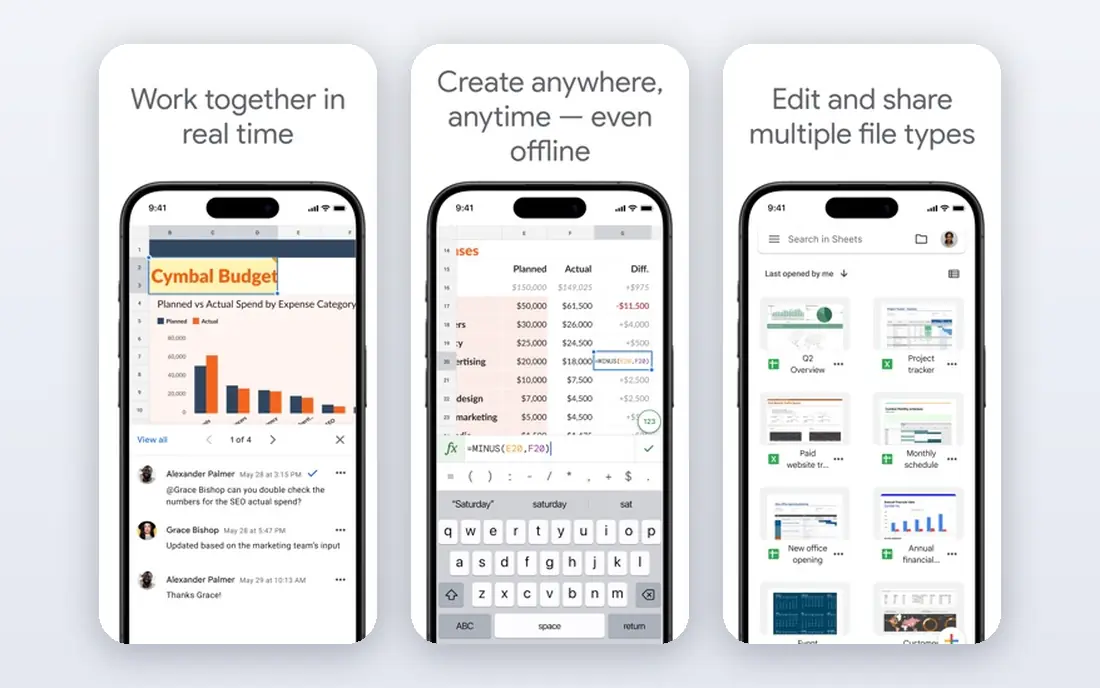
For most people who want a free Excel alternative, Google Sheets is the first tool worth trying. It runs in a browser, saves automatically, and lets several people edit the same sheet at once, with comments and a clear record of changes. That makes it a good fit for household budgets, school work, small business trackers, and any sheet that passes between people often. The catch is that Sheets is not a full Excel clone. Complex Excel macros, some advanced chart types, and very large models may not transfer cleanly, and offline use needs to be set up in advance in Chrome or Edge. If your main work is shared lists and straightforward analysis, those limits rarely matter. If your main work is heavy financial modelling, keep Excel or a desktop tool in the mix and use Sheets for collaboration.
- Real time editing for many people
- Strong version history
- Opens and exports Excel files
- Needs a Google account for full use
- Very large or complex files can slow down
- Macro support differs from Excel
LibreOffice Calc suits anyone who wants a capable spreadsheet without paying or signing up for a cloud account. It installs on your computer, works offline, and covers the core work most people need, from formulas and pivot tables to charts and data sorting. Because it is open source, there is no trial clock and no locked feature set waiting behind a paywall. Where Calc falls short is collaboration. You can share files by email or cloud storage, but you will not get the same live, multi person editing found in Google Sheets or Zoho Sheet. Very complex Excel workbooks, especially those with heavy macros or Power Query steps, may also need checking after conversion. For personal finance, inventory lists, and general office work, Calc is a strong, private, and genuinely free pick.
- No subscription or account needed
- Runs on Windows, Mac, and Linux
- Opens and saves Excel formats
- No built in real time co editing
- Interface feels dated to some users
- Complex Excel features can shift in conversion

If your sheets constantly travel to Excel users and back again, ONLYOFFICE deserves a close look. Its spreadsheet editor keeps Excel formatting, formulas, and layouts in good shape in our comparison of vendor documentation and public reviews, which reduces the clean up work that often follows a conversion. Desktop apps cover offline work, while cloud workspaces add sharing and joint editing. The trade off is choice. The free desktop editors are easy to start with, while the full collaborative workspace can involve more setup, especially for a self hosted install. Teams that only need a simple shared sheet may find Google Sheets or Zoho Sheet simpler. Teams that care most about sending a file to an Excel user and getting it back intact will likely prefer ONLYOFFICE.
- Close handling of Excel formats
- Desktop and cloud options
- Collaboration tools in Docs and workspaces
- Some advanced features sit in paid or server editions
- Setup for self hosted use takes more effort
- Smaller template library than Google
Zoho Sheet is a cloud spreadsheet that feels familiar to Excel users but lives in the browser. It supports a broad set of functions, charts, pivot tables, and shared editing, and it opens Excel files for editing and download back to Excel format. For a small team already using Zoho Mail, CRM, or Books, the shared sign in and app links add real convenience. On its own, Zoho Sheet still works well as a free tool, though its strongest case is as part of a wider Zoho setup. People who live in Google Workspace or Microsoft 365 may not want another account and another file store. Check how your most complex sheets convert before moving a whole team, and keep a copy of original Excel files until you are sure the formulas and formatting hold up.
- Free for individuals with a wide function set
- Real time collaboration
- Links well with other Zoho apps
- Best value inside the Zoho suite
- Some Excel features may differ
- Mobile editing is good but not identical to desktop
Apple Numbers takes a different approach from a plain grid. It gives you a flexible canvas where tables, charts, text, and images can sit together, which suits reports, planners, and presentation style sheets. It is free on Mac, iPhone, and iPad, and it can be used in a browser through iCloud, so sharing with non Apple users is possible. The limit to watch is conversion. Numbers imports and exports Excel files, but complex Excel sheets with detailed formatting or advanced formulas may need fixes after export. It is also a weaker pick if your whole team works on Windows and needs deep Excel compatibility every day. For Apple centred households and small teams who value design and simple sharing, Numbers is a pleasant and cost free option.
- Free on Apple devices
- Clean templates and charts
- Works in a browser through iCloud
- Excel conversion can change some layouts
- Fewer advanced analysis tools than Excel
- Weaker fit for Windows only teams
WPS Office will feel instantly familiar to anyone coming from Excel. Its spreadsheet app uses a similar ribbon, similar menus, and similar file handling, which shortens the learning curve for new users. It runs on desktop and mobile, opens Excel files, and covers common formulas, charts, and formatting with little fuss. The free tier is the main draw, but it comes with trade offs. Some editions show ads, and certain premium features, templates, and cloud extras sit behind a paid plan. Read the privacy policy and account settings before storing sensitive sheets in its cloud, and test your key files for conversion. If you want the closest free look and feel to Excel and you are comfortable with those limits, WPS is a practical choice.
- Interface close to Microsoft Office
- Desktop and mobile apps
- Opens many Office formats
- Free version includes ads in some editions
- Some features need a paid plan
- Privacy and data handling need a careful read
Airtable looks like a spreadsheet but behaves more like a simple database. You can link records across tables, switch between grid, calendar, gallery, and kanban views, and build forms that feed straight into a table. That structure suits content calendars, product catalogues, applicant tracking, and small inventory systems where rows relate to each other. It is not a replacement for Excel when the job is heavy modelling, long formula chains, or large numeric analysis. Its formula options are narrower, and costs rise as teams and records grow. Use Airtable when your sheet has outgrown plain rows and columns and you need cleaner links, views, and permissions. Keep Excel or Sheets for the number crunching itself.
- Linked tables and multiple views
- Forms and filters built in
- Useful for content, inventory, and project records
- Formula language is more limited than Excel
- Paid plans are needed for larger teams
- Not the best tool for heavy calculation
Grist sits between a spreadsheet and a database, and that middle ground is its strength. Tables can reference each other, columns can hold structured data, and formulas can work across linked records in ways that plain sheets struggle with. For teams tracking orders, clients, assets, or research data, that structure prevents many copy and paste errors. The learning curve is real. New users need time to grasp relational tables, and the template and integration library is smaller than Airtable or Smartsheet. The self hosted option will appeal to teams that want control over their data and hosting. If you like spreadsheet formulas but keep hitting the limits of flat sheets, Grist is worth a trial run on a real project, not just a demo table.
- Relational tables with spreadsheet formulas
- Self hosting option
- Python formulas for advanced users
- Smaller community than larger tools
- Interface takes time to learn
- Fewer ready made templates
Smartsheet starts from a grid but adds the project tools that plain spreadsheets lack. You can assign owners, set dates, track progress, build Gantt charts, and set up reminders and approval flows without leaving the sheet. That makes it a good fit for marketing plans, event checklists, construction tracking, and other work where dates and accountability matter. It is not a free Excel replacement, and that distinction matters. The entry plan is paid, and costs grow with team size, so a solo user with a simple budget will find better value elsewhere. For a team that currently runs projects in Excel and keeps losing track of owners and deadlines, Smartsheet can bring order to that work in a format the team already understands.
- Gantt, calendar, and card views
- Automations and approvals
- Familiar grid starting point for project work
- No lasting free plan
- Pricing is per member and can add up
- Overkill for simple personal budgets
How we picked these
We compared official feature pages, pricing pages, app store listings, privacy policies, and public reviews for tools that open, edit, or export Excel files, or that cover the same jobs with a grid view. We favoured tools that are still actively maintained, that work in October 2026, and that offer a clear free or low cost starting point. We did not count a tool as a full Excel replacement unless it handled common formulas, charts, and Excel file exchange in a usable way, and we kept database style tools in the list only where they solve a job that plain sheets handle poorly.
What to check before you switch
File compatibility first
Open your three most complex sheets in the new tool before you commit. Check formulas, pivot tables, charts, and print layout, and save a copy back to Excel format to see what changes. A tool that handles simple budgets well may still struggle with a model built around macros or external links.
Collaboration and offline needs
Decide whether live editing, comments, and version history matter more than offline access. Cloud sheets win for shared work, while desktop tools win for travel, poor connections, and private files. Some tools offer both, but offline support often needs setup, so test it on the device you will actually use.
Cost over a year, not a month
Free plans differ in storage, user limits, and feature caps. Paid plans often bill yearly, and per user pricing can grow quickly for a team. Add up the yearly cost for your real team size, and check whether a family, education, or nonprofit plan applies before you pay for a business tier.
FAQ
What is the best free spreadsheet software?
Google Sheets is the best free option for shared work, and LibreOffice Calc is the best free option for offline desktop work. Both handle common formulas, charts, and Excel files, and neither needs a paid plan for everyday use.
Are there free Excel alternatives that open Excel files?
Yes. Google Sheets, LibreOffice Calc, ONLYOFFICE, Zoho Sheet, Apple Numbers, and WPS Office all open and save Excel formats. Test your most complex files first, since macros, pivot tables, and detailed formatting can change during conversion.
What are the best alternatives to Microsoft Excel for teams?
Google Sheets and Zoho Sheet suit teams that edit together in a browser, while ONLYOFFICE suits teams that exchange files with Excel users often. Smartsheet and Airtable suit teams that need project tracking or linked records more than pure calculation.
Is LibreOffice Calc really free?
Yes, LibreOffice Calc is free and open source, with no subscription for personal or commercial use. Support comes mainly from community documentation and forums, and some businesses pay third parties for support if they need it.
Can I use Excel alternatives on a phone?
Yes, Google Sheets, Zoho Sheet, Apple Numbers, WPS Office, Airtable, and Smartsheet all offer mobile apps. Phones work well for viewing and light edits, while larger edits, pivot tables, and complex formatting are easier on a computer.
What is the best Excel alternative for Mac users?
Apple Numbers is the natural free pick on Mac, iPhone, and iPad, thanks to its templates and iCloud sharing. If you exchange files with Excel users often, LibreOffice Calc or ONLYOFFICE may preserve formatting better for complex sheets.