Best Workflow Automation Tools in 2026: 8 Tools Compared
Find the best workflow automation tools for your team in 2026. We compare 8 workflow automation software options on price, ease, and power for all teams.
- Editor's choice
 Zapier
Teams that want the widest app connections without code
Starts at$19.99 per monthVisit zapier.comFull review - Great alternative
 Make
Teams that want visual, complex workflows at a lower price
Starts at$9 per monthVisit make.comFull review - Also consider
 n8n
Technical teams that want control and self-hosting
Starts atSee websiteVisit n8n.ioFull review
TL;DR:
- Zapier is our pick for most non-technical teams because of its wide app catalog and easy setup.
- Make leads on value for complex, visual workflows with branching and routers.
- n8n is the best choice for technical teams that want self-hosting and custom logic.
- Price tools on your real task volume, because per-task and per-operation pricing differ sharply at scale.
Quick comparison
| Tool | Best for | Starts at | Free plan? | |
|---|---|---|---|---|
| Zapier | Teams that want the widest app connections without code | $19.99 per month | Yes | Visit |
| Make | Teams that want visual, complex workflows at a lower price | $9 per month | Yes | Visit |
| n8n | Technical teams that want control and self-hosting | See website | Yes | Visit |
 Asana | Cross-functional teams that want workflows inside project work | $10.99 per user per month | Yes | Visit |
 Monday.com | Teams that want standardized processes on boards | $9 per user per month | Yes | Visit |
 ClickUp | Small and mid-size teams that want many tools in one platform | $7 per user per month | Yes | Visit |
 Microsoft Power Automate | Microsoft 365 teams that want automation inside that ecosystem | $15 per user per month | Free trial | Visit |
 Smartsheet | Operations teams that want spreadsheet-style workflows | $9 per user per month | No | Visit |
The best workflow automation tools
We compared workflow automation tools on app coverage, visual logic, pricing model, and ease of setup, and we kept only tools that automate real multi-step work. Zapier is our pick for most non-technical teams, while Make leads on value for complex workflows.
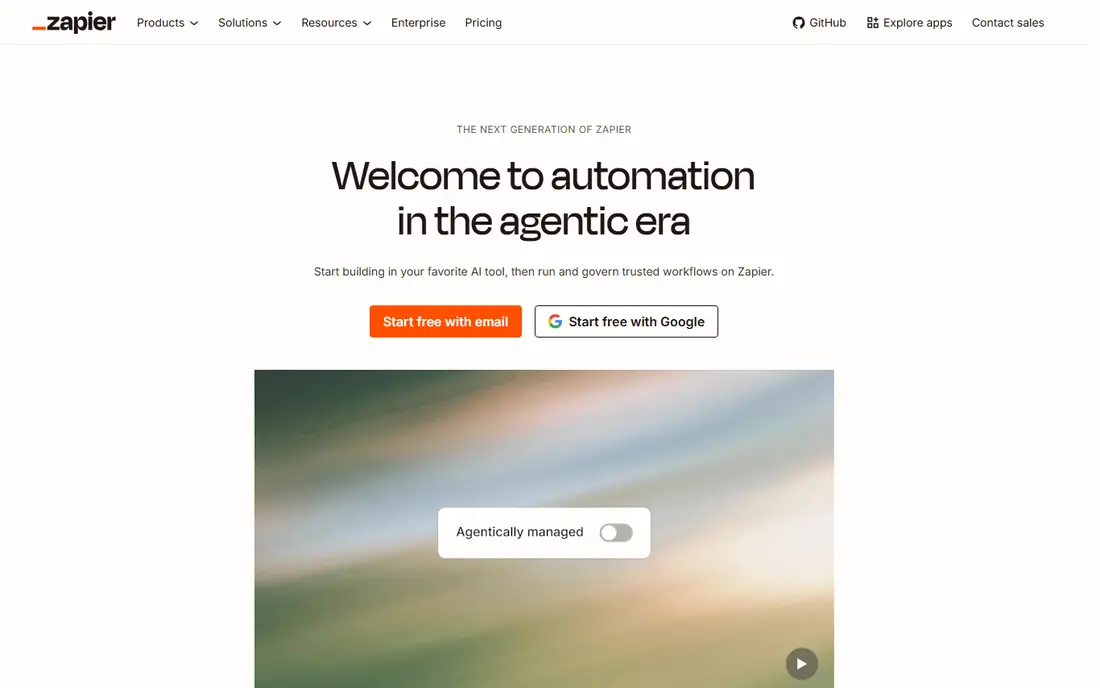
For many teams, Zapier is the first name that comes up in this category, and there is a good reason for that. Its strength is breadth, with thousands of app connections that cover most small business tools.
A team can link forms, email, CRM, and spreadsheets in minutes, with multi-step workflows for common tasks. That speed helps non-technical teams automate early.
The catch is cost at scale. Each task counts, so high-volume workflows can grow expensive, and you should model task counts before committing.
- Very wide app catalog
- Easy multi-step workflows
- Team sharing
- Per-task pricing rises with volume
- Complex logic needs care

If your shortlist is getting long, Make is worth a closer look before you decide. Its strength is visual logic, with routers, filters, and branching that suit complex workflows.
Teams can see data flow, split paths by condition, and handle batches in one scenario. That control helps operations teams with multi-step processes.
The catch is learning. The visual builder is powerful but takes time to master, so start with templates for common workflows.
- Visual scenario builder
- Routers and branching
- Good value per operation
- Fewer apps than Zapier
- Visual builder takes learning
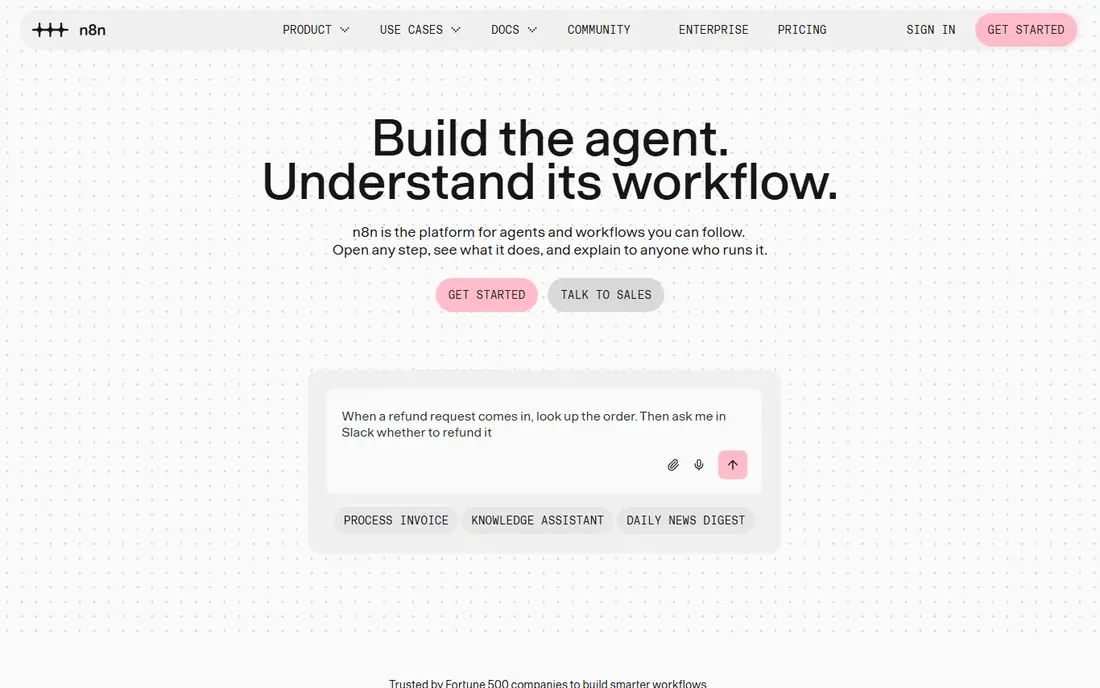
Some buyers choose n8n for its breadth, while others choose it for one feature done well. Its strength is control, with code nodes, AI steps, and self-hosting for teams that need data control.
Developers can build custom logic, call APIs directly, and run workflows on their own servers. That suits firms with privacy or custom needs.
The catch is skill. Non-technical teams may find setup and maintenance heavy, so assign an owner for updates and monitoring.
- Self-hosting option
- Code and AI nodes
- Flexible workflows
- Needs technical skill
- Self-hosting needs maintenance
We put Asana on this list because it solves a clear problem for a clear kind of buyer. Its strength is workflows that live where work already happens, with rules, forms, and approvals in projects.
Teams can route tasks, set approvals, and track progress without a separate automation tool. That keeps work visible in one place.
The catch is depth. Complex cross-app logic may still need Zapier, Make, or n8n, so check your integration needs first.
- Project workflows with rules
- Forms and approvals
- Team visibility
- Automation depth is less than dedicated tools
- Costs rise with seats
Look past the marketing for Monday.com and you find a practical tool with a specific job to do. Its strength is standardization, with boards, templates, and automations that keep a process consistent.
Teams can build a repeat process once, then run it with clear owners and statuses. Dashboards show progress without manual reports.
The catch is tiering. Some automation depth sits higher, so confirm which automations are included in your plan.
- Board-based workflows
- Automations and templates
- Team dashboards
- Per-seat pricing adds up
- Advanced automation needs higher tiers
Among the options here, ClickUp stands out for the way it fits into daily work. Its strength is consolidation, with tasks, docs, goals, and automations in one workspace.
A team can replace several small tools with one platform, which cuts login sprawl. Automations handle status changes and assignments.
The catch is breadth. The many features can overwhelm new users, so start with one team and one workflow, then expand.
- Tasks, docs, and goals in one place
- Automations
- Wide templates
- Feature breadth can feel overwhelming
- Setup takes time
Microsoft Power Automate
Best for: Microsoft 365 teams that want automation inside that ecosystem
A buyer who values simplicity may pass over Microsoft Power Automate at first, which would be a mistake for some teams. Its strength is Microsoft depth, with flows that link Outlook, Teams, SharePoint, and Excel naturally.
A Microsoft 365 team can automate approvals, notifications, and file work without a new vendor. Enterprise controls suit larger IT teams.
The catch is ecosystem. Teams outside Microsoft may find other tools simpler, so check connector coverage for your key apps.
- Deep Microsoft links
- Desktop and cloud flows
- Enterprise controls
- Best value inside Microsoft 365
- Other apps need connectors
The case for Smartsheet is not that it does everything, but that it does its core job with care. Its strength is familiarity, with sheets, forms, and workflows that spreadsheet users learn fast.
Operations teams can track projects, approvals, and reports in a layout they already know. Automations handle reminders and status changes.
The catch is integration depth. Complex cross-app workflows may need a dedicated tool, so check your app links before buying.
- Spreadsheet-like sheets with workflows
- Approvals and reports
- Familiar layout
- Less suited to complex app integrations
- Interface is sheet-first
How we picked these
We compared official feature and pricing pages, app catalogs, and automation models for each tool. We favoured tools with clear error handling, logs, and pricing, and we noted where a tool is project software with automation rather than a dedicated automation platform. We did not claim hands-on testing, and where pricing varies by volume we say so.
We also checked pricing transparency and noted where a vendor requires a quote, because a hidden price makes comparison harder for a small buyer. Where a price changed recently or differed between sources, we used the safer wording rather than publishing a figure we could not confirm. That approach keeps the comparison useful without overstating what we verified, and it lets readers check the current price on the vendor site before they buy.
How to choose a workflow automation tool
Map one workflow before you buy
Pick a repeat process, list its trigger, steps, and failure cases, and build it in a trial. That test shows task costs, logic limits, and error handling better than a feature grid.
Check error handling and logs
A workflow that fails silently can lose data. Confirm that the tool logs runs, retries failures, and alerts an owner when a key workflow stops.
Model cost at twice your volume
Task and operation counts grow fast once a workflow works. Price the tool at current volume and at double that volume, and check overage rules before signing.
What a good trial should prove
A trial should answer one question for each part of your workflow, not just show a demo. Pick a real task, such as onboarding one person, sending one proposal, running one campaign, or opening one ticket, and run it end to end with your own data. Note where you needed help, where the steps felt slow, and where the result differed from what you expected. If a trial only lets you click through sample data, ask for a longer pilot or a guided session with your own use case, because sample data hides the friction that matters in daily work.
Costs beyond the headline price
The headline price rarely tells the full story, because seats, add-ons, volume limits, and support tiers can change the total. Ask what happens when you add users, exceed a limit, or need a higher support level, and get that answer in writing before you sign. Also check contract length, renewal terms, and any setup or migration fees, since those items can matter more than a small monthly difference. A tool that looks cheap at five users can become costly at fifty, so model the price at your next stage of growth.
Support, security, and exit options
Support quality, security controls, and exit options deserve the same attention as features. Check how you reach support, what hours it covers, and whether help is included or paid, because a tool you rely on daily needs a clear route when something breaks. Review security basics such as access controls, two-factor sign-in, and data handling, and ask how you export your data if you leave. A clean export path protects your work and gives you freedom to change tools later without losing history.
FAQ
What is the best workflow automation software for small teams?
Zapier suits most small teams for ease and app coverage, while Make suits teams with complex workflows on a budget. Asana and Monday.com suit teams that want automation inside project work.
What are the best tools for workflow automation without code?
Zapier and Make lead for no-code automation, with Make offering deeper visual logic. ClickUp and Monday.com also offer no-code automations inside project boards.
What is the top workflow management software for technical teams?
n8n leads for technical teams because of code nodes, AI steps, and self-hosting. Power Automate leads for Microsoft 365 teams with enterprise controls.
Is Zapier or Make better for workflow automation?
Zapier wins on app breadth and ease, while Make wins on price per operation and visual branching. Choose Zapier for breadth, and Make when volume or complex logic matters more.
What is the best rated workflow automation software for operations?
Smartsheet suits spreadsheet-style operations, while Asana and Monday.com suit project-based operations. Dedicated tools like Zapier and Make suit cross-app operations best.