Best Video Editing Software in 2026: 8 Tools Compared
Compare the best video editing software for beginners and professionals, including free editors, one-time purchases, and subscription plans for every budget.

- Editor's choice
 DaVinci Resolve
Free professional editing
Starts atFreeVisit blackmagicdesign.comFull review - Great alternative
 Adobe Premiere Pro
Professional team work
Starts at$22.99 per monthVisit adobe.comFull review - Also consider
 Final Cut Pro
Mac one-time purchase
Starts at$299.99 one-timeVisit apple.comFull review
TL;DR:
- DaVinci Resolve is the strongest free professional editor, while Premiere Pro suits team and Adobe workflows.
- Final Cut Pro suits Mac users who want a one-time purchase, and CapCut suits fast short-form social video.
- Beginners should start free with Resolve, CapCut, Clipchamp, or iMovie before paying for a subscription.
- Check your computer specs, export limits, and whether free exports include a watermark before you commit.
Quick comparison
| Tool | Best for | Starts at | Free plan? | |
|---|---|---|---|---|
| DaVinci Resolve | Free professional editing | Free | Yes | Visit |
| Adobe Premiere Pro | Professional team work | $22.99 per month | Free trial (7 days) | Visit |
| Final Cut Pro | Mac one-time purchase | $299.99 one-time | Free trial (90 days) | Visit |
 CapCut | Short-form social video | $19.99 per month | Yes | Visit |
 Filmora | Beginner templates and AI tools | $49.99 per year | Yes | Visit |
 PowerDirector | Enthusiast desktop editing | $79.99 per year | Yes | Visit |
 Clipchamp | Easy Windows editing | Free | Yes | Visit |
 iMovie | Free Apple beginner editing | Free | Yes | Visit |
The best video editing software
We compared official feature and pricing pages for editors that cover YouTube, social video, tutorials, and professional projects. This guide covers the best video editing apps, the best editing software for beginners, and the best video editing software for PC and Mac.

DaVinci Resolve is our first suggestion for anyone who wants professional tools without a subscription. The free version includes editing, color grading, Fairlight audio, and Fusion effects, which would normally require several apps. That depth makes it suitable for YouTube, short films, and client work, not just casual clips.
The trade-off is learning time and hardware. The interface has many panels, and 4K editing needs a solid computer. Studio, at $295 one-time, adds advanced AI tools, noise reduction, and higher frame rate support. We think Resolve fits motivated beginners and professionals who want the best free editor available today.
- Full editing, color, audio, and effects in one app
- Free version exports without a watermark in many cases
- Strong color tools
- Steep learning curve
- Needs a capable computer and graphics card for smooth editing
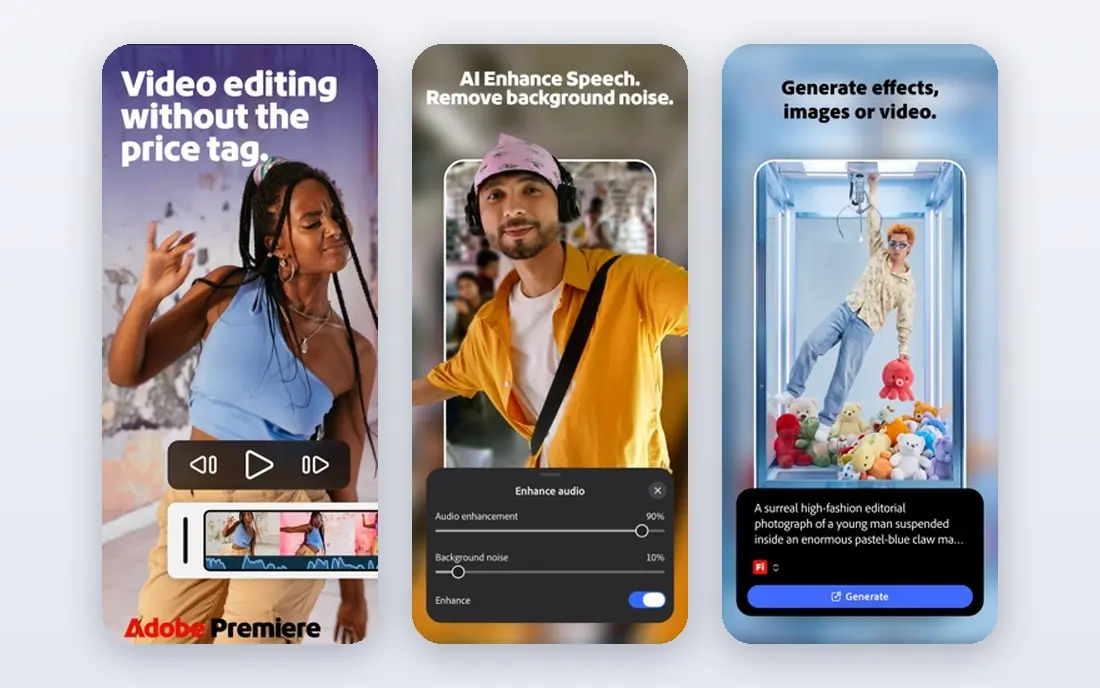
Premiere Pro suits editors who work with teams, agencies, or Adobe tools. It integrates with After Effects for motion graphics, Audition for audio, and Photoshop for graphics, which speeds up a full production workflow. Team projects and shared libraries also help when several editors work on the same project.
The subscription is the main cost to weigh. There is no one-time purchase, so the long-term price adds up. We recommend Premiere Pro for professional editors and teams who already use Adobe apps, and for creators who need a widely supported format for client work.
- Industry-standard workflows
- Deep After Effects and Creative Cloud integration
- Strong team collaboration tools
- Subscription only
- Can feel heavy on older computers
- Best AI features may need higher plans

Final Cut Pro is the best pick for Mac users who want speed and a one-time purchase. Its magnetic timeline keeps clips connected as you edit, which reduces gaps and speeds up assembly. On Apple silicon, rendering and playback are fast, even for 4K projects.
The limit is platform. If you work on Windows or share projects with Windows editors, Premiere Pro or Resolve may fit better. We think Final Cut Pro suits Mac creators, YouTubers, and small teams who want a fast, buy-once editor without a monthly bill.
- Fast performance on Apple silicon
- Magnetic timeline speeds up editing
- One-time purchase with no subscription
- Mac only
- Fewer third-party workflow options than Premiere Pro for some teams
CapCut is the default choice for short-form video on TikTok, Reels, and Shorts. It offers templates, auto captions, transitions, and social aspect ratios that make a vertical video quick to finish. The mobile app is especially useful when you shoot, edit, and post from a phone.
For long-form or color-critical work, CapCut is less capable than Resolve or Premiere Pro. We recommend it as the best video editing app for social creators who want speed, and as a second tool for professionals who need quick social cuts from longer projects.
- Fast mobile and desktop editing
- Templates, captions, and social formats
- Free tier covers basic editing
- Color and audio tools are simpler than professional editors
- Pro features are needed for fuller templates
Filmora suits beginners who want a polished video without learning a professional editor first. Templates, titles, transitions, and stock assets help you finish a YouTube video or family project quickly. AI tools for captions and background removal also reduce manual work for common tasks.
The free version is useful for learning, but exports carry a watermark, so you will need a paid plan for finished work. We think Filmora fits new YouTubers and small business owners who want a best easy video editing software option with guided tools and a gentle learning curve.
- Friendly interface with templates and effects
- AI tools for captions and editing help
- Works on Windows and Mac
- Free exports include a watermark
- Advanced color tools are limited compared with Resolve
PowerDirector suits enthusiasts who want more effects and control than a basic editor, without the full complexity of Resolve. It offers motion tracking, templates, and a large effects library, with fast rendering on many Windows PCs. That balance makes it a good step up from Clipchamp or iMovie.
The interface can feel busy at first, and pricing depends on whether you choose a subscription or a one-time version. We recommend PowerDirector for Windows users who edit regularly, want many built-in effects, and prefer a desktop app over a web editor.
- Fast rendering and many effects
- Good for enthusiasts who want more than a basic editor
- Windows and Mac support
- Interface can feel crowded
- One-time purchase options vary by version
Clipchamp is the easiest free editor for many Windows users. It runs in a browser or app, offers templates for social and work videos, and exports 1080p video without a watermark on the free tier in many cases. That makes it practical for school, work, and quick social edits.
For advanced color grading or complex effects, a desktop editor like Resolve will serve you better. We think Clipchamp fits casual creators and Windows users who want the best video editing software free option for simple projects, without installing a heavy professional app.
- Free and easy to start on Windows
- Templates and stock media
- Microsoft 365 integration on some plans
- 4K export and some premium features need a paid plan
- Web-based editing depends on browser performance
iMovie is the best starting point for Apple users who have never edited video before. It covers trimming, titles, transitions, music, and simple trailers with a clean interface that does not overwhelm. Because it is free on Apple devices, there is no cost barrier to learning the basics.
The limits appear quickly for serious creators: fewer video tracks, limited color controls, and no advanced audio mixing. We recommend iMovie for beginners, students, and family projects, and suggest moving to Final Cut Pro or Resolve when you need more tracks, effects, or color control.
- Free on Mac, iPhone, and iPad
- Very easy to learn
- Clean trailers and templates for beginners
- Limited tracks and advanced controls
- Apple devices only
How we picked these
We compared official feature pages, pricing pages, and platform support, and we favored editors that work today on Windows, Mac, mobile, or web. We looked at free export limits, watermarks, learning curve, hardware needs, and whether the editor suits social video, YouTube, tutorials, or professional work. We also weighed pricing model, since a one-time purchase and a subscription have very different long-term costs.
How to choose the right editor for your videos
Start with the video you make most. For vertical social clips, CapCut or Clipchamp will be fastest. For YouTube or client work, Resolve, Premiere Pro, or Final Cut Pro will give you more control. For tutorials, also consider screen recording features, since some editors include capture tools while others do not.
Next, check your computer. Professional editors need more RAM, storage, and graphics power, especially for 4K. Test a real project in the free version or trial, including export, before you pay. Finally, check export settings: resolution, frame rate, watermark, and file format all affect where you can publish the finished video.
A practical workflow for beginners
Import and organize clips first, then cut the story before adding effects. Add titles and music only after the cut feels right, and export a test version to check sound on a phone. This order saves time in any editor, and it helps you learn the core skills that transfer to a professional tool later.
FAQ
What is the best video editing software for beginners?
CapCut, Filmora, Clipchamp, and iMovie are strong beginner picks. CapCut suits social video, Filmora suits template-driven YouTube work, Clipchamp suits Windows users, and iMovie suits Apple users.
What is the best video editing software free?
DaVinci Resolve is the strongest free professional editor, while Clipchamp and iMovie are easier free options for simple projects. CapCut also offers a useful free tier for social video.
What is the best video editing software for PC?
DaVinci Resolve, Premiere Pro, PowerDirector, and Filmora all work well on PC. Resolve suits professional work, PowerDirector suits enthusiasts, and Filmora suits beginners.
Is Premiere Pro worth the subscription?
For professional teams and Adobe workflows, yes, because integration and collaboration save time. For solo creators on a budget, Resolve or Final Cut Pro may offer better long-term value.
Do I need a powerful computer for video editing?
For 1080p social video, a modest modern computer often works. For 4K professional work, you need more RAM, fast storage, and a capable graphics card, especially in Resolve and Premiere Pro.
Sources
- https://www.blackmagicdesign.com/products/davinciresolve
- https://www.adobe.com/products/premiere.html
- https://www.apple.com/final-cut-pro/
- https://www.capcut.com
- https://filmora.wondershare.com
- https://www.cyberlink.com/products/powerdirector-video-editing-software
- https://www.clipchamp.com
- https://www.apple.com/imovie/